
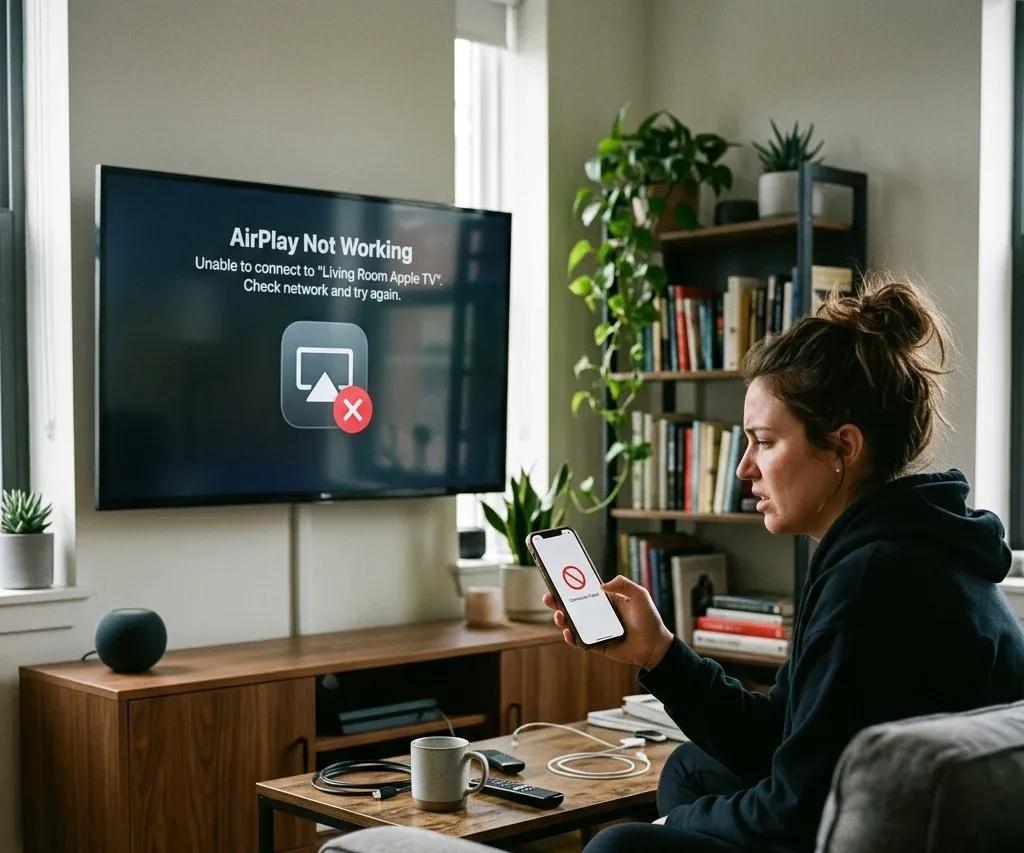
When AirPlay fails, the problem usually shows up in one of four ways: the TV does not appear, the connection starts but disconnects, audio works without video, or the AirPlay code never shows up. Those are different failure modes, but they usually trace back to the same areas: compatibility, settings, network, or device state.
The checks below help narrow down the issue, whether it comes from Roku, Samsung, LG, Vizio, or a TV that needs a non-AirPlay fallback.
Quick diagnosis: what kind of AirPlay problem is it?
Start by classifying the failure:
Why is AirPlay not working?
These are the most common causes:
Universal AirPlay fixes
1. Confirm compatibility first
First confirm that your TV or streaming device supports AirPlay. AirPlay-compatible TVs can receive iPhone, iPad, or Mac playback directly after AirPlay is enabled. If you are not sure whether your TV supports it, how to AirPlay to TV explains compatibility and setup. For Chromecast targets, AirPlay does not connect natively, so Chromecast-compatible casting or a third-party casting app is usually a better fallback. If your TV uses another wireless protocol, check the non-AirPlay options before troubleshooting AirPlay itself.
2. Re-enable AirPlay on the TV or receiver
If AirPlay disappeared after an update, rechecking the receiver settings should come before deeper network troubleshooting.
3. Put both devices on the same stable Wi-Fi network
After compatibility, Wi-Fi is the next place to check. Many AirPlay sessions fail because the phone uses a different SSID, a mobile hotspot, a guest network, or a weak router band.
4. Restart all devices
Restart:
This is simple, but it often fixes temporary discovery and playback failures.
5. Update software
AirPlay problems are frequently caused by mismatched software support between Apple devices and TV firmware. If a previously working setup broke after an update, or after a long period without updates, this step matters more than usual.
Common AirPlay symptoms and fixes
TV not showing up in the AirPlay list
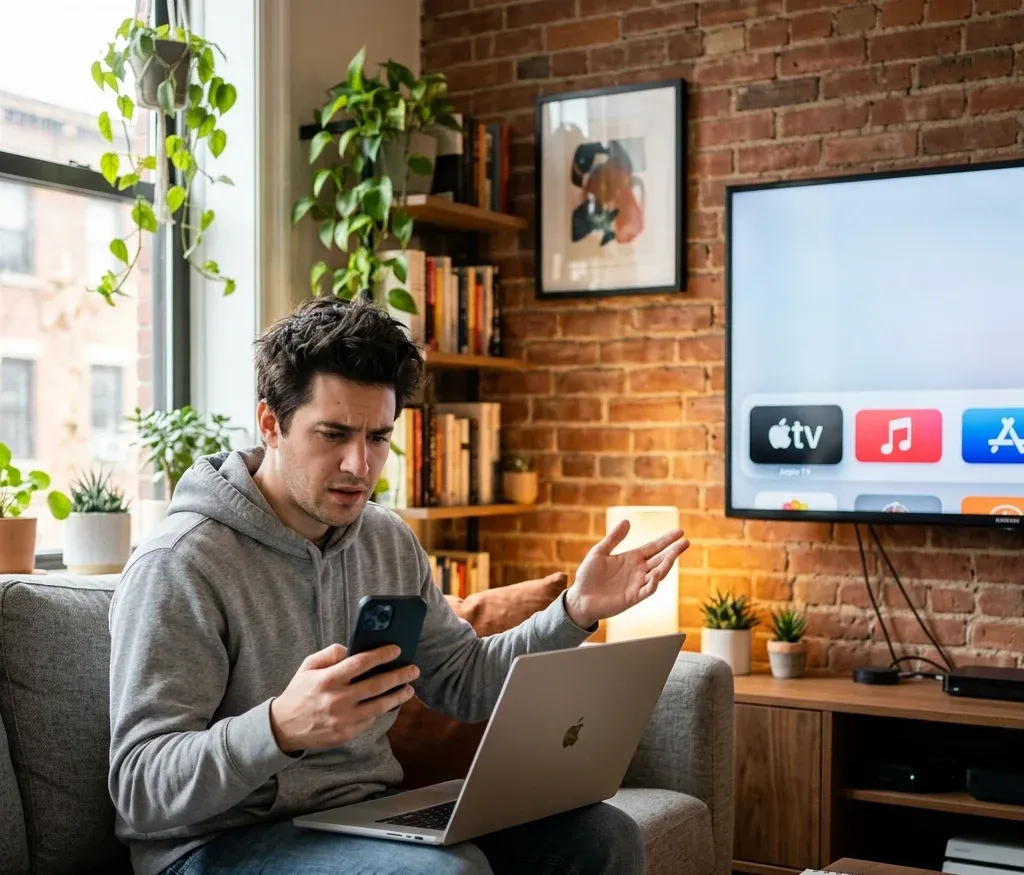
If your TV does not appear, check that AirPlay is enabled on the TV, both devices are on the same Wi-Fi network, and the TV is awake rather than in a low-power state. If the TV keeps asking for a code, the password or access setting may be set to require verification every time. Roku and Vizio have their own discovery quirks, so persistent receiver issues are better matched against the brand sections below.
Audio works but video does not
This is often app-specific. It can also happen when protected content is blocked or when the playback app handles AirPlay differently from screen mirroring. If the app cannot send video through AirPlay, try full screen mirroring instead.
AirPlay code or password issues
If the code prompt never appears or you keep getting authentication prompts, open the TV's AirPlay settings and review whether access is limited to the same network, a one-time code, or a persistent password. If the code is not showing on the TV screen, restart the TV and try again from Control Center. The AirPlay password article covers the password prompt in more detail.
Brand-specific AirPlay pages
Samsung TV
Samsung TVs may require AirPlay to be enabled in settings before an iPhone or Mac can find the TV. Check Settings > General > Apple AirPlay Settings on supported Samsung models, then return to Control Center on the iPhone and select the TV. If the Samsung TV still does not appear, AirPlay to Samsung TV covers model support, iPhone setup, Mac setup, and fallback options.
LG TV
On LG TVs, the key checks are enabling AirPlay, confirming model support, and keeping both devices on the same Wi-Fi network. If native AirPlay is not available, HDMI or a mirroring app may still work. AirPlay on LG TV walks through the LG menu path and the common "LG TV not showing up" cases.
Roku
On Roku, AirPlay issues commonly come from discoverability, Wi-Fi mismatch, or firmware problems. Make sure AirPlay is turned on under Roku settings, restart both devices, and update Roku OS if the AirPlay menu is missing. If that does not work, AirPlay not working on Roku covers network reset and factory reset options.
Vizio
On Vizio TVs, AirPlay may require re-enabling AirPlay, resetting paired devices, restarting the router, or updating SmartCast. If the TV shows up but refuses the connection, Vizio AirPlay not working gives the Vizio-specific reset order.
What if the TV does not support AirPlay?
If native AirPlay is unavailable, you can still connect your phone or stream content through another method.
For Chromecast, use a Chromecast-compatible casting method rather than native AirPlay; AirPlay to Chromecast explains the difference. For TV-brand alternatives, the setup depends on the receiver: connect iPhone to LG TV, connect iPhone to Vizio TV, connect phone to Hisense TV, or use the broader phone-to-TV wireless connection path.



Bottom line
AirPlay problems usually come down to compatibility, receiver settings, Wi-Fi, or software state. Confirm support first, put both devices on the same stable network, restart and update them, then check the matching TV brand above if your TV still does not appear.

 Mar 23, 2026