

Vizio TV problems usually group into five practical intents: remote control, no-remote access, Wi-Fi recovery, AirPlay or screen mirroring, and power or startup failures. This hub is designed to keep users from guessing. It helps them classify the symptom first, try the shortest safe fix, and then move into the one specific Vizio article that best matches the problem.
For Vizio, the most important distinction is whether the issue belongs to the remote, SmartCast and network access, the input path, or the TV power state. If you get that split right early, the next step becomes much clearer.
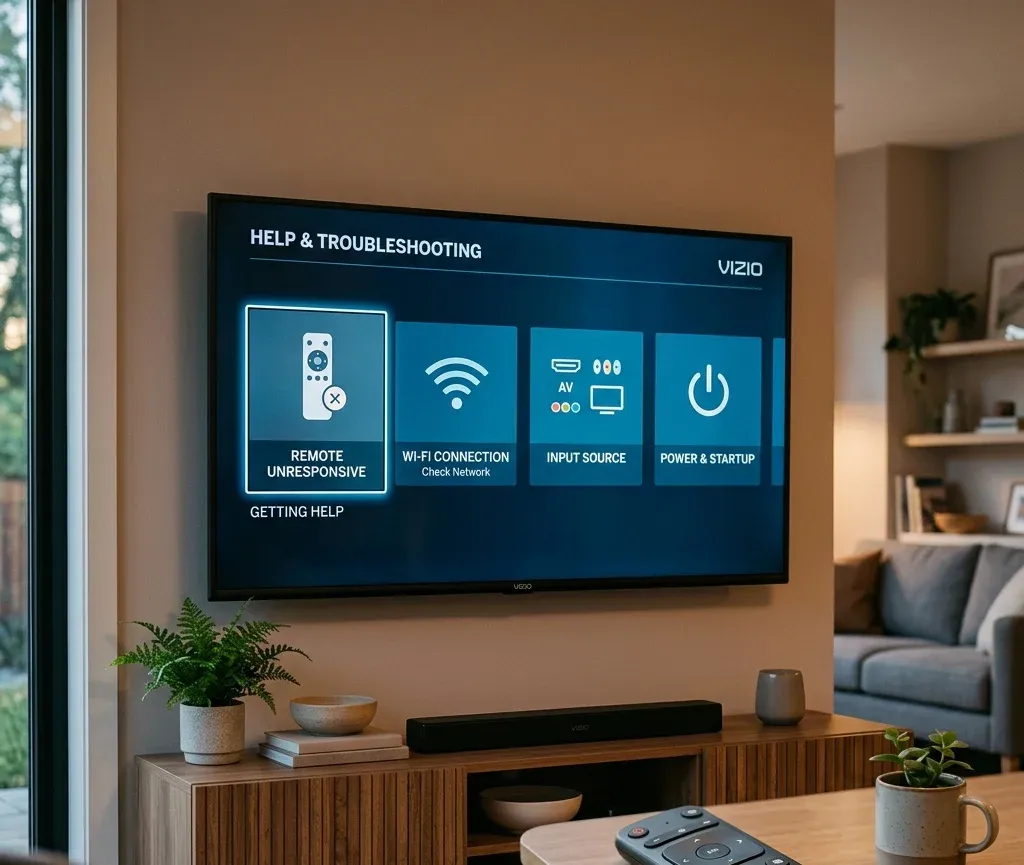
Quick answer: what kind of Vizio problem do you have?
Start here before opening menus at random:
| Situation | Best first move | Next page to open |
|---|---|---|
| Vizio remote does not work | Check batteries, IR path, and pairing need first | [Vizio remote not working](https://www.boostvision.tv/blog/vizio-remote-not-working) |
| Remote is lost and the TV is offline | Recover basic control before app-based control | [Control Vizio TV without remote or Wi-Fi](https://www.boostvision.tv/blog/control-vizio-tv-without-remote-or-wifi) |
| You need to reconnect Wi-Fi without the remote | Use physical controls or fallback input methods first | [Connect Vizio TV to Wi-Fi without remote](https://www.boostvision.tv/blog/connect-vizio-tv-to-wifi-without-remote) |
| iPhone or AirPlay is failing | Verify AirPlay is enabled and both devices share the same network | [Vizio AirPlay not working](https://www.boostvision.tv/blog/vizio-airplay-not-working) |
| The TV is on but the wrong source is selected | Fix the input path instead of the whole TV | [How to change input on Vizio TV without remote](https://www.boostvision.tv/blog/how-to-change-input-on-vizio-tv-without-remote) |
| Vizio TV will not turn on | Check power-light behavior before reset | [Vizio TV won't turn on power light fades off](https://www.boostvision.tv/blog/vizio-tv-wont-turn-on-power-light-fades-off) |
Most common Vizio TV help tasks
Most Vizio users arriving on a help hub are trying to do one of these things:
Start by separating the Vizio control path
Vizio support becomes easier when you know which path is blocked:
That is why a user who says my Vizio remote does not work may actually need Wi-Fi recovery, input switching, or a replacement remote path instead of a generic reset.
Remote, pairing, and control help
If the Vizio remote is not working
Use Vizio remote not working when:
This is the strongest general Vizio remote intent and should stay near the top of the hub.
If only the volume or TV-control buttons fail
When navigation works but audio control does not, the better route is Vizio remote volume not working. That intent is narrower and more useful than telling the user to re-read a general remote page.
If you need to pair a Vizio remote to the TV
Use How to pair Vizio remote to TV when:
If the original remote is missing completely, Lost Vizio remote is the more natural path.
If the menu button or physical remote layout is the problem
Sometimes users do not need a full repair flow. They just cannot find a needed button or command. In that case, menu button on Vizio remote is the better destination.


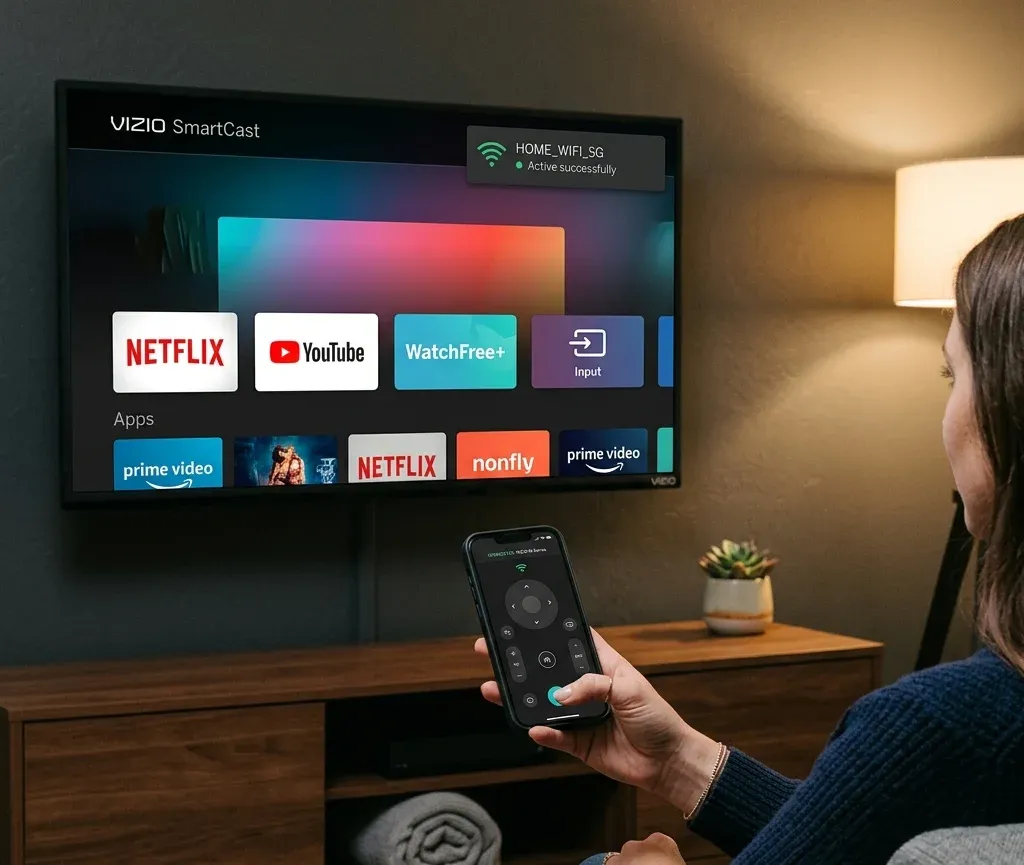
No-remote access and fallback control
Vizio has a strong no-remote problem cluster, especially when users also lose Wi-Fi or the wrong input blocks setup.
If you need to turn on the Vizio TV without the remote
Use Turn on Vizio TV without remote when:
If you are not sure where the button is, go to Vizio TV power button location.
If you need broader control with no remote and no Wi-Fi
Use Control Vizio TV without remote or Wi-Fi when:
This is a strong hub link because it addresses a real blocker state rather than a single narrow symptom.
If the real problem is changing input
If the TV is on but stuck on the wrong source, route directly to how to change input on Vizio TV without remote.
That page fits better when:
Wi-Fi and SmartCast access
For Vizio, Wi-Fi recovery often matters because SmartCast, AirPlay, and phone control all depend on the TV being reachable on the network.
If you need to connect Vizio TV to Wi-Fi without the remote
Use Connect Vizio TV to Wi-Fi without remote when:
If you need to identify the TV on the network
When the user is already troubleshooting router-level access, where to find Vizio TV IP address without remote is the more exact destination.
If the TV still refuses to connect
Use Vizio TV won't connect to Wi-Fi when:
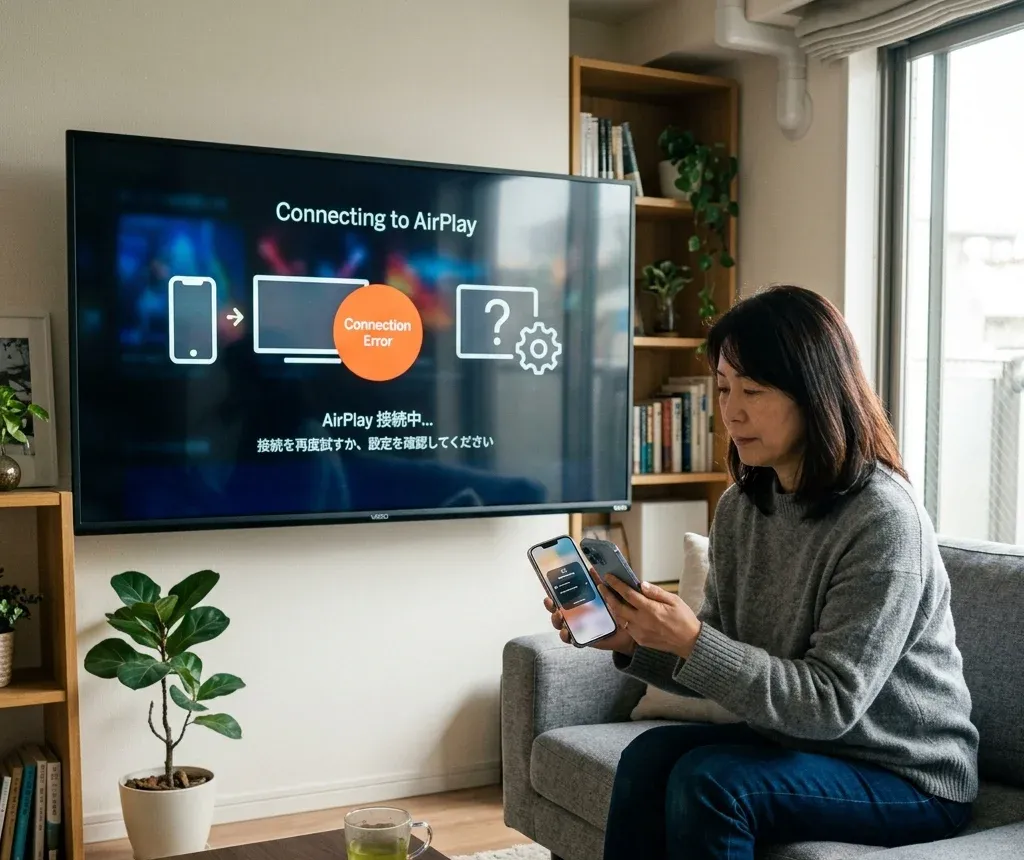
AirPlay, iPhone, and screen mirroring on Vizio
Vizio hubs should also capture the SmartCast and iPhone connection intent because many users arrive looking for streaming or casting help, not just repair help.
If you need to enable AirPlay on Vizio TV
Use How to turn on AirPlay on Vizio TV when the user needs the setup path itself:
If AirPlay is enabled but not working
Use Vizio AirPlay not working when:
If the user really wants a broader phone-to-TV path
Not every iPhone-to-Vizio problem is best served by an AirPlay troubleshooting page. These links are more natural when the intent changes:
That keeps the hub useful by separating setup, mirroring, and troubleshooting instead of collapsing everything into one vague AirPlay section.
Restart, reset, and power problems
Some Vizio users are not dealing with remotes or network issues at all. They need device recovery.
If the TV needs a restart or reset path
Use:
These belong later in the hub because reset should not be the first answer for a simple remote or AirPlay issue.
If the Vizio TV will not turn on
Use Vizio TV won't turn on power light fades off when:
This is a separate intent from input or remote failure and should stay clearly separated in the hub.
Useful Vizio pages by task
Open these pages based on the exact task:
Recommended Vizio troubleshooting order
Use this order to reduce unnecessary resets:
1. Decide whether the issue is remote, Wi-Fi, SmartCast or AirPlay, input, or power.
2. Recover basic control before relying on app-based control.
3. Restore Wi-Fi before expecting phone remote or AirPlay to work.
4. Fix the input path before assuming the TV is broken.
5. Use restart or reset only when the narrower symptom flow fails.
Bottom line
The best Vizio hub is not a generic troubleshooting page. Most users need one of a few direct routes: fix the remote, use the TV without a remote, reconnect Wi-Fi, enable or repair AirPlay, switch input, or recover a TV that will not start. This hub should capture those real intents early and distribute users into the strongest Vizio cluster pages naturally.
Vizio TV Help Hub FAQ
Q: What is the fastest way to use a Vizio TV when the remote is lost?
Start with the physical button or turn on Vizio TV without remote. If the TV is also offline, move directly to control Vizio TV without remote or Wi-Fi.
Q: Why is my Vizio app or AirPlay not finding the TV?
Usually because the TV is offline, on a different network, or the feature is not enabled yet. Fix Wi-Fi first, then use the Vizio-specific AirPlay page.
Q: Should I reset Vizio TV for a simple remote issue?
Not first. Try batteries, pairing, physical controls, and the exact remote symptom page before a full reset.

 Sep 20, 2024