

Losing the TV remote does not always mean you have to stop watching TV. In most cases, you can still control the TV with the buttons on the TV, a phone remote app, a USB keyboard or mouse, an Ethernet connection, a hotspot workaround, an IR blaster phone, a game console, or a replacement universal remote.
This complete guide explains how to control a TV without a remote based on your situation: whether the TV is off, disconnected from Wi-Fi, stuck on the wrong input, asking for permission, or tied to a specific brand such as Samsung, Roku, LG, Sony, Fire TV, Onn, Hisense, or Vizio.
Quick Answer: Best Ways to Control a TV Without a Remote
Use this decision guide before trying every method one by one:
| Situation | Best first method | Backup method |
|---|---|---|
| TV is off | Press the physical power button | Use a phone remote app if Wake-on-LAN is supported |
| TV is on the same Wi-Fi as your phone | Use a TV remote app | Use the official brand app |
| TV is not connected to Wi-Fi | Use TV buttons, Ethernet, keyboard, mouse, or IR control | Recreate the old Wi-Fi network name and password |
| TV is asking for permission | Use TV buttons or a keyboard to press Allow | Pair a Samsung remote app after permission is accepted |
| You need to change HDMI/input | Use TV input button or joystick | Use an app, mouse, or game console |
| Remote is permanently lost | Set up a universal TV remote app | Buy a physical universal remote |
If the TV is completely off, your first goal is simply to turn on the TV without a remote. If the TV is on but disconnected, solve the network layer first by connecting the TV to Wi-Fi without a remote.
Method 1: Use the Physical Buttons on the TV
Almost every TV has at least one physical control button. It may be a single power button, a joystick-style button, or a small cluster of buttons for power, volume, channel, menu, and input.
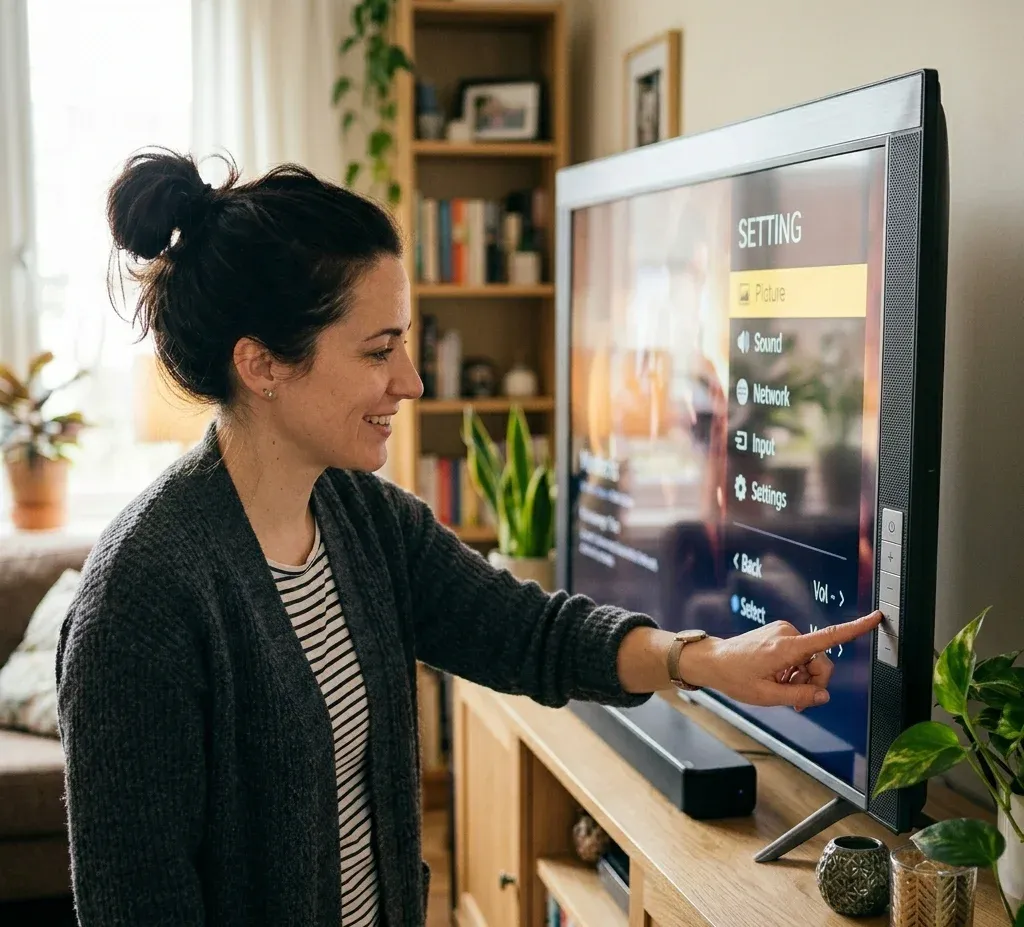
Common button locations include:
Use the physical button first when the TV is off, frozen, disconnected from Wi-Fi, or not yet paired with a phone app. A short press usually turns the TV on. A long press may open a small control menu or power the TV off. On some TVs, repeated presses cycle through menu options, while a long press confirms the selected option.
The power button location and fallback controls vary by brand:
Method 2: Control the TV With Your Phone
The most practical replacement for a lost remote is a phone remote app. A remote app turns your iPhone, Android phone, or tablet into a virtual TV remote with buttons for power, volume, navigation, playback, app shortcuts, and text input.
For most smart TVs, phone control requires:
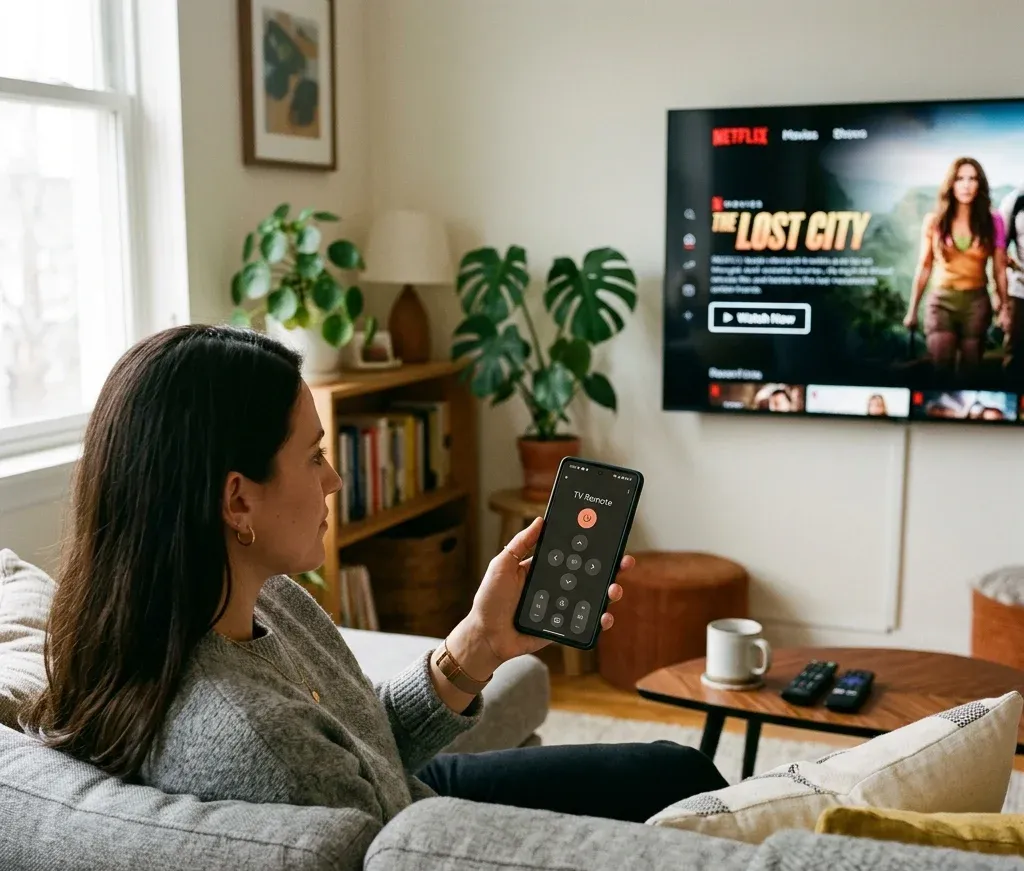
General setup:
1. Connect your phone to the same Wi-Fi network as the TV.
2. Install a compatible remote app, such as the Universal TV Remote app.
3. Open the app and scan for nearby TVs or streaming devices.
4. Select your TV from the device list.
5. Accept the pairing request on the TV if prompted.
6. Use the virtual remote to control power, volume, channels, inputs, apps, and navigation.
Once the TV is awake and on the same network, you can usually control the TV with your phone without the original remote.
Official Apps vs Universal Remote Apps
Official TV apps can work well when you only need to control one brand. For example, SmartThings is common for Samsung TVs, LG ThinQ is common for LG TVs, and Google TV can control many Android TV or Google TV devices.
A universal remote app is more useful when you have multiple TVs or streaming devices across brands. It is also easier as a backup remote because you do not need to remember a different app for each TV. BoostVision's Universal TV Remote app is built for popular devices including Roku, Fire TV, Samsung, LG, Sony, Vizio, TCL, Hisense, and other smart TV platforms.


Method 3: Use a Remote App Without Wi-Fi When Possible
A Wi-Fi remote app usually needs the same network as the TV. However, there are a few no-Wi-Fi cases where phone control may still work:
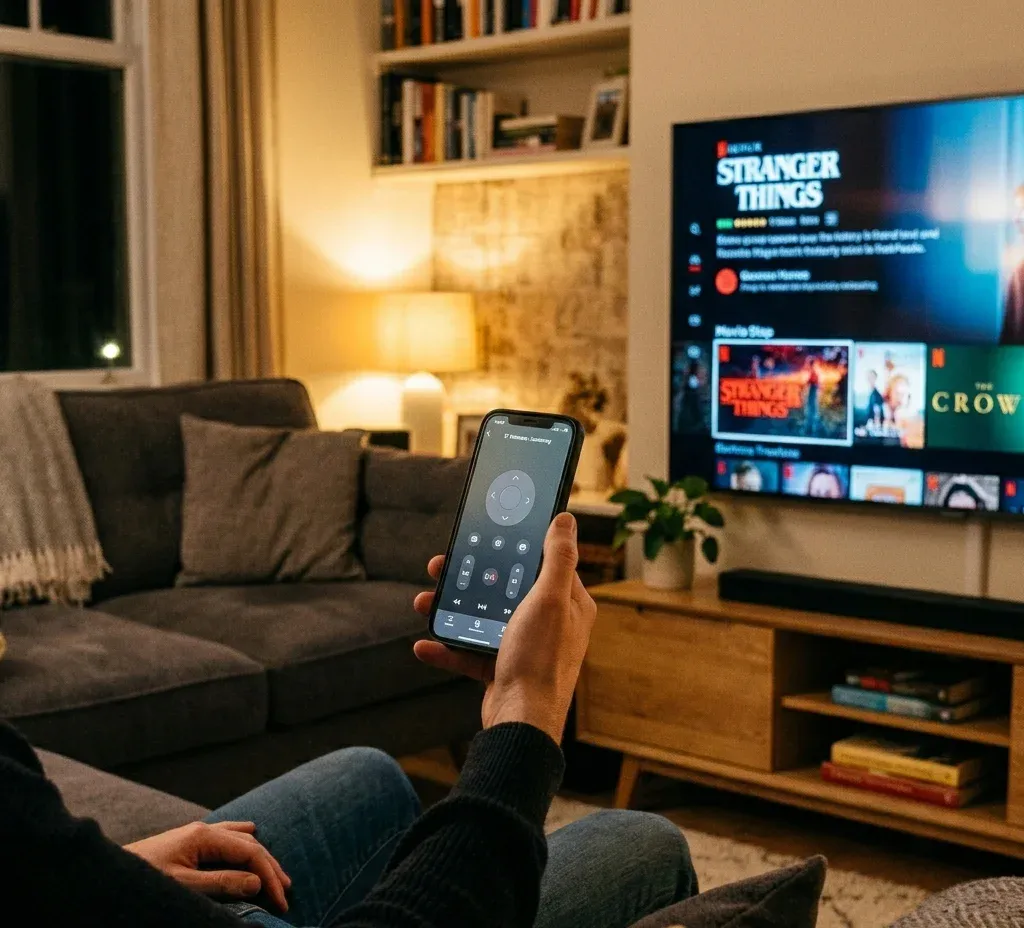
IR control is the most direct no-Wi-Fi method, but it only works on phones with infrared hardware. iPhones do not include an IR blaster. Many newer Android phones also do not include one, so check your phone specifications before relying on this method.
Offline control depends heavily on IR hardware, Bluetooth pairing, or a temporary network workaround, so a universal remote app without Wi-Fi only works in specific setups.
Method 4: Connect the TV to Wi-Fi Without the Remote
If your TV is not on Wi-Fi, a phone remote app may not find it. The priority is to get the TV back online.
Try these options:
1. Use TV buttons to open Network settings. This is possible on some TVs with a joystick or menu button, but it can be slow.
2. Plug in a USB keyboard or mouse. Many smart TVs accept basic USB input. Use the arrow keys, Enter key, or mouse cursor to navigate settings.
3. Use Ethernet. If the TV has a LAN port, connect it directly to the router. Once wired, your phone app may detect the TV on the same network.
4. Recreate the previous Wi-Fi. If the TV remembers an old Wi-Fi network, set your router or phone hotspot to the same SSID and password.
5. Use a brand-specific workaround. Roku, LG, Hisense, Onn, and other TVs may have different network behavior.
If app discovery fails, treat it as a network recovery problem and connect the TV to Wi-Fi without the remote before pairing the phone again. Brand-specific no-remote and no-Wi-Fi cases need slightly different workarounds:
Method 5: Use a USB Keyboard or Mouse
A USB keyboard or mouse is a useful emergency tool when the TV is on but you cannot navigate the menu. Plug the device into the TV's USB port and wait a few seconds. If supported, you can use it to:
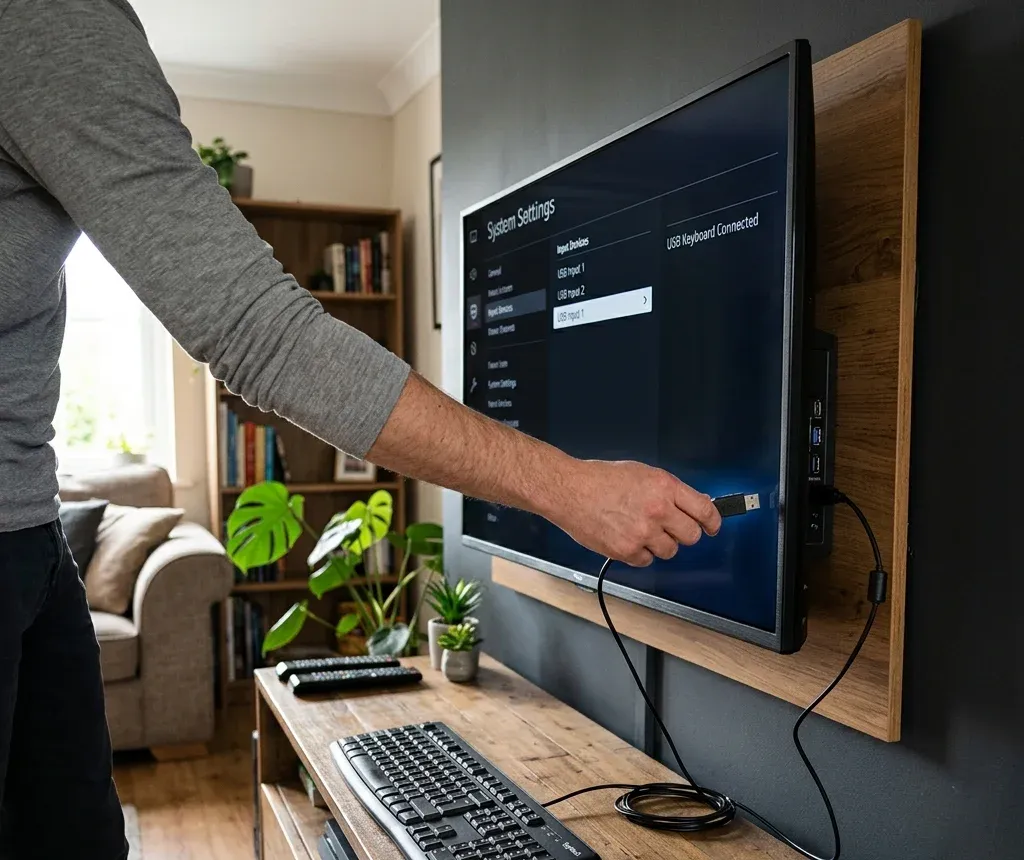
This method is especially useful when the TV needs one-time setup before a remote app can connect. For example, a Samsung TV may display a permission request, and you need a way to press Allow on Samsung TV without a remote before the phone app can take over.
Method 6: Change Input Without a Remote
If the TV is working but stuck on the wrong HDMI port, you need input control rather than full remote control. Start with the TV's input/source button if it has one. If the TV uses a single joystick button, open the control menu and look for Input, Source, HDMI, or Home.
Other ways to switch input:
LG TVs often have several workable input paths, including the TV button, LG ThinQ, a third-party LG remote app, a computer mouse, or a game console. If HDMI is the blocker, focus on how to change input on LG TV without a remote rather than troubleshooting the whole TV.
Method 7: Use HDMI-CEC Through a Streaming Device or Game Console
HDMI-CEC lets connected devices send basic control signals through HDMI. Depending on your TV and device settings, turning on a PlayStation, Nintendo Switch, Xbox, Fire TV, Roku, or other HDMI device may also wake the TV or switch the TV to the correct input.
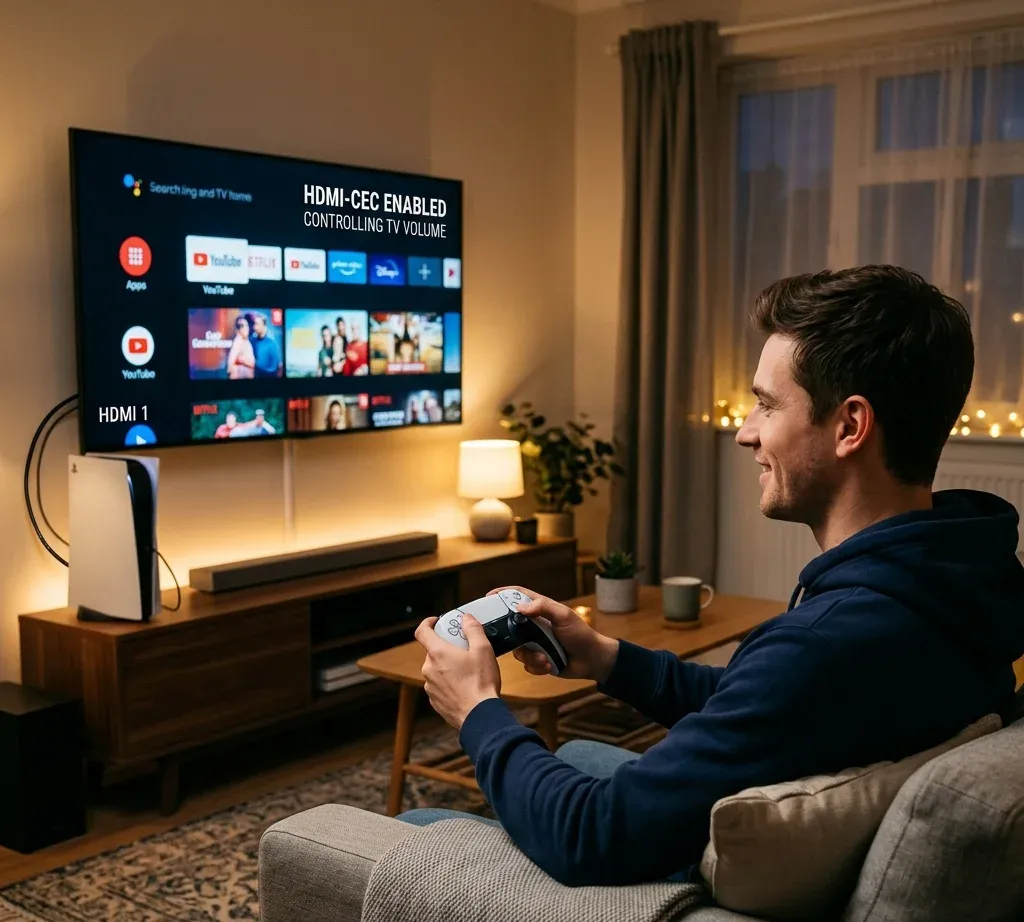
This method is useful when:
It is not guaranteed because HDMI-CEC names and settings vary by brand. Samsung may call it Anynet+, LG may call it SIMPLINK, Sony may call it BRAVIA Sync, and other brands use different labels.
Method 8: Use a Physical Universal Remote
If you cannot use Wi-Fi, IR, Ethernet, USB input, or HDMI-CEC, a physical universal remote is still a reliable fallback. It is especially useful for non-smart TVs, older TVs, hotel TVs, and TVs that do not allow app pairing without a working remote.
Choose this route when:
After you regain control, it is still worth setting up a phone remote app as a backup so the same problem does not happen again.
Brand-Specific Shortcuts
Samsung TV Without Remote
Use the physical TV Control button first. Samsung TVs may place it under the front logo, on the back panel, or along the lower edge. Once the TV is on, SmartThings or a Samsung-compatible remote app can help, but pairing may still require you to press Allow on Samsung TV without a remote. If the screen is still off, handle the power problem first and turn on the Samsung TV without a remote.
Roku TV Without Remote
If the Roku TV is already on the same Wi-Fi as your phone, use a Roku-compatible app or the Roku TV Remote app. If the TV is off and the power button is unavailable, app control, a universal remote, or HDMI-CEC may still help you turn on a Roku TV without a remote or power button.
LG TV Without Remote
LG TVs usually support a physical power button or joystick. After the TV is on, you can use LG ThinQ or the LG TV Remote app. If there is no Wi-Fi, check Ethernet, hotspot, IR, keyboard, mouse, or universal remote options to use LG TV without a remote and no Wi-Fi.
Sony TV Without Remote
Start with the power button on the Sony TV, then use Google TV, a universal remote app, or HDMI-CEC with a console if available. These are the most reliable ways to turn on a Sony TV without a remote before switching to app-based control.
Fire TV Without Remote
For Fire TV Edition televisions, use the TV power button first. For Fire TV Stick setups, you may be able to use the Fire TV app if the device is on the same network. Power and sleep behavior is different from a standard TV remote, so handle the device-specific flow for how to turn Fire TV on or off without a remote.
Hisense or Onn TV Without Remote or Wi-Fi
Hisense and Onn TVs often require a mix of physical buttons, USB input, Ethernet, hotspot setup, IR control, or a Roku-compatible app depending on the operating system:
Vizio TV Without Remote
If you need to pair an app or troubleshoot network discovery, the TV's IP address may help. TV buttons, a remote app, the router admin interface, another device's network list, or a network scanner can help you find the Vizio TV IP address without a remote.
Best Long-Term Setup: Create Two Backup Control Methods
Once you regain control, do not stop at a single fix. Set up at least two backup methods:
1. Keep a phone remote app installed and paired.
2. Confirm the TV and phone are on the same Wi-Fi network.
3. Enable network standby or mobile device control if your TV supports it.
4. Keep the TV's physical button location documented.
5. Save the Wi-Fi name and password used by the TV.
6. Keep a USB keyboard or low-cost universal remote available for emergency setup.
The best practical setup for most homes is a physical button for emergency power, a phone remote app for daily control, and a USB keyboard or universal remote for recovery when Wi-Fi changes.
Common Problems and Fixes
The TV Does Not Appear in the Remote App
Check that the TV and phone are on the same Wi-Fi network. Disable VPN on the phone, allow local network permission, restart the TV and router, and make sure the TV is powered on. If the TV is disconnected from Wi-Fi, use Ethernet, TV buttons, or a USB input device to connect the TV to Wi-Fi without a remote.
The TV Is Off and the App Cannot Wake It
Some TVs support Wake-on-LAN or network standby, but many do not. If the TV does not wake from the app, use the physical power button first. After the TV is on, check whether mobile power-on or network standby can be enabled in settings.
The TV Shows an Allow Prompt
Use the TV buttons, a USB keyboard, or a mouse to select Allow. This is common when pairing a phone app for the first time, especially when you need to press Allow on Samsung TV without a remote.
The TV Has No Wi-Fi
Use Ethernet if available. If not, try a USB keyboard or mouse to enter Wi-Fi settings. If the TV remembers an old network, recreate that SSID and password with a router or hotspot. When there is no network path at all, a universal remote app without Wi-Fi only helps if your phone and TV support an offline control method.
The TV Is on the Wrong HDMI Input
Use the TV's input button, joystick menu, phone app, USB mouse, or HDMI-CEC. On LG TVs, those same options are usually enough to change input without a remote.
Conclusion
The fastest way to control a TV without a remote depends on the TV's current state. If the TV is off, use the physical power button first. If the TV is on the same Wi-Fi as your phone, a remote app is usually the easiest replacement. If the TV is offline, use Ethernet, USB keyboard or mouse input, hotspot network recreation, IR control, HDMI-CEC, or a physical universal remote.
For daily use, set up the Universal TV Remote app or the app that matches your TV brand. For recovery, keep at least one non-Wi-Fi method available, such as the TV's physical buttons, a USB keyboard, or a physical universal remote.
Control TV Without Remote FAQ
Can I control my TV without a remote?
Yes. You can control most TVs with physical buttons, a phone remote app, a USB keyboard or mouse, HDMI-CEC, an IR blaster phone, a physical universal remote, or brand-specific apps.
Can I use my phone as a TV remote?
Yes, if your TV and phone are on the same Wi-Fi network and the TV supports app control. The setup requirements are straightforward once you know how to control TV with phone without remote.
Can I control a TV without Wi-Fi?
Sometimes. You can use TV buttons, a USB keyboard or mouse, an IR blaster phone, Ethernet, HDMI-CEC, or a physical universal remote. A Wi-Fi remote app generally needs the TV and phone on the same network unless the phone supports IR or the TV has already been paired through another method.
How do I turn on a TV without a remote?
Press the physical power button on the TV. If the TV supports network standby, a paired phone remote app may also turn on the TV without a remote.
How do I connect my TV to Wi-Fi without a remote?
Use the TV buttons, plug in a USB keyboard or mouse, connect Ethernet, or recreate the old Wi-Fi network name and password so you can connect the TV to Wi-Fi without the remote.
What is the best backup for a lost TV remote?
For smart TVs, the best backup is a paired phone remote app plus one non-network fallback such as TV buttons, a USB keyboard, or a physical universal remote.