

Fire TV and Firestick issues usually center on remote control, Wi-Fi access, setup recovery, and device performance. This hub is meant to help users solve those problems in the right order: identify the failing layer, try the shortest safe fix, and then move into the deeper page only when the issue needs a full walkthrough.
For Fire TV, the most important distinction is whether the problem belongs to the remote, the network, the TV control layer, or the streaming device itself. If you separate those first, most recovery steps become much more predictable.
Quick answer: find the Fire TV problem first
| Situation | Best first move | Next page to open |
|---|---|---|
| Firestick remote does not respond | Re-pair or reprogram the remote | [How to reprogram Firestick remote](https://www.boostvision.tv/blog/how-to-reprogram-firestick-remote) |
| The remote is lost | Switch to phone or backup input control | [Lost Firestick remote](https://www.boostvision.tv/blog/lost-firestick-remote) |
| Fire TV is offline and you have no remote | Restore access to the network first | [Connect Fire TV to Wi-Fi without remote](https://www.boostvision.tv/blog/connect-fire-tv-to-wifi-without-remote) |
| Phone should control Firestick | Use app-based control on the same network | [How to control Firestick with phone](https://www.boostvision.tv/blog/control-firestick-with-phone) |
| Firestick is slow or out of space | Clear cache and reduce storage pressure | [Fire TV storage full](https://www.boostvision.tv/blog/fire-tv-storage-full) |
| Fire TV does not load the home screen | Check network, power, HDMI, and reboot paths | [Fire Stick won't load home screen](https://www.boostvision.tv/blog/fire-stick-wont-load-home-screen) |
Most common Fire TV help tasks
Most Fire TV users are trying to do one of these tasks:
Understand the Fire TV setup first
Before troubleshooting, identify which device stack you have:
That matters because a volume-control failure, a no-signal error, and a lost-remote situation may belong to different layers of the setup.
If you separate those layers early, you avoid two common mistakes: resetting the streaming device when the TV input is wrong, or troubleshooting the remote app when the Fire TV is simply offline.
Remote, pairing, and TV-control help
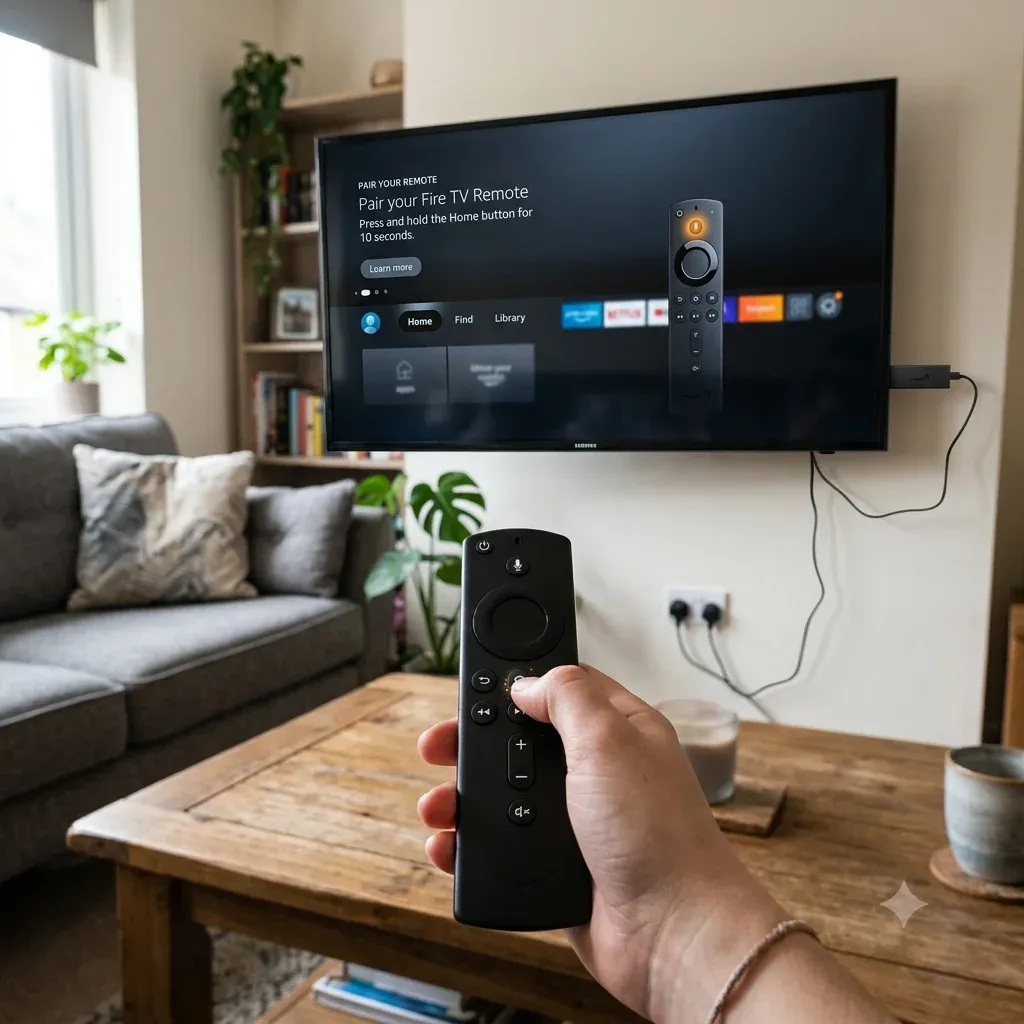
If the Firestick remote needs to be paired again
This is one of the clearest Fire TV support intents and should be a primary cluster destination.
Use How to reprogram Firestick remote when:
If the symptom is broader than pairing, route to Firestick remote not working, how to reset Firestick remote, or Firestick slow to respond to remote based on the exact behavior.
If the volume buttons do not work
Volume failure is often not a basic battery problem. It may be caused by equipment control, CEC, TV-brand configuration, or audio settings.
Use Firestick remote volume not working when:
If the remote is missing
Missing-remote searches are highly actionable and fit the hub well.
Use Lost Firestick remote when:
If you need a phone-based fallback
The fastest non-hardware recovery is usually app control. Use:
These are best when the Fire TV device is already on the same Wi-Fi network as the phone.
If the intent is specifically Fire TV remote app not working, treat it as its own path before you assume the physical remote is the problem.


Wi-Fi and no-remote recovery
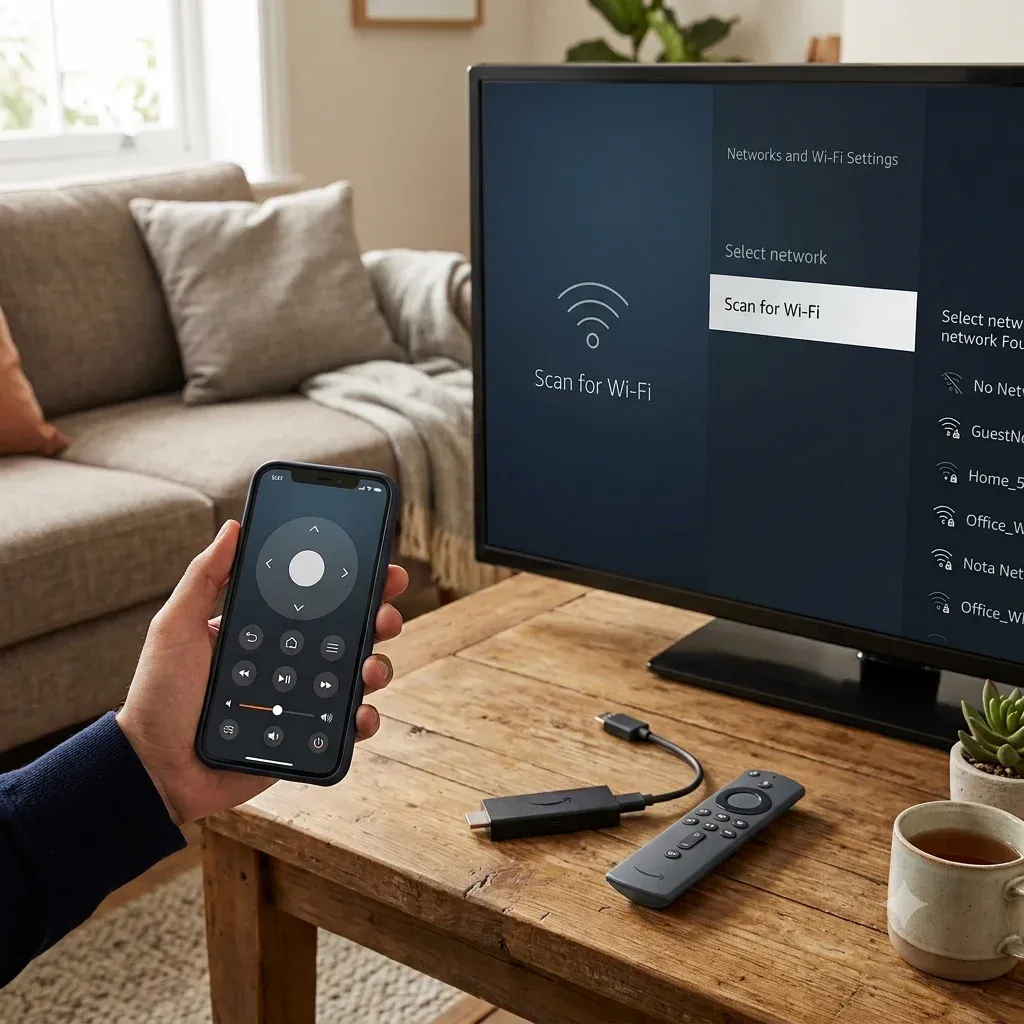
Fire TV app control depends heavily on the network. If Wi-Fi is broken, many “remote app” problems are actually network problems first.
If you need to connect Fire TV to Wi-Fi without the remote
This is one of the strongest support intents in the Fire TV cluster and deserves its own prominent route.
Use Connect Fire TV to Wi-Fi without remote when:
If Firestick still will not connect to Wi-Fi
Use Firestick not connecting to WiFi when:
Performance, storage, and home screen recovery
Fire TV support demand is not limited to remote control. Performance issues are also commercially useful because users with unstable devices often need recovery steps and app alternatives.
If the Fire TV says storage is full
Use Fire TV storage full when:
For narrower cache-specific intent, also route to How to clear cache on Fire TV.
In practice, How to clear cache on Fire TV is often the better page when the device is slow but not yet critically full.
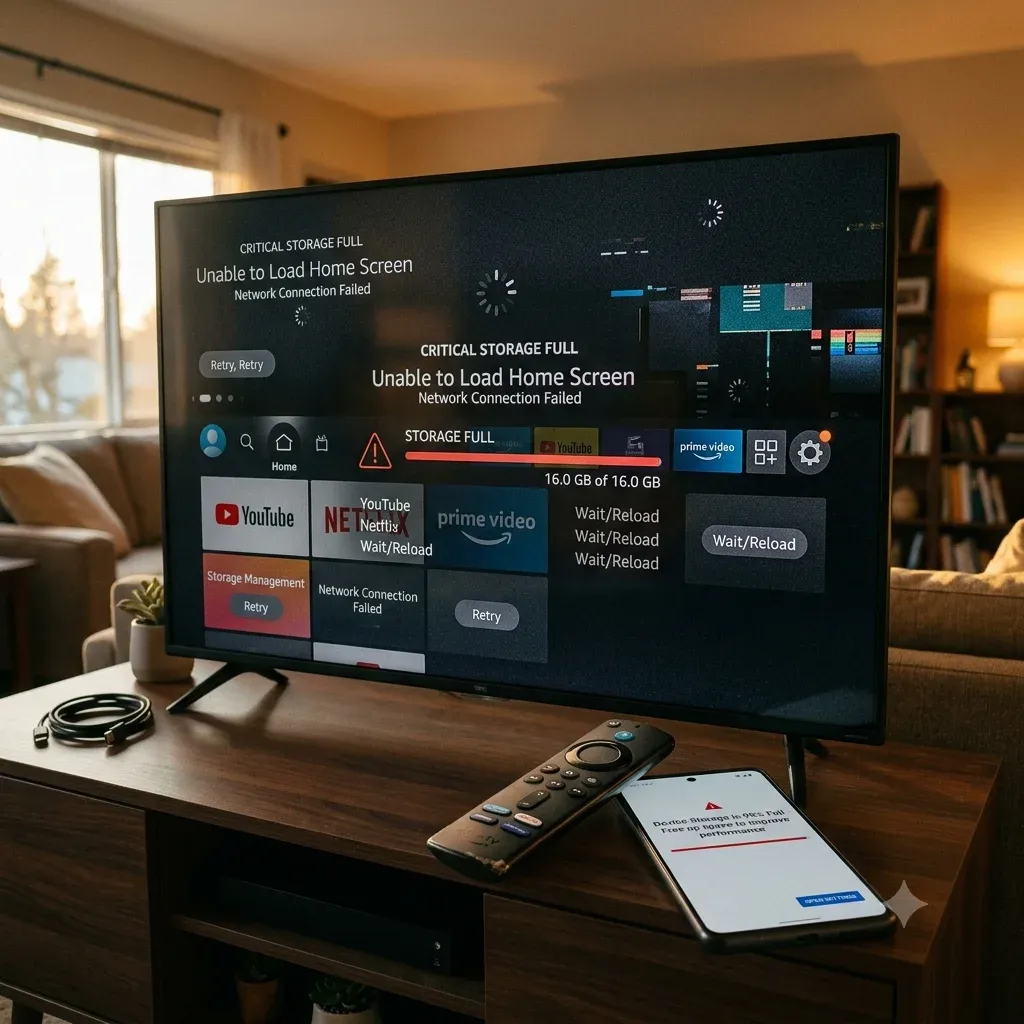
If the Firestick will not load the home screen
Use Fire Stick won't load home screen when:
That page should remain standalone because the symptom is more specific than a general hub paragraph can solve.
If the device is completely black, has no HDMI output, or the TV reports no connection, check Amazon Fire Stick no signal, Firestick not showing up on HDMI, or Firestick won't turn on before you treat it as a normal home-screen problem.
Setup, casting, and daily-use help
Fire TV users also search for connection and playback tasks, not just recovery.
If you want to control Firestick with your phone
This is often the best path after a lost or dead remote, and it also creates a direct product bridge.
Use How to control Firestick with phone when:
If you need casting help
Use:
These pages should remain cluster content because they target distinct viewing intents rather than recovery intent.
Useful Fire TV pages by task
Open these pages based on the exact task:
Recommended Fire TV troubleshooting order
Use this order to reduce unnecessary resets:
1. Identify whether the issue is remote, TV-control mapping, Wi-Fi, storage, or home screen boot.
2. Fix pairing and power before factory reset.
3. Fix Wi-Fi before relying on app control.
4. Use targeted cache or storage cleanup before wiping the device.
5. Use reset only when the narrower recovery paths fail.
What this hub should not absorb
Some Firestick topics bring impressions but are weaker fits for a brand-support hub because they depend on third-party app install intent rather than core device recovery.
Pages such as app sideloading or unofficial streaming install guides can stay as separate cluster content if they still show demand, but they should not dominate the hub's main information architecture.
Bottom line
The strongest Fire TV help strategy is not to treat every issue as a generic Firestick problem. Users usually need one of a few concrete paths: re-pair the remote, get back on Wi-Fi, use the phone as a remote, free storage, or recover the home screen. This hub should own that entry intent and pass users into the right cluster page quickly.
Fire TV Help Hub FAQ
Q: What is the fastest way to recover a Firestick without the remote?
If the device is still on the same Wi-Fi, use a phone remote app first. If not, restore network access using the methods in Connect Fire TV to Wi-Fi without remote.
Q: Why does my Firestick remote pair but not control volume?
That usually points to equipment control, HDMI-CEC, TV-brand mapping, or audio settings rather than a simple pairing failure. Use Firestick remote volume not working.
Q: Should I factory reset Fire TV when it gets slow?
Not first. Clear cache, restart the device, and reduce storage pressure before using a full reset.