

Los problemas de Fire TV y Firestick suelen centrarse en el mando a distancia, el acceso Wi-Fi, la recuperación de la configuración y el rendimiento del dispositivo. Este centro ayuda a resolverlos en el orden correcto: identificar la capa que falla, probar la solución segura más corta y abrir una guía más profunda solo cuando el problema requiere un procedimiento completo.
En Fire TV, la distinción más importante es saber si el problema pertenece al mando, la red, la capa de control del televisor o el propio dispositivo de streaming. Al separarlas primero, la mayoría de los pasos de recuperación resultan mucho más previsibles.
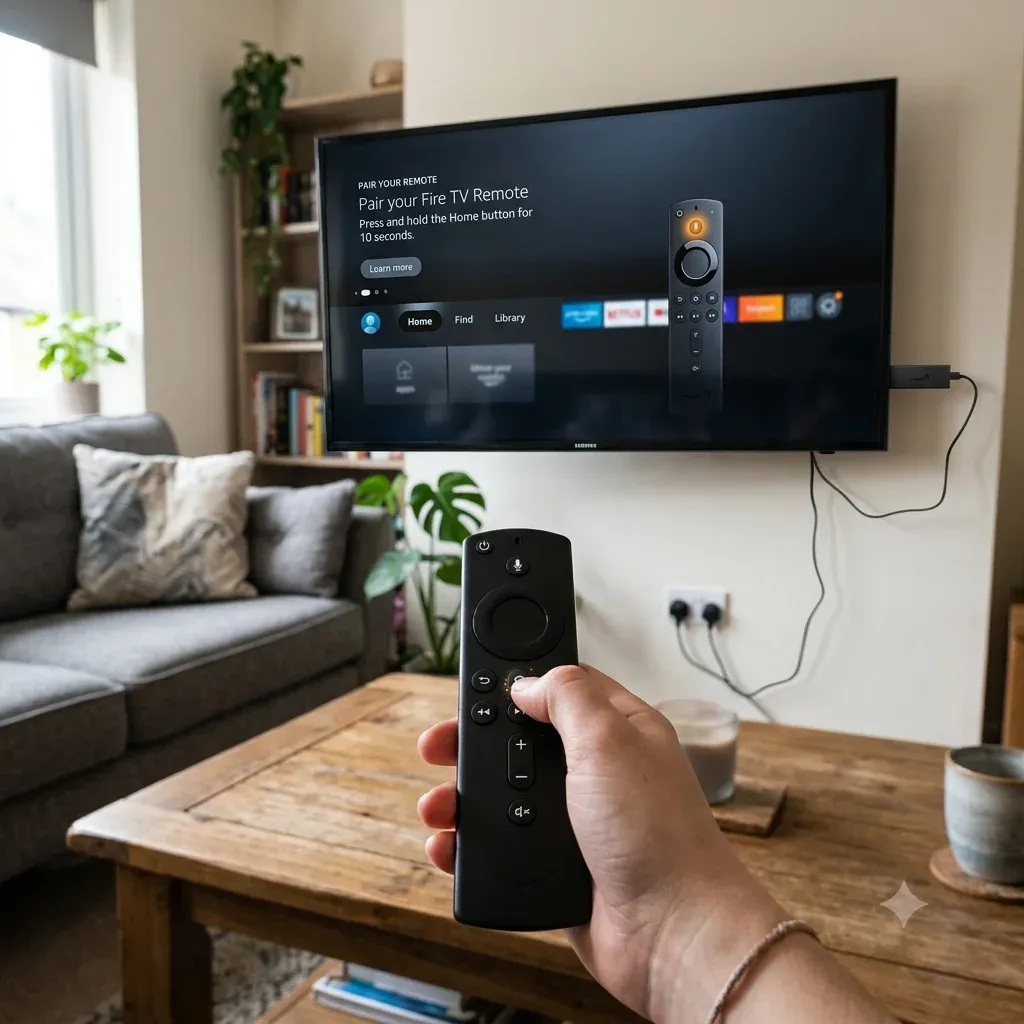
Respuesta rápida: identifica primero el problema de Fire TV
| Situación | Mejor primer paso | Siguiente página que debes abrir |
|---|---|---|
| El mando de Firestick no responde | Vuelve a emparejar o programar el mando | [Cómo reprogramar el mando de Firestick](https://www.boostvision.tv/blog/how-to-reprogram-firestick-remote) |
| Has perdido el mando | Usa el teléfono o un control de entrada alternativo | [Mando de Firestick perdido](https://www.boostvision.tv/blog/lost-firestick-remote) |
| Fire TV está sin conexión y no tienes mando | Recupera primero el acceso a la red | [Conectar Fire TV a Wi-Fi sin mando](https://www.boostvision.tv/blog/connect-fire-tv-to-wifi-without-remote) |
| El teléfono debe controlar Firestick | Usa el control por app en la misma red | [Cómo controlar Firestick con el teléfono](https://www.boostvision.tv/blog/control-firestick-with-phone) |
| Firestick va lento o no tiene espacio | Borra la caché y reduce el uso del almacenamiento | [Almacenamiento de Fire TV lleno](https://www.boostvision.tv/blog/fire-tv-storage-full) |
| Fire TV no carga la pantalla de inicio | Comprueba red, alimentación, HDMI y reinicio | [Fire Stick no carga la pantalla de inicio](https://www.boostvision.tv/blog/fire-stick-wont-load-home-screen) |
Tareas de ayuda de Fire TV más frecuentes
La mayoría de los usuarios de Fire TV intenta resolver una de estas tareas:
Comprende primero la configuración de Fire TV
Antes de solucionar el problema, identifica qué conjunto de dispositivos tienes:
Esto importa porque un fallo del volumen, un error de falta de señal y la pérdida del mando pueden pertenecer a capas distintas de la instalación.
Si separas esas capas desde el principio, evitarás dos errores habituales: restablecer el dispositivo de streaming cuando la entrada del televisor es incorrecta o revisar la app de mando cuando Fire TV simplemente está sin conexión.
Ayuda con el mando, el emparejamiento y el control del televisor
Si necesitas volver a emparejar el mando de Firestick
Esta es una de las intenciones de ayuda más claras de Fire TV y debe ser un destino principal del clúster.
Usa Cómo reprogramar el mando de Firestick cuando:
Si el síntoma es más amplio que el emparejamiento, consulta El mando de Firestick no funciona, cómo restablecer el mando de Firestick o Firestick tarda en responder al mando, según el comportamiento exacto.
Si los botones de volumen no funcionan
Un fallo del volumen no suele ser un simple problema de pilas. Puede deberse al control de equipos, CEC, la configuración de la marca del televisor o los ajustes de audio.
Usa El volumen del mando de Firestick no funciona cuando:
Si no encuentras el mando
Las búsquedas sobre mandos perdidos permiten tomar medidas inmediatas y encajan bien en este centro.
Usa Mando de Firestick perdido cuando:
Si necesitas una alternativa desde el teléfono
La recuperación más rápida sin hardware suele ser el control por app. Usa:
Estas opciones son mejores cuando Fire TV ya está en la misma red Wi-Fi que el teléfono.
Si la intención concreta es la app de mando de Fire TV no funciona, trátala como una ruta propia antes de asumir que el problema está en el mando físico.


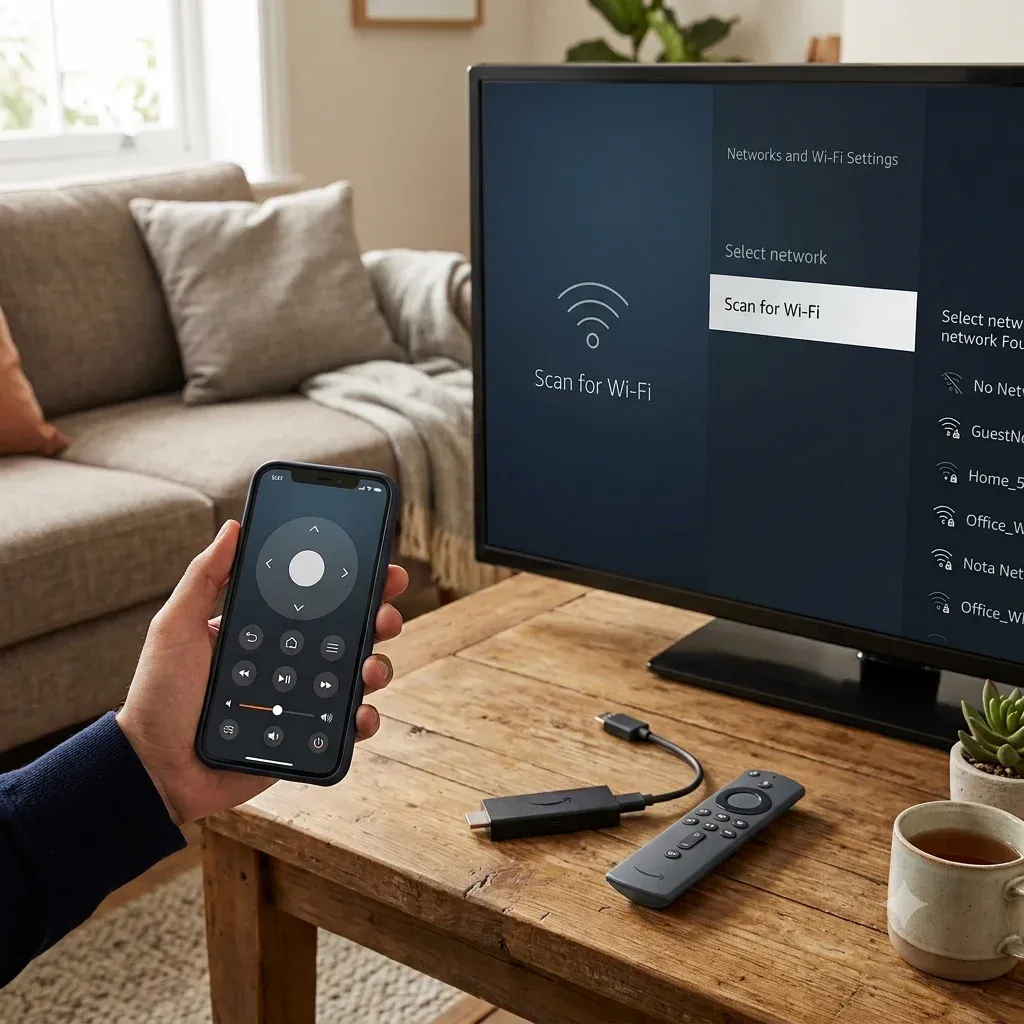
Recuperación de Wi-Fi y sin mando
El control de Fire TV por app depende mucho de la red. Si el Wi-Fi está averiado, muchos problemas atribuidos a la app del mando son en realidad problemas de red.
Si necesitas conectar Fire TV a Wi-Fi sin el mando
Esta es una de las intenciones de ayuda más importantes del clúster Fire TV y merece una ruta visible propia.
Usa Conectar Fire TV a Wi-Fi sin mando cuando:
Si Firestick sigue sin conectarse a Wi-Fi
Usa Firestick no se conecta a Wi-Fi cuando:
Recuperación del rendimiento, almacenamiento y pantalla de inicio
La demanda de ayuda para Fire TV no se limita al mando. Los problemas de rendimiento también son útiles desde el punto de vista comercial, porque los usuarios con dispositivos inestables suelen necesitar pasos de recuperación y alternativas de apps.
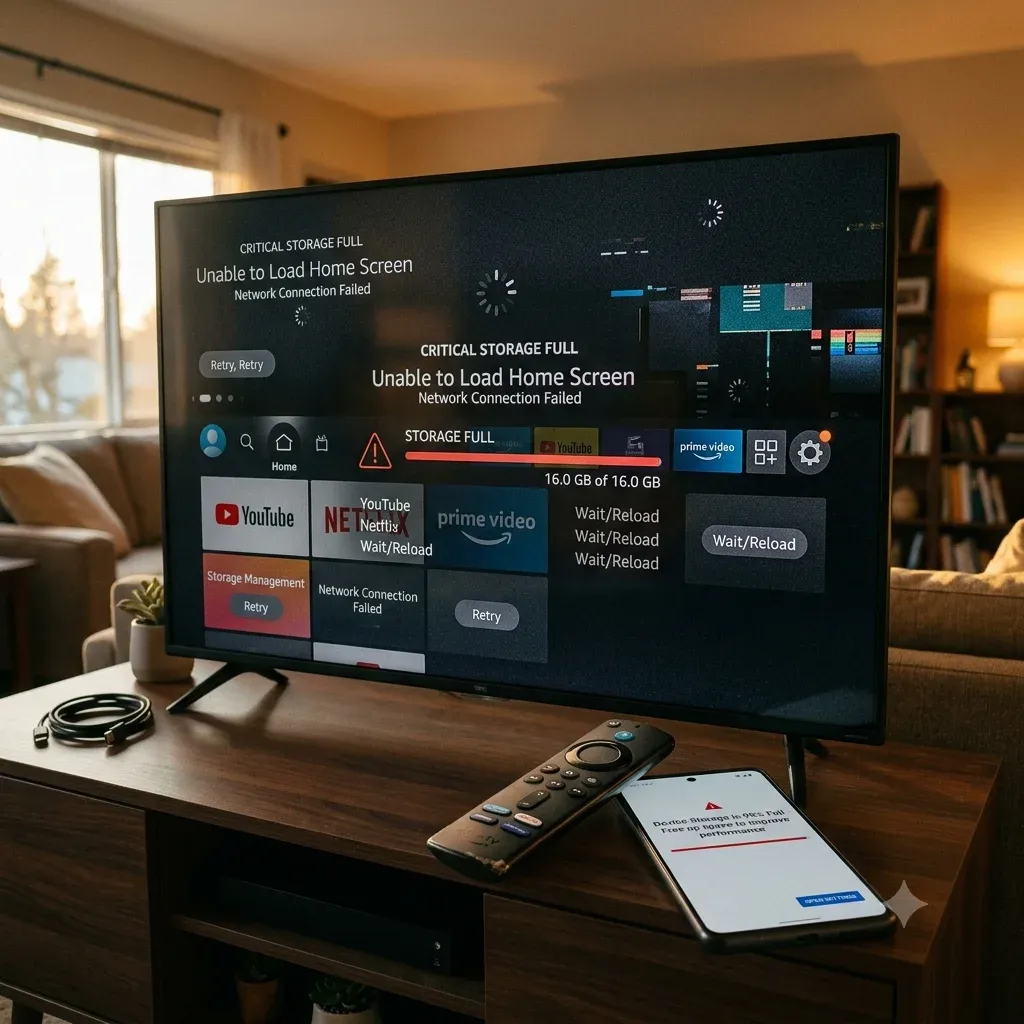
Si Fire TV indica que el almacenamiento está lleno
Usa Almacenamiento de Fire TV lleno cuando:
Para una intención más específica sobre la caché, consulta también Cómo borrar la caché en Fire TV.
En la práctica, Cómo borrar la caché en Fire TV suele ser la página más adecuada cuando el dispositivo va lento, pero aún no está completamente lleno.
Si Firestick no carga la pantalla de inicio
Usa Fire Stick no carga la pantalla de inicio cuando:
Esa página debe permanecer independiente porque el síntoma es más concreto de lo que puede resolver un párrafo general del centro.
Si la pantalla está completamente negra, no hay salida HDMI o el televisor indica que no existe conexión, consulta Amazon Fire Stick sin señal, Firestick no aparece en HDMI o Firestick no se enciende antes de tratarlo como un problema normal de la pantalla de inicio.
Ayuda con configuración, transmisión y uso diario
Los usuarios de Fire TV también buscan tareas de conexión y reproducción, no solo recuperación.
Si quieres controlar Firestick con el teléfono
Esta suele ser la mejor opción tras perder el mando o quedarse sin pilas, y también crea un puente directo con el producto.
Usa Cómo controlar Firestick con el teléfono cuando:
Si necesitas ayuda para transmitir contenido
Usa:
Estas páginas deben seguir siendo contenido del clúster porque responden a intenciones de visualización distintas, no a recuperación.
Páginas útiles de Fire TV por tarea
Abre estas páginas según la tarea concreta:
Orden recomendado para solucionar problemas de Fire TV
Sigue este orden para evitar restablecimientos innecesarios:
1. Determina si el problema está en el mando, la asignación de controles del televisor, el Wi-Fi, el almacenamiento o el arranque de la pantalla de inicio.
2. Corrige el emparejamiento y la alimentación antes de restablecer los valores de fábrica.
3. Corrige el Wi-Fi antes de depender del control por app.
4. Borra la caché o libera almacenamiento de forma selectiva antes de borrar el dispositivo.
5. Restablece solo cuando fallen las rutas de recuperación más específicas.
Qué no debe absorber este centro
Algunos temas de Firestick obtienen impresiones, pero encajan peor en un centro de ayuda de marca porque responden a la instalación de apps de terceros, no a la recuperación básica del dispositivo.
Las páginas sobre carga lateral de apps o guías de instalación de streaming no oficial pueden permanecer como contenido independiente del clúster si siguen teniendo demanda, pero no deben dominar la arquitectura principal de información del centro.
Conclusión
La mejor estrategia de ayuda para Fire TV consiste en no tratar todos los fallos como un problema genérico de Firestick. Los usuarios suelen necesitar una de estas rutas concretas: volver a emparejar el mando, recuperar el Wi-Fi, usar el teléfono como mando, liberar almacenamiento o recuperar la pantalla de inicio. Este centro debe cubrir esa intención de entrada y dirigir rápidamente al usuario a la página del clúster adecuada.
Preguntas frecuentes del centro de ayuda de Fire TV
P: ¿Cuál es la forma más rápida de recuperar un Firestick sin el mando?
Si el dispositivo sigue en la misma red Wi-Fi, usa primero una app de mando en el teléfono. Si no, recupera el acceso a la red con los métodos de Conectar Fire TV a Wi-Fi sin mando.
P: ¿Por qué se empareja el mando de Firestick, pero no controla el volumen?
Normalmente se debe al control de equipos, HDMI-CEC, la asignación de la marca del televisor o los ajustes de audio, no a un simple fallo de emparejamiento. Consulta El volumen del mando de Firestick no funciona.
P: ¿Debo restablecer Fire TV a los valores de fábrica cuando va lento?
No como primer paso. Borra la caché, reinicia el dispositivo y reduce la presión del almacenamiento antes de aplicar un restablecimiento completo.