
Perder o controle remoto da TV nem sempre significa que você precisa parar de assistir. Na maioria dos casos, ainda é possível controlar a TV pelos botões do aparelho, um aplicativo de controle no celular, teclado ou mouse USB, conexão Ethernet, uma solução com hotspot, celular com emissor IR, console de jogos ou controle universal substituto.
Este guia completo explica como controlar uma TV sem controle remoto de acordo com sua situação: se a TV está desligada, desconectada do Wi-Fi, presa na entrada errada, pedindo permissão ou se é de uma marca específica, como Samsung, Roku, LG, Sony, Fire TV, Onn, Hisense ou Vizio.
Resposta rápida: melhores formas de controlar uma TV sem controle remoto
Use este guia de decisão antes de tentar cada método:
| Situação | Melhor primeiro método | Método alternativo |
|---|---|---|
| A TV está desligada | Pressione o botão físico Liga/Desliga | Use um aplicativo de controle no celular se houver suporte a Wake-on-LAN |
| A TV está no mesmo Wi-Fi do celular | Use um aplicativo de controle remoto | Use o aplicativo oficial da marca |
| A TV não está conectada ao Wi-Fi | Use os botões da TV, Ethernet, teclado, mouse ou controle IR | Recrie o nome e a senha da rede Wi-Fi antiga |
| A TV está pedindo permissão | Use os botões da TV ou um teclado para selecionar Permitir | Pareie um aplicativo de controle Samsung após aceitar a permissão |
| Você precisa mudar o HDMI/entrada | Use o botão de entrada ou joystick da TV | Use um aplicativo, mouse ou console de jogos |
| O controle foi perdido definitivamente | Configure um aplicativo de controle universal | Compre um controle universal físico |
Se a TV estiver totalmente desligada, seu primeiro objetivo é simplesmente ligar a TV sem controle remoto. Se estiver ligada, mas desconectada, resolva primeiro a rede conectando a TV ao Wi-Fi sem controle remoto.
Método 1: use os botões físicos da TV
Quase toda TV tem pelo menos um botão físico de controle. Pode ser um único botão Liga/Desliga, um botão tipo joystick ou um pequeno conjunto de botões para energia, volume, canal, menu e entrada.
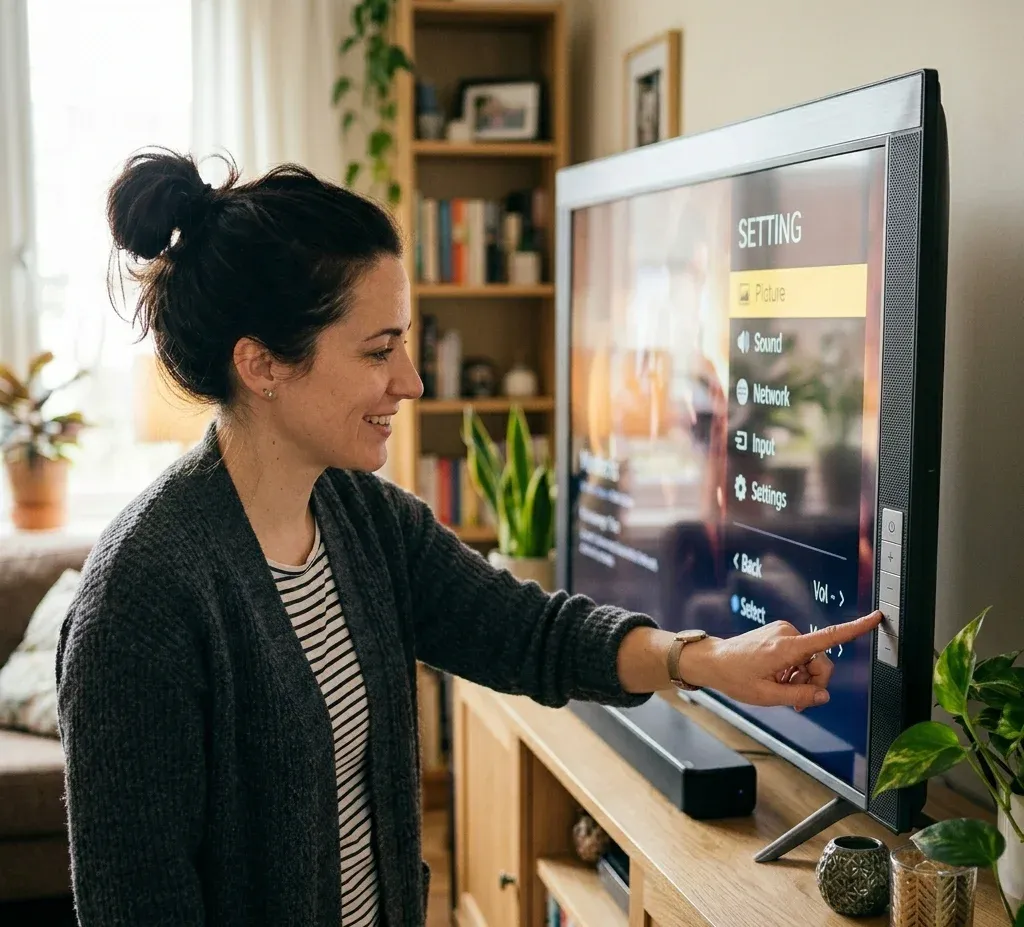
Os locais comuns incluem:
Use primeiro o botão físico quando a TV estiver desligada, travada, sem Wi-Fi ou ainda não pareada com um aplicativo. Um toque curto normalmente liga a TV. Um toque longo pode abrir um pequeno menu de controle ou desligá-la. Em algumas TVs, toques repetidos percorrem as opções do menu, enquanto um toque longo confirma a opção selecionada.
A localização do botão e os controles alternativos variam por marca:
Método 2: controle a TV com o celular
O substituto mais prático para um controle perdido é um aplicativo no celular. Ele transforma seu iPhone, celular Android ou tablet em um controle virtual com botões para energia, volume, navegação, reprodução, atalhos de aplicativos e entrada de texto.
Na maioria das smart TVs, o controle pelo celular exige:
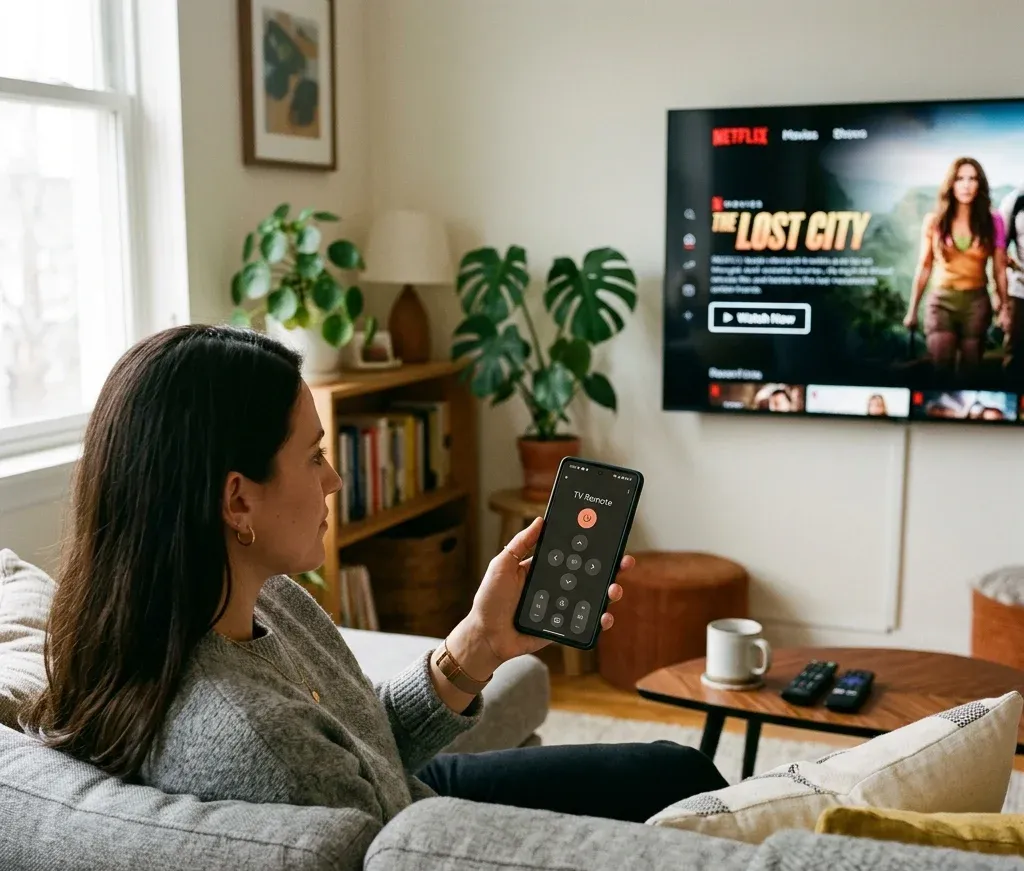
Configuração geral:
1. Conecte o celular à mesma rede Wi-Fi da TV.
2. Instale um aplicativo compatível, como o aplicativo Universal TV Remote.
3. Abra o aplicativo e procure TVs ou dispositivos de streaming próximos.
4. Selecione sua TV na lista de dispositivos.
5. Aceite a solicitação de pareamento na TV, se aparecer.
6. Use o controle virtual para energia, volume, canais, entradas, aplicativos e navegação.
Quando a TV estiver ativa e na mesma rede, geralmente será possível controlá-la pelo celular sem o controle original.
Aplicativos oficiais vs. aplicativos de controle universal
Aplicativos oficiais funcionam bem quando você só precisa controlar uma marca. Por exemplo, o SmartThings é comum em TVs Samsung, o LG ThinQ em TVs LG e o Google TV controla muitos dispositivos Android TV ou Google TV.
Um aplicativo universal é mais útil quando há várias TVs ou dispositivos de streaming de marcas diferentes. Também é mais simples como reserva, pois você não precisa lembrar de um aplicativo para cada TV. O aplicativo Universal TV Remote da BoostVision é feito para dispositivos populares, incluindo Roku, Fire TV, Samsung, LG, Sony, Vizio, TCL, Hisense e outras plataformas de smart TV.


Método 3: use um aplicativo de controle sem Wi-Fi quando possível
Um aplicativo via Wi-Fi normalmente precisa estar na mesma rede da TV. Porém, há alguns casos sem Wi-Fi em que o controle pelo celular ainda pode funcionar:
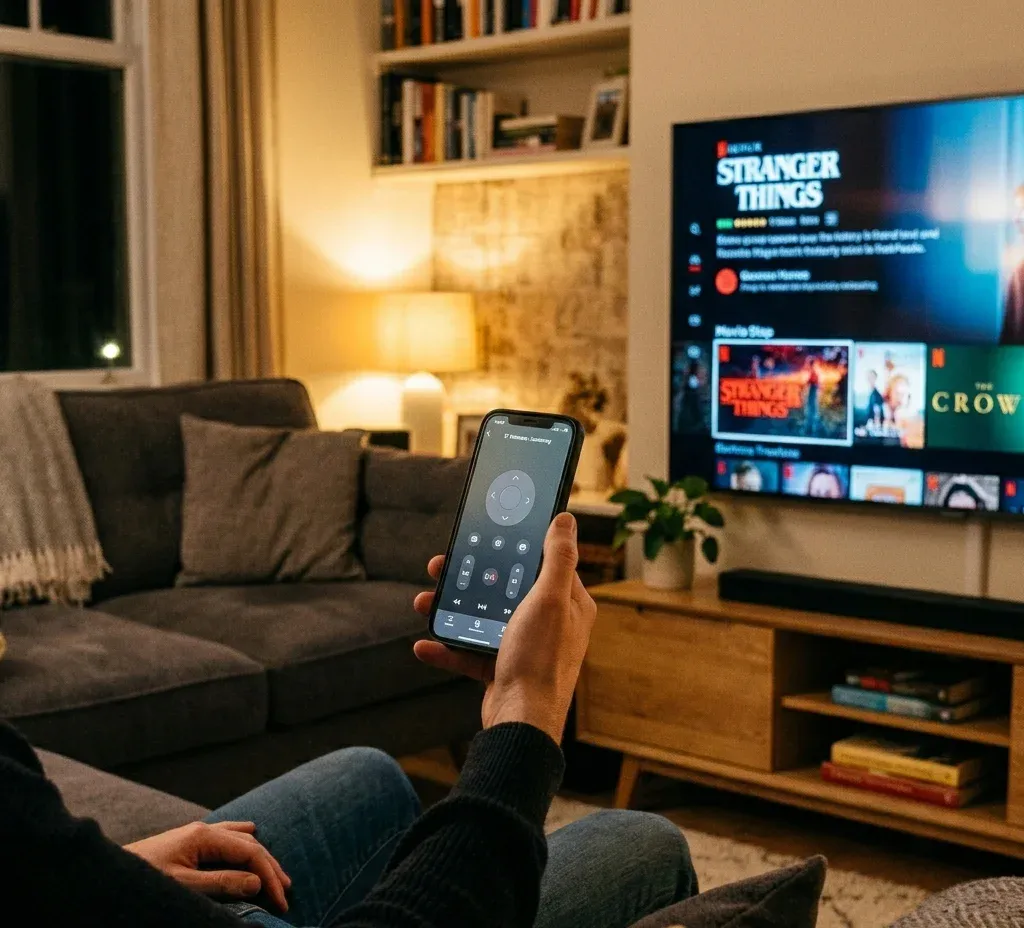
O controle IR é o método sem Wi-Fi mais direto, mas só funciona em celulares com hardware infravermelho. iPhones não têm emissor IR. Muitos celulares Android novos também não; portanto, confira as especificações antes de depender desse método.
O controle offline depende muito de hardware IR, pareamento Bluetooth ou uma solução temporária de rede; por isso, um aplicativo de controle universal sem Wi-Fi só funciona em configurações específicas.
Método 4: conecte a TV ao Wi-Fi sem o controle remoto
Se a TV não estiver no Wi-Fi, talvez o aplicativo não a encontre. A prioridade é colocá-la online novamente.
Tente estas opções:
1. Use os botões da TV para abrir as configurações de Rede. Isso é possível em algumas TVs com joystick ou botão de menu, mas pode ser demorado.
2. Conecte um teclado ou mouse USB. Muitas smart TVs aceitam entrada USB básica. Use as setas, Enter ou o cursor para navegar pelas configurações.
3. Use Ethernet. Se a TV tiver porta LAN, conecte-a diretamente ao roteador. Pela rede cabeada, o aplicativo no celular pode detectar a TV.
4. Recrie o Wi-Fi anterior. Se a TV lembra uma rede antiga, configure o roteador ou hotspot com o mesmo SSID e senha.
5. Use uma alternativa específica da marca. Roku, LG, Hisense, Onn e outras TVs podem ter comportamentos de rede diferentes.
Se a detecção pelo aplicativo falhar, trate como recuperação de rede e conecte a TV ao Wi-Fi sem controle remoto antes de parear o celular novamente. Casos específicos sem controle e sem Wi-Fi exigem alternativas um pouco diferentes:
Método 5: use um teclado ou mouse USB
Um teclado ou mouse USB é útil em emergências quando a TV está ligada, mas você não consegue navegar pelo menu. Conecte-o à porta USB e aguarde alguns segundos. Se houver suporte, você poderá:
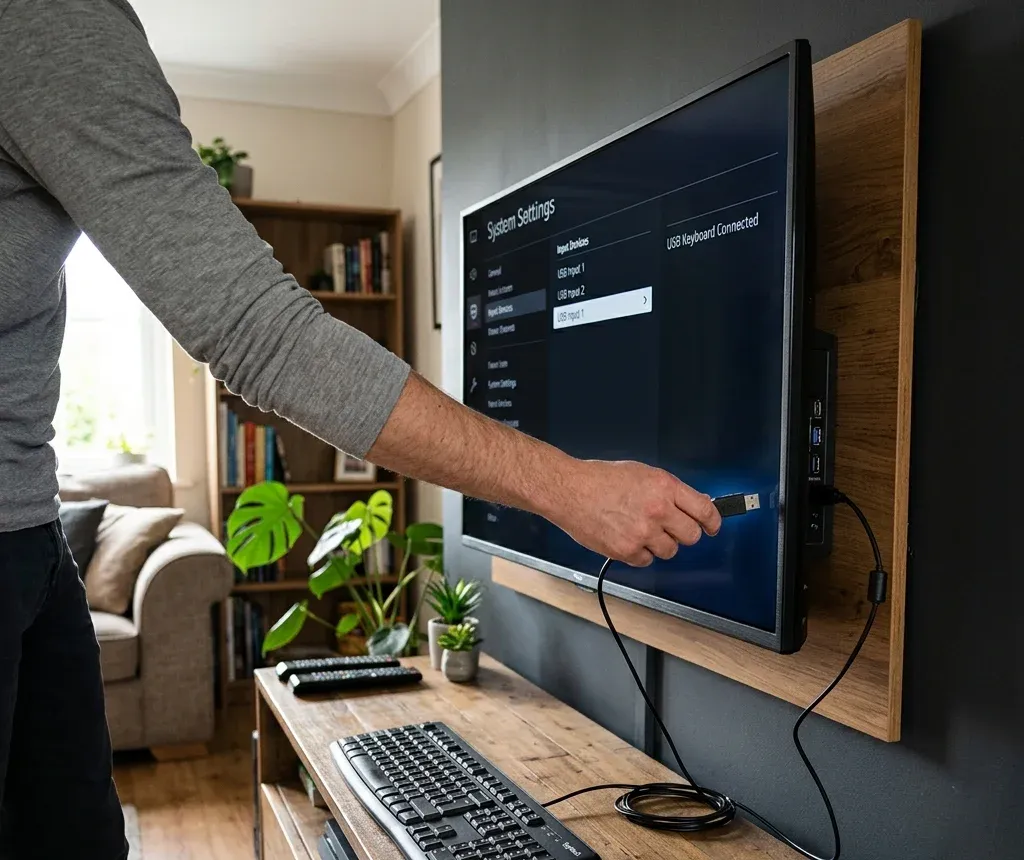
Esse método é especialmente útil quando a TV precisa de uma configuração única antes que o aplicativo se conecte. Por exemplo, uma TV Samsung pode exibir uma solicitação, e você precisa selecionar Permitir na TV Samsung sem controle remoto antes de o aplicativo assumir o controle.
Método 6: mude a entrada sem controle remoto
Se a TV funciona, mas está na porta HDMI errada, você precisa controlar a entrada, não a TV inteira. Comece pelo botão de entrada/fonte da TV. Se ela usa um único joystick, abra o menu e procure Entrada, Fonte, HDMI ou Início.
Outras formas de mudar a entrada:
As TVs LG costumam ter vários caminhos viáveis, incluindo o botão da TV, LG ThinQ, aplicativo de controle LG de terceiros, mouse ou console. Se o bloqueio for o HDMI, concentre-se em mudar a entrada da TV LG sem controle remoto, em vez de solucionar a TV inteira.
Método 7: use HDMI-CEC por um dispositivo de streaming ou console de jogos
O HDMI-CEC permite que dispositivos conectados enviem sinais básicos de controle pelo HDMI. Dependendo das configurações, ligar um PlayStation, Nintendo Switch, Xbox, Fire TV, Roku ou outro dispositivo HDMI também pode ativar a TV ou mudar para a entrada correta.
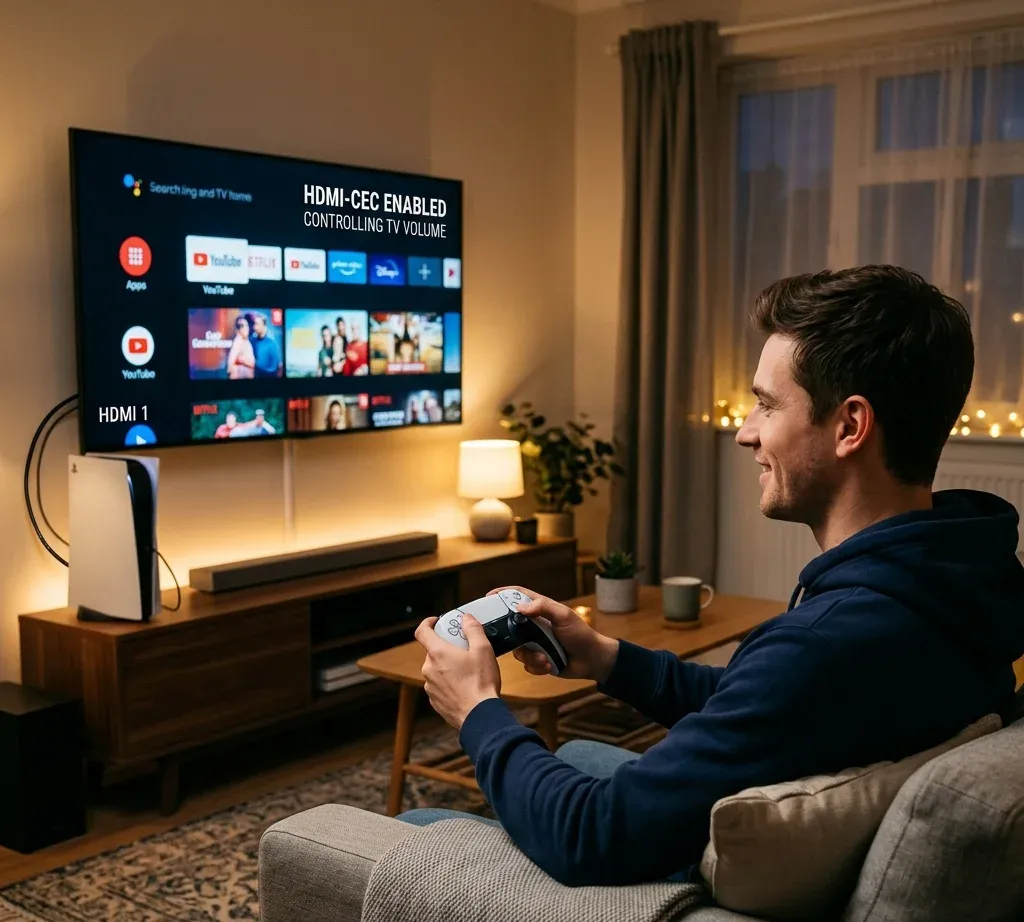
Esse método é útil quando:
Não é garantido, pois os nomes e configurações de HDMI-CEC variam por marca. A Samsung pode chamá-lo de Anynet+, a LG de SIMPLINK, a Sony de BRAVIA Sync, e outras marcas usam nomes diferentes.
Método 8: use um controle universal físico
Se não puder usar Wi-Fi, IR, Ethernet, USB ou HDMI-CEC, um controle universal físico ainda é uma alternativa confiável. Ele é especialmente útil para TVs sem recursos inteligentes, antigas, de hotéis e TVs que não permitem parear aplicativos sem um controle funcional.
Escolha essa opção quando:
Depois de recuperar o controle, ainda vale configurar um aplicativo no celular como reserva para evitar o mesmo problema no futuro.
Atalhos específicos por marca
TV Samsung sem controle remoto
Use primeiro o botão físico TV Control. Ele pode ficar sob o logotipo frontal, no painel traseiro ou na borda inferior. Com a TV ligada, o SmartThings ou um aplicativo compatível pode ajudar, mas o pareamento ainda pode exigir selecionar Permitir na TV Samsung sem controle remoto. Se a tela continuar apagada, resolva primeiro a energia e ligue a TV Samsung sem controle remoto.
TV Roku sem controle remoto
Se a TV Roku já estiver no mesmo Wi-Fi do celular, use um aplicativo compatível ou o aplicativo Roku TV Remote. Se estiver desligada e o botão indisponível, aplicativo, controle universal ou HDMI-CEC ainda podem ajudar a ligar a TV Roku sem controle remoto nem botão Liga/Desliga.
TV LG sem controle remoto
TVs LG normalmente têm botão físico ou joystick. Depois de ligá-la, use o LG ThinQ ou o aplicativo LG TV Remote. Sem Wi-Fi, verifique Ethernet, hotspot, IR, teclado, mouse ou controle universal para usar a TV LG sem controle remoto nem Wi-Fi.
TV Sony sem controle remoto
Comece pelo botão Liga/Desliga da TV Sony e depois use Google TV, aplicativo universal ou HDMI-CEC com um console, se disponível. Essas são as formas mais confiáveis de ligar uma TV Sony sem controle remoto antes de passar ao controle por aplicativo.
Fire TV sem controle remoto
Em televisores Fire TV Edition, use primeiro o botão Liga/Desliga. Em configurações com Fire TV Stick, talvez seja possível usar o aplicativo Fire TV se o dispositivo estiver na mesma rede. O comportamento de energia e suspensão é diferente de um controle de TV comum; portanto, siga o processo específico para ligar ou desligar o Fire TV sem controle remoto.
TV Hisense ou Onn sem controle remoto nem Wi-Fi
TVs Hisense e Onn geralmente exigem uma combinação de botões físicos, USB, Ethernet, hotspot, IR ou aplicativo compatível com Roku, dependendo do sistema operacional:
TV Vizio sem controle remoto
Se precisar parear um aplicativo ou solucionar a detecção na rede, o endereço IP da TV pode ajudar. Botões da TV, aplicativo, interface administrativa do roteador, lista de rede de outro dispositivo ou scanner de rede podem ajudar a encontrar o endereço IP da TV Vizio sem controle remoto.
Melhor configuração de longo prazo: crie dois métodos de controle reserva
Depois de recuperar o controle, não pare em uma única solução. Configure pelo menos dois métodos:
1. Mantenha um aplicativo de controle instalado e pareado.
2. Confirme que a TV e o celular estão na mesma rede Wi-Fi.
3. Ative o modo de espera em rede ou controle por dispositivo móvel, se houver suporte.
4. Registre a localização do botão físico da TV.
5. Guarde o nome e a senha do Wi-Fi usado pela TV.
6. Mantenha um teclado USB ou controle universal barato disponível para emergências.
A configuração mais prática para a maioria das casas é um botão físico para ligar em emergências, um aplicativo no celular para o uso diário e um teclado USB ou controle universal para recuperar o acesso quando o Wi-Fi mudar.
Problemas comuns e soluções
A TV não aparece no aplicativo de controle
Confira se a TV e o celular estão na mesma rede Wi-Fi. Desative a VPN no celular, permita o acesso à rede local, reinicie a TV e o roteador e confirme que a TV está ligada. Se ela estiver desconectada do Wi-Fi, use Ethernet, botões da TV ou dispositivo USB para conectar a TV ao Wi-Fi sem controle remoto.
A TV está desligada e o aplicativo não consegue ligá-la
Algumas TVs aceitam Wake-on-LAN ou modo de espera em rede, mas muitas não. Se a TV não responder ao aplicativo, use primeiro o botão físico. Depois de ligá-la, verifique se a inicialização por dispositivo móvel ou espera em rede pode ser ativada nas configurações.
A TV mostra uma solicitação de permissão
Use os botões da TV, um teclado USB ou mouse para selecionar Permitir. Isso é comum ao parear um aplicativo pela primeira vez, especialmente quando é preciso selecionar Permitir na TV Samsung sem controle remoto.
A TV está sem Wi-Fi
Use Ethernet, se disponível. Caso contrário, tente um teclado ou mouse USB para inserir as configurações do Wi-Fi. Se a TV lembrar uma rede antiga, recrie o SSID e a senha com um roteador ou hotspot. Sem nenhum caminho de rede, um aplicativo de controle universal sem Wi-Fi só ajuda se o celular e a TV aceitarem algum método de controle offline.
A TV está na entrada HDMI errada
Use o botão de entrada, menu do joystick, aplicativo no celular, mouse USB ou HDMI-CEC. Nas TVs LG, essas opções normalmente bastam para mudar a entrada sem controle remoto.
Conclusão
A maneira mais rápida de controlar uma TV sem controle remoto depende do estado atual. Se estiver desligada, use primeiro o botão físico. Se estiver no mesmo Wi-Fi do celular, um aplicativo costuma ser o substituto mais fácil. Se estiver offline, use Ethernet, teclado ou mouse USB, recriação da rede por hotspot, IR, HDMI-CEC ou controle universal físico.
Para o uso diário, configure o aplicativo Universal TV Remote ou o aplicativo da marca da sua TV. Para recuperação, mantenha pelo menos um método sem Wi-Fi, como os botões físicos, teclado USB ou controle universal físico.
Perguntas frequentes sobre controlar a TV sem controle remoto
Posso controlar minha TV sem controle remoto?
Sim. É possível controlar a maioria das TVs com botões físicos, aplicativo no celular, teclado ou mouse USB, HDMI-CEC, celular com emissor IR, controle universal físico ou aplicativos específicos da marca.
Posso usar o celular como controle remoto da TV?
Sim, se a TV e o celular estiverem na mesma rede Wi-Fi e a TV aceitar controle por aplicativo. Os requisitos são simples quando você sabe como controlar a TV pelo celular sem controle remoto.
Posso controlar uma TV sem Wi-Fi?
Às vezes. Você pode usar botões da TV, teclado ou mouse USB, celular com emissor IR, Ethernet, HDMI-CEC ou controle universal físico. Um aplicativo via Wi-Fi geralmente exige que TV e celular estejam na mesma rede, a menos que o celular tenha IR ou a TV já tenha sido pareada por outro método.
Como ligar uma TV sem controle remoto?
Pressione o botão físico Liga/Desliga da TV. Se ela aceitar modo de espera em rede, um aplicativo já pareado também pode ligar a TV sem controle remoto.
Como conectar minha TV ao Wi-Fi sem controle remoto?
Use os botões da TV, conecte um teclado ou mouse USB, use Ethernet ou recrie o nome e a senha da rede Wi-Fi antiga para conectar a TV ao Wi-Fi sem controle remoto.
Qual é a melhor alternativa para um controle de TV perdido?
Para smart TVs, a melhor alternativa é um aplicativo já pareado mais uma opção sem rede, como botões da TV, teclado USB ou controle universal físico.