
Lost your TV remote or dealing with one that no longer responds? You are not stuck. In most cases, you can still control your TV using your phone. The trick is knowing which method fits your setup.
There are two reliable ways to make this work. One uses an IR blaster on certain Android phones. The other relies on Wi-Fi and works with most smart TVs, including iPhones. Each option has its own limits, so choosing the right one matters.
This post digs out the remote control function of mobile phones and shows you how to control TV with phone without remote.
Quick Decision Guide: Which Method Should You Use?
Before jumping into steps, take a second to check your situation:
If you are unsure, try the Wi-Fi method first. It works for most people and offers more features.
What You Need Before Using Your Phone as a TV Remote
Not every setup works the same way. A few quick checks will save you time:
If your TV is offline or stuck on the wrong input, start with the physical buttons on the TV.
Method 1: Use an IR Blaster Phone as a TV Remote (No Wi-Fi Needed)
If your phone has an IR blaster, this is the fastest way to control your TV without a remote or internet connection.
Unlike Wi-Fi apps, IR works just like a traditional remote. It sends signals directly to the TV.
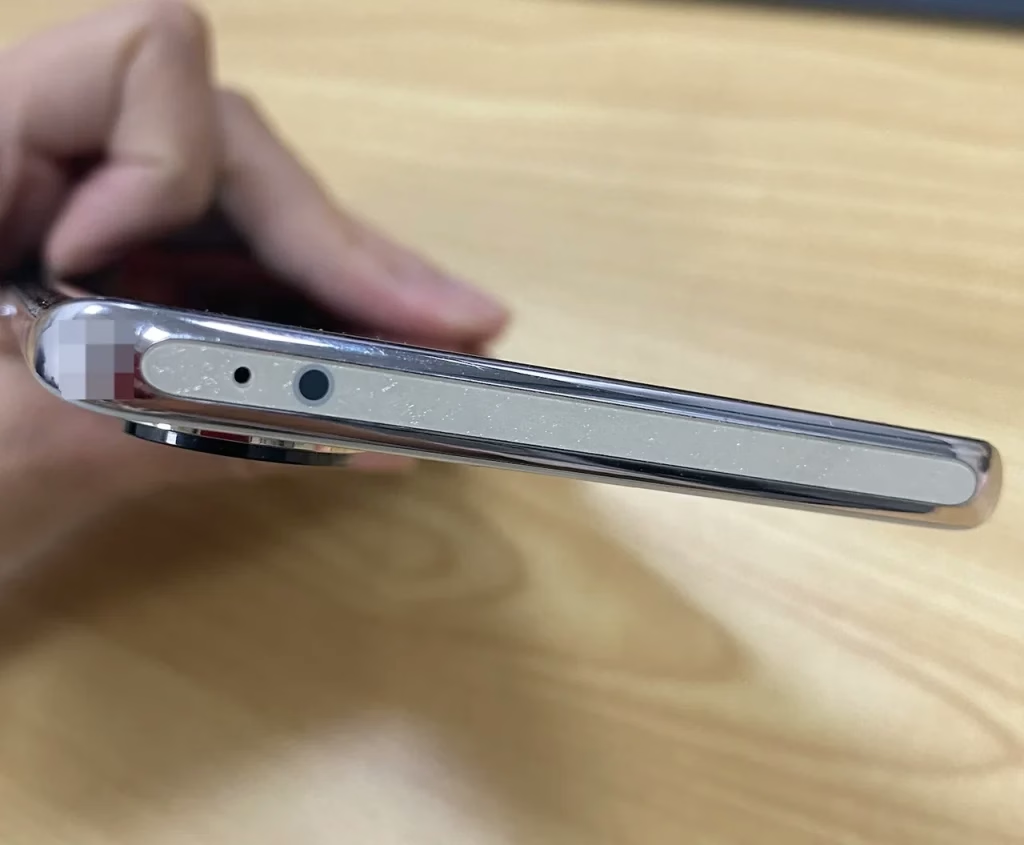
Does Your Phone Support IR?
Most modern phones do not include IR anymore. However, some brands still support it:
Check your phone specs or look for a small IR sensor on the top edge.
How to Control TV with IR Blaster
Step 1. Install an IR remote app (or open the pre-installed one).
Step 2. Select your TV brand from the list.
Step 3. Point your phone toward the TV.
Step 4. Test volume or power buttons.
Once it responds, your phone becomes a full remote.
When IR Works Best
Limitations
Method 2: Use a Wi-Fi TV Remote App (Best for Smart TVs)
If your TV is connected to Wi-Fi, this method is more flexible. It works on both Android and iPhone and gives you full control.
Most brands offer their own apps, and there are also universal options like TV Remote app from BoostVision that support multiple TVs.
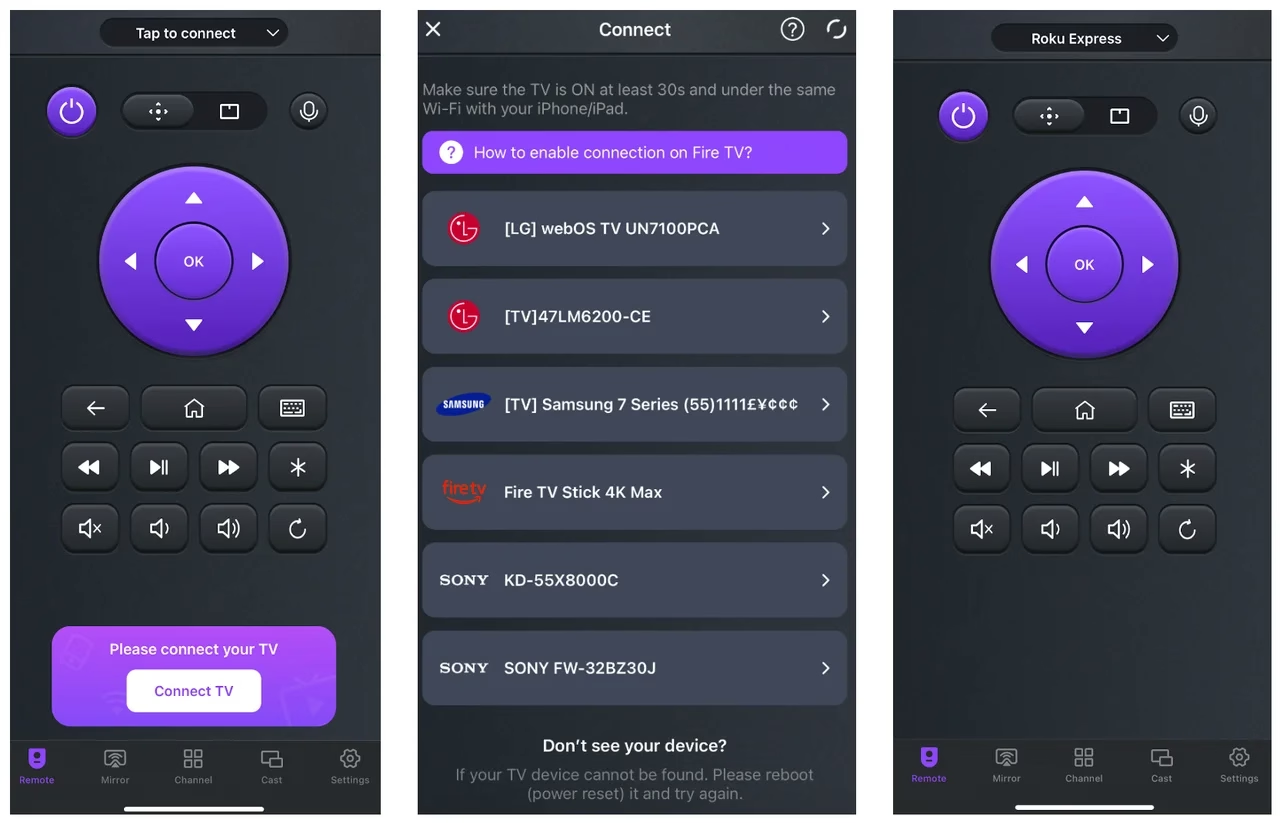
How Wi-Fi Remote Apps Work
Your phone and TV communicate through the same network. Once paired, your phone acts like a remote with extra features.
Steps to Control TV with Phone via Wi-Fi
Step 1. Install a remote app on your phone.
Step 2. Connect your phone and TV to the same Wi-Fi network.
Step 3. Open the app and scan for available devices.
Step 4. Select your TV from the list.
Step 5. Enter the pairing code shown on your TV.
Step 6. Start using on-screen controls.
You can now adjust volume, switch inputs, and launch apps.
Official Apps vs Universal Apps
| Type | Best For | Limitation |
|---|---|---|
| Official TV app | Full compatibility | One app per brand |
| Universal remote app | Multiple TVs in one app | May lack brand-specific features |
If you use more than one TV brand, a universal app is often more practical.
Troubleshooting: Why Your Phone Won’t Control the TV
If things are not working, check these common issues:
TV Not Showing Pairing Code
Phone Cannot Find the TV
App Connects but No Control
TV Is Off
Most apps cannot turn on a fully powered-off TV unless wake-on-LAN is enabled.
Conclusion
If your phone supports IR, that is the quickest fix. No setup, no network, just point and control.
For most people, though, Wi-Fi apps are the better long-term option. They work on both Android and iPhone and offer more control once connected.
If you often lose your remote, setting up a remote app now is worth it. It saves time the next time your remote disappears.
How to Control TV With Phone Without Remote FAQ
Q: Can I use my phone as a TV remote without Wi-Fi?
Yes, but only if your phone has an IR blaster. Otherwise, Wi-Fi is required for remote apps.
Q: Can I control a non-smart TV with my phone?
Yes, but only with an IR-enabled phone. Non-smart TVs do not support Wi-Fi control.
Q: Why is my TV not showing up in the app?
Your phone and TV may not be on the same network, or the TV may not support remote apps. Check Wi-Fi connection first.
Q: Can I control my TV if it is turned off?
Sometimes. Some smart TVs support wake-on-LAN, but this feature must be enabled in settings.
Q: Do I need Bluetooth to control my TV with my phone?
No. Most control methods use either IR or Wi-Fi, not Bluetooth.
Q: What phones still have IR blasters?
Some Xiaomi and Huawei phones still include IR. Most newer devices, especially iPhones, do not.
Q: Can I use my phone as a remote for multiple TVs?
Yes. A universal remote app can control different TV brands within one interface.
 May 14, 2025