

Samsung TV problems usually cluster around four intents: remote control, setup and permissions, phone-to-TV connection, and system reset. This hub is designed to help users solve the first layer of the problem quickly and then move naturally into the right Samsung-specific article instead of guessing across dozens of similar posts.
Samsung also has a wider mix of IR remotes, Smart Remotes, SmartThings control, AirPlay, and model-dependent menu paths than many users expect. That is why the best Samsung help content should clarify the device type early instead of jumping straight into a reset.
Quick answer: choose the Samsung problem first
| Situation | Best first move | Next page to open |
|---|---|---|
| Remote does not control the TV | Check batteries, line of sight, and pairing | [Samsung TV not responding to remote](https://www.boostvision.tv/blog/samsung-tv-not-responding-to-remote) |
| You need to reuse an old Samsung remote | Test it as an IR remote first | [How to connect old Samsung remote to TV](https://www.boostvision.tv/blog/how-to-connect-old-samsung-remote-to-tv) |
| TV menus are broken or settings are corrupted | Soft reset before factory reset | [How to reset Samsung TV](https://www.boostvision.tv/blog/how-to-reset-samsung-tv) |
| iPhone will not connect to Samsung TV | Check AirPlay and network first | [How to connect iPhone to Samsung TV](https://www.boostvision.tv/blog/how-to-connect-iphone-to-samsung-tv) |
| TV talks out loud or Voice Guide is stuck | Turn off accessibility narration | [How to turn off voice on Samsung TV](https://www.boostvision.tv/blog/how-to-turn-off-voice-on-samsung-tv) |
| You do not know the Samsung model | Find the model before troubleshooting | [Samsung model number lookup](https://www.boostvision.tv/blog/samsung-model-number-lookup) |
Most common Samsung TV help tasks
Most Samsung TV users are trying to do one of these specific things:
Start by identifying the Samsung control path
Samsung support gets easier when you know which controller path you are dealing with:
That is why one symptom such as “Samsung remote not working” can actually mean three different problems.
If your Samsung setup uses a Smart Remote, app control, and AirPlay together, always check the simplest dependency first: power, network, and permission prompts on the TV screen.
Remote and control help
If the Samsung TV is not responding to the remote
This is one of the clearest standalone Samsung support intents, so it should stay as a cluster page and a major section here.
Use Samsung TV not responding to remote when:
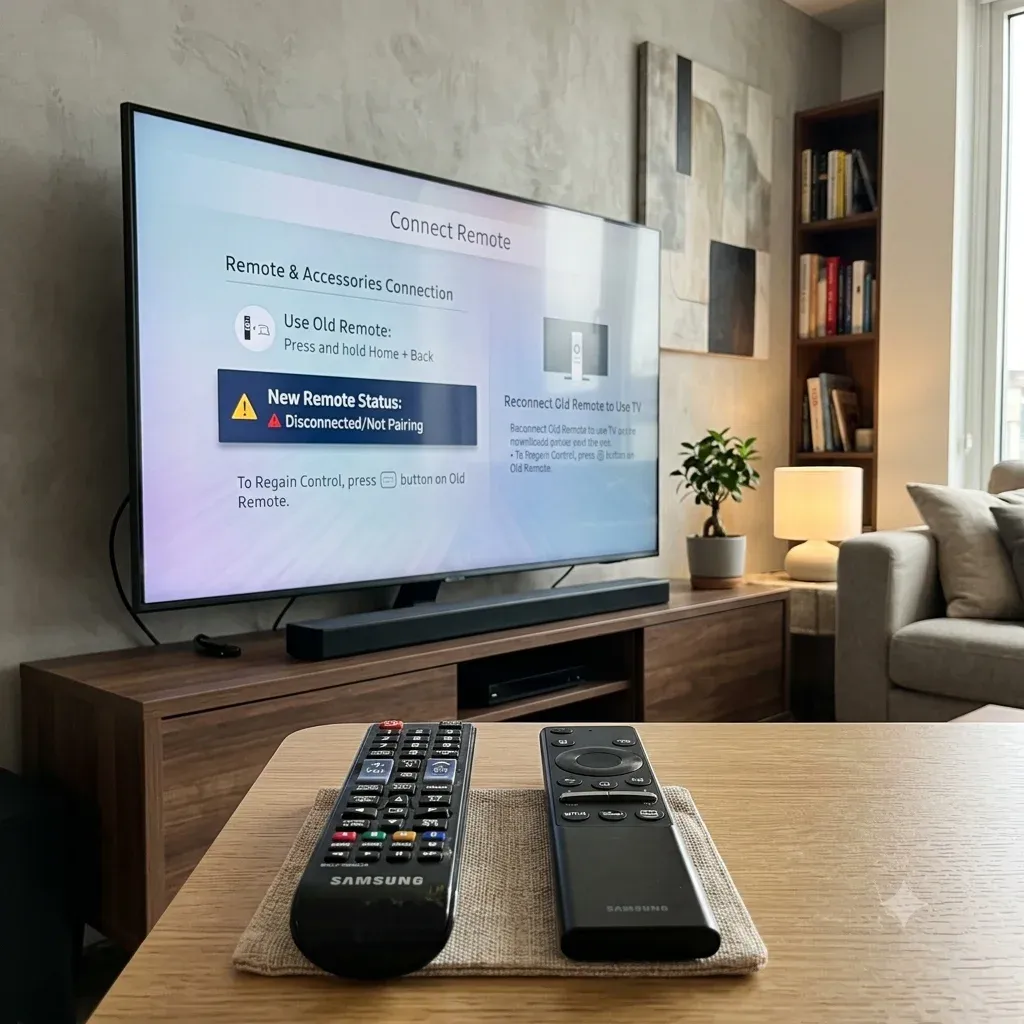
If you want to connect an old Samsung remote
Many users still have a spare Samsung IR remote and want basic control back quickly. That use case has real standalone search demand and should be preserved.
Use How to connect old Samsung remote to TV when:
This route is often faster than buying hardware immediately.
If you need phone control
Phone control is the best fallback when the TV is already online and the screen can accept a permission prompt. Relevant routes include:
If the TV is not on Wi-Fi yet, solve connectivity before expecting the app to work.
If the goal is everyday control rather than one-time setup, Samsung remote user manual and how to use Samsung remote are more helpful than a reset article.


Reset and recovery help
Samsung reset-related searches tend to be high-value because users are already trying to recover a broken or unstable setup.
When should you reset a Samsung TV?
Reset only after you test the simpler fixes first:
1. Power cycle the TV.
2. Re-seat or replace remote batteries.
3. Reconnect the remote if the model uses wireless pairing.
4. Check for stuck accessibility or input settings.
Then use How to reset Samsung TV when:
If the symptom is actually Samsung TV is slow, a user will often need why is my Samsung TV so slow before deciding whether a reset is necessary.
What should not trigger an immediate reset?
Avoid using reset as the first answer for:
In those cases, a more targeted cluster page usually preserves the user experience better and reduces unnecessary reset risk.
iPhone, AirPlay, and phone-to-TV connection
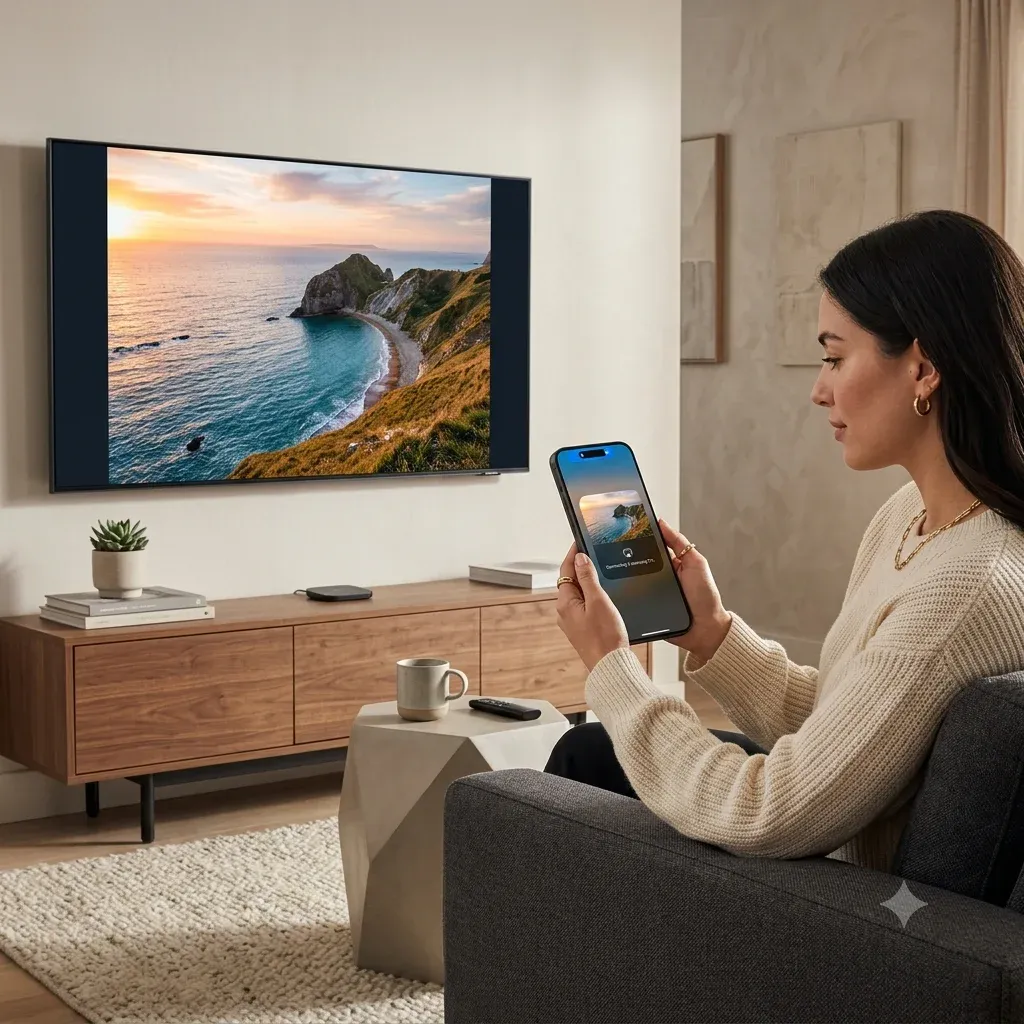
Samsung TV searches often overlap with iPhone connection intent, especially for users who want to mirror photos, videos, or presentations without extra hardware.
If you want to connect an iPhone to Samsung TV
Use How to connect iPhone to Samsung TV when the user needs:
If you have a Samsung phone instead
Route Samsung-to-Samsung and broader Android questions to How to connect Samsung phone to TV.
If AirPlay specifically is failing
Use:
Those pages should remain cluster content because they solve a narrower, stronger search intent than this hub alone.
If the goal is audio rather than screen mirroring, how to connect AirPods to Samsung TV is the better path.
Accessibility, Voice Guide, and menu issues
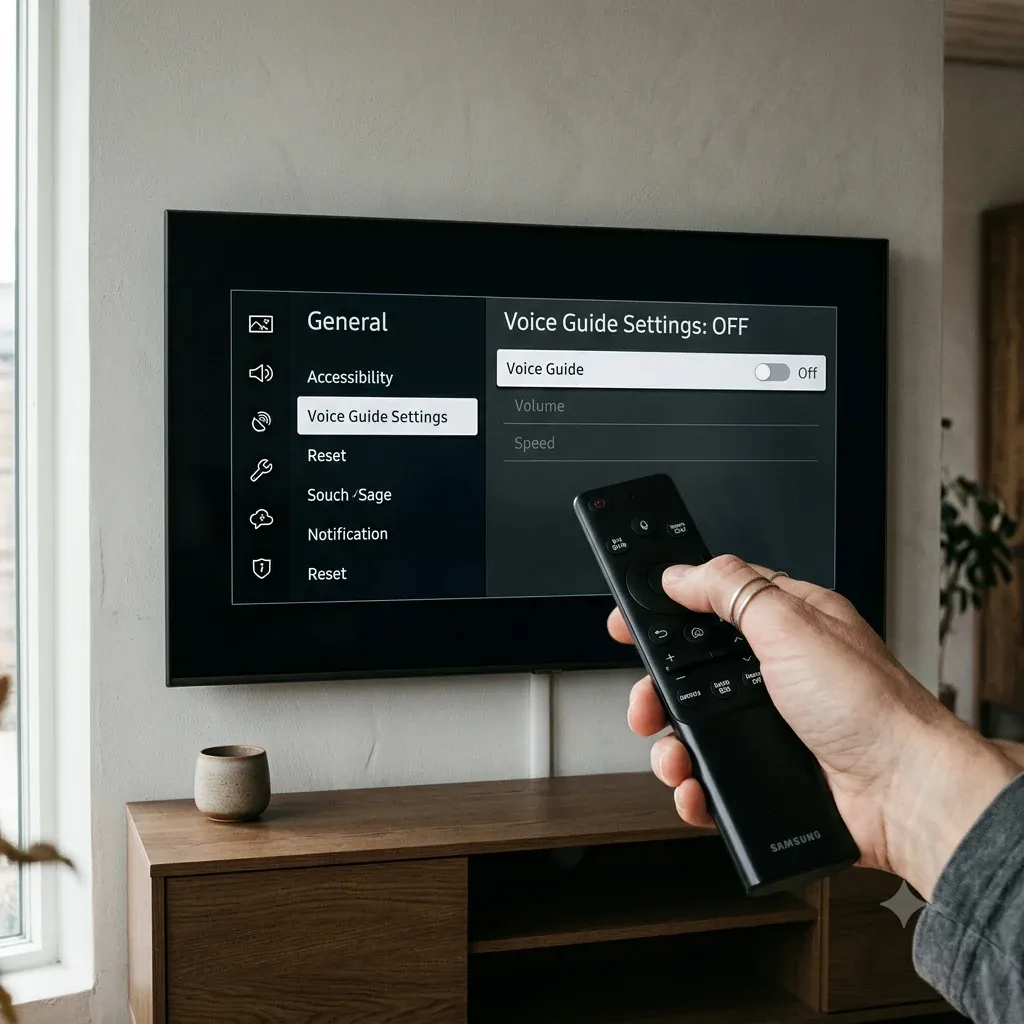
Voice Guide is one of the most common “my Samsung TV is talking” pain points and deserves a visible place in the hub because it often appears unrelated to remote or setup problems at first.
Use How to turn off voice on Samsung TV when:
This kind of issue should usually be solved before recommending a system reset.
If the basic steps fail and the real intent is Samsung TV Voice Guide won't turn off, use the narrower Samsung TV Voice Guide won't turn off page.
Model identification and device-specific help
Samsung menus and features vary a lot by model year and TV line. That means many troubleshooting flows are more accurate after you identify the model number first.
Use Samsung model number lookup when:
This page is also useful to feed future Samsung cluster improvements because model-awareness can reduce vague troubleshooting.
Power, slow performance, and device health
Not every Samsung help query is about remotes or AirPlay. Some users just need to recover a TV that is unstable or will not start.
Useful Samsung pages by task
Open these pages based on the exact task:
Recommended Samsung troubleshooting order
If you want one clean Samsung workflow, use this order:
1. Identify whether the issue is remote, pairing, network, AirPlay, or system settings.
2. Confirm the TV model if the menu path seems inconsistent.
3. Use a targeted fix before a reset.
4. Use app-based control only after the TV is reachable on the network.
5. Use reset only if the narrower fixes fail.
Bottom line
The best Samsung TV support content does not treat every problem as a reset problem. Most users need one of a few high-intent paths: recover remote control, connect a phone, disable Voice Guide, or identify the model. This hub should capture those intents early and distribute users into the strongest Samsung cluster pages across the site.
Samsung TV Help Hub FAQ
Q: What is the fastest way to fix a Samsung TV remote?
Replace batteries, clear the line of sight, test the TV's physical button, and then try the Samsung-specific remote troubleshooting path in Samsung TV not responding to remote.
Q: Should I reset my Samsung TV if AirPlay is not working?
Not first. Check Wi-Fi, AirPlay settings, and device discovery before using a system reset.
Q: Can an old Samsung remote still work on a newer Samsung TV?
Often, basic IR functions can work on compatible Samsung TVs even when smart features do not. Use How to connect old Samsung remote to TV for that path.