

Samsung TV-Probleme bündeln sich meist um vier Absichten: Fernbedienungssteuerung, Einrichtung und Berechtigungen, Smartphone-zu-TV-Verbindung und Systemreset. Dieses Hilfezentrum hilft Nutzern, die erste Ebene des Problems schnell zu lösen und dann natürlich in den richtigen Samsung-spezifischen Artikel zu wechseln, statt zwischen vielen ähnlichen Beiträgen zu raten.
Samsung hat außerdem eine größere Mischung aus IR-Fernbedienungen, Smart Remotes, SmartThings-Steuerung, AirPlay und modellabhängigen Menüpfaden, als viele Nutzer erwarten. Deshalb sollte gute Samsung-Hilfe den Gerätetyp früh klären, statt direkt zu einem Reset zu springen.
Schnelle Antwort: zuerst das Samsung-Problem auswählen
| Situation | Bester erster Schritt | Nächste zu öffnende Seite |
|---|---|---|
| Fernbedienung steuert den TV nicht | Batterien, Sichtlinie und Kopplung prüfen | [Samsung TV reagiert nicht auf Fernbedienung](https://www.boostvision.tv/blog/samsung-tv-not-responding-to-remote) |
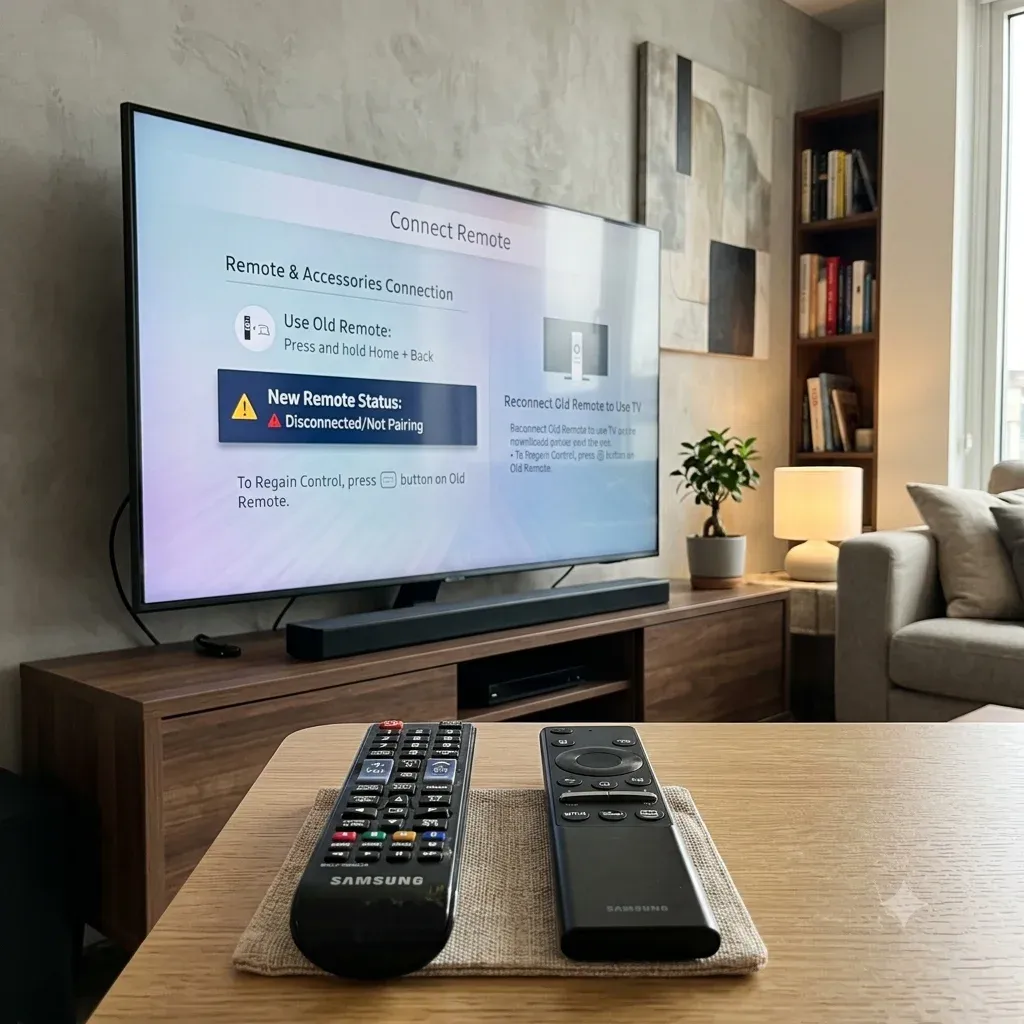
| Sie müssen eine alte Samsung-Fernbedienung wiederverwenden | Zuerst als IR-Fernbedienung testen | [Alte Samsung-Fernbedienung mit TV verbinden](https://www.boostvision.tv/blog/how-to-connect-old-samsung-remote-to-tv) |
| TV-Menüs sind defekt oder Einstellungen beschädigt | Soft-Reset vor Werksreset nutzen | [Samsung TV zurücksetzen](https://www.boostvision.tv/blog/how-to-reset-samsung-tv) |
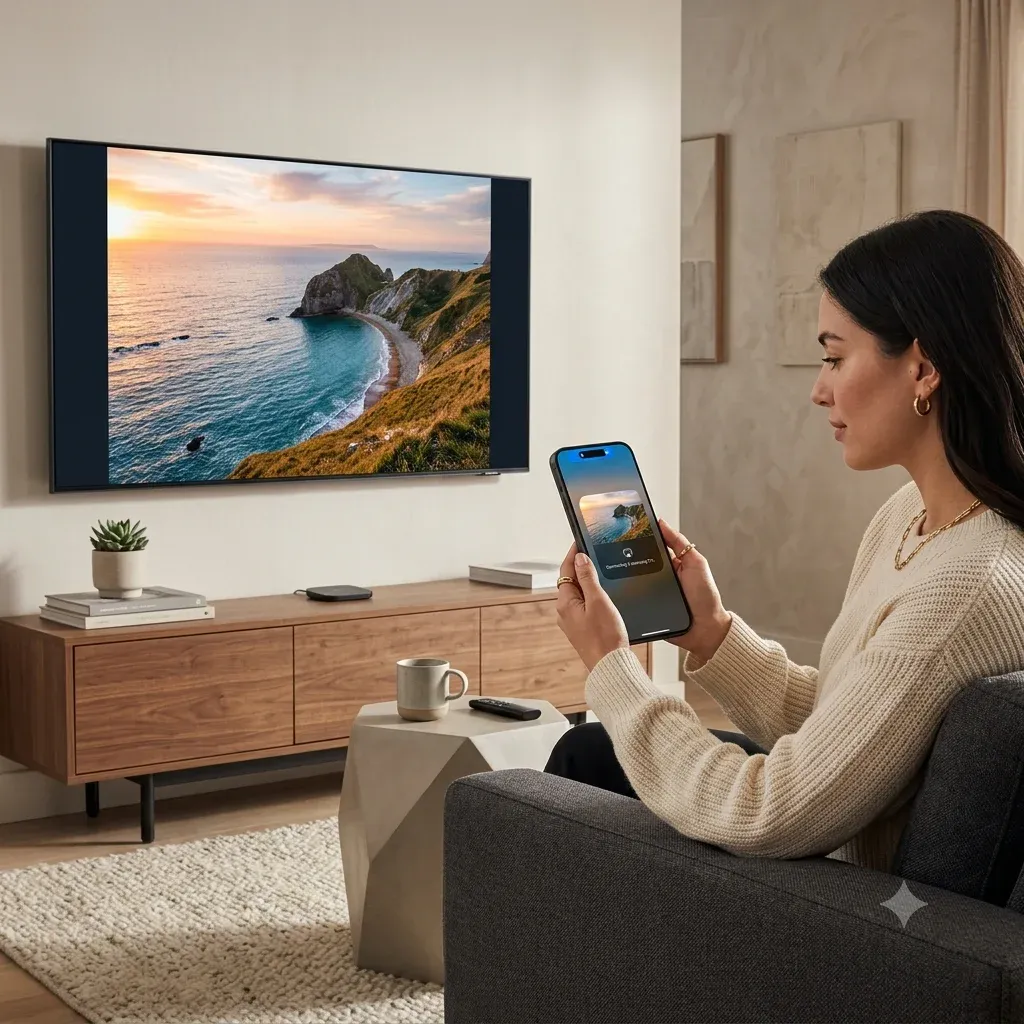
| iPhone verbindet sich nicht mit Samsung TV | Zuerst AirPlay und Netzwerk prüfen | [iPhone mit Samsung TV verbinden](https://www.boostvision.tv/blog/how-to-connect-iphone-to-samsung-tv) |
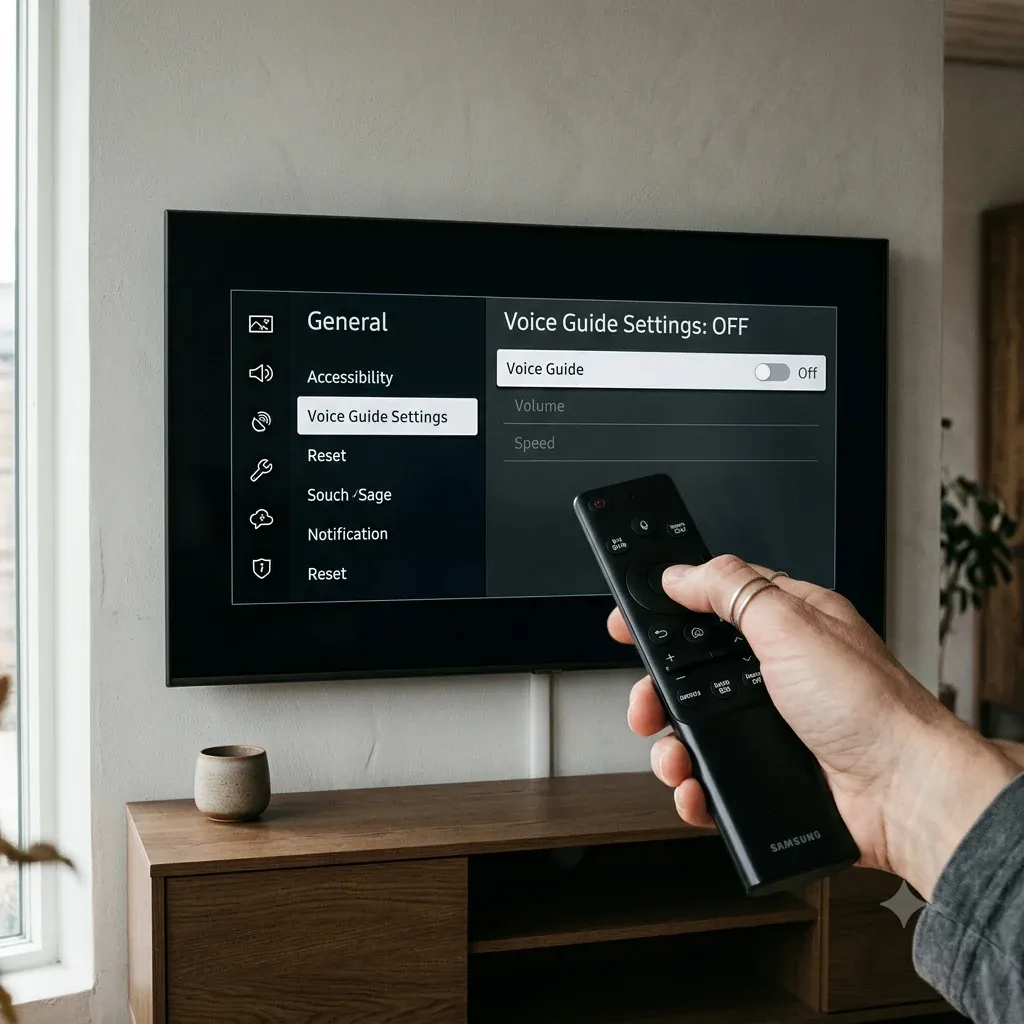
| TV spricht laut oder Voice Guide hängt fest | Barrierefreiheits-Erzählung ausschalten | [Sprachfunktion auf Samsung TV ausschalten](https://www.boostvision.tv/blog/how-to-turn-off-voice-on-samsung-tv) |
| Sie kennen das Samsung-Modell nicht | Modell vor der Fehlerbehebung ermitteln | [Samsung-Modellnummer suchen](https://www.boostvision.tv/blog/samsung-model-number-lookup) |
Häufigste Samsung TV-Hilfeaufgaben
Die meisten Samsung TV-Nutzer versuchen, eines dieser konkreten Dinge zu erledigen:
Mit dem Samsung-Steuerungspfad beginnen
Samsung-Support wird einfacher, wenn Sie wissen, mit welchem Steuerungspfad Sie arbeiten:
Deshalb kann ein Symptom wie „Samsung-Fernbedienung funktioniert nicht“ in Wirklichkeit drei verschiedene Probleme bedeuten.
Wenn Ihr Samsung-Setup Smart Remote, App-Steuerung und AirPlay zusammen nutzt, prüfen Sie immer zuerst die einfachste Abhängigkeit: Strom, Netzwerk und Berechtigungsaufforderungen auf dem TV-Bildschirm.
Hilfe zu Fernbedienung und Steuerung
Wenn der Samsung TV nicht auf die Fernbedienung reagiert
Dies ist eine der klarsten eigenständigen Samsung-Supportabsichten, daher sollte sie als Cluster-Seite und wichtiger Abschnitt hier erhalten bleiben.
Nutzen Sie Samsung TV reagiert nicht auf Fernbedienung, wenn:
Wenn Sie eine alte Samsung-Fernbedienung verbinden möchten
Viele Nutzer haben noch eine Samsung-IR-Ersatzfernbedienung und möchten schnell die Grundsteuerung zurückbekommen. Dieser Anwendungsfall hat echte eigenständige Suchnachfrage und sollte erhalten bleiben.
Nutzen Sie Alte Samsung-Fernbedienung mit TV verbinden, wenn:
Dieser Weg ist oft schneller, als sofort Hardware zu kaufen.
Wenn Sie Smartphone-Steuerung brauchen
Smartphone-Steuerung ist die beste Ausweichlösung, wenn der TV bereits online ist und der Bildschirm eine Berechtigungsaufforderung annehmen kann. Relevante Wege sind:
Wenn der TV noch nicht im WLAN ist, lösen Sie die Verbindung, bevor Sie erwarten, dass die App funktioniert.
Wenn das Ziel Alltagssteuerung statt einmaliger Einrichtung ist, sind Samsung-Fernbedienung Benutzerhandbuch und Samsung-Fernbedienung verwenden hilfreicher als ein Reset-Artikel.


Hilfe zu Reset und Wiederherstellung
Samsung-Reset-bezogene Suchen sind oft wertvoll, weil Nutzer bereits versuchen, eine defekte oder instabile Einrichtung wiederherzustellen.
Wann sollten Sie einen Samsung TV zurücksetzen?
Setzen Sie erst zurück, nachdem Sie zuerst die einfacheren Lösungen getestet haben:
1. TV aus- und wieder einschalten.
2. Fernbedienungsbatterien neu einsetzen oder ersetzen.
3. Fernbedienung erneut verbinden, wenn das Modell drahtlose Kopplung nutzt.
4. Auf festhängende Barrierefreiheits- oder Eingangseinstellungen prüfen.
Nutzen Sie danach Samsung TV zurücksetzen, wenn:
Wenn das Symptom eigentlich Samsung TV ist langsam lautet, braucht ein Nutzer häufig warum ist mein Samsung TV so langsam, bevor entschieden wird, ob ein Reset nötig ist.
Was sollte keinen sofortigen Reset auslösen?
Vermeiden Sie Reset als erste Antwort bei:
In diesen Fällen bewahrt eine gezieltere Cluster-Seite meist die Nutzererfahrung besser und reduziert unnötiges Reset-Risiko.
iPhone, AirPlay und Smartphone-zu-TV-Verbindung
Samsung TV-Suchen überschneiden sich oft mit iPhone-Verbindungsabsicht, besonders bei Nutzern, die Fotos, Videos oder Präsentationen ohne zusätzliche Hardware spiegeln möchten.
Wenn Sie ein iPhone mit Samsung TV verbinden möchten
Nutzen Sie iPhone mit Samsung TV verbinden, wenn der Nutzer Folgendes braucht:
Wenn Sie stattdessen ein Samsung-Smartphone haben
Leiten Sie Samsung-zu-Samsung- und breitere Android-Fragen zu Samsung-Smartphone mit TV verbinden.
Wenn speziell AirPlay fehlschlägt
Nutzen Sie:
Diese Seiten sollten Cluster-Inhalte bleiben, weil sie eine engere, stärkere Suchabsicht lösen als dieses Hilfezentrum allein.
Wenn das Ziel Audio statt Bildschirmspiegelung ist, ist AirPods mit Samsung TV verbinden der bessere Pfad.
Barrierefreiheit, Voice Guide und Menüprobleme
Voice Guide ist einer der häufigsten „mein Samsung TV spricht“-Schmerzpunkte und verdient einen sichtbaren Platz im Hilfezentrum, weil er zunächst oft nichts mit Fernbedienungs- oder Einrichtungsproblemen zu tun zu haben scheint.
Nutzen Sie Sprachfunktion auf Samsung TV ausschalten, wenn:
Dieses Problem sollte meist gelöst werden, bevor ein Systemreset empfohlen wird.
Wenn die grundlegenden Schritte fehlschlagen und die eigentliche Absicht Samsung TV Voice Guide lässt sich nicht ausschalten lautet, nutzen Sie die engere Seite Samsung TV Voice Guide lässt sich nicht ausschalten.
Modellidentifikation und gerätespezifische Hilfe
Samsung-Menüs und Funktionen unterscheiden sich stark nach Modelljahr und TV-Reihe. Das bedeutet, dass viele Fehlerbehebungsabläufe genauer sind, nachdem Sie zuerst die Modellnummer identifiziert haben.
Nutzen Sie Samsung-Modellnummer suchen, wenn:
Diese Seite ist auch nützlich, um zukünftige Samsung-Cluster-Verbesserungen zu stützen, weil Modellbewusstsein vage Fehlerbehebung reduzieren kann.
Strom, langsame Leistung und Gerätegesundheit
Nicht jede Samsung-Hilfeanfrage dreht sich um Fernbedienungen oder AirPlay. Manche Nutzer müssen einfach einen instabilen oder nicht startenden TV wiederherstellen.
Nützliche Samsung-Seiten nach Aufgabe
Öffnen Sie diese Seiten je nach genauer Aufgabe:
Empfohlene Samsung-Fehlerbehebungsreihenfolge
Wenn Sie einen klaren Samsung-Ablauf möchten, nutzen Sie diese Reihenfolge:
1. Ermitteln, ob das Problem Fernbedienung, Kopplung, Netzwerk, AirPlay oder Systemeinstellungen betrifft.
2. Das TV-Modell bestätigen, wenn der Menüpfad uneinheitlich wirkt.
3. Eine gezielte Lösung vor einem Reset nutzen.
4. App-basierte Steuerung erst verwenden, nachdem der TV im Netzwerk erreichbar ist.
5. Reset nur nutzen, wenn die engeren Lösungen fehlschlagen.
Fazit
Die beste Samsung TV-Supportseite behandelt nicht jedes Problem als Reset-Problem. Die meisten Nutzer brauchen einen von wenigen starken Pfaden: Fernbedienungssteuerung wiederherstellen, ein Smartphone verbinden, Voice Guide deaktivieren oder das Modell identifizieren. Dieses Hilfezentrum sollte diese Absichten früh erfassen und Nutzer zu den stärksten Samsung-Cluster-Seiten der Website verteilen.
Samsung TV Hilfezentrum FAQ
F: Was ist der schnellste Weg, eine Samsung TV-Fernbedienung zu reparieren?
Ersetzen Sie die Batterien, sorgen Sie für freie Sichtlinie, testen Sie die physische Taste des TVs und nutzen Sie dann den Samsung-spezifischen Fernbedienungs-Fehlerbehebungspfad in Samsung TV reagiert nicht auf Fernbedienung.
F: Sollte ich meinen Samsung TV zurücksetzen, wenn AirPlay nicht funktioniert?
Nicht zuerst. Prüfen Sie WLAN, AirPlay-Einstellungen und Geräteerkennung, bevor Sie einen Systemreset verwenden.
F: Kann eine alte Samsung-Fernbedienung noch mit einem neueren Samsung TV funktionieren?
Oft können grundlegende IR-Funktionen auf kompatiblen Samsung TVs funktionieren, auch wenn Smart-Funktionen nicht funktionieren. Nutzen Sie Alte Samsung-Fernbedienung mit TV verbinden für diesen Pfad.