
Use this two-minute test first
Mirror the phone's Home screen, open Settings, and display a personal photo. Then try the problem video again.
| Result | Likely area | Next action |
|---|---|---|
| Menus and photos are also black | Connection, receiver, input, or display path | Reconnect, restart, and verify the TV input/receiver |
| Menus and photos appear but one app's video is black | App playback or protected-content policy | Use the app's supported Cast/AirPlay feature or its TV app |
| Video appears but audio is missing | TV/receiver volume or audio route | Check mute, volume, and selected output device |
| Failure affects every app after an update | Software or compatibility | Update both devices and restart them |
Some video apps do not support AirPlay or screen mirroring. Apple recommends checking whether the app has a supported Apple TV version when AirPlay is unavailable. Do not try to bypass an app's playback restrictions; use its supported TV app, Cast button, or AirPlay control instead.
Official references: Apple AirPlay troubleshooting and Apple AirPlay setup.
Check 1. Restart the sender, TV, and receiver
For a start, restart your smartphone and TV to see if the issue is caused by temporary glitches. Moreover, a restart may free up the TV's memory.
To restart a smartphone, generally press and hold the power button until a power slider appears, and choose the restart option. To restart a television, you can activate the restart option from the system menu or unplug and plug the TV back in after one minute.
Check 2. Confirm the same Wi-Fi and a stable signal
If you stream the content to your TV via the Android's screen mirroring or Apple AirPlay, a stable and robust network connection is the prerequisite for a smooth mirroring process without any trouble.
Therefore, connect your smartphone and TV to a stable and high-speed Wi-Fi network. If there is only one network accessible, please disconnect other devices from the network to relieve the traffic congestion and ensure there is enough and more traffic for screen mirroring. Moreover, restart your router to get rid of the glitches that influence the network speed.
Check 3. Verify the selected video and audio routes
Next, you need to turn off Bluetooth if you have it enabled on your smartphone and TV. Also, turn off other Bluetooth devices sitting in the same room to reduce the Bluetooth signals flying around all over the place.
This is because Bluetooth may interfere with the Wi-Fi network, which further causes an issue when screen mirroring, like no picture. After reducing the Bluetooth signals, see if the communication between the sender and the receiver with audio and images.
Check 4. Update the devices and problem app
Then, update the software on your smartphone and TV. The sender and receiver must run the latest software, which is crucial to setting up a connection between them and a smooth mirroring process.
Although the process of updating the software varies on different brands of smartphones and televisions, there are some similarities: go to Settings > System > Check now. You can search for a detailed manual in a browser based on your product model.
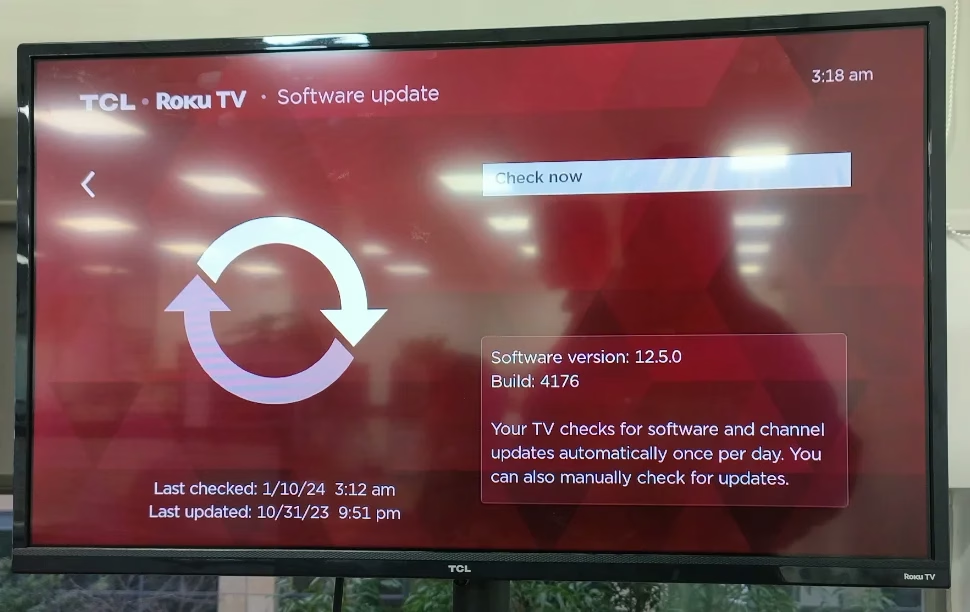
After finishing updates, check if your TV will display the pictures from your smartphone.
Check 5. Use a supported casting or mirroring method
Compatibility can often impede screen mirroring from working properly. Devices from different brands or operating systems might not work well together and compatibility chaos happens. For example, you stream the content from a Samsung phone to a Roku TV via the Smart View feature.
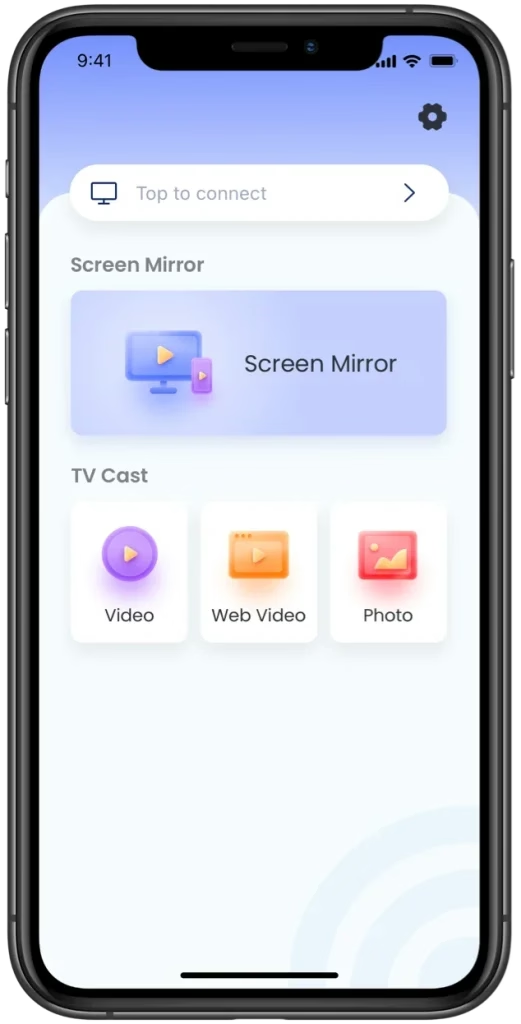
Here I would like to recommend you to use the Screen Mirroring app developed by BoostVision. The app boasts universal compatibility: it can stream content from iOS and Android devices to TVs from popular brands, including Roku, Samsung, TV, and so on.



Download the app on your smartphone, set up the connection between the phone and your TV via the same Wi-Fi network, and mirror the phone screen to the TV. For the details, please follow the Guide to Screen Mirroring TV Cast App.
If your TV still shows a black screen, it might be limited by the copyright of the content. The other possibility is that the TV display has issues, and hence make sure that the TV screen works properly. For that, TCL Roku TV Black Screen (with Sound) might give you some clues.
When the app controls the playback path
Does the "screen mirroring sound but no picture iPhone" persist? If you get the issue resolved through the above solutions, that's great, and you can watch pictures from your smartphone on the big TV screen with sound. Hopefully, you can share the solution guide with others at your convenience.
Screen Mirroring Sound But No Picture FAQ
Q: Why does my AirPlay have sound but no picture?
The possible reasons include temporary glitches, poor communication, outdated software, Bluetooth interference, compatibility issues, and the TV display issue.
Q: Why won't my iPhone screen mirror to my Samsung TV?
AirPlay is a WiFi-based technology, so its malfunction is always caused by wireless network connection issues. Certainly, other common reasons should also be considered, and they are Bluetooth and VPN interference, outdated software, incompatibility issues, and so on.
Try to find the real culprit through the solution guide: [Fixed] Apple AirPlay Not Working on Samsung TV.
 Dec 26, 2023