
If your Apple TV Remote or Siri Remote stops responding or disconnects, restarting the remote should be your first step. This simple guide will show you how to restart Apple TV remote and get it back to working order.
How to Restart an Apple TV Remote
Let's get straight to the point: reboot Apple TV remote is a quick process that only requires three simple steps. Before you begin, however, make sure the Apple remote has sufficient power to avoid any interruptions during the process.
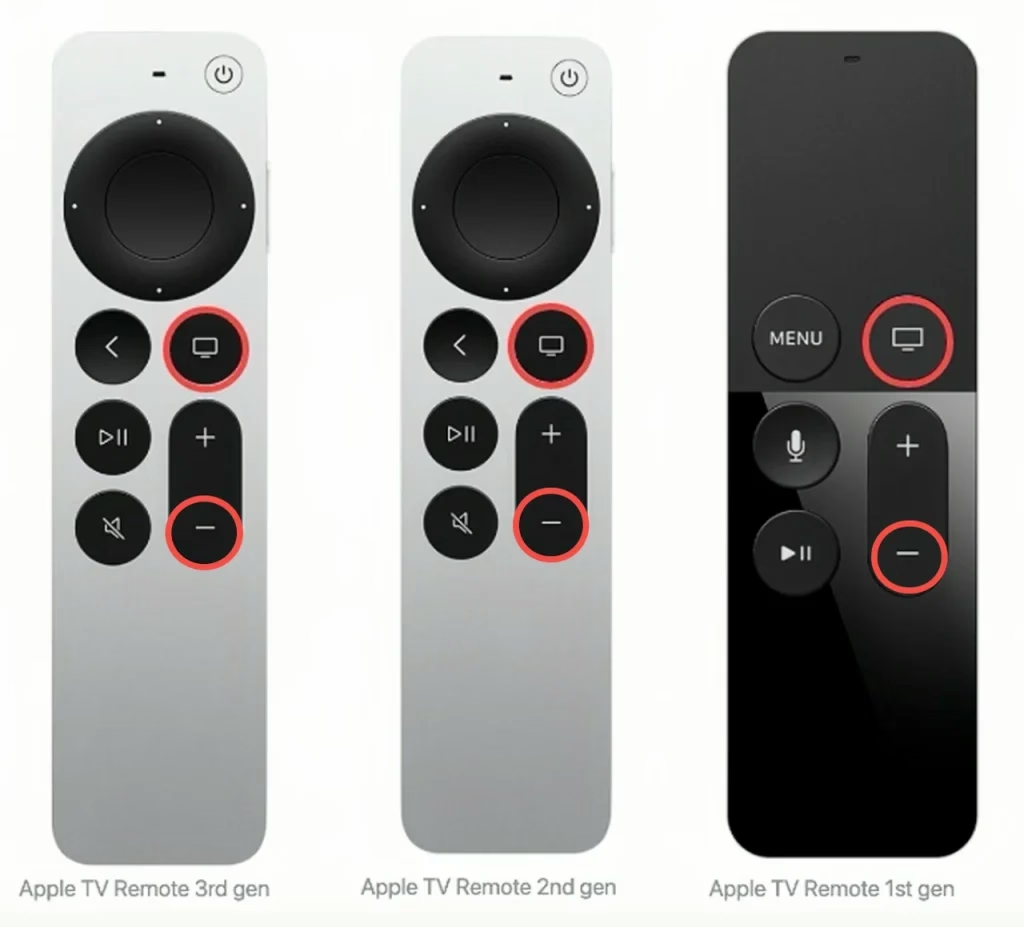
Step 1. Press the TV icon button and the Volume Down (- icon) button at the same time.
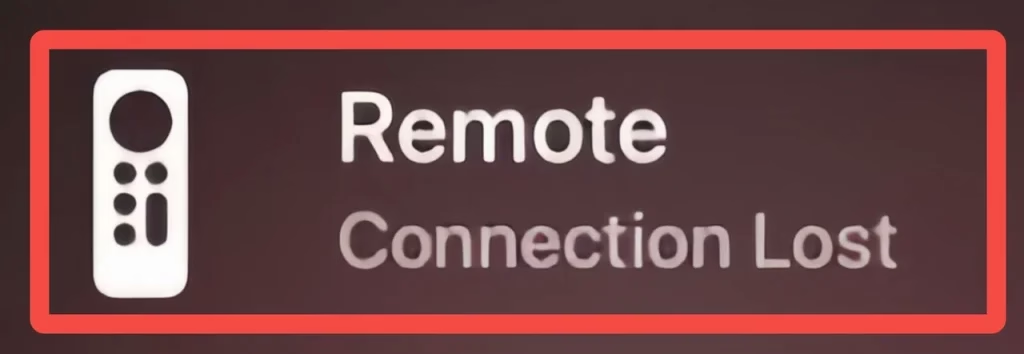
Step 2. Release the buttons when the status light on your Apple TV turns off and on again. Then wait 5 to 10 seconds for a Connection Lost ofRemotenotice to appear on your television screen.
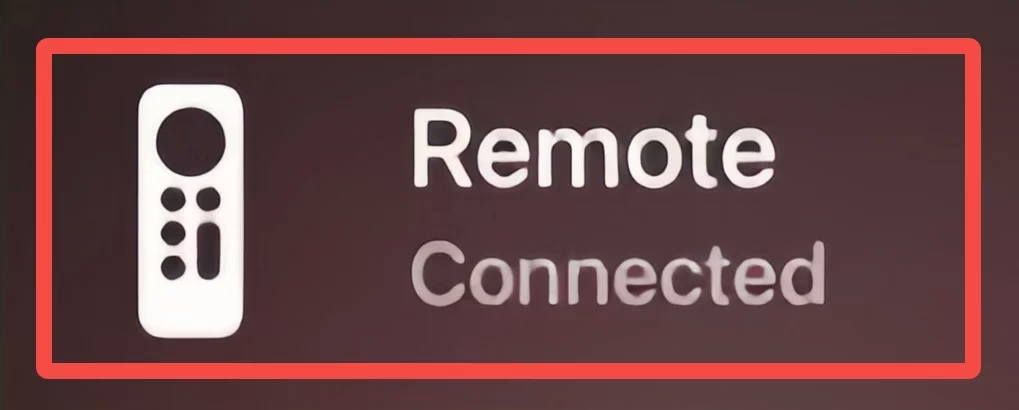
Step 3. Wait for your Apple TV remote to restart. You can use it afresh when the Connected of Remote notice is shown on the television screen.
If your remote still isn't working as expected, try using these virtual remotes to control your Apple TV below. Or if you still need help, contact Apple Support.
Alternatives to Apple TV Remote Not Work
If Apple TV remote restartting doesn't work, then how do you continue controlling your Apple TV and enjoying your entertainment? Luckily, there are two simple alternatives you can try when your Apple TV remote isn't responding properly.
Alternative 1. Use Apple TV Remote Feature
If you own an Apple mobile device, you can easily control your Apple TV using the virtual remote available in the Control Center. This feature allows you to navigate and control your Apple TV directly from your iPhone, iPad or iWatch, offering a convenient alternative when the physical remote isn't available or working.
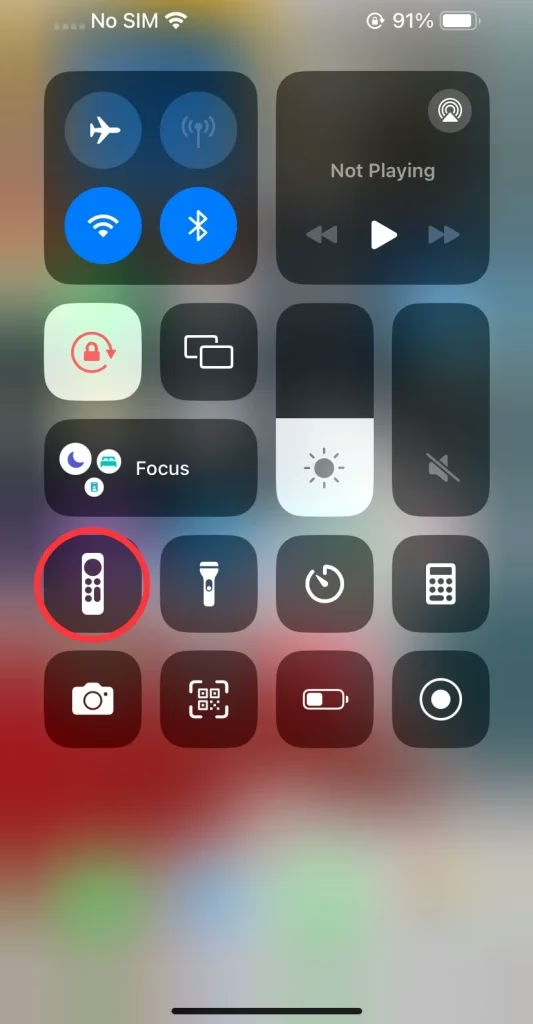
Step 1. Swipe from the top right corner or swipe up from the bottom of your iOS mobile device screen to open Control Center. If you can't find this remote icon here, then go to Settings > Control Center > MORE CONTROLS to click the green + icon near the remote icon to add this feature to your Control Center.
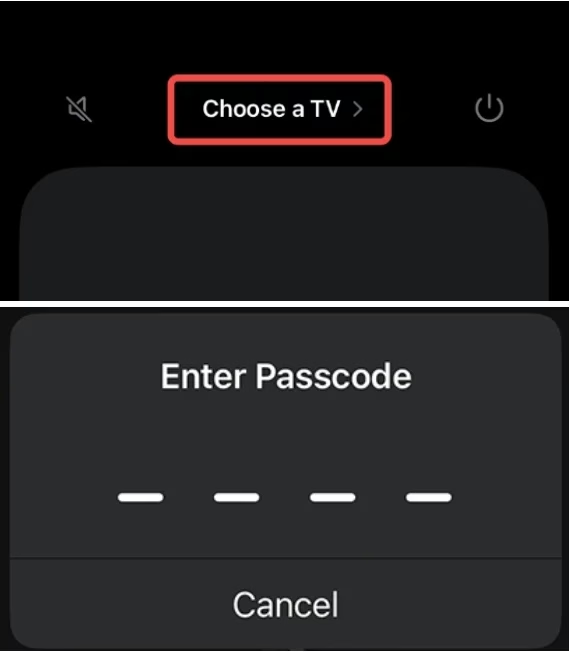
Step 2. Tap the Choose a TV to select your Apple TV, then enter a four-digit passcode into your iPhone or iPad to pair your Apple TV with the Apple TV Remote feature.
Step 3. After finishing pairing, you can leverage this feature as a physical remote on your iOS mobile device to control your Apple TV.
Alternative 2. Use a Free Universal Apple TV Remote App
The second option is a free universal Apple TV remote app available for both Android and iOS. It works with Apple TV HD and Apple TV 4K (1st, 2nd, and 3rd Gen). When connected to the same Wi-Fi network, the app lets you control your Apple TV with features like Power, Clickpad, TV control, Play/Pause, and Back buttons.
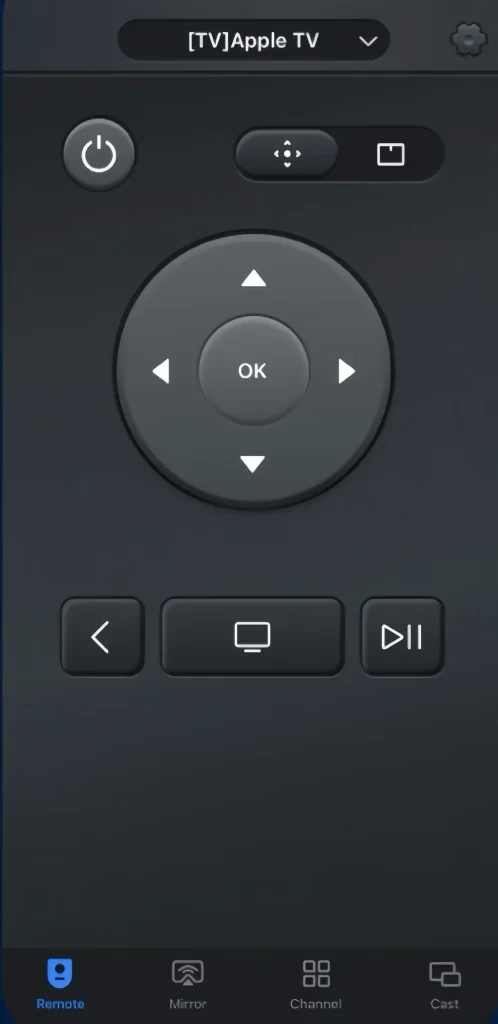


How to use the Apple TV Remote app:
Step 1. Download and install the Universal Apple TV Remote App from the app store on your Android mobile device.
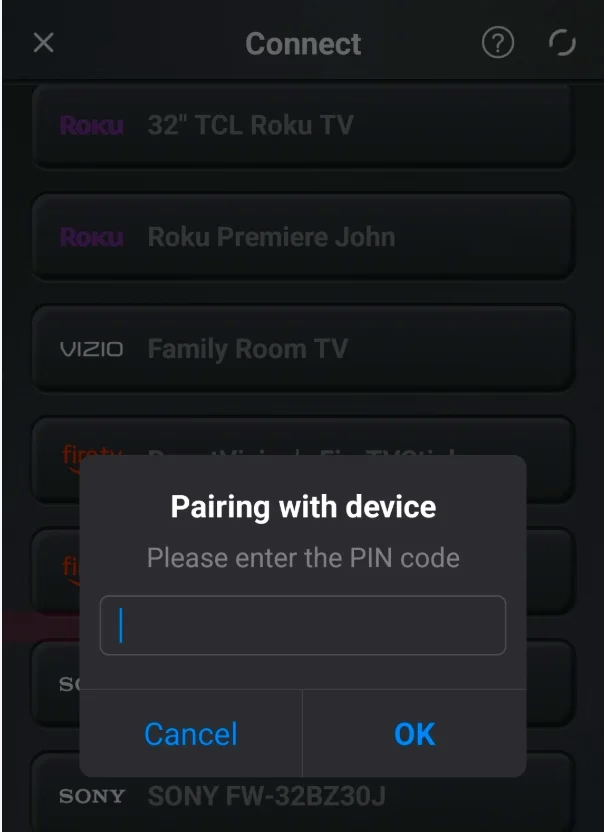
Step 2. Ensure your device and Apple TV are covered by the same wireless network. Open this app and tap the top from its remote page to choose your Apple TV to pair with. In this step, you need to enter the PIN code shown on your television screen.
Step 3. After finishing the connection process, you are allowed to use this application to control your Apple TV smoothly.
Bottom Line
Restarting Apple TV remote is very easy, right? Firstly, press the TV icon button and the Volume Down (- icon) button at the same time. Then, wait a few seconds for a Connection Lost of Remote notice to appear on your television screen. Finally, wait for your Apple TV remote to restart. You can use it afresh when the Connected of Remote notice is shown on the television screen.
Restart Apple TV Remote FAQ
Q: How do I reboot the Apple TV remote?
Step 1. Press the TV icon button and the Volume Down (- icon) button at the same time.
Step 2. Wait a few seconds for a Connection Lost ofRemotenotice to appear on your television screen.
Step 3. Wait for your Apple TV remote to restart.

 Oct 24, 2024