Screen mirroring lets you duplicate your phone, tablet, or computer display on a larger screen. It is different from casting because mirroring shows the full device screen in real time, while casting often sends only selected media.

Below are the main ways to mirror iPhone, Android, Windows, or Mac content to a TV, with device-specific setup and troubleshooting paths where the steps differ.

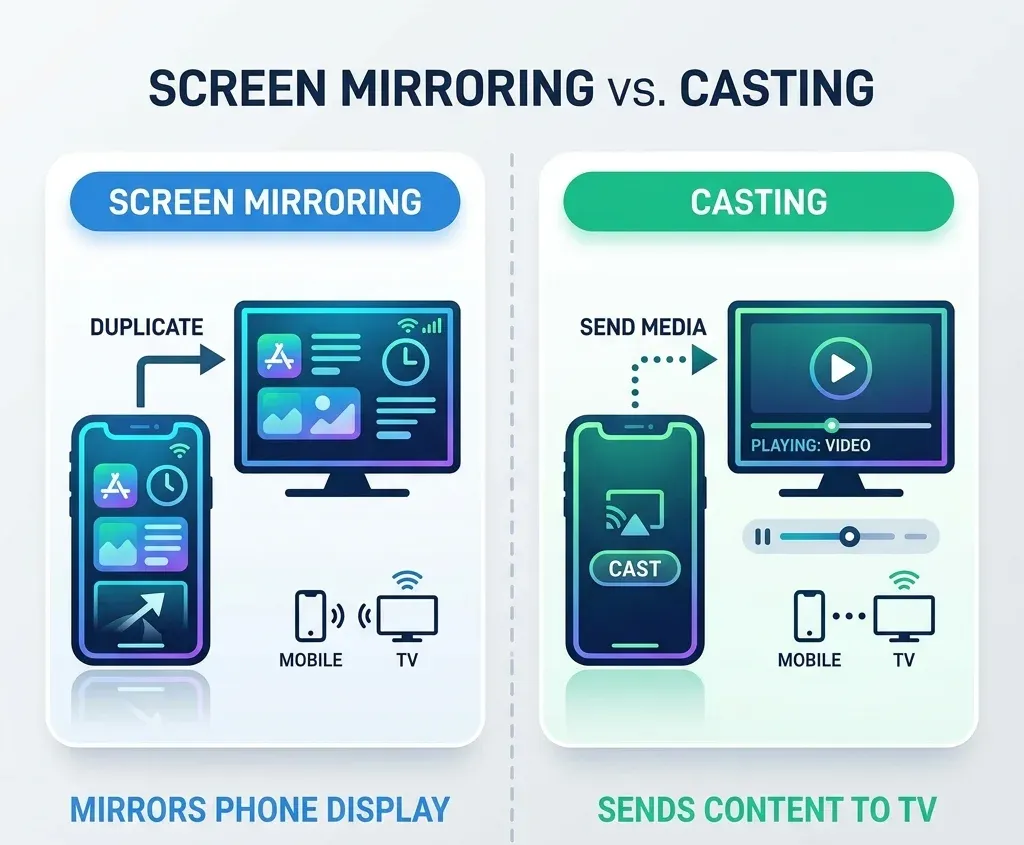
Screen mirroring vs. casting

Screen mirroring vs. casting

Before setup, it helps to separate mirroring from casting:

  • Screen mirroring duplicates your live screen, including menus, apps, and gestures.
  • Casting sends supported media from an app to the TV, often with better playback efficiency.
  • AirPlay is Apple's wireless transport for mirroring and media casting on supported devices.
  • Smart View, Cast, Chromecast, Miracast, and vendor-specific screen share tools are platform-specific ways to reach similar outcomes.
  • If you only want to send a video or supported app to the TV, casting is usually the better method.

    How to mirror an iPhone to a TV

    How to mirror and iPhone to a TV

    The iPhone path usually depends on AirPlay support.

    Best path: AirPlay-compatible TV or streaming device

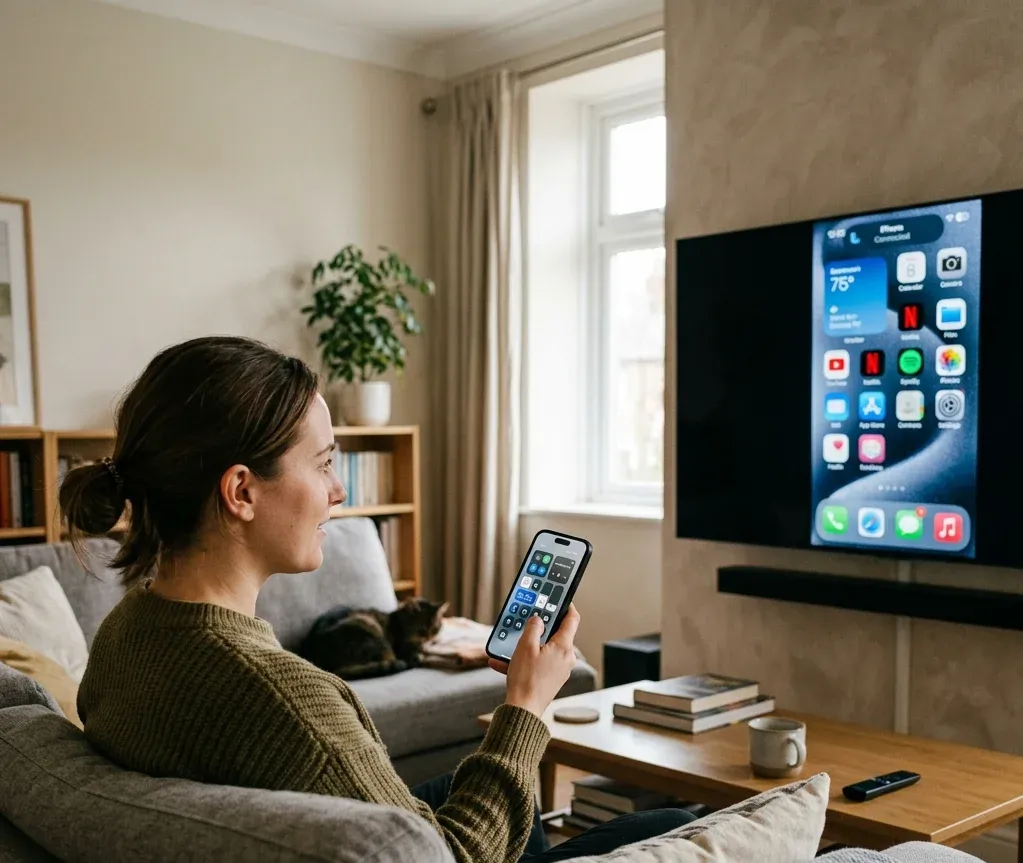
    On most iPhones, you can start with these steps:

  • Open Control Center
  • Tap Screen Mirroring
  • Select the TV
  • Enter the code if prompted
  • If you cannot find the button, it is in Control Center on most iPhones; the exact gesture depends on whether the iPhone has Face ID or a Home button. The where is screen mirroring on iPhone article explains the location, while how to mirror iPhone to TV covers AirPlay, HDMI, and app-based fallback methods in more detail.

    If AirPlay is not available

    Fallback options include:

  • HDMI adapter
  • Screen mirroring app
  • platform-specific receiver app
  • For a cable connection, use a compatible Lightning or USB-C adapter and switch the TV to the correct HDMI input. For an app-based connection, keep the phone and TV on the same Wi-Fi network. The broader guide to screen mirroring also covers app setup, connection, and common playback controls.

    How to mirror an Android phone to a TV

    How to mirror an Android phone to a TV

    Android methods vary by TV, manufacturer skin, and whether Chromecast or Miracast is available.

    The most common methods are:

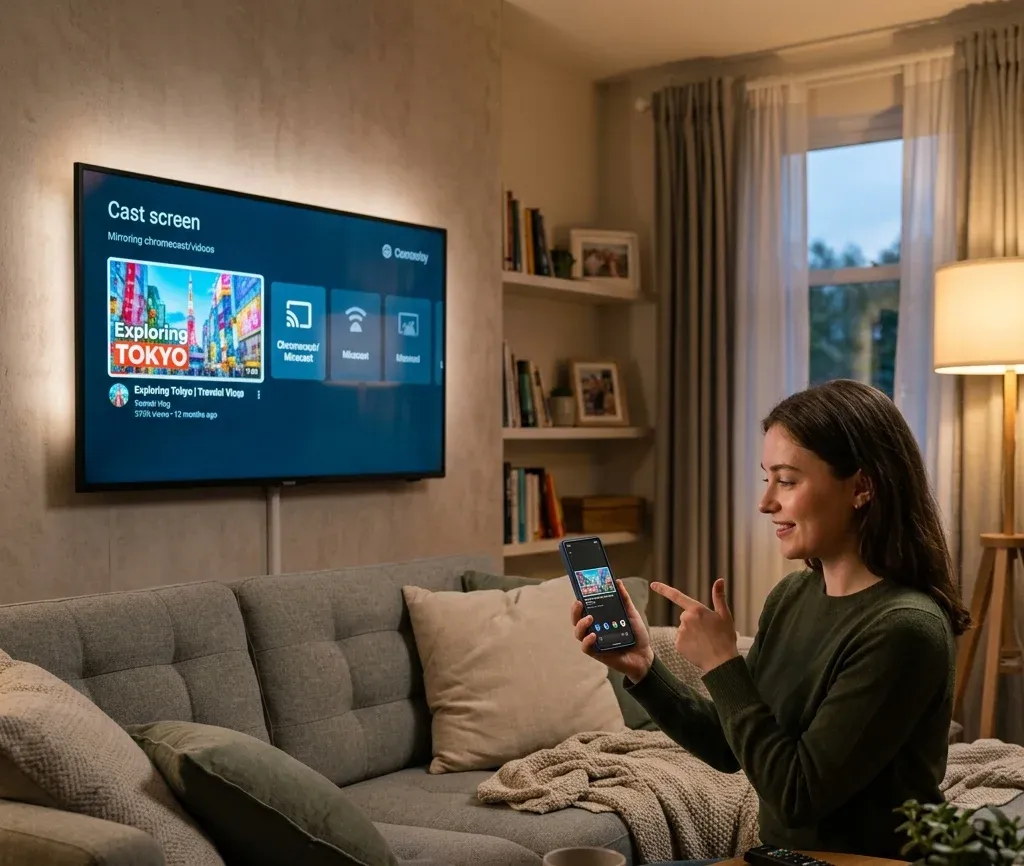
  • Cast or Smart View from Quick Settings
  • Google Home for Chromecast-based devices
  • TV-brand built-in wireless display support
  • third-party mirroring app
  • If Android mirroring is not obvious on your phone, pull down Quick Settings and look for labels such as Cast, Screen Cast, Smart View, or Wireless Display. Samsung phones commonly use Smart View, while many other Android phones use Cast or Google Home. The Android-specific setup is expanded in how to mirror Android to TV, where is screen mirroring on Android, and what is Smart View on Android.

    Brand-specific screen mirroring pages

    Samsung TV

    Samsung TVs may support AirPlay, Smart View, HDMI, or app-based screen sharing depending on the model.

    For iPhone, enable AirPlay on the Samsung TV and select the TV from Control Center. For Samsung phones, Smart View is usually the fastest path. HDMI is still the most stable fallback if wireless discovery fails. The Samsung flow is broken down further in how to screen share on Samsung TV.

    LG TV

    LG TVs may support AirPlay for iPhone, Screen Share for Android, HDMI for wired mirroring, or a casting app when built-in discovery fails. If your LG TV does not appear on the phone, confirm both devices are on the same Wi-Fi network and check whether Screen Share or AirPlay is enabled. The LG-specific steps are covered in how to screen share on LG TV.

    Sony TV

    Sony TV setup varies by Android TV, Google TV, and older models. Newer models often work through Chromecast or Google TV features, while older models may rely on a separate screen mirroring mode. If the menu names do not match your TV, how to screen mirror on Sony TV can help map the method to your model.

    How to mirror a phone to a TV without Wi-Fi

    If Wi-Fi is unavailable or unstable, you may need a cable, direct wireless display feature, or device-specific workaround.

    Typical options include:

  • direct Wi-Fi Direct support
  • HDMI cable
  • Lightning or USB-C display adapters
  • platform-specific offline mirroring hardware
  • If Wi-Fi is unavailable, the most reliable choices are a wired HDMI adapter or a direct wireless feature that does not depend on a router. How to mirror phone to TV without Wi-Fi compares those offline and low-connectivity options.

    Why is screen mirroring not working?

    When screen mirroring fails, the cause usually falls into one of these groups:

  • TV or receiver does not support the requested protocol
  • Phone and TV are not on the same network
  • The TV is not discoverable
  • The cast or mirroring service is disabled
  • The Wi-Fi network is unstable
  • A device needs rebooting or updating
  • If your TV does not show up, first check whether both devices are on the same Wi-Fi network, whether the TV supports the selected protocol, and whether the receiver feature is turned on. If mirroring starts and then fails, restart the phone, TV, and router, then test another app or media type. The deeper troubleshooting paths are why screen mirroring is not working and TV not showing up on screen mirroring.

    When should you mirror instead of cast?

    Mirroring is better when you want to:

  • show presentations
  • display unsupported apps
  • browse photos or documents live
  • share the whole phone screen
  • use platforms without native cast support
  • Casting is better when you only want to send supported video or audio apps. If that is your goal, how to cast to TV covers the app-to-TV workflow.

    Bottom line

    Screen mirroring works best when your phone, TV, and mirroring protocol all match. Start with the built-in iPhone or Android option, then move to the matching TV-brand or troubleshooting section if the TV does not appear.