
With the rise of smart TVs, more and more features are becoming accessible to users, making it easier to stream content from mobile devices. Chromecast, a popular feature that lets you cast content from a mobile device or computer to a TV, is one of these features. If you're a Samsung TV owner, you may wonder, "Does Samsung TV have Chromecast?" As of 2025, some of Samsung's latest TV models support Chromecast, making it even easier to stream your favorite shows, movies, and apps. Keep reading to touch on the details.
Does Samsung TV Have Chromecast Built-in?
As of the time of this writing, Samsung TVs now support Google Cast, the technology behind Chromecast, in some of its latest models. Specifically, the 2025 hotel TV lineup, including The Frame (HL03F) and the 2024 HBU8000, features built-in Google Cast support. This allows users to connect their mobile devices directly to the TV for content streaming, without needing any additional devices or adapters.
"Our 2025 hotel TV lineup is designed to elevate the guest experience with personalisation at its core," said Hoon Chung, Executive Vice President of Visual Display Business at Samsung Electronics. "Hotels can customise their room's ambiance with The Frame's Art Mode, offer seamless streaming with Apple Airplay and, the newly added Google Cast, and enable convenient control of the room environment through SmartThings Pro, all tailored to individual guest preferences." (extracted from the Samsung News site)
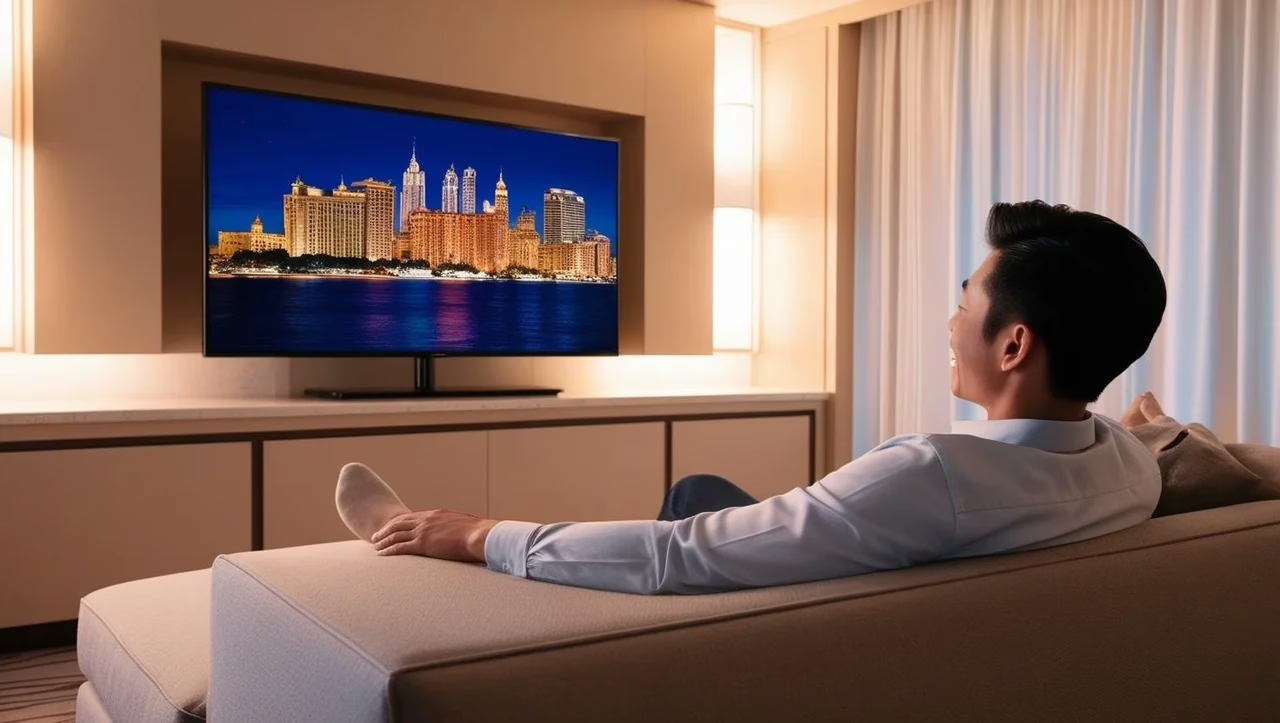
Aside from Chromecast Samsung TV, other TV brands, like LG, Vizio, and Sony, also support Chromecast built-in, providing similar streaming capabilities. These brands are part of the growing number of manufacturers incorporating Google Cast technology to compete in the smart TV market.
How to Use Chromecast for Samsung TV
While Samsung TVs traditionally relied on their own ecosystem for screen mirroring (like Samsung's Smart View), the introduction of Google Cast (Chromecast) support provides more flexibility for users. Google Cast works with a wide range of devices, including Android phones, iPhones, iPads, and laptops.
Using Samsung TV Chromecast is simple as it works seamlessly with apps that support Google Cast. Here is how to Chromecast to Samsung TV:
Step 1.Both the TV and the casting device must be connected to the same Wi-Fi network to communicate.Step 2.Open an app like YouTube, Netflix, or Spotify on your phone or tablet that supports Chromecast.Step 3.Find theCasticon (usually a rectangle with a Wi-Fi-like symbol) and tap it.
Step 4. A list of available devices will appear. Select your Samsung TV from the list to begin casting content.
Step 5. The content from your mobile device will now display on your Samsung TV screen. Enjoy your stream.
Alternatively, you can open the Google Home app on your mobile device, and then cast your phone to Samsung TV.
How to Cast to Samsung TV Without Chromecast
While some Samsung TVs have Chromecast built-in, others do not. If your Samsung TV doesn't support Chromecast natively, there are several ways to cast content to your TV. Here are three reliable methods:
Method 1. Use a Third-Party Casting App
Several third-party casting apps allow you to connect your Android or iOS device to your Samsung TV for screen mirroring and casting. One popular app is TV Cast, which works with not only Chromecast-enabled TVs but also other TVs, including Samsung, LG, Vizio, Roku, etc.
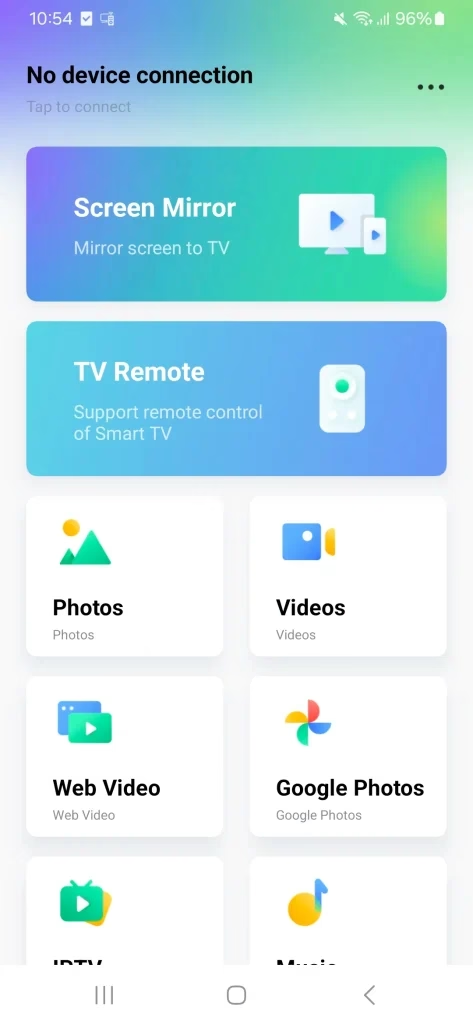
To use TV Cast:
Step 1. Download and install the TV Cast app from the App Store or Google Play Store.
download-button
Step 2. Open the app and select your Samsung TV from the list of available devices.
Step 3. Tap a feature on the app and then you will have a large-screen viewing.
This method is great if you don't want to rely on Chromecast devices or built-in Chromecast features.
Method 2. Connect an External Chromecast Device
If your Samsung TV doesn't have Chromecast built-in, you can still use the Chromecast technology by setting up an external Chromecast on Samsung TV. The two main models you can choose from are:
Chromecast with Google TV (4K): This is the most powerful Chromecast model, supporting 4K streaming, Dolby Vision, and HDR.Chromecast (3rd Generation): A more affordable option, suitable for 1080p streaming, perfect if you're on a budget.
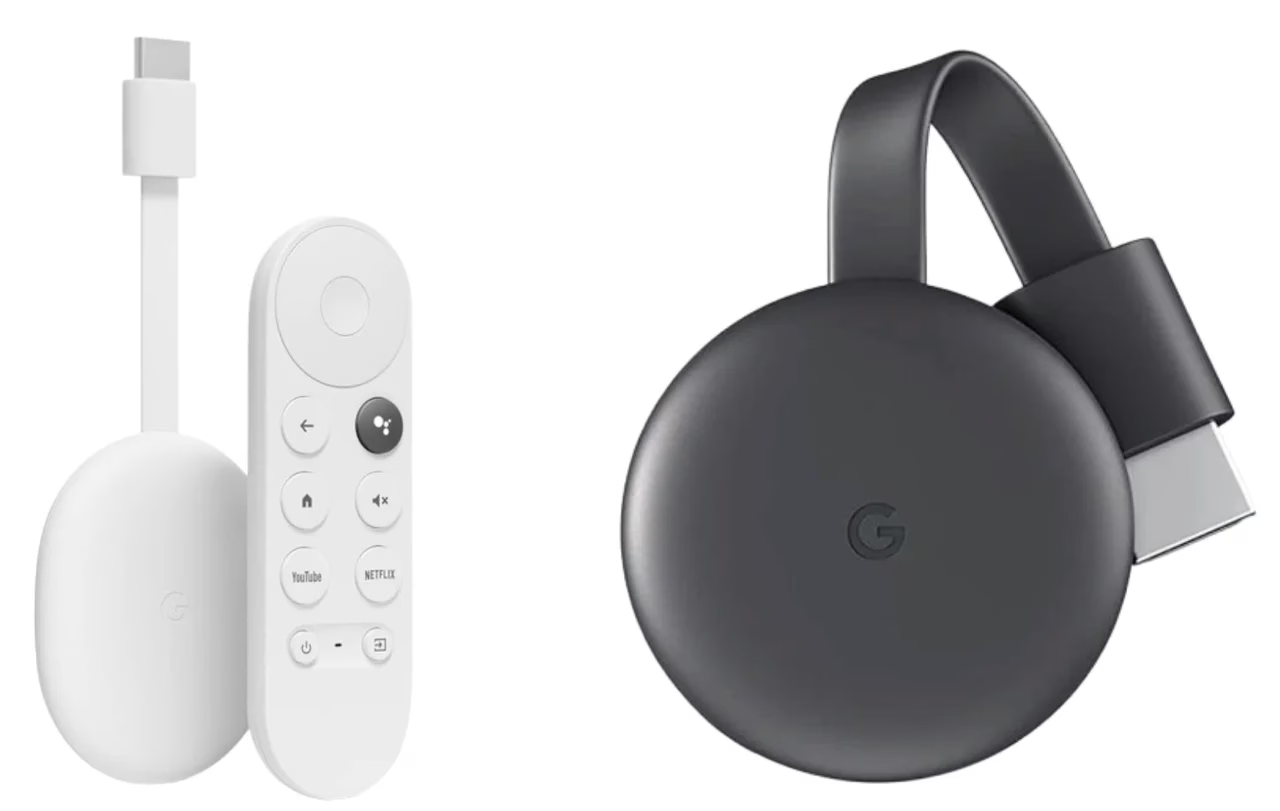
If you want the best streaming quality, go for the Chromecast with Google TV (4K). It also offers a remote, making it easier to navigate and control content directly.
Once you get a Chromecast device, set up it with the steps below:
Step 1. Connect Chromecast to your TV.
Step 2. Set up Chromecast on your TV.
Step 3. Install the Google Home app.
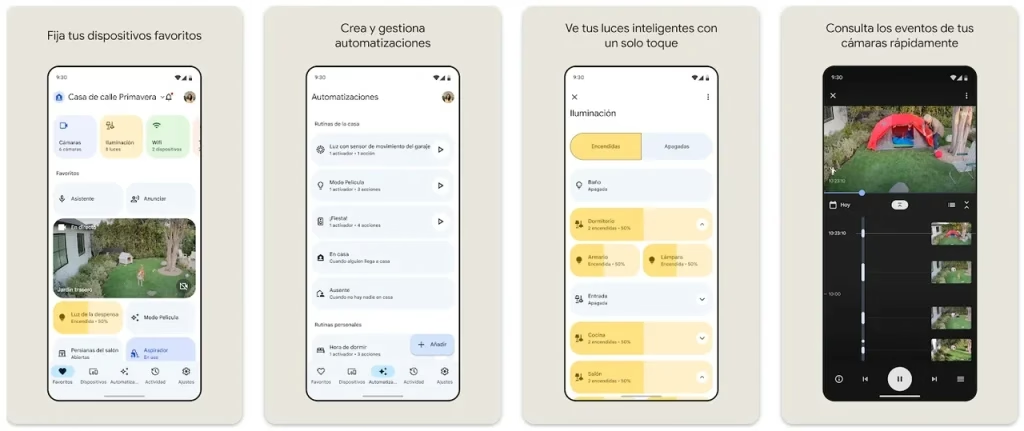
Step 4. Connect Chromecast to your Wi-Fi network.
+button to add a new device. - Select
Set up deviceand then chooseNew devices. - The app will search for the Chromecast device connected to your TV.
Step 5. Chromecast to Samsung TV.
Cast icon(a rectangle with a Wi-Fi symbol). - Tap the
Cast iconand select yourChromecastdevice (your Samsung TV). Your content will now stream directly to your Samsung TV.
Step 6. Control playback with Your phone or Chromecast remote.
Method 3. Use the Smart View Feature
If you have a Samsung smartphone, you can use the Smart View feature to mirror your screen to your Samsung TV. Here's how:
Step 1. Ensure the same network connection on your Samsung phone and TV, then enable the Smart View feature on your Samsung phone.
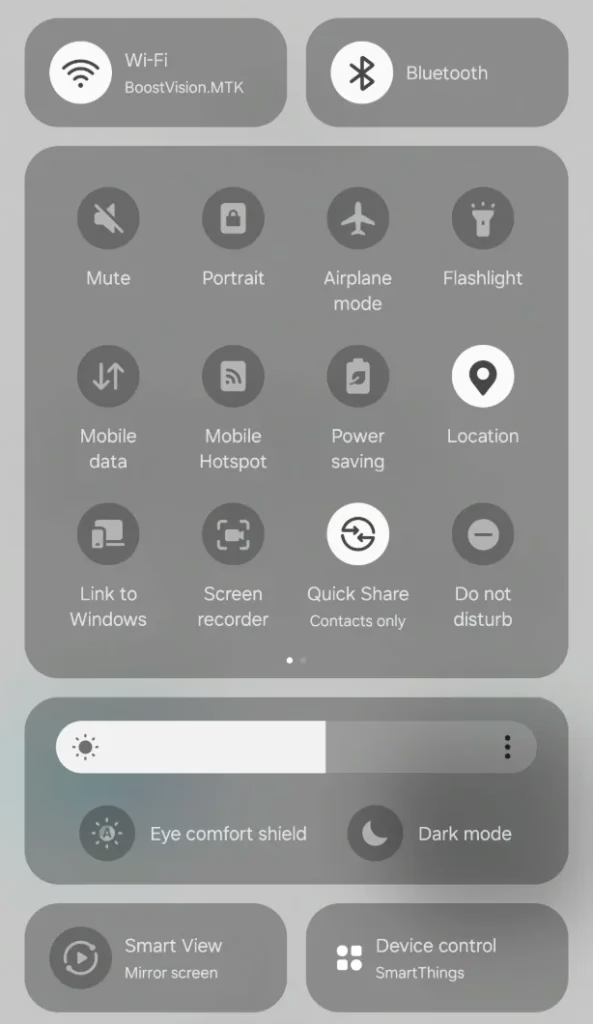
Step 2. Select your TV from the list of available devices.
Step 3. Choose the content you want to display on your TV.
Step 4. Tap Start Broadcasting to cast the content to your Samsung TV.
The Smart View feature is convenient but works best with Samsung devices. If you have a non-Samsung smartphone, casting might not be as smooth or even available.
Conclusion
While not all Samsung TVs come with Chromecast built-in, many of the newer models, including the 2025 hotel TV lineup like The Frame (HL03F) and the 2024 HBU8000, offer Google Cast functionality. For older models or those without Chromecast, external Chromecast devices, the Smart View feature, or third-party apps like TV Cast are excellent alternatives to cast content from your mobile devices to your Samsung TV.
Whether you're watching Netflix, YouTube, or your favorite streaming platform, Samsung Smart TV Chromecast makes it easier to enjoy content on the larger screen. With these easy steps, you can quickly start streaming without any hassle.
Does Samsung TV Have Chromecast FAQ
Q: Does my Samsung TV have casting?
It depends on the model. If you have a newer Samsung TV from the 2024 or 2025 lineup, such as The Frame (HL03F) or the HBU8000, it may have Google Cast (Chromecast) built-in. For older models, you may need to use other casting methods.
Q: How do I know if my TV supports Chromecast?
To check if your Samsung TV supports Chromecast, open the settings on your TV and look for a Google Cast or Chromecast option under the connections or devices section. Alternatively, check the specifications of your TV model on Samsung's official website.
Q: How do I cast to my smart TV without Chromecast?
If your Samsung TV doesn't have Chromecast built-in, you can still cast by:
Smart Viewfeature (for Samsung devices). - Using third-party apps like
TV Castfor screen mirroring and casting.
 May 12, 2026