
How to connect Fire TV to WiFI without remote? Before enjoying channels on Fire TV, you need to connect it to Wi-Fi. But what if you've lost your FireStick remote or can't find the remote? It feels impossible to connect Fire TV to Wi-Fi without a remote since the connection has to be made through the settings. But don't worry: where there's a will, there's a way.
How to Connect FireStick to WiFi Without Remote
If you've found yourself without the Fire TV remote and need to connect to Wi-Fi, don't panic. There are still a few practical ways to get your Fire TV or Fire Stick online. Whether you've lost your Fire TV remote or the remote is simply not working, you can still connect to Wi-Fi with these alternative methods.
Method 1: Physical Button on TV
If you have no access to your remote, the manufacturer usually gives you a fallback solution, and that is the physical button on TV. Depending on different models, the physical buttons are located in different places, and you need to find them.
For most recent models, the physical buttons are located at the back of the TV, because the modern TV is getting slimmer and thinner, which means there is nowhere to place all those physical buttons except the back panel.
Putting those buttons at the back is a rather good solution, but it is not perfect since a lot of people decide to hang their TV on the wall, and then there is no access to any buttons on the back panel. If you are one of those who had your TV hanging on the wall, you should continue reading and try something else.
Method 2: Use a Mouse
A physical solution is always the best solution, and if you can find a mouse at home, that will be even better. There are two things you need to check before you wire your mouse on your TV:
Once you get a mouse that meets the requirement, you can hook it up on the USB port of your TV and try if you can use it to connect Fire TV to a wireless network.
According to investigations and user-shared experiences, a mouse would work from time to time, and if it doesn't, you should try the next method, which is using a keyboard.
Method 3: Use a Computer Keyboard
Physically connecting a computer keyboard to your Fire TV might gain control as well, but also double check the following requirements:
Once you get the keyboard that meets the requirement, plug the USB cable into the USB port on TV, usually the port is by the HDMI port. Then, you will be able to use the arrow keys to move the cursor on the TV and use the enter key to get into the settings menu, and connect your TV to the Wi-Fi.
Method 4. Some Suggested Ways
There are other methods you can try, but there is no guarantee it'll work, just for the sake of multiple dimensions of instruction about how to connect Fire TV stick to wifi without remote. These methods are more complicated and you might need more time and patience to work on them.
Remote with an HDMI CEC Remote
While CEC stands for Consumer Electronics Control, an HDMI CEC Remote is sort of universal remote that connects to TV through HDMI port, and you can purchase them from either online at Amazon or from a local electronic shop such as Best Buy.
However, this method requires you to previously turn on the CEC remote. If not, just forget about it. This is the reason for this method is not guaranteed.
Remote with a Play Station or XBOX Controller
If you have a video game console such as Play Station or XBOX, you can try to use the controller to connect to your TV. It will be lucky if you have a controller with USB cable, you just need to hook it up and try to move the arrow buttons.
However, newer console controllers are mostly wireless, which means you need to pair them with the TV through Bluetooth, and if you haven't done it previously, you are not able to do this without a remote.
Use a Universal Fire TV Control App with Network
After you have successfully connected to Wi-Fi, you still need to consider the future control of your TV, since you don't want to use a mouse or a keyboard hooking on TV to switch between channel to channel. Luckily, you can use remote application software instead of purchasing another physical remote.
Here we recommend you to try the BoostVision's universal remote app for Fire TV and FireStick, an app can replace the Fire remote and become an ultimate Fire TV assistant. It is simple and can be set up in a few steps.
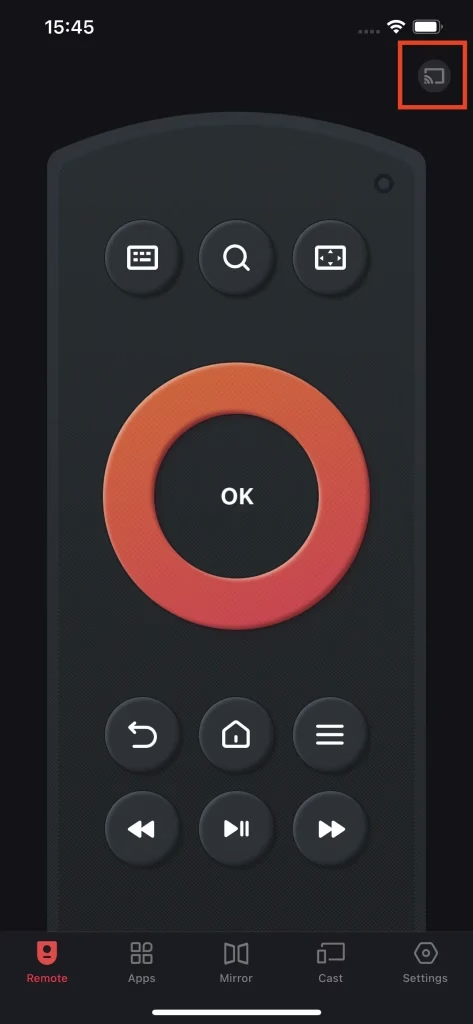


It is simple and can be set up in a few steps.
Step 1. Download the apps from App Store or Google Play Store depending on your device.
Step 2. Open the app and click the connection button located in the upper right corner.
Step 3. Select the device on the popped up list and enter the PIN code, then the connection will be automatically set.
Once the connection has been set, you can remote control your Fire TV seamlessly with your smart phone. Furthermore, you can browse channels directly from your phone, mirror screen of your phone and cast media from your phone to Fire TV.
Conclusion
"How to connect my Fire TV to Wi-Fi without remote?" That sounds like an incompletable task, but in the field of technology, there is always breakthrough. You can either use a mouse or a keyboard to connect to your TV directly and finish the interaction of Wi-Fi connection. Then, use a remote app to control your TV for future use.
How to Connect Fire TV to WiFi Without Remote FAQ
Q: How do I connect my Fire TV to the Internet without a remote?
You can try the following methods:
Q: How to turn on Fire Stick without remote?
To turn on the Fire Stick without remote, you can turn on your TV and then the Fire Stick will be on. To turn on your TV without a remote, you can either use the physical power button on the TV, or use a universal remote to turn it on.
Q: Can you set up a Fire TV without a remote?
Yes, you can set up a Fire TV without a remote. You can use BootVision's universal Fire TV control appon your smartphone as a remote, or connect a compatible USB keyboard or mouse to navigate through the setup.
Q: How to connect to Fire TV if remote is not working?
If your Fire TV remote isn't working, you can connect using the virtual Fire TV & FireStick remote from BoostVision on your smartphone. Simply download the app, connect it to the same Wi-Fi network as your Fire TV, and use your phone as a remote. Alternatively, you can try connecting a USB keyboard or mouse to control the TV and navigate through the settings.
Q: How to connect Fire Stick to Wi-Fi when using phone as remote?
To connect your Fire Stick to Wi-Fi using your phone as a remote, first make sure your phone is connected to the same Wi-Fi network as the Fire Stick. Open the universal FireStick & Fire TV remote app on your phone and use it as a remote to navigate to Settings > Network on the Fire Stick. From there, select your Wi-Fi network, enter the password, and your Fire Stick will connect to Wi-Fi.

 Oct 10, 2025