
The main advantage of an iPad is bigger screen, which improves the experience of watching videos and movies. However, when you have a smart TV at home, you might think of how to connect iPad to HDMI TV? This guide will show you several methods of connecting iPad to HDMI cable displayers.
Connect iPad to TV with HDMI Adapter
How to connect iPad to TV with HDMI? When iPad has no HDMI port, you will need an HDMI adapter to build a connection between iPad and displayers with HDMI.
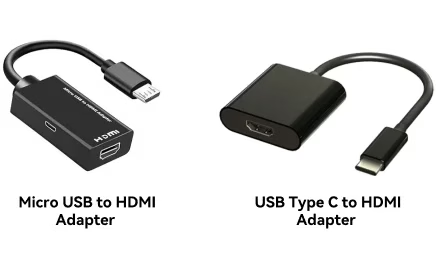
To be specific, the iPad models below use USB type C:
After you have got the proper adapter, you can follow the instructions below to connect iPad HDMI to TV or any displayer with an HDMI cable.
Step 1. Connect the adapter to iPad.
Step 2. Connect one end of the HDMI cable to the displayer, and the other end to the adapter.
Step 3. Manually swap the input source of the displayer to the one you have connected.
This can also be the answer to how to connect iPad to projector with HDMI and how to connect iPad to monitor with HDMI.
Connect iPad to TV Wirelessly via AirPlay
Connecting iPad to TV HDMI port is limited because it is a wired connection, you can't move anywhere. However, you can use a wireless solution to break this limit, and that is AirPlay.
Before we go through how to do it, there is one thing to check upon. AirPlay can be only used on those compatible TVs, so if you're not sure about this, you can go to the Airplay compatibility list.
Step 1. Make sure you have connected your iPad and your TV to the same Wi-Fi network.
Step 2. On the home screen of your iPad, swipe down from top to bottom, and call out the Control Center.
Step 3. Tap the Screen Mirroring icon, and tap the Choose a TV area.
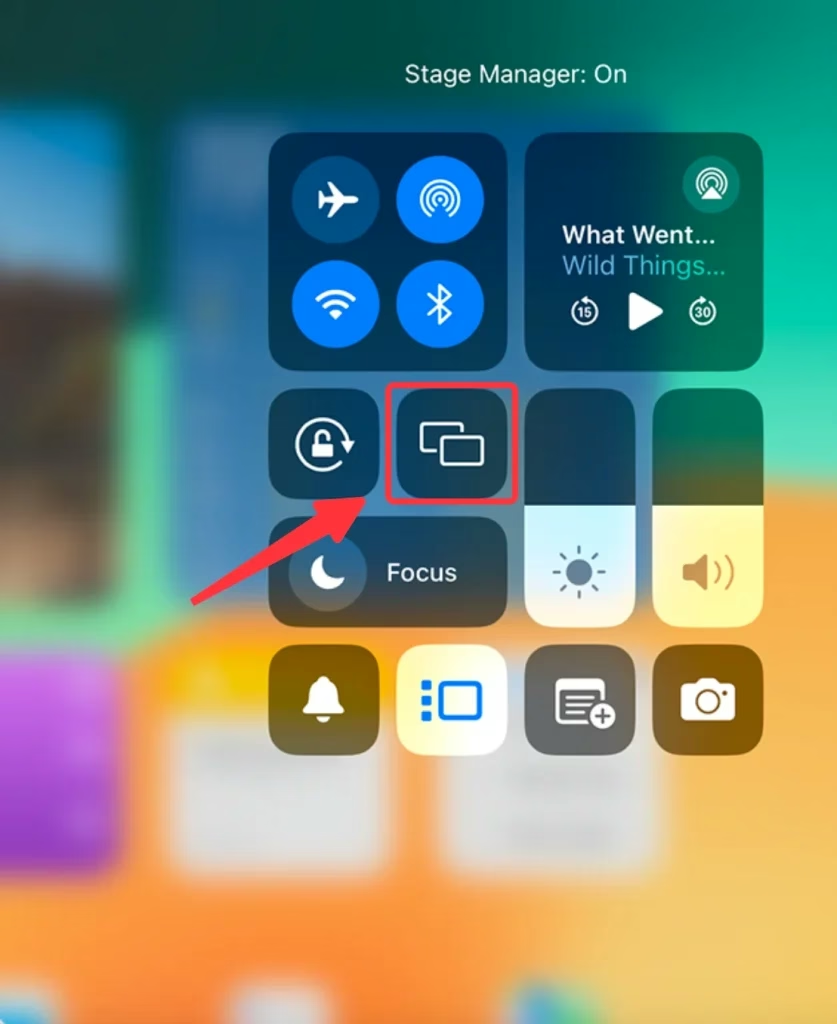
Step 4. Select the TV you want to connect to.
Step 5. Enter the PIN code on the screen.
Connect iPad to TV Wirelessly via Screen Mirroring app
If your TV doesn't support AirPlay protocol, you can use the Screen Mirroring app. This app has great compatibility that can connect your iPad to TV wirelessly through several kinds of protocols.
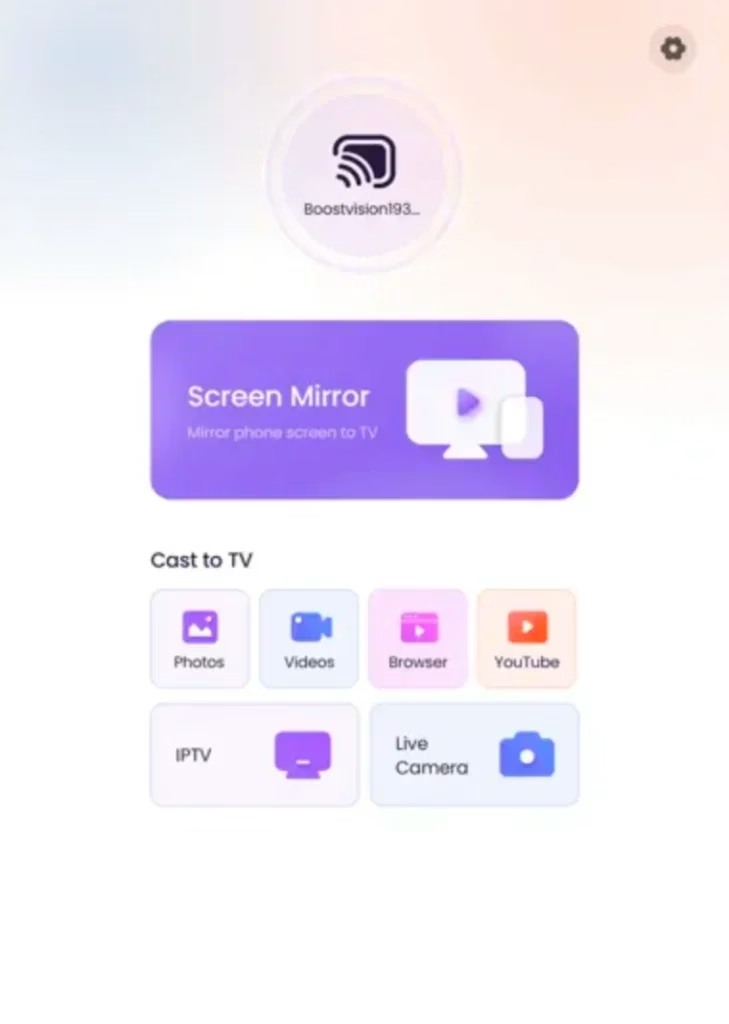


You can follow the instructions below to get your iPad connect to your TV:
Step 1. Make sure you have connected your iPad and your TV to the same Wi-Fi network.
Step 2. Tap the Tap to Connect icon.
Step 3. Select your TV, and follow the on-screen instructions to establish a connection.
Step 4. Tap the Screen Mirror icon section.
Step 5. Set the mirroring parameters and tap the Start mirroring button.
Conclusion
With methods provided above, you will be able to connect your iPad to any HDMI-displaying device. While there are two kinds of ports for iPad, you need to carefully check which type of HDMI adapter you need to purchase. Also, if your TV is an AirPlay-compatible smart TV, you can use AirPlay to mirror your iPad to TV through Wi-Fi, and make the connection wireless.
iPad to HDMI FAQ
Q: Why won't my HDMI adapter work on my iPad?
There are several reasons that your HDMI adapter won't work on your iPad:
Q: How can I mirror my iPad to my TV without Apple TV?
There are several methods for mirroring iPad to TV:
 May 10, 2024