
How to find TV IP address without remote? If you need to find TV IP address without remote, the good news is you usually don't need the remote at all. In most homes, the easiest way is to check your router, since the TV IP address is automatically assigned and stored there once the TV connects to your network.
This guide explains how to find TV IP address, including where to find TV IP address without remote using the fastest and most reliable methods.
If the TV menu is still accessible through physical buttons or a phone-based controller, you can also find the IP address on TV directly from the network settings.
What You Need Before Finding TV IP Address Without Remote
Before you look for the IP address, confirm one important detail: most people want the TV's local IP address, not its public internet address. The local IP usually looks like 192.168.1.25 or 10.0.0.18, and it is the one used for setup, troubleshooting, and device discovery inside your home network.
You will move faster if you have these basics ready:
If the TV is connected by Wi-Fi or Ethernet, the router usually knows its IP even when the remote is not working. If the TV is not connected yet, you may need to use the TV's physical buttons or a phone-based remote just long enough to open the network menu.
How to Find a TV IP Address Without a Remote
The quickest method is usually the router, because it does not depend on the TV menu layout. If your TV is already online, the router can show the IP in seconds.
Step 1. Open your router admin page or router dashboard.
Many modern routers show connected devices right away in the browser dashboard. If you use the browser version, log in to the router from a phone or laptop and look for a section named Connected Devices, Client List, Device Map, or LAN Status.
Step 2. Find the TV in the device list.
Look for your TV brand name, model name, or a MAC address that matches the label on the TV box or back panel. Some TVs appear with a generic name, such as Unknown, so use the connection type and MAC address if the brand name is missing.
Step 3. Read the IP address next to the TV entry.
The address is usually shown in the same row as the device name. Write it down exactly as displayed. If you are troubleshooting later, that local IP is the number you want to keep.
Step 4. Refresh the list if the TV does not appear.
If the TV was just powered on, wait 30 to 60 seconds and refresh. Some routers take a short time to update their client table, especially after sleep mode or a network reconnect.
Step 5. Check the TV network status if the router list is unclear.
If the router entry is generic or hidden, open the TV's own network status page. On many TVs, the IP address appears near the wireless status, gateway, or subnet information.
This router-first approach works because the router sees every connected device, even when the TV menu is hard to reach. It is usually the shortest path when the remote is missing and you just need the address for a quick setup task.
Where to Find TV IP Address Without Remote [By Device]
If you can still reach the TV menu through side buttons, a joystick, or a phone-based remote, the TV itself can show the IP address directly. The exact menu path varies by brand, but the logic is the same: open network settings, then read the connection details.
Step 1. Use the TV's physical button or a phone controller if the TV is already connected.
Step 2. Open Settings > Network > About.
Step 3. Read the IP address, subnet, and gateway from the About screen.
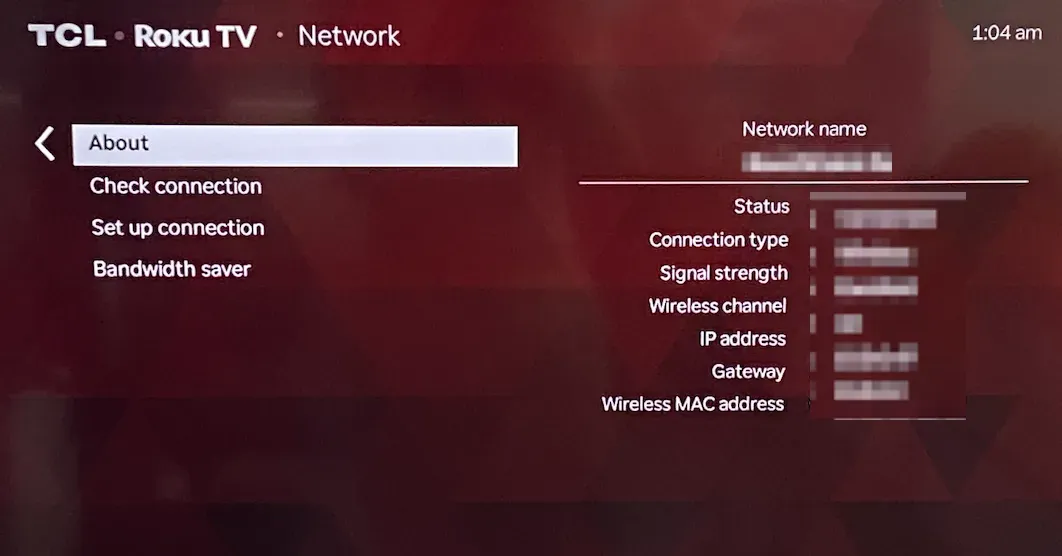
Roku TVs are usually straightforward because the network details are grouped in one place. If you cannot navigate the menus with buttons, the router device list is still a better fallback.
Step 1. Open Settings > General > Network > Network Status on most models.
Step 2. If your model uses a slightly different menu, look for About This TV or Network Information.
Step 3. Record the IP address shown in the connection summary.
Samsung menus can vary by year, so do not worry if the labels are not exact. Look for the screen that confirms the TV is connected and shows the current wireless or wired details.
Step 1. Open Settings > All Settings > Network.
Step 2. Choose Wi-Fi Connection or Wired Connection, depending on how the TV is online.
Step 3. Open Advanced Wi-Fi Settings or the connection details page and note the IP address.
LG usually separates wireless setup from advanced network details, so you may need one extra tap compared with other brands. Once you are in the advanced panel, the IP is easy to spot.
Step 1. Open Settings > Network & Internet on Android TV or Google TV, or Settings > My Fire TV > About on Fire TV.
Step 2. Select the active network connection.
Step 3. Read the IP address from the connection details screen.
Use a Phone as a Temporary Remote
These platforms often hide the network information under one additional submenu. If the screen responds slowly, pause between button presses so you do not skip past the network page. If you are using a phone-based remote and the TV is already on Wi-Fi, keep the session short.
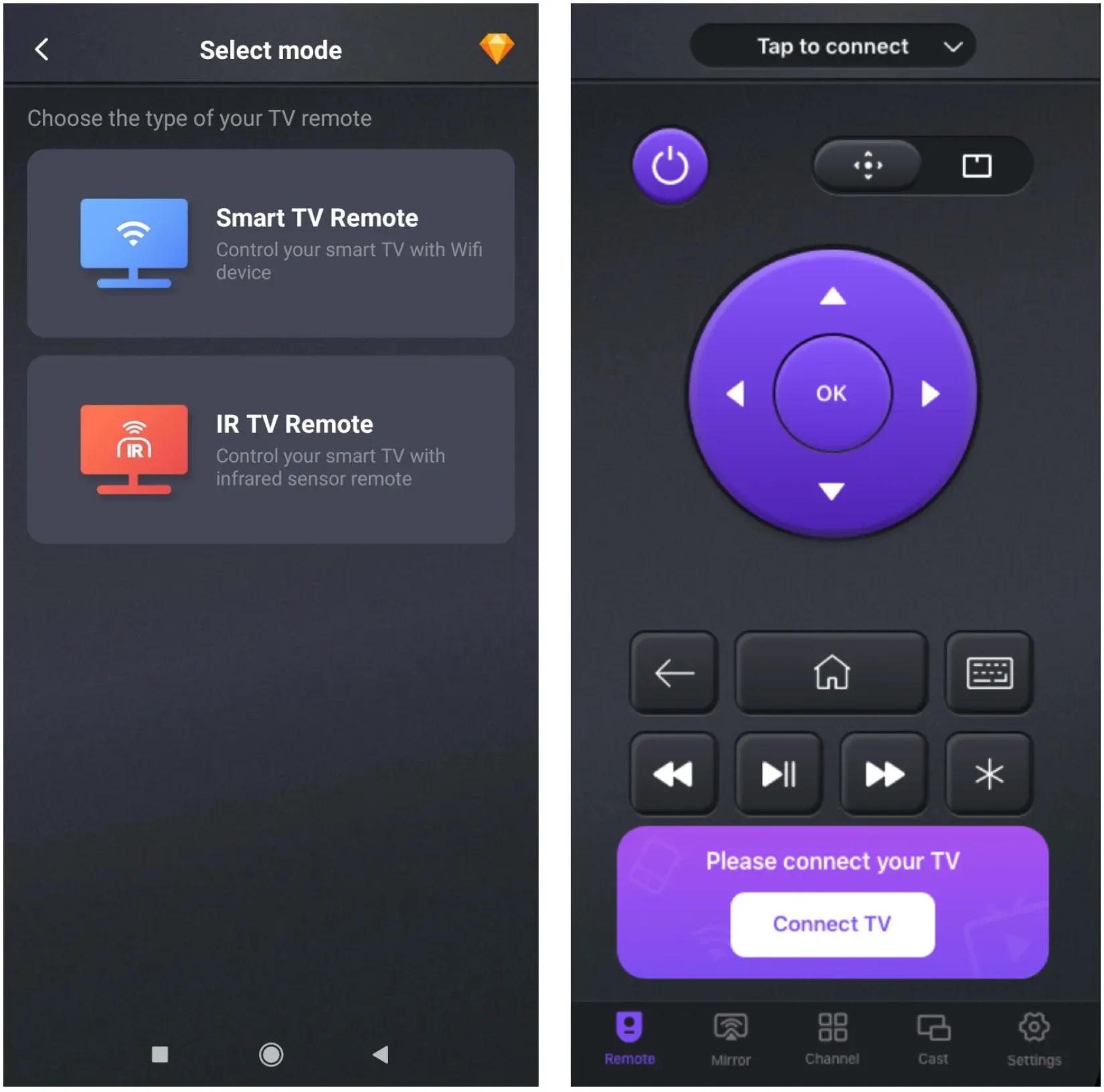
Step 1. Download and install a remote app on your phone.
Step 2. Launch the remote app and pair it to your TV.
Step 3. Once paired, press the buttons:
1. Open Settings.
2. Read the address, and then stop.
How to Find TV IP Address Without Remote If You Can't Access the TV Menu
Sometimes the TV is on the network, but the front-panel buttons are awkward or the menu is too hard to navigate without a remote. In that case, use the least disruptive fallback first and avoid a full reset.
Step 1. Try the TV's physical buttons or joystick.
Many TVs have a single multi-function button on the underside, back, or side panel. It usually lets you open the input or settings menu, even if it is slower than a normal remote.
Step 2. Use a phone-based remote only if the TV is already connected.
If the TV is on the same Wi-Fi network, a phone-based controller can sometimes get you into the settings menu long enough to find the IP address. BoostVision can help in this situation when you need a temporary control path and do not want to re-pair hardware just to read one network detail.
Step 3. Check the router instead of forcing the TV menu.
If the TV menu is still too difficult, go back to the router device list. For most users, that is faster and less error-prone than trying to steer through hidden menus without a remote.
Step 4. Confirm the TV is actually online.
If the router list does not show the TV, the set may be disconnected, sleeping, or stuck on a previous network. In that case, the IP address will not be available until the TV reconnects.
The practical rule is simple: if the TV is online, the router should know the address. If the TV is not online, you need to reconnect it first before any IP lookup will work.
Common Problems When Finding TV IP Address Without Remote
When the IP address does not show up right away, the issue is usually not the TV itself. It is usually a mismatch between the network view, the connection state, or the way the device is named in the router.
| Problem | Likely Cause | Quick Fix |
|---|---|---|
| TV does not appear in the router list | TV is asleep or offline | Wake the TV, wait one minute, then refresh |
| Device name is missing | Router shows only MAC addresses | Match the MAC address on the TV label |
| IP address changes often | Router uses dynamic addressing | Recheck the router list each time you reconnect |
| TV menu has no network details | Different brand layout | Look for About, Network Status, or Connection Details |
| Phone controller cannot connect | TV and phone are on different networks | Put both devices on the same Wi-Fi |
Use this order when you are stuck:
Step 1. Confirm the TV is powered on and connected.
Step 2. Refresh the router's connected-device page.
Step 3. Match the TV by name, brand, or MAC address.
Step 4. Open the TV's own network status page if the menu is reachable.
Step 5. Reconnect the TV only if the address still does not appear.
If you are checking the IP for setup work such as casting, smart-home control, or network troubleshooting, write it down once and keep it with the TV's model number. That saves time the next time you need to reconnect.
Conclusion
The easiest way to find a TV IP address without a remote is to check your router's connected-device list first. That method works even when the TV menu is hard to reach, and it usually gives you the exact local IP in seconds.
If you can still access the TV with side buttons, a joystick, or a temporary phone controller, the network settings screen is the next best option. Once you have the address, save it with the TV's model information so you do not have to repeat the search later.
How to Find TV IP Address Without Remote FAQ
Q: Is the IP address on my TV the same as the router address?
No. The TV gets its own local IP address from the router, and that is different from the router's address. The router address is what you use to log into the router page, while the TV IP is the address assigned to the TV on your network.
Q: Can I find the TV IP address if the remote is lost and the TV is off?
Not until the TV is powered on and connected to the network. The router cannot show an active IP for a device that is offline. Turn the TV on first, then check the router list again.
Q: Why does my TV show up as unknown in the router list?
Some routers do not recognize the device name and show a generic entry instead. Match the MAC address on the TV label or in the network details screen to identify it correctly.
Q: Does a TV always keep the same IP address?
No. Most home routers assign dynamic local IP addresses, so the number can change after a reboot or reconnect. If you need the address often, write down the current one and check it again after any network change.
Q: What should I do if I still cannot find the address?
Recheck the router list, confirm the TV is connected to the same Wi-Fi, and try the TV's network status page if you can reach it with buttons or a temporary phone remote. If the TV is still missing, the next step is to reconnect the TV to the network first.
 Apr 29, 2026
