
Losing your Roku remote feels like hitting a wall. No clicks, no navigation, just a screen staring back at you. But here's the good news: you're not stuck. You can still control your TV with your phone, and in some cases, even without WiFi.
This guide walks you through how to connect Roku app to TV without remote using practical, tested methods. I'll also show you a smoother option that works better than Roku's official app.
Method 1: Connect Roku App to TV Without Remote Using WiFi
This is the easiest and most reliable setup. If your Roku TV is already connected to WiFi, you're halfway there.
Step 1. Download a Roku remote app. You can use Roku's official app, but I strongly recommend a third-party option like Roku Remote App from BoostVision. It connects faster and handles reconnection better.
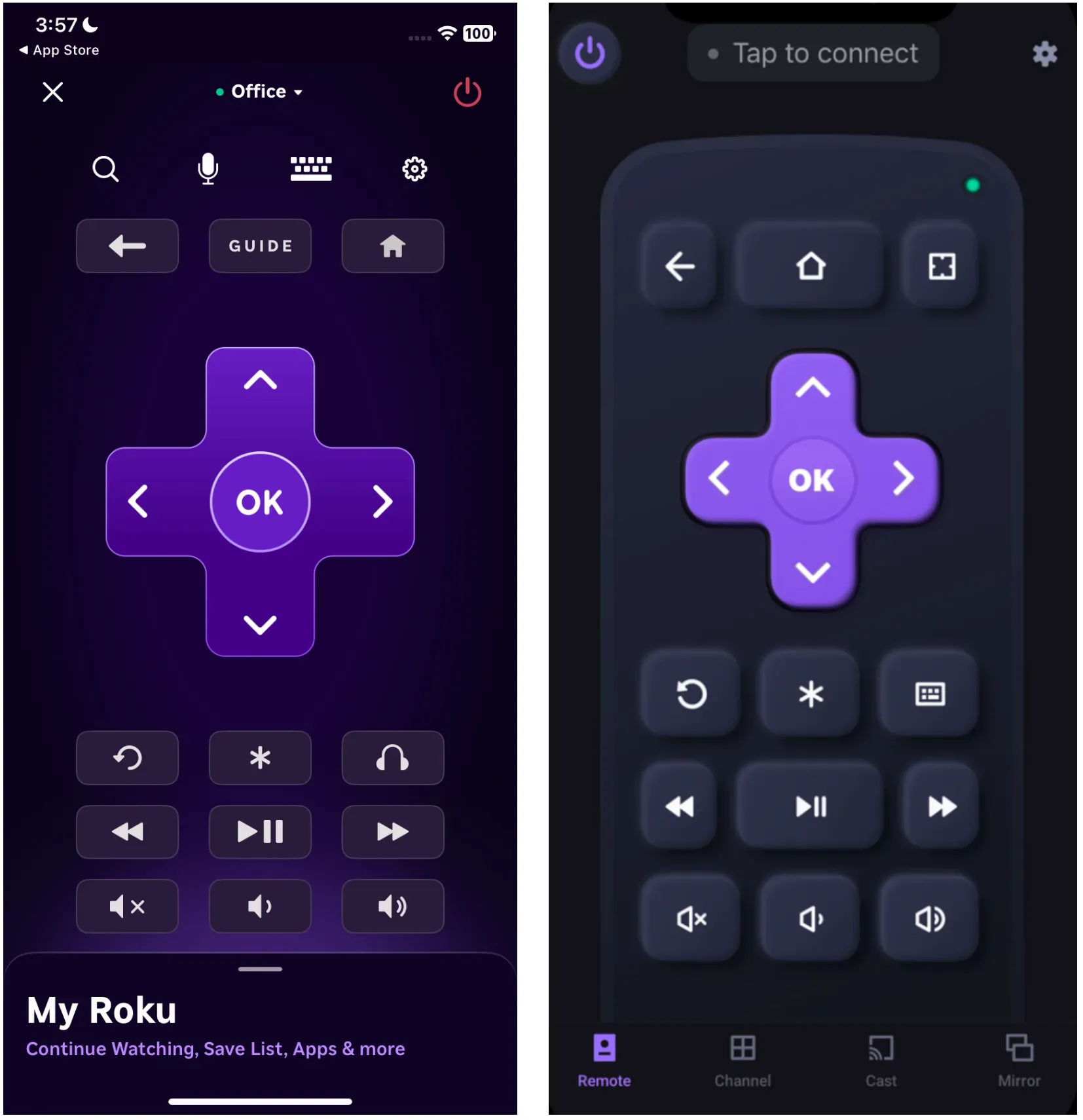
Step 2. Make sure your phone is on the same WiFi network.
This is critical. The app won't find your TV otherwise.
Step 3. Open the app and scan for devices.
The app will automatically detect nearby Roku devices.
Step 4. Tap your Roku TV.
Once connected, your phone becomes a full remote instantly.
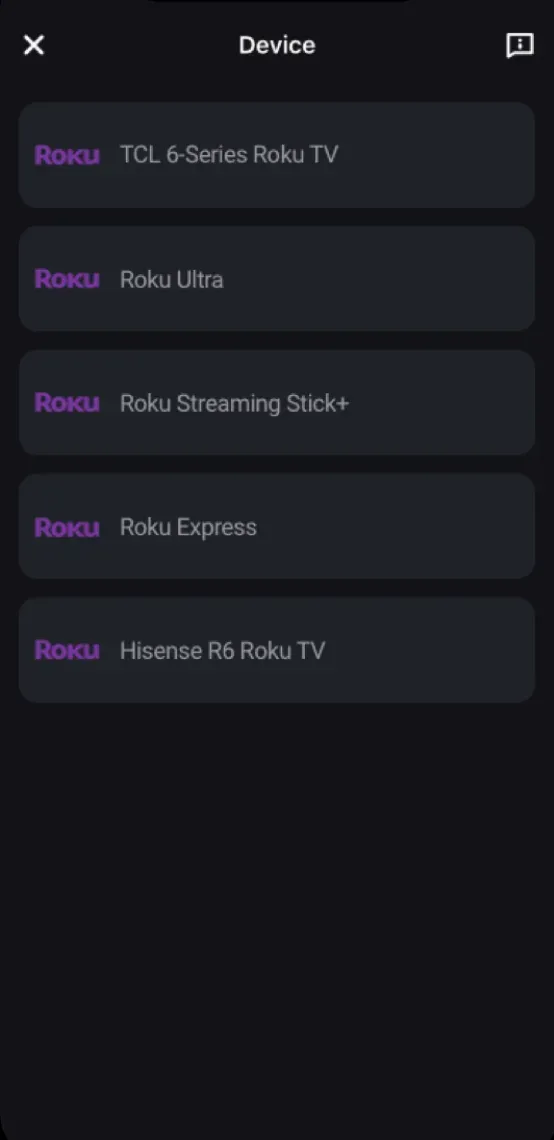
Step 5. Start controlling your TV.
Navigate, type, stream, and adjust volume directly.
Tip: Why BoostVision's option is the better choice
Most people get frustrated with the official app. It disconnects, struggles to find devices, or feels laggy. The third-party one solves those problems.
If you're serious about convenience, this is the one I'd pick every time.
Method 2: Connect Roku App to TV Without Remote Using Hotspot Trick
How to connect Roku remote app to TV without WiFi? That's where things get tricky, but not impossible. You can recreate the same network your Roku remembers.
What you need:
How to connect Roku TV to app without remote:
Step 1. Turn on a hotspot on a second phone.
Step 2. Rename the hotspot SSID and password (match them exactly to your old WiFi).
Step 3. Your Roku will auto-connect to this "fake" network.
Step 4. Connect your main phone to the same hotspot.
Step 5. Open the remote app and connect.
This method is surprisingly effective. Roku doesn't know the difference. It just reconnects.
Method 3: Connect Roku App to TV Without Remote Using Ethernet cable
If you don't have access to your old network details, you still have one option: use a wired connection first
Step 1. Plug your Roku device into your router using an Ethernet cable.
Step 2. Connect your phone to that same network.
Step 3. Open the app and connect.
Step 4. Once connected, go to Settings on your TV.
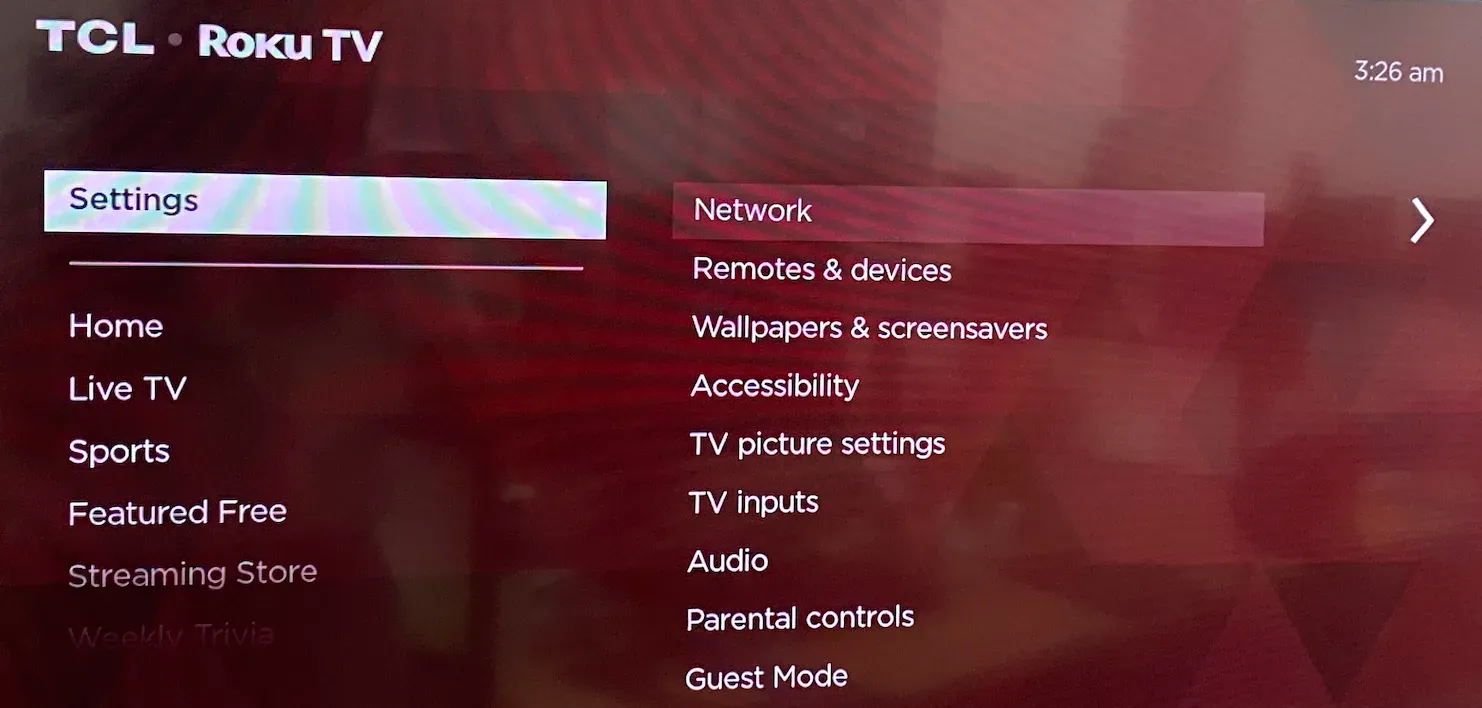
Step 5. Set up a new WiFi network.
After that, you can go wireless again.
Method 4: Connect Roku App to TV Without Remote Using TV Buttons
Some Roku TVs have physical buttons. They're not glamorous, but they work.
Step 1. Locate the power or control button on your TV.
Step 2. Open Settings manually.
Step 3. Navigate to Network.
Step 4. Connect to WiFi.
Step 5. Use your phone app afterward.
It's slow, yes. But it gets the job done when everything else fails.
Quick Comparison: Which Method Should You Use?
| Situation | Best Method | Difficulty | Reliability |
|---|---|---|---|
| Roku already on WiFi | App connection | Easy | High |
| No WiFi access | Hotspot trick | Medium | High |
| Router nearby | Ethernet setup | Medium | Very high |
| No remote + no network | TV buttons | Hard | Low |
Final Thoughts
Getting locked out of your Roku isn't the end of the story. Once you understand the connection logic, it's surprisingly fixable.
If you want the smoothest experience, skip the frustration and go with a reliable tool like BoostVision. It turns a stressful situation into a quick fix.
Now you know exactly how to connect Roku TV to Roku app without remote. The rest is just a few taps away.
How to Connect Roku App to TV Without Remote FAQ
Q: Can I connect Roku app without WiFi at all?
Not directly. The app needs a network connection. Your best workaround is the hotspot method or Ethernet setup.
Q: Why won't my phone find my Roku TV?
Usually, they're on different networks. Double-check your WiFi. If that fails, restart both devices and try again.
Q: Is BoostVision's Roku remote app free?
Yes, it offers a free version with core features. Premium options unlock faster controls and extra tools, but the free version is already solid.
Q: What if I forgot my old WiFi name?
Then the hotspot trick won't work. Your best move is to use Ethernet or TV buttons to reconnect your Roku to a new network.
 May 12, 2026