
It's annoying when the FireStick audio out of sync. Whether it's a slight delay or a bigger lag, it can ruin your viewing experience. Fortunately, in this guide, we'll explain why audio sync issues happen and show you straightforward steps to solve them, then you can get back to enjoying your content smoothly.
Why Is My FireStick Audio Out of Sync
Audio out of sync FireStick can stem from a variety of causes, including a minor glitch in the media, the app you're using, or even the streaming device itself with outdated apps or older versions.
Additionally, FireStick's Dolby Digital setting has also been linked to sound sync issues. If you connect your FireStick to a secondary device and wirelessly cast content, this can lead to audio delays as well.
How to Deal with FireStick Sound out of Syn
Before taking your device into the shop and paying for expensive diagnostics about Insignia TV audio out of sync, try the following things and you could save yourself a bundle.
Way 1. Use the AV Sync Slider Settings
When your FireStick sound out of sync, you can try the method that Amazon officially recommended first to use the AV Sync Slider.
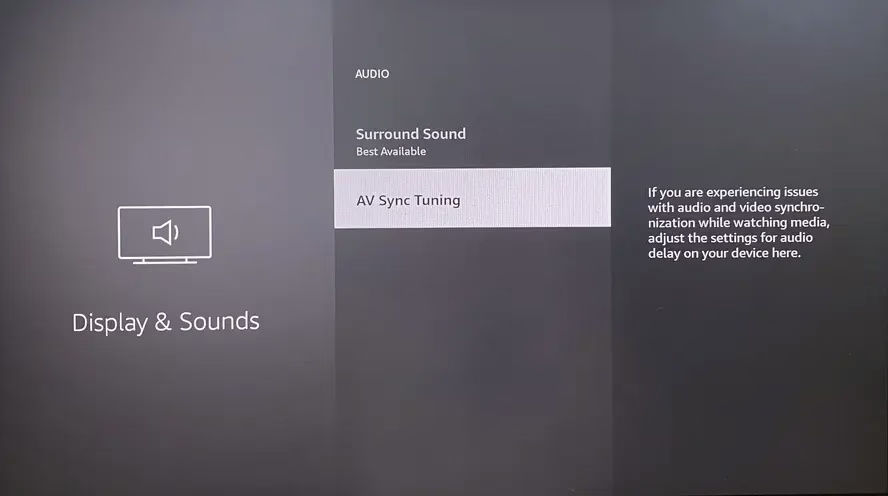
Step 1. Go to Settings on your Fire TV > select Display & Sounds > Audio > AV Sync Tuning.
Step 2. When audio and video are in sync, every bounce of the on-screen ball happens at the same time as a flash and a click tone.
Step 3. Press the Right button if the click tone happens before the flash, and press the Left button if the click tone appears after the flash. Finally, press the OK button on your remote to apply the changes.
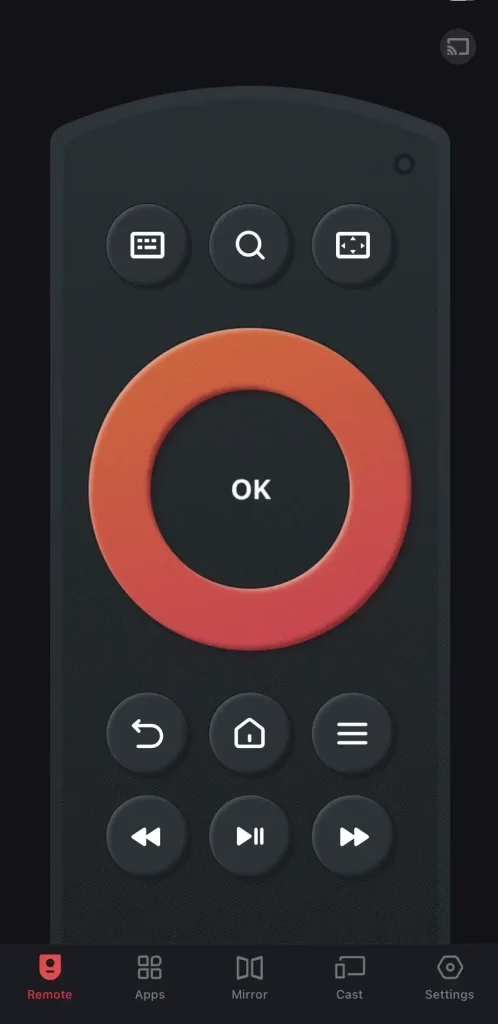
Tips: You can leverage the Fire TV Stick remote app from BoostVision if your remote neglects your commands. Once the application uses the same wireless network as your Fire TV, you can adopt it to control your streaming device with these on-screen buttons.
Way 2. Do Some Settings from the Program or Movie
The program or movie may be the potential culprit of the sound out of sync on Firestick 4k. You can make some settings from the channel that are coming with this problem.
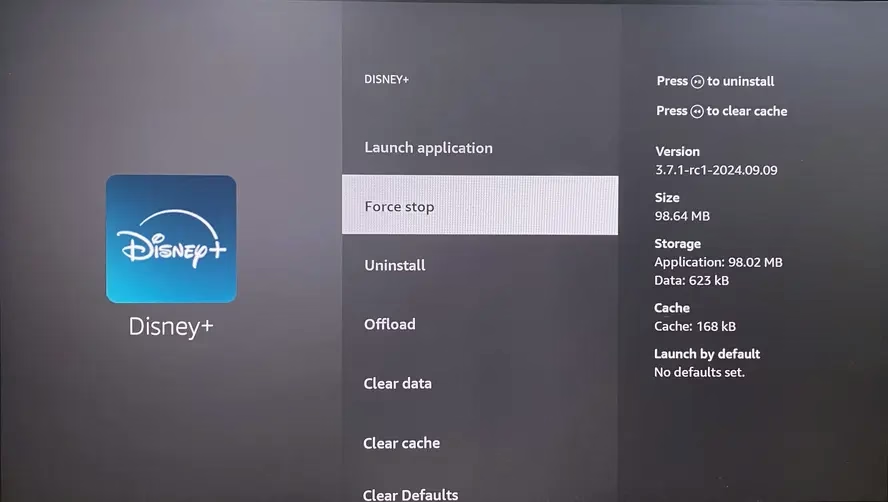
Settings>Applications>Manage Installed Applications> choose the app and clickForce stopoption then open it again.
Way 3. Restart Your FireStick
If the above checks can't detect the reason for Insignia Fire TV audio out of sync, please power cycle your Amazon streaming device.
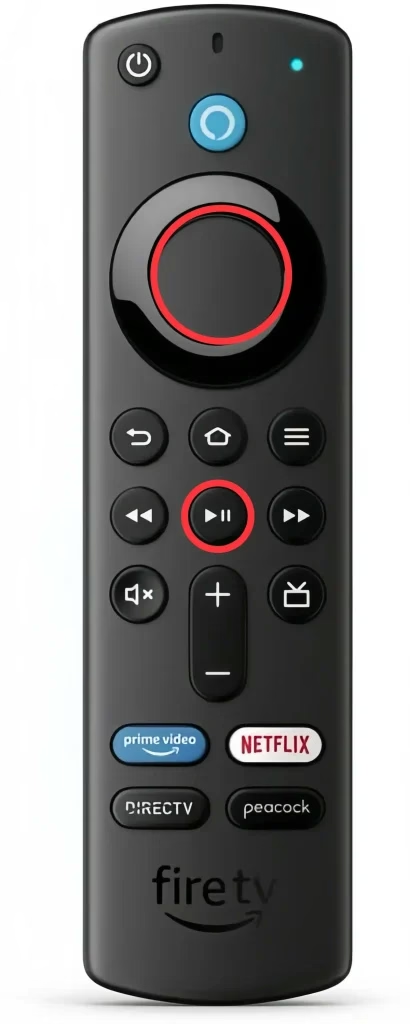
You can press the Select and Play buttons on your remote until your FireStick turns off. During the restarting process, your device will restore some minor glitches automatically, which may help to solve the audio out-of-sync issues.
Way 4. Update the App and the Amazon Device
Additionally, you can update the concrete app or your device to settle the Fire TV audio delay. Here are the detailed update instructions.
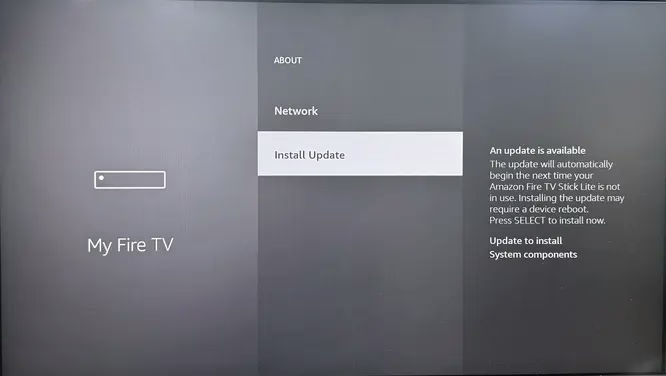
Step 1. Press the Home button on your remote and navigate to the gear icon to expand the Settings menu.
Step 2. Choose My Fire TV > About > Check for Updates. If there is no last option, skip to the next step.
Step 3. Click the Install Update option and wait for your FireStick to finish the updating process. (If the option is unavailable, your FireStick is the latest version that doesn't need to be updated)
After learning how to update your streaming device, let's have a look at how to update the apps on your device.
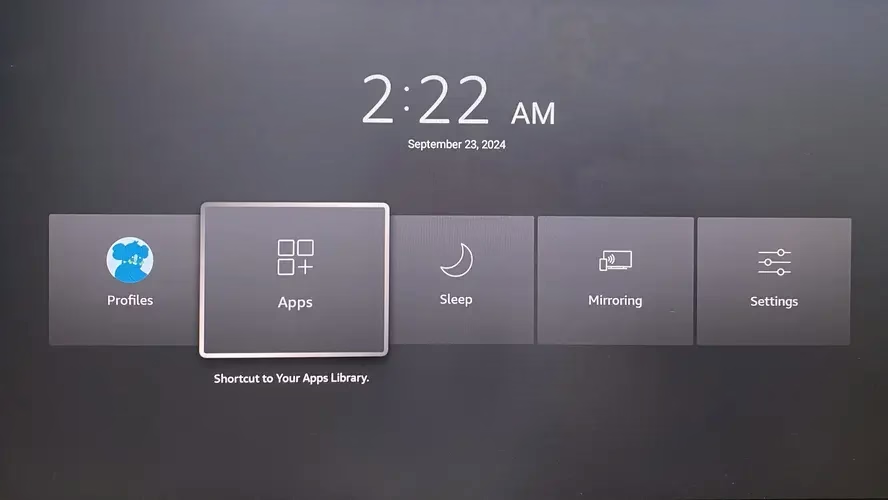
Step 1. Hold and press the Home button on your Fire TV remote and choose the Apps section.
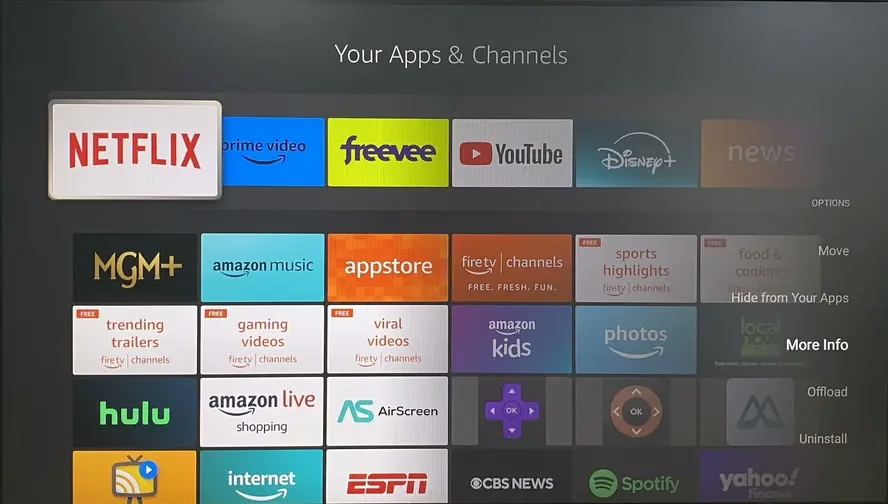
Step 2. Highlight the app you want to update and press the Menu button on your remote.
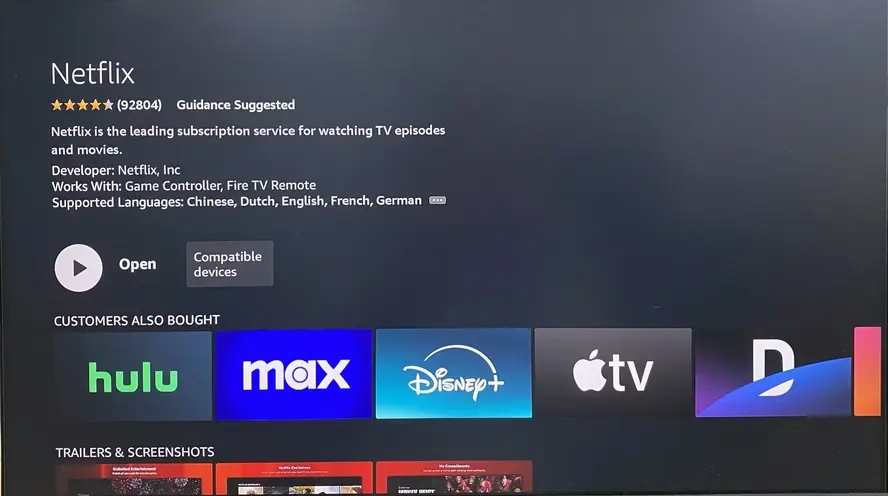
Step 3. Select the More Info option and the Update option if available. If you just see the Open option, then this app can't be updated because it's the latest version.
Way 5. Clear the Cache of Fire Stick
Refreshing your device's cache can also fix many app issues, including the Amazon Fire TV sound distortion, and help it run better.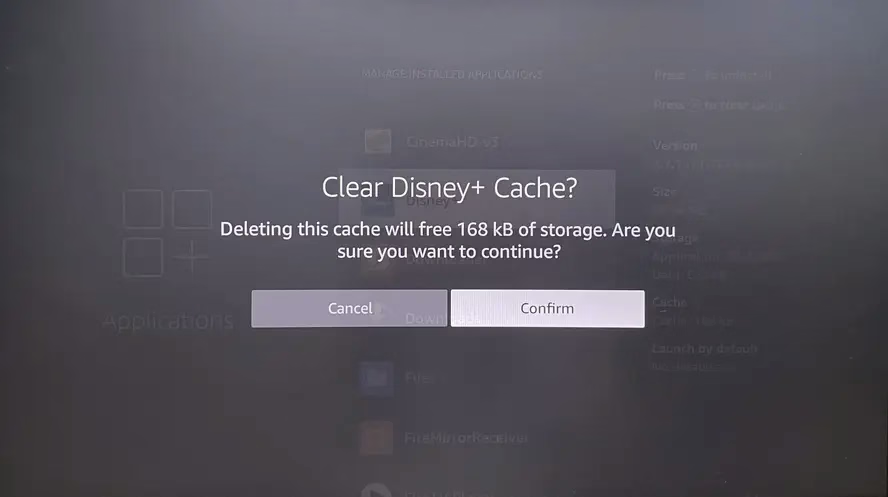
Step 1. Choose Settings on the home screen and open Applications > Manage Installed Applications.
Step 2. Select the app you want to clear and follow the on-screen instructions to clear its cache.
Way 6. Cancel the Settings that Affect the Sound
There are some voice-related settings on Fire TV, involving in the Dolby Digital Plus, Dialogue Enhancer, and Volume Leveler. You are allowed to disable these settings to figure out Amazon Fire Stick delayed sound trouble.
Settings>Display & Sounds>Audio>Dolby DigitalOutput>Dolby Digital Plus Off. - To disable Dialogue Enhancer and Volume Leveler:
Step 1.Settings > Display & Sounds > Audio.
Step 2.Audio > Surround Sound > Best Available.
Step 3. Back to Audio > Advanced Audio > Volume Leveler > Off.
Step 4. Back to Audio > Advanced Audio > Dialogue Enhancer > Off.
Note: The operating process may vary depending on the specific Amazon Fire TV device. So if you can't find the corresponding option, please check your user manual or contact Amazon Fire TV support.
Way 7. Reset Your FireStick
Once the above methods can't work for you, try resetting your FireStick to its default settings. This will clear all of the changes you've made since you initially set it up and could fix the audio issues you're experiencing.
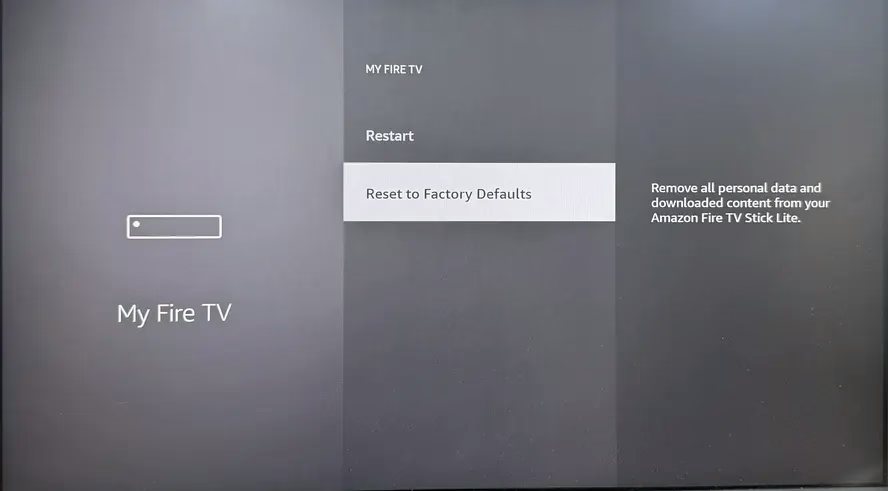
Navigate to Settings > My Fire TV > Reset to Factory Defaults.
Closing Words
Armed with the information contained in this blog, nothing will now stop you from restoring the FireStick audio out-of-sync issue. Hoping this post can help you resume the wonderful viewing experience!
FireStick Audio Out of Sync FAQ
Q: How do I fix the sound delay on my Firestick?
Q: Why is my Firestick out of sync?
Audio out of sync FireStick can stem from a variety of causes, including a minor glitch in the media, the app you're using, or even the streaming device itself with outdated apps or older versions.
Additionally, FireStick's Dolby Digital setting has also been linked to sound sync issues. If you connect your FireStick to a secondary device and wirelessly cast content, this can lead to audio delays as well.

 Nov 21, 2023