
Got a high-definition Samsung TV? Make the most of it by casting content from your Android device directly to your TV. Whether you're looking to stream movies, photos, or videos, this guide will show you 4 easy ways to cast to Samsung TV from Android. Choose the method that fits your setup, and start enjoying your content on the big screen in no time!
How to Cast From Android to Samsung TV
Streaming your favorite content on a larger screen not only reduces eye strain from smaller devices, but also enhances your viewing experience with clearer, more immersive visuals. In today's guide, we've gathered the 4 best methods to Samsung TV cast from Android. Let's dive in and get you set up!
Way 1. Use the Built-in Casting Feature
How to cast from Android phone to Samsung TV? Usually, you can find the built-in casting feature on your Android phone from the Quick Settings menu. The feature also goes with a different name on a different phone. For example, the casting function is called Smart View on Samsung phones but called Screencast or Cast on other different Android phones.
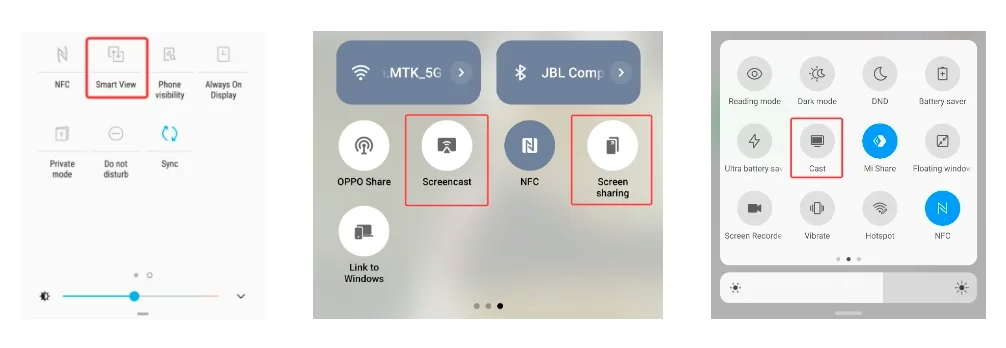
You can check the produce guidebook, search online for the name on your device, or you can try to search for the casting feature in your settings with "cast" or "mirror" words. Once you find the casting feature, follow the steps below to cast Android to Samsung TV:
Step 1. Ensure your Android mobile device and Samsung TV are connected to the same wireless network.
Step 2. Enable the casting feature on your Android and choose your Samsung TV from the device list to pair with.
Step 3. Enter a PIN or allow access to complete the connection if prompted. Just seconds later, you will see the Samsung TV screen displaying the content shown on your smartphone.
Way 2. Use a Universal TV Cast App
If you can't find the casting or mirroring feature on your Android device, you can always use a universal TV cast app to start Android cast to Samsung TV.
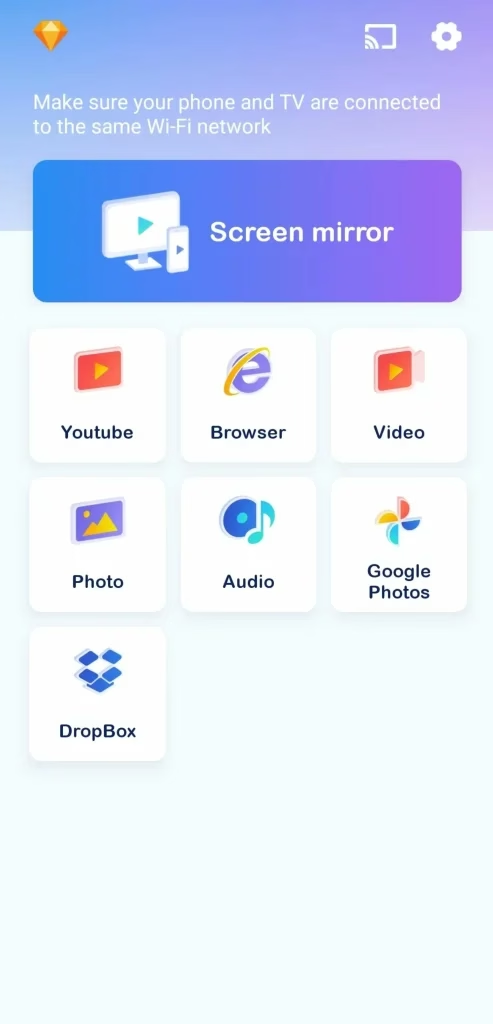


Step 1. Download the application on your Android and allow its permissions.
Step 2. Ensure your Android and Samsung TV are connected to the same Wi-Fi network.
Step 3. Open the app and tap the casting icon from the upper right corner of the page. Select your Samsung TV from the device list to pair.
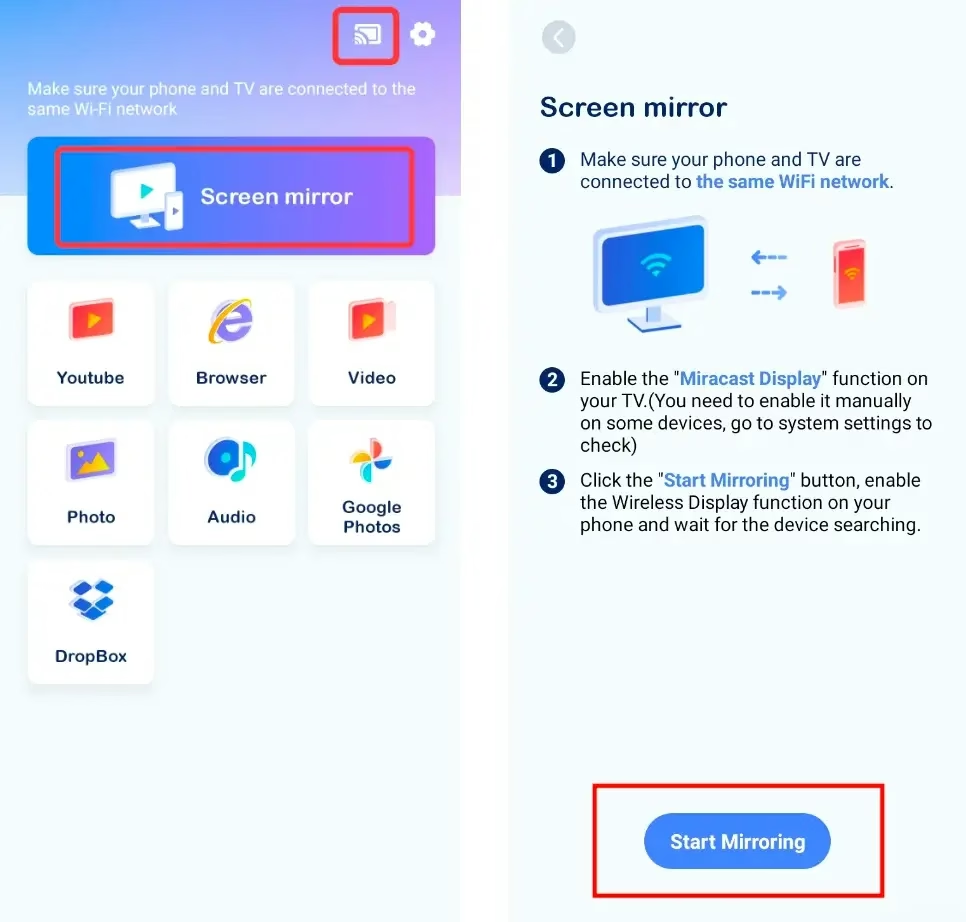
Step 4. Once pairing is complete, the casting icon will change like this. Then you can tap the Screen mirror button and Start Mirroring option to start your mirroring activities.
Step 5. Or you can choose the specific functions on the interface and follow the instructions to continue your casting activities.

Tips: You are allowed to cast Samsung phone to Samsung TV with a Samsung app named SmartThings. With the same Wi-Fi network connection on both devices, launch the app and follow the on-screen instructions to start casting.
Way 3. Use a USB-C to HDMI Adapter
Additionally, you can try a wired approach to cast to Samsung TV from Android phone. An HDMI cable and a USB-C to HDMI adapter are the necessary tools. Once you've got those, let's walk through how to cast to Samsung TV from Android via a USB-C to HDMI Adapter:
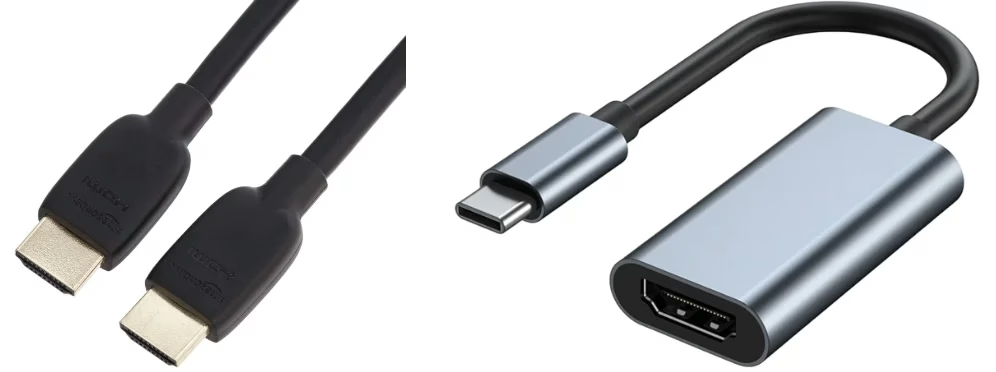
When you prepare the two devices, now let's check how to cast to Samsung TV from Android via a USB-C to HDMI Adapter:
Step 1. Plug the USB-C end into your phone and connect the HDMI cable between the adapter and your TV.
Step 2. Connect the adapter and the cable, power on your Samsung TV, and change the Samsung TV input source. Then you will see the screen on your Android appear on your TV.
Way 4. Use Chromecast with Google Home
A Chromecast device can also be a handy tool for streaming. This Google adapter lets you share online content, like videos and music, directly to your Samsung TV. Just follow the steps below to get started.
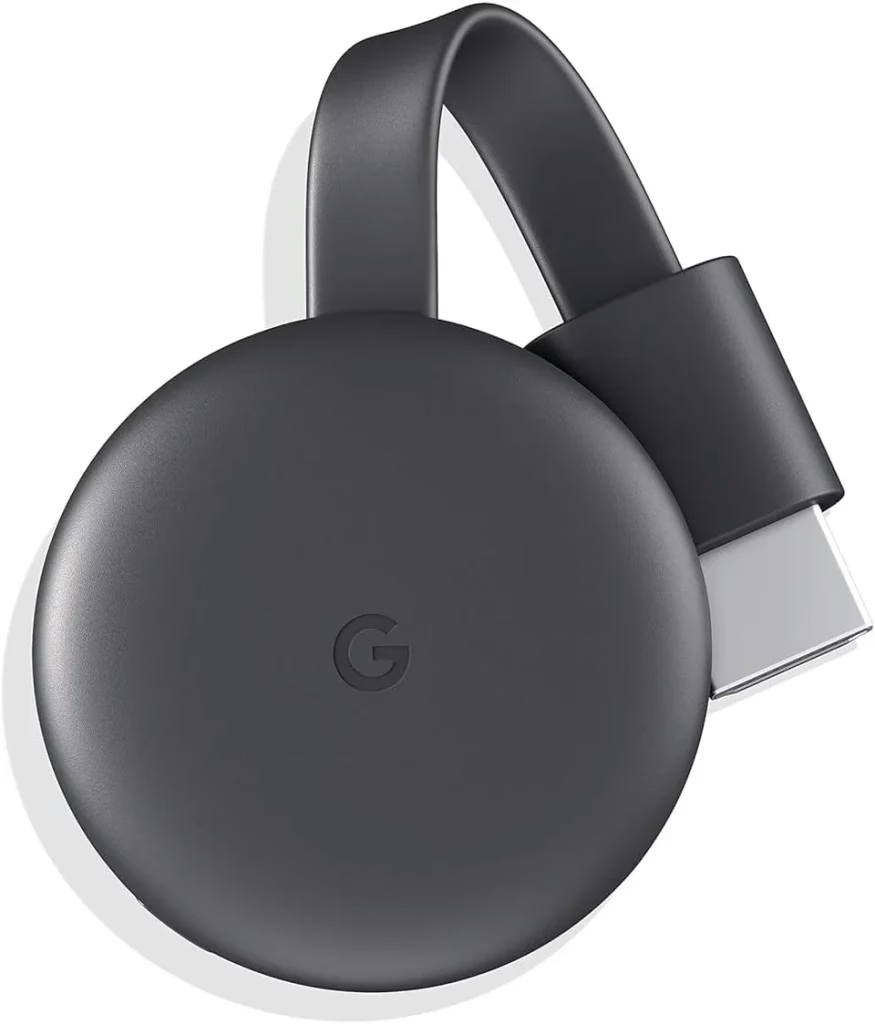
Step 1. Connect the Chromecast device to your Samsung TV via the HDMI connection, and select the right HDMI input for your Chromecast.
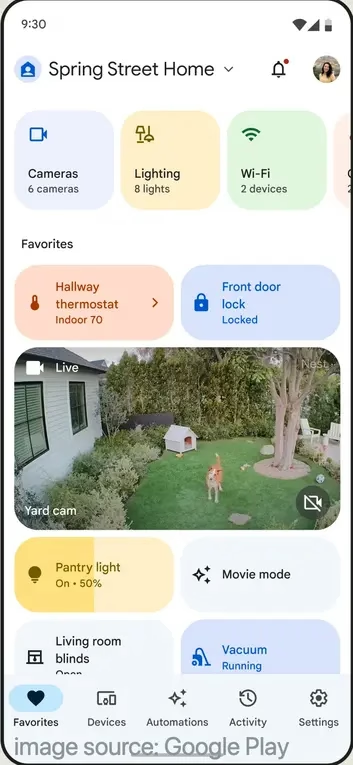
Step 2. Ensure yourdevices use the same Wi-Fi network, and downloadthe Google Home app from the app store on your Android phone.
Step 3. Select Devices in Google Home located in the top right-hand corner. Follow the relevant steps to set up Chromecast and finish the pairing process.
Step 4. Then go to the media or audio streaming provider you want to use and select the content you want to watch or listen to tap the Cast button to play.
Why Can't I Cast Android from Samsung
If you're having trouble casting Android to your Samsung TV, there could be a few reasons why it's not working. Here are some common issues to check:
Wi-Fi Connection:Both your Android device and Samsung TV need to be connected to the same Wi-Fi network. Make sure they're on the same network and try again.Casting Feature:Ensure that your Samsung TV has the casting feature enabled. It might be called "Screen Mirroring" or "Smart View" depending on your TV model.Compatibility:Double-check that your Android device and Samsung TV are compatible with each other for casting. Older Android models or Samsung TVs may have limited casting support.Software Updates:Sometimes, outdated software can cause issues. Make sure both your Android device and Samsung TV are running the latest updates.App Permissions:If you're using an app to cast, make sure the app has the necessary permissions to access your network and devices.
By addressing these points, you should be able to fix the issue and start casting your content smoothly. If the problem persists, try restarting both your phone and TV, or consider using an alternate wired casting method like an HDMI cable or a Chromecast.
Conclusion
To cast Android on Samsung TV, you can use the built-in casting or mirroring feature on your Android, a universal TV cast app, a USB-C to HDMI adapter, or leverage Chromecast with Google Home app. No matter which method you choose, hope you can cast the screen smoothly and have a wonderful viewing experience.
Cast to Samsung TV from Android FAQ
Q: How do I cast from Android to Samsung Smart TV?
Q: Why can't I cast to my Samsung TV?
Try to use these solutions:

 Mar 23, 2026