
Losing your TV remote control doesn't mean losing control of your television. This post shows you how to turn on TV without remote in 4 different workarounds. You can wake up your television through the TV's physical button, a universal remote app, or an IR-supported smartphone. The step-by-step tutorials are displayed below.
Quick Decision Guide Before You Start
If you need instant power-on, start with the TV's physical power button. If the button is hard to reach, use a remote app on the same Wi-Fi network.
After regaining control, pair at least one backup method so power, input, and volume are always available.
Method 1: Turn On TV with Physical Power Button
Most TVs have physical buttons on the unit's side or back. These buttons are designed for basic functions like power, volume, and input selection. To turn on TV without remote, simply locate the power button and press it.
The power button is typically on the side or back of a television. If you're having trouble locating the power button, consult your TV's user manual or search online for your specific TV model. The manual should provide clear instructions on where to find the physical buttons.
The TV power button may be labeled with a symbol or the word "Power". It could also be a small, protruding button or a recessed button that you need to press with a pen or paperclip.
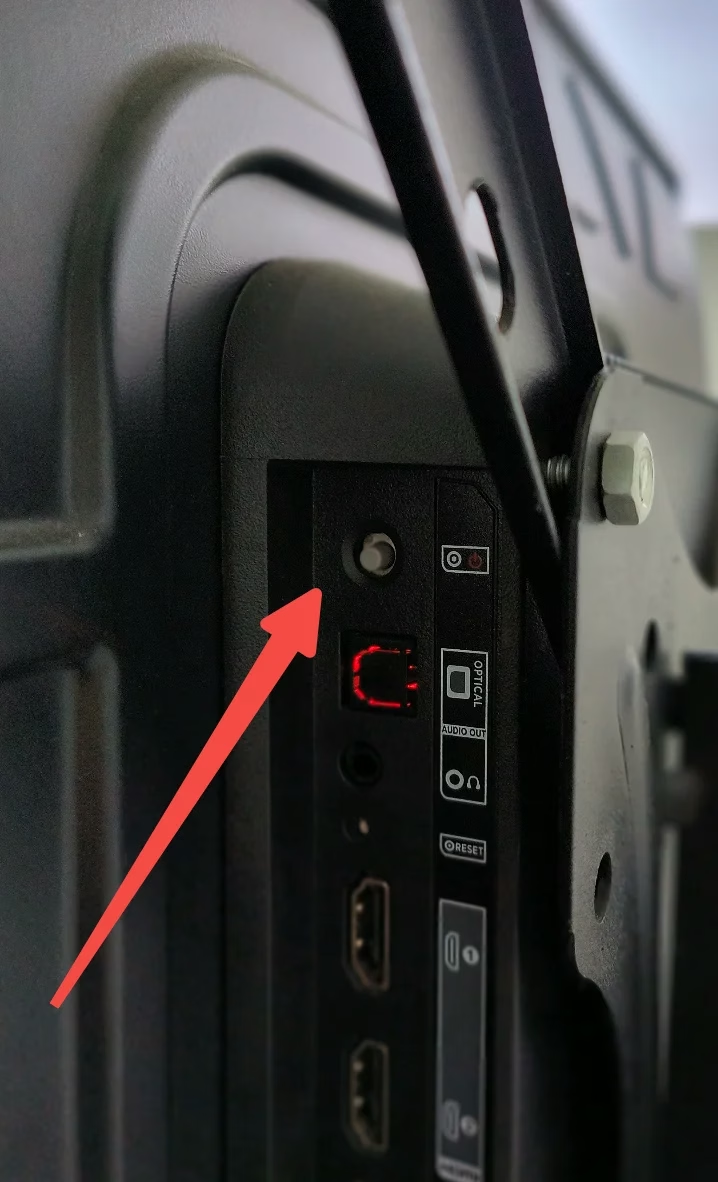
Once you've found the power button, give it a firm press, and your TV should turn on.
Method 2: Turn On TV with Smartphone Remote App
If you have ever connected your smart TV to a universal remote app, like the Universal TV Remote app from BoostVision, you can try turning on the streaming device with the app.
The third-party remote app is designed to work with multiple popular streaming devices from Roku, Samsung, LG, Amazon, Sony, Vizio, and Apple, making it easy to control these devices even without a remote.
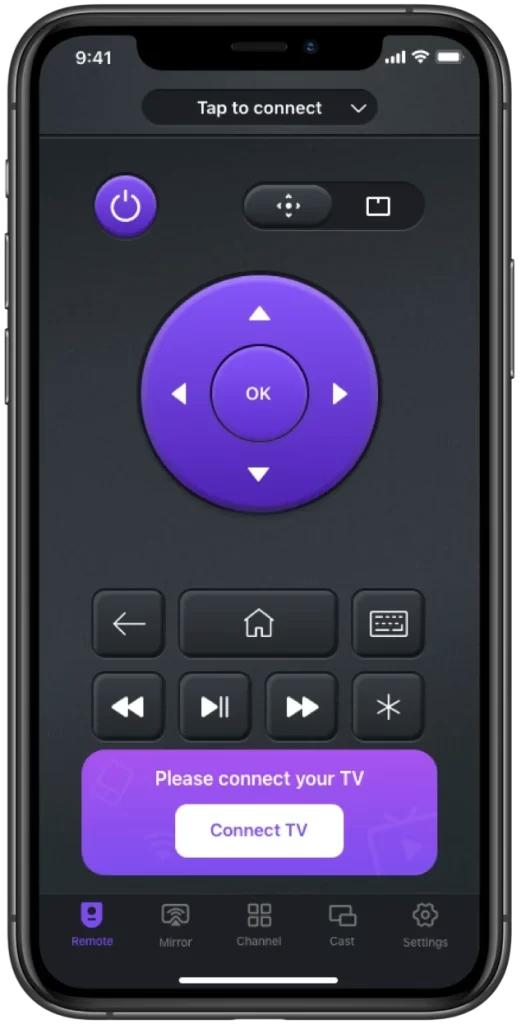
The remote app turns your smartphone or tablet into a powerful tool for controlling TVs:
Step 1. Download the remote app from the app store and install it on your smartphone or tablet.


Step 2. Launch the app on your mobile device and follow the instructions on the screen to connect to your television.
Note: If your television is unavailable on the device list, check your mobile device is connected to the network your television uses. The same network connection is the premise of syncing these two devices.
Step 3. Once connected, you can tap the power button offered by the remote app to power on your TV.
Once the TV boots, you can still use the remote app to switch channels, adjust the volume, and do something else.
Indeed, using a remote app as a backup tool is a wise choice. Traditional TV remotes sometimes have battery issues or even dysfunctional issues like Roku remote scrolling. In these cases, switching to the remote app could be the easiest and quickest solution.
Method 3: Turn On TV via IR-Supported Phone
If your smartphone has an IR blaster, you can use it as a universal remote to control your TV. IR blasters emit infrared signals that can be recognized by your TV's IR receiver, allowing you to control various functions.

To use your smartphone as an IR remote, you'll need to download a universal remote app that supports IR functionality. Once you've installed the app, follow the instructions to set it up with your TV brand and model.
After the setup is complete, you can use the app's virtual remote interface to turn your TV on and off, adjust the volume, change channels, and access other features, just like a regular remote control.
Method 4: Turn On TV Using Alexa Voice Control
Another way to turn on your TV without a remote is by using Alexa voice control. This works if your TV is connected to an Amazon Fire TV device and linked with an Alexa-enabled device like an Echo speaker.
Start by ensuring both devices are on the same Wi-Fi network. Then, open the Alexa app and navigate to the TV and video settings to add your device. Select your TV or streaming service, enable the connection, and follow the setup instructions to link everything together.
After setup, you won’t need to press any buttons—just use your voice. For example, saying “Alexa, turn on my TV” will wake it up. You can also handle other functions like adjusting the sound or controlling playback using similar voice commands.
Conclusion
That's all about how to turn on a smart TV without a remote. If your remote is lost or not working, you can try several alternative methods to power on your TV.
The simplest option is using the physical power button, although it may not always be easy to access. An IR-enabled smartphone can also work, but this feature is becoming rare on modern devices, especially on iPhones and newer Android models. A universal remote app remains one of the most practical solutions when your TV and phone share the same Wi-Fi network.
Additionally, if you have a smart home setup, using Alexa voice commands offers a convenient, hands-free way to turn on your TV. Choosing at least one reliable backup method ensures you’ll always have control over your device.
How to Turn on TV Without Remote FAQ
Q: How do I turn my smart TV on without a remote?
For smart TVs, you can use the physical buttons on the TV itself, a universal remote app on your smartphone or tablet, or an IR-supported smartphone if it has an IR blaster. If your TV is connected to a smart home system, you can also use voice control (such as Alexa) to power it on.
Q: Do smart TVs have a power button?
Yes, most smart TVs include physical controls, typically located on the back, bottom, or side of the panel. These buttons allow you to turn the TV on or off and sometimes navigate basic settings if the remote is unavailable.
Q: How to control smart TV with phone?
To control your smart TV with your phone, you can use a universal remote app provided by your TV manufacturer or a third-party app developer like BoostVision. These apps connect over Wi-Fi and turn your phone into a virtual remote.
Q: Will a universal remote app work when the TV is off?
In some cases, yes. Certain smart TVs support features like “wake on LAN", which allows the TV to be powered on through a network signal. However, this depends on your TV model and whether the feature is enabled in settings. If not supported, you may need to turn the TV on manually first.
Q: Do iPhones support IR control for TVs?
No, iPhones do not have a built-in IR blaster. This means they cannot control TVs via infrared. Instead, iPhones rely on Wi-Fi-based remote apps to communicate with compatible smart TVs.
Q: How to turn on Samsung smart TV without remote?
You can press the physical power button, which is usually located underneath the center of the TV or along the back panel. Alternatively, use a Samsung TV remote app on your phone to control the TV over Wi-Fi, or use voice assistants like Alexa if your TV is connected.
Q: How to turn on TCL smart TV without remote?
TCL TVs typically have a power button located at the bottom of the screen or on the back. You can also use a Roku remote app (for Roku-based TCL TVs) or a compatible remote app to turn on the TV if both devices are on the same network.
Q: How to turn on LG smart TV without remote?
LG smart TVs usually include a joystick-style control button under the screen or on the back. Pressing it will power on the TV. You can also use the LG ThinQ app or other compatible apps like Remote for LG TV app to control the TV via Wi-Fi once connected.
 Mar 23, 2026