
If you are searching where are the manual buttons on a Hisense TV, you are not alone. Many newer TVs hide physical controls so well that they are easy to miss, especially when your remote is lost or dead. Most Hisense models still include at least one manual control point to power on the TV and handle basic actions.
In this guide, you will learn common Hisense manual buttons locations, how Hisense TV manual controls differ by model family, and what to do when the button seems impossible to find.
Quick Answer: Where Are Hisense Manual Buttons?
On most modern Hisense TVs, the manual button is usually in one of these places:
1. Under the center of the bottom bezel (you feel for a small button or joystick nub).
2. On the lower-right or lower-left back edge of the TV frame.
3. Behind the TV near the input ports (common on some older sets).
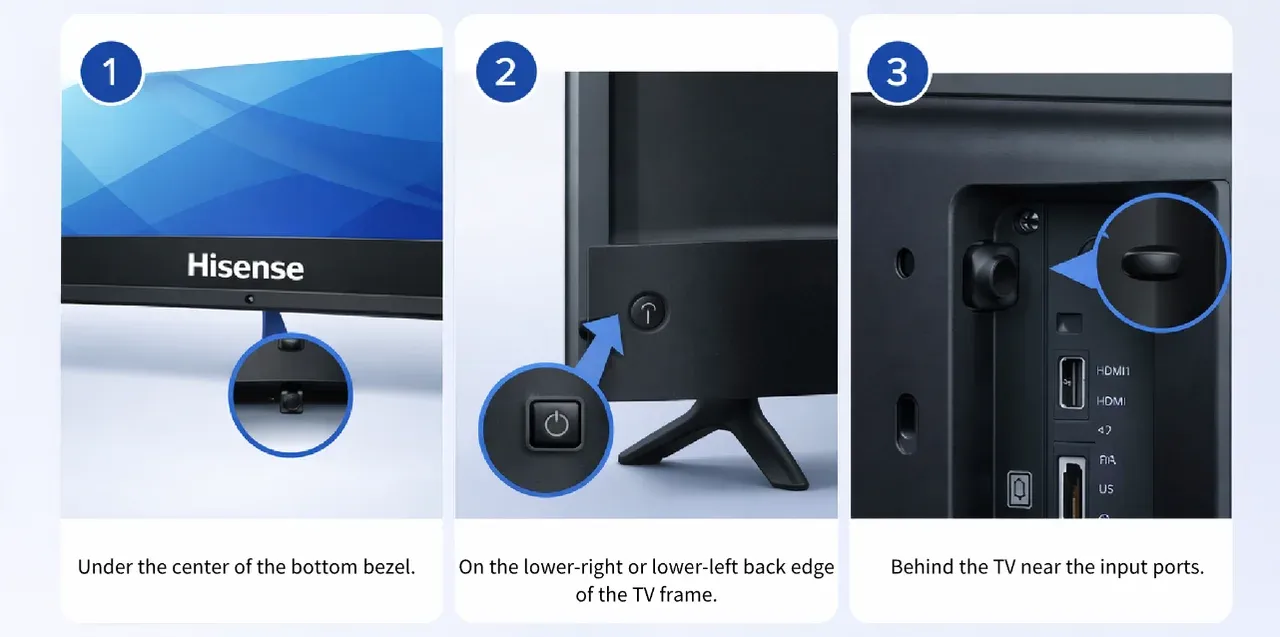
If you have a Roku-based set, the Hisense Roku TV manual buttons are often a single joystick-style control under the logo or on the lower back side. On Android TV, Google TV, and VIDAA models, placement can be similar, but the button layout may be single-button power only or a mini control cluster.
Quick check tip: kneel in front of the TV, run your fingers under the center of the bezel first, then check both lower rear corners before scanning near HDMI ports.
Hisense TV Manual Controls: What Buttons You Actually Get
When people search for Hisense TV manual controls, they usually expect full remote-style buttons. In reality, most TVs provide limited control. What you get depends on the chassis design and release year.
Typical manual control designs on Hisense TVs:
What manual controls can usually do:
What manual controls usually cannot do:
So if your goal is simply how to turn on Hisense TV without remote, manual buttons are enough to get started. For deeper setup and smoother navigation, you will eventually want a remote or phone control method.
Where Are the Manual Buttons on a Hisense TV
| Hisense Roku TV manual buttons | Hisense Google TV / Android TV manual buttons | Hisense VIDAA models manual controls | |
|---|---|---|---|
| Common placement | underside center, directly below the logo, or lower rear-right edge | underside center or near lower rear panel | lower bezel underside or rear side near ports |
| Common style | single joystick/push button | single power button or joystick-style nub | power button; some have small control pad |
| Typical controls | power, limited directional navigation, confirm | power and limited menu navigation | power plus very basic selection |
If you are checking Hisense TV buttons without remote, model-family differences matter less than hardware generation. Newer ultra-thin sets usually simplify to one control point. Older, thicker designs are more likely to include multiple tactile buttons.
How to Find the Button Fast on Hisense TV
Step 1: Start at the center underside
Stand directly in front of the TV and slide your fingers under the bottom bezel, especially below the Hisense logo. A Hisense TV joystick button location is often hidden there and can feel like a tiny nub or click switch.
Step 2: Check both lower rear corners
Move to the right-lower rear edge, then the left-lower rear edge. Some sets place the button where you can reach it from the side but not easily see it from the front.
Step 3: Inspect around the input panel
Locate HDMI/USB ports and feel nearby edges. On some models, Hisense TV power button location is close to the port cluster for internal board routing convenience.
Step 4: Use phone flashlight at a low angle
Shining a light from below reveals molded button icons or tiny embossed symbols that are invisible under normal room lighting.
Step 5: Test short press vs long press
Do one short press first. If nothing happens, try a 2-3 second hold. Some TVs respond differently depending on power state (off, standby, or boot loop).
Step 6: Confirm power state and outlet
If no response, verify wall outlet, power strip switch, and cable seating. A dead outlet can look exactly like a missing button issue.
Step 7: Last-resort model lookup
Use the TV model code on the back label and match it to a user manual diagram. This is the fastest way to confirm whether your unit has a single button, joystick, or cluster.
If you still cannot locate anything, there is a chance the control module is damaged or inaccessible due to wall mounting clearance.
Tip: How to Control Hisense TV With Your Phone
If the physical buttons on your Hisense TV feel limited, are difficult to reach, or your Hisense TV remote does not work, your phone can work as a practical backup remote. A universal TV remote app from BoostVision turns your smartphone into a virtual controller. It connects over Wi-Fi and lets you handle everyday tasks without needing the original remote.
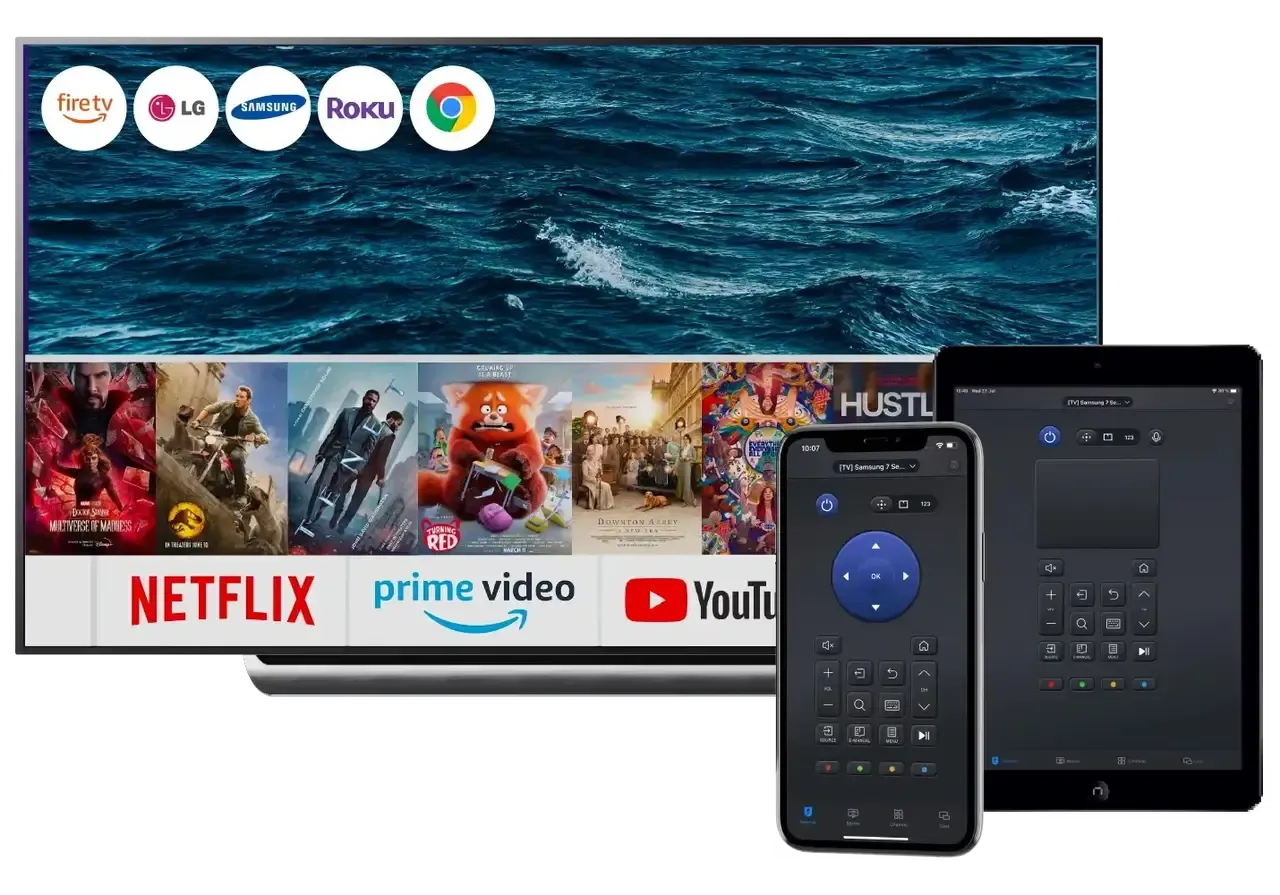
Download Universal TV Remote


1. Connect your Hisense TV and phone to the same Wi-Fi network.
2. Install a compatible remote app for your TV platform.
3. Pair the phone with the TV using on-screen code or device discovery.
4. Use the app for navigation, typing, source selection, and volume.
This method is especially helpful when your TV is wall-mounted, and hardware buttons are hard to access. It is also a quick solution if the remote is lost, damaged, or out of battery.
If you just need reliable basic control while waiting for a replacement remote, BoostVision's TV remote app can keep everything running smoothly.
Conclusion
Manual buttons on Hisense TVs are usually present, but often hidden under the bottom edge or on the lower back/side frame. The exact location depends on model year and platform, so there is no single universal spot for every Hisense TV.
The most efficient approach is: check underside center, then the side edge, then the rear panel near ports, and finally verify by model-specific manual. If the buttons are still inaccessible, mobile control is the most practical backups.
Where Are the Manual Buttons on a Hisense TV FAQ
Q: Does every Hisense TV have manual buttons?
Most Hisense TVs include at least one physical manual control point, but the design varies. Some models have only a single power button, while others use a joystick style or small control cluster.
Q: How do I use Hisense TV manual controls without a remote?
Press the manual button to power on the TV. If your model has joystick behavior, move it to navigate basic options like volume or input. For advanced setup tasks, manual controls are limited and a remote or phone control is more practical.
Q: Can I change input on Hisense TV without remote?
Yes. On many models, pressing or holding the manual control opens the input or source menu. With joystick style buttons, move sideways to switch HDMI ports. Because behavior differs by model, you may need to try a short press, long press, or directional movement.
Q: Why can't I find the power button on my Hisense TV?
The button is often hidden underneath the front bezel, near the center logo, or placed along the lower rear edge. On wall-mounted setups, it may sit flush against the wall and feel recessed. Use a flashlight and run your hand carefully along the bottom edge to locate it.
Q: Where are the manual buttons on a Hisense TV if it is a Roku model?
On many Roku versions, the Hisense Roku TV manual buttons are a single joystick-style control under the center logo area or along a lower rear side edge. If you cannot find it, check the model manual diagram to confirm exact placement.
Q: How to control a Hisense TV without a remote?
You have three main options:
For smart features and typing, a phone remote app is usually the most convenient solution.
Q: How do I reset my Hisense TV without the remote?
If your TV has a physical reset pinhole, press and hold it for about 10 to 15 seconds while the TV is powered on. On models without a reset hole, use the manual button to open the settings menu if accessible.
If menus cannot be reached, unplug the TV from power for several minutes to perform a soft reset. For a full factory reset, a remote or remote app is typically required.
Q: What are common problems with Hisense TVs?
Common Hisense TV issues include:
Many of these problems can be resolved by power cycling the TV, updating firmware, or performing a factory reset. If hardware issues persist, contacting Hisense support with your model number is the next step.
 Sep 04, 2025