

The LG Magic Remote is packed with powerful features — but many users don’t fully understand what each button does.
In this complete guide to LG TV remote control functions, you’ll learn how every button works, how to use advanced features like voice control and pointer navigation, and how to fix common remote issues quickly.
If you want to get the most out of your LG TV, this is the guide you need.
Types of LG TV Remotes (Magic Remote vs Standard)
LG TV remotes have evolved over the years, catering to various features and functionalities across their smart TV lineup. There are many variants of LG TV remotes, but they have similar functions. So, here I would like to take an LG TV Magic remote as an example to explain its functions.
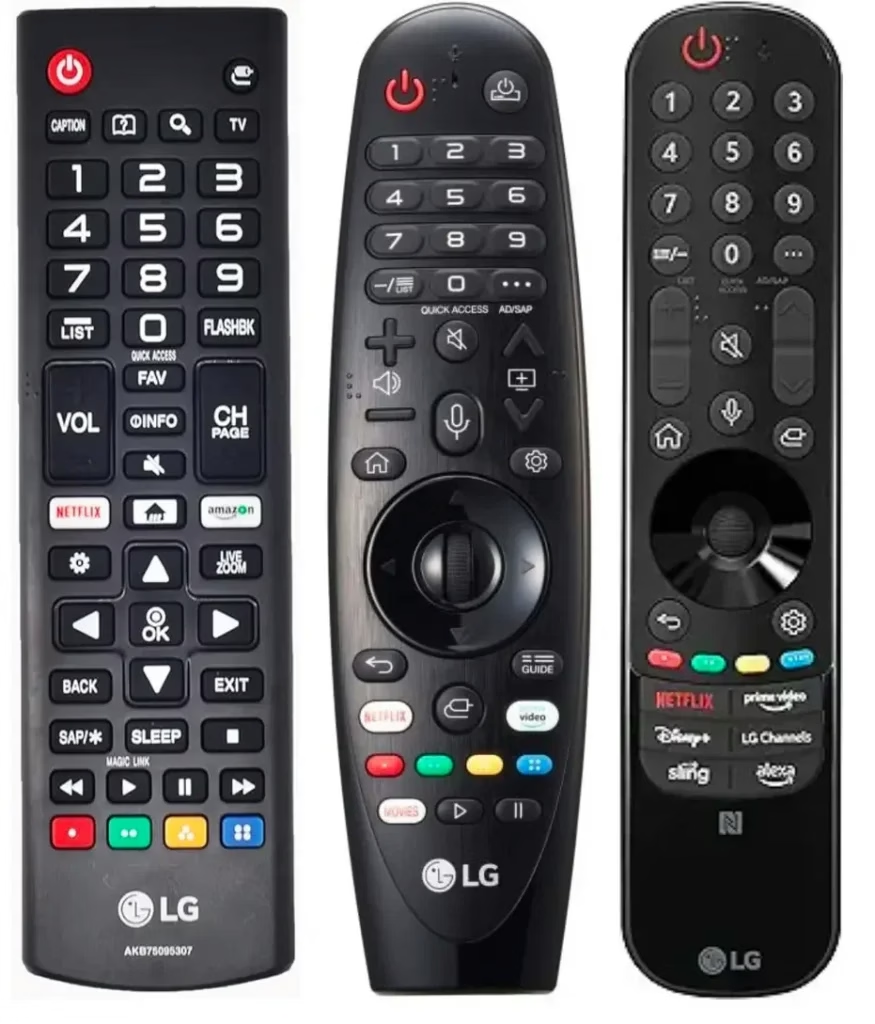
LG TV Magic Remote Control Functions: All Buttons
The LG TV Magic Remote is a significant variant of LG TV remotes, incorporating advanced features like voice and gesture control that change user interaction with LG Smart TVs.
It has a sleek, modern design that's compact and ergonomic, making it comfortable to hold and use. The button layout on the advanced remote is similar to that on the basic remote. From the top to the bottom, generally, the buttons are a numerical keypad, a directional pad, and colored buttons.
Here are LG TV buttons explained:
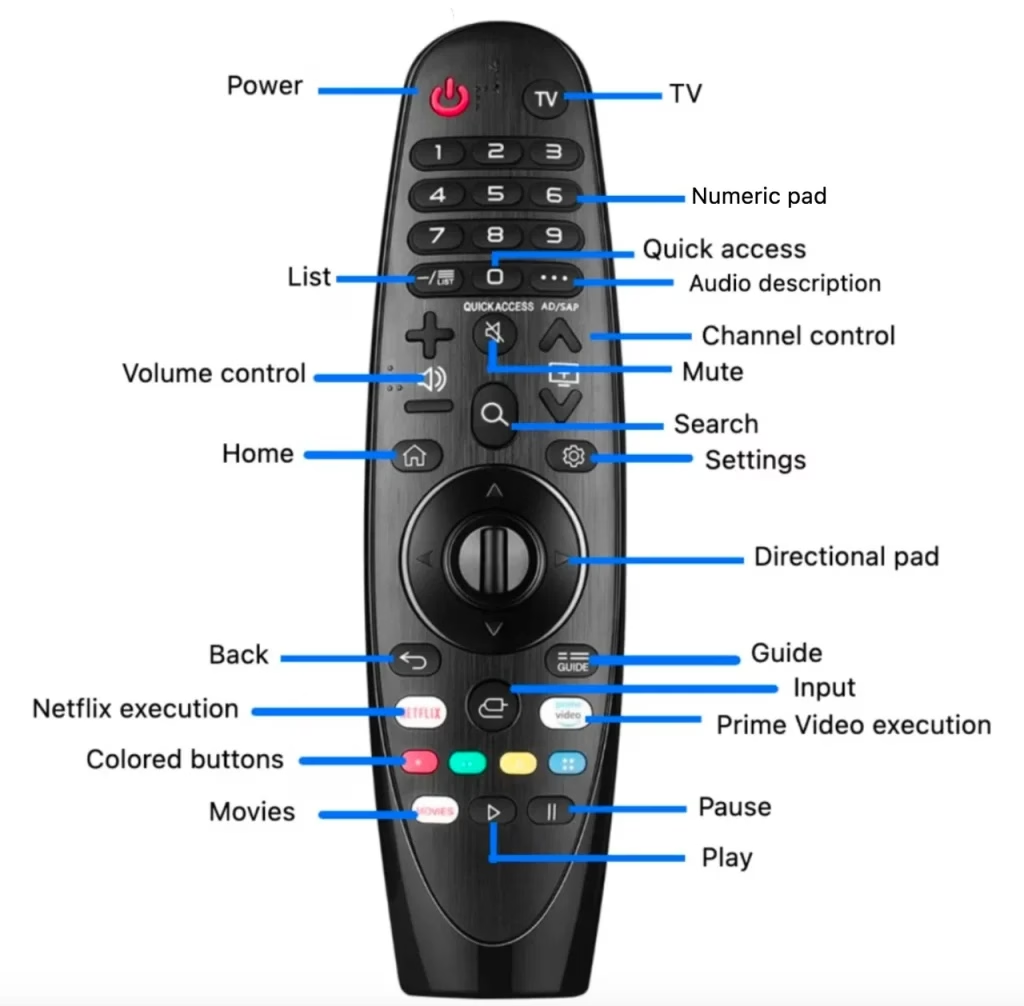
Or refer to the official explanation of LG Magic Remote.
How to Set Up and Use LG Magic Remote (Step-by-Step Guide)
If you have an LG TV Magic Remote, to experience its functions, you need to pair it with your LG TV. The tutorial is displayed below.
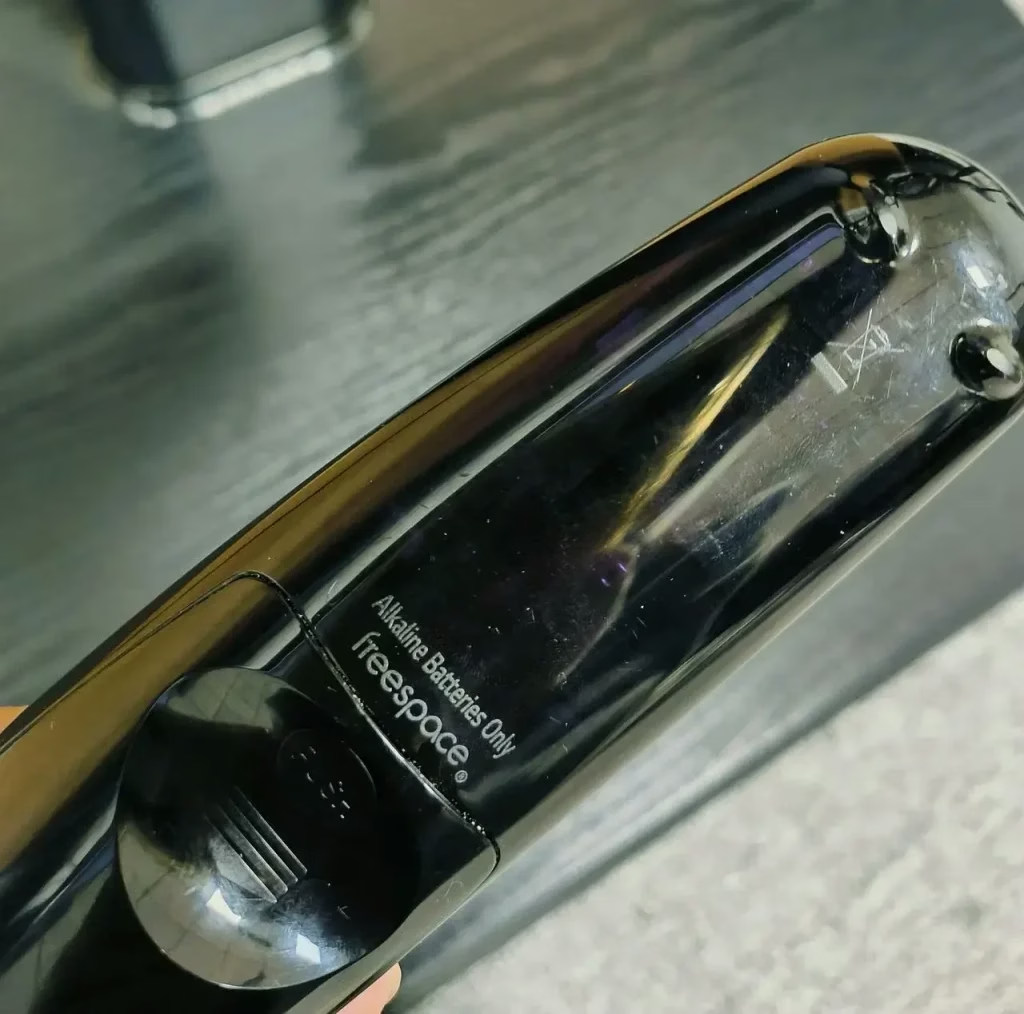
Step 1. Insert a pair of new batteries (alkaline batteries) into the LG TV remote.
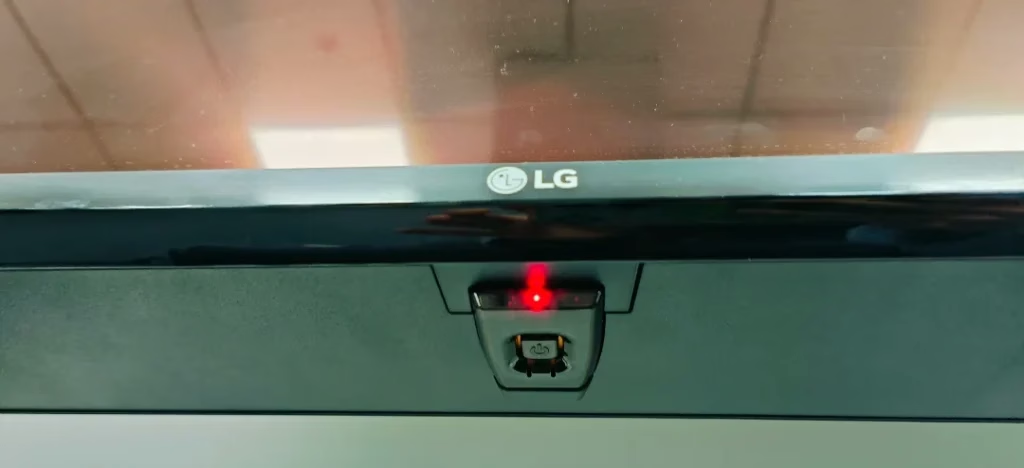
Step 2. Turn on your LG TV by pressing the power button on itself. On most LG TVs, the power button is located at the bottom, just under the LG logo.
Step 3. Wafor 10 seconds.
Step 4. Face your remote toward your LG TV and press the wheel button.
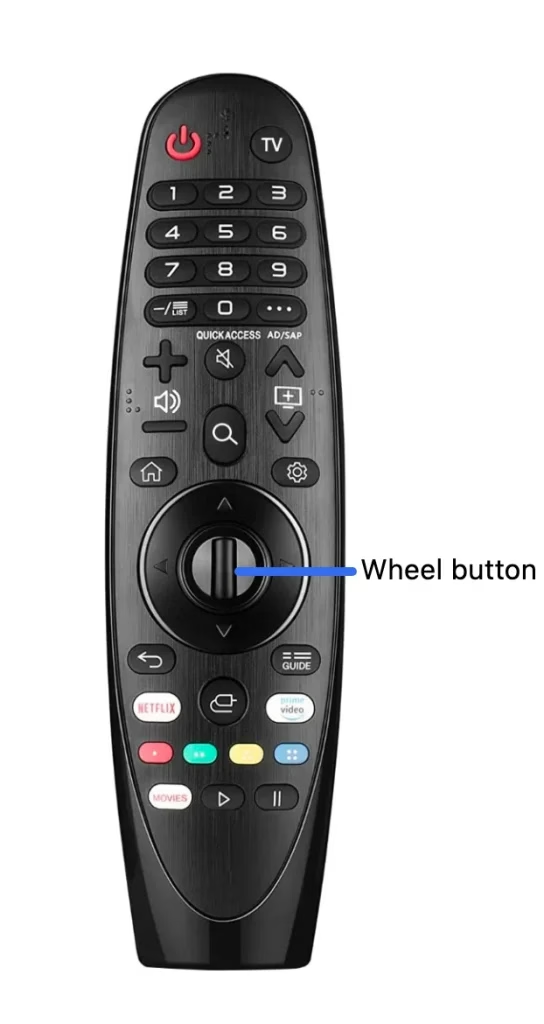
If you see the message saying "Pairing is complete", the pairing process is well done, and you can experience the LG TV remote functions.
How to Use LG Magic Remote Buttons Faster
Instead of memorizing every button on your LG Magic Remote, the fastest way to learn is to group buttons by daily tasks.
Most users only rely on a few core controls, and mastering these can instantly improve how you navigate your TV.
Core buttons for everyday use
Start with these essential buttons:
These buttons form your core control system for:
Once you master these, the rest of the remote becomes much easier to use.
Task-based shortcuts for faster control
Think in actions instead of buttons:
This approach reduces learning time and improves navigation speed significantly.
Hidden LG TV Remote Features
Many LG Magic Remote buttons support both short press and long press actions, but most users are not aware of this. Understanding this difference can unlock hidden features and make your remote much more powerful:
| Button | Short Press | Long Press |
|---|---|---|
| **Settings** | Quick Settings | Full Settings menu |
| **Home** | Home screen | Recent apps (on supported models) |
| **Back** | Go back one step | Exit to live TV |
| **Mute** | — | Accessibility settings (varies by model) |
Pro tip:
If a function seems missing or a button appears unresponsive, try a long press before troubleshooting.
In many cases, the feature is hidden behind a long-press action, not a malfunction.
Troubleshooting LG TV Remote Functions Not Working
If your LG TV Magic Remote functions are not working, please initialize the remote first. To do so, you need to press the Home and Back buttons on the remote for 5 seconds at the same time. When the LED on the remote blinks 3 times, the remote is initialized, and you can press the Wheel button to re-pair the remote.
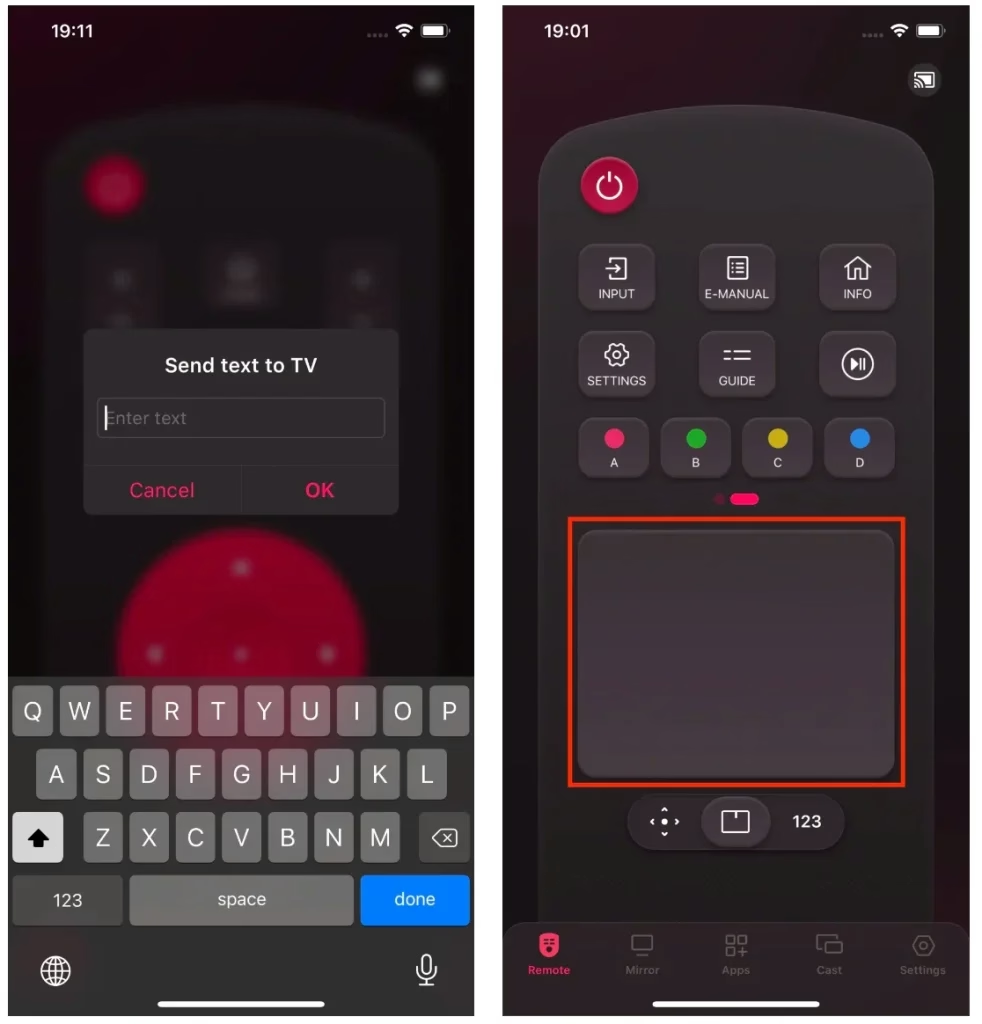
If your LG Magic Remote is unavailable or still unresponsive after these troubleshooting steps, use the LG TV Remote app from BoostVision as a practical backup. It lets you control volume and navigation, enter text with the on-screen keyboard, and use gesture controls from your phone.
The app connects over the same Wi-Fi network as the TV. It does not provide voice control, but it can restore the everyday controls you need while you continue troubleshooting the physical remote.


To use the remote app, you also need to pair it with your LG TV. Before carrying out the following steps, check if your LG TV and smartphone are connected to the same network. Otherwise, the TV won't be detected.
connecticon in the upper-right corner. - Choose your LG TV from the device list.
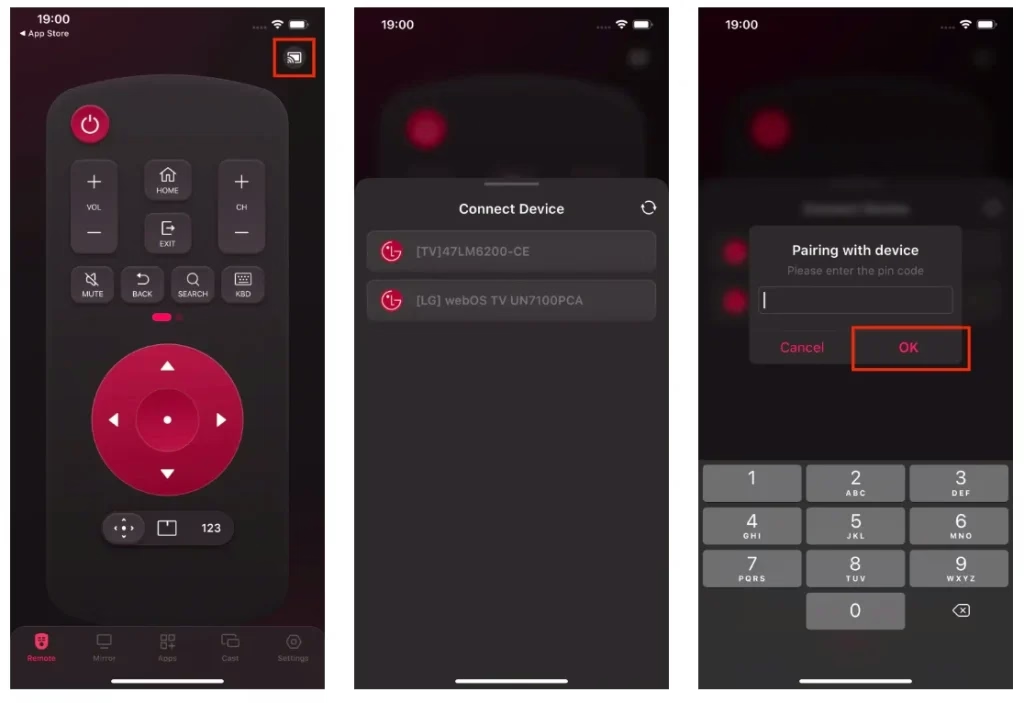
Once the connection is established, you can tap the buttons on your phone screen to control your LG TV.
Final Thoughts: Master Your LG Magic Remote
You can find basic and several modern functions on an LG TV Magic Remote, and each function is explained above. Refer to the explanation to get to know your LG TV remote. Note that a Magic remote needs to be paired with the LG TV and it can start to work.
That's all about LG TV remote control functions. Hope the post is helpful for you.
LG TV Remote Control Functions FAQ
Q: What do the buttons on my LG TV remote do?
There are many buttons on an LG TV remote. Generally, it includes volume control buttons to turn up or down the volume, channel control buttons for switching channels, the home button to access the TV homepage, the input button to change the input source, navigation buttons to move around the TV screen, and so forth. To figure out the function of each button on the remote, you can refer to your LG TV manual.
Q: How do I use the Settings button on my LG remote?
Press the settings button to quickly access the Settings menu, while long press it to access the All Settings menu.
Q: How do I re-register an LG Magic Remote after replacing batteries?
Point the remote at the TV and press the Wheel/OK button. If registration fails, hold Home + Back for about 5 seconds, then try registration again.
Q: Why does my LG remote power button work but other buttons do not?
That usually means partial pairing or IR/Bluetooth mismatch. Re-pair the remote, replace batteries, and make sure nothing blocks the TV receiver area.
Q: Can I use LG TV remote control functions without the original Magic Remote?
Yes. You can use a compatible LG replacement remote or a mobile remote app, but advanced pointer/voice features may depend on model support.
Q: Which LG remote buttons matter most for troubleshooting?
Start with Power, Input, Home, Settings, and Back. If those fail together, perform remote initialization and test again after a fresh pair.
 Oct 19, 2023