
How to turn up brightness on Roku TV without remote? If your Roku TV looks too dark and the remote is missing, the fix is usually straightforward. In most cases, you can reach the picture settings through the TV's physical buttons, a remote app, or another control path that is already on the network. The real job is finding the right brightness-related setting, changing it in the right order, and checking why the screen still looks dim if the first adjustment does not help.
What Controls Brightness on a Roku TV?
On a Roku TV, "brightness" is not always one single control. Depending on the brand and software version, the menu may use names such as Brightness, Backlight, TV brightness, Picture mode, or Energy saving.
The main settings to check are:
Roku TV Brightness Settings at a Glance
When the menu labels are confusing, a quick reference helps you avoid random trial and error.
| Setting | What it does | Best when |
|---|---|---|
| Picture mode | Changes the overall look of the image | The TV is stuck in a dark preset |
| TV brightness / Backlight | Raises or lowers screen light output | The whole screen is too dim |
| Contrast | Increases the difference between light and dark areas | Bright areas look weak |
| Energy saver | Reduces power and can dim the picture | The TV looks darker than usual |
| HDR / Night mode | Adjusts dynamic range or dimming behavior | One type of content looks dimmer than others |
Use this order to change brightness on TV:
1. Change picture mode first.
2. Raise backlight or TV brightness second.
3. Adjust contrast only if needed.
4. Turn off energy saving if the picture is still too dim.
5. Recheck the same content after each change.
Some Roku TVs reset brightness feel when a picture preset changes. A brighter preset with a moderate backlight often looks better than a dark mode with the slider high.
If you are judging the result in a dark room, test the picture in brighter light too. What looks fine in one room can feel too dim in another.
How to Turn Up Brightness on Roku TV Without Remote
If your Roku remote doesn't work, you can increase brightness on Roku TV with the TV buttons or phone app by opening the picture settings and raising the backlight or brightness from there.
Method 1: Use the TV Buttons
If your Roku TV has physical buttons (usually located on the back, side, or bottom), you can access the settings menu directly.
Step 1. Press the Power/Menu button on the TV to open the on-screen menu.
Step 2. Use the Volume (+ / -) or Channel buttons to navigate through the options.
Step 3. Go to Settings > Picture Settings.
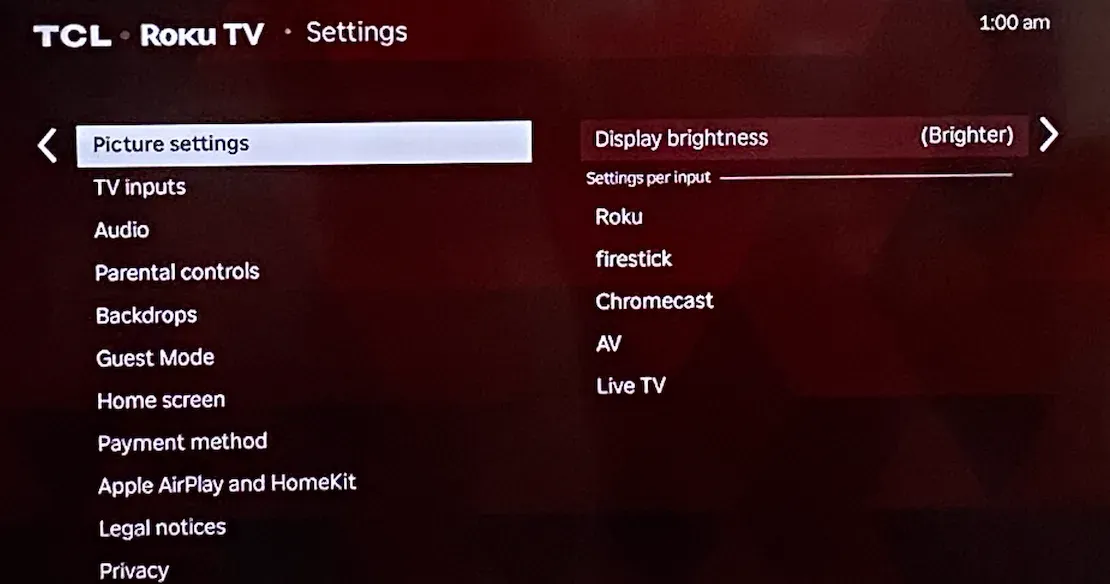
Step 4. Select Display brightness and choose Bright or Brighter.
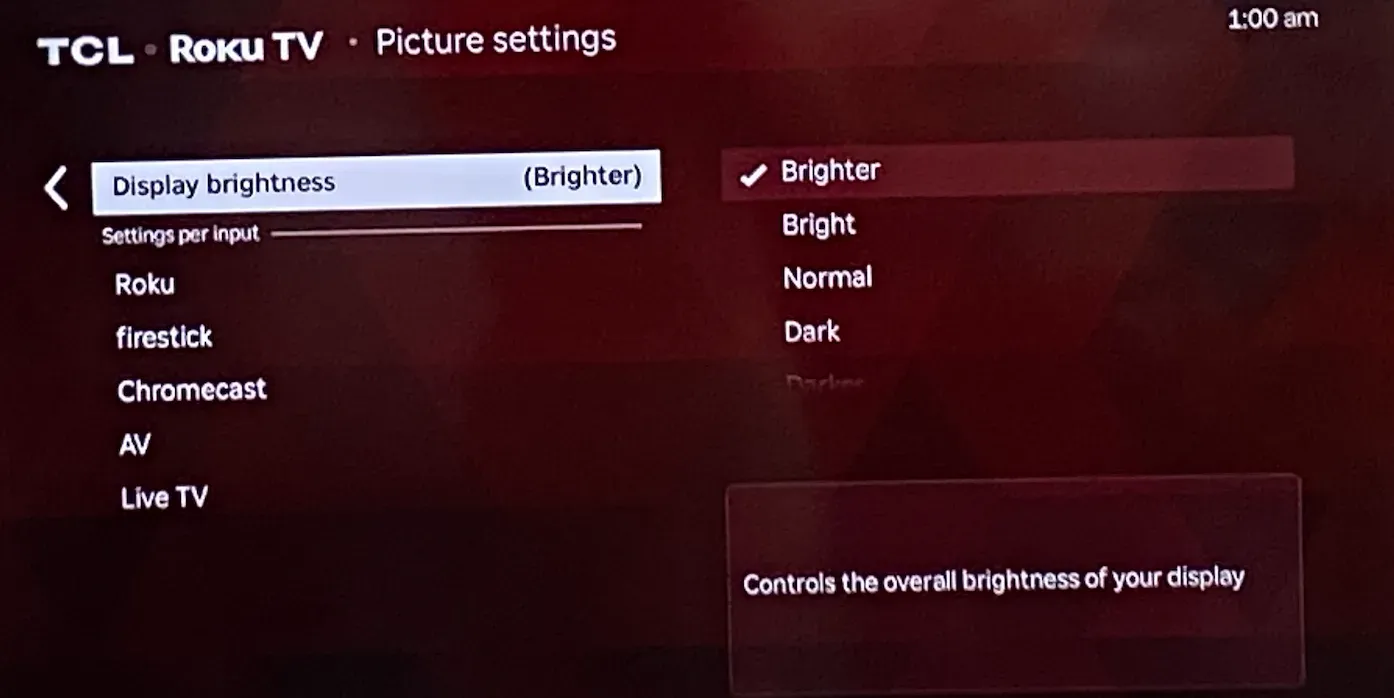
Step 5. Exit the menu and check the result on actual content.
Tip: On some models, a long press of the power button opens a quick menu where you can directly access picture settings.
Method 2: Use the Roku Remote App
If your TV is connected to Wi-Fi, you can control it using your phone.
Step 1. Download a Roku remote app on your phone.
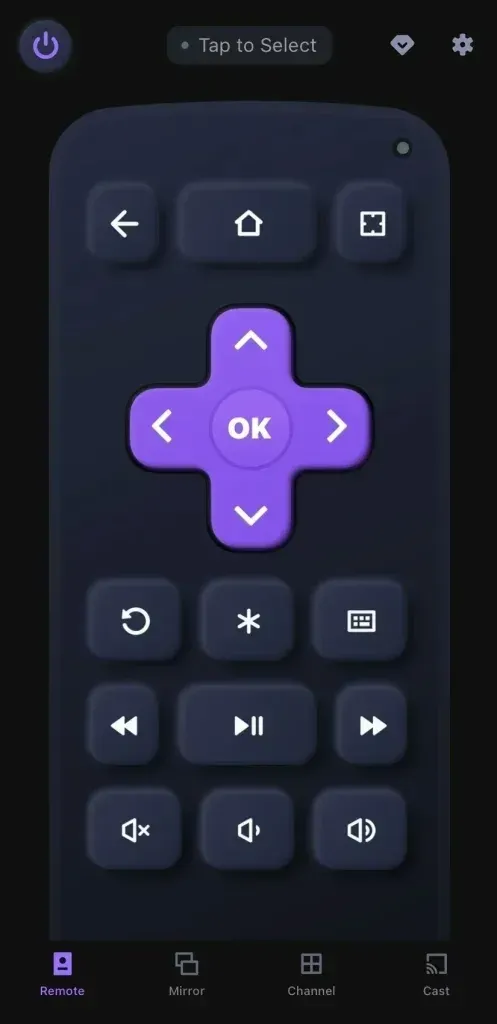
Step 2. Make sure your phone and TV are on the same Wi-Fi network.
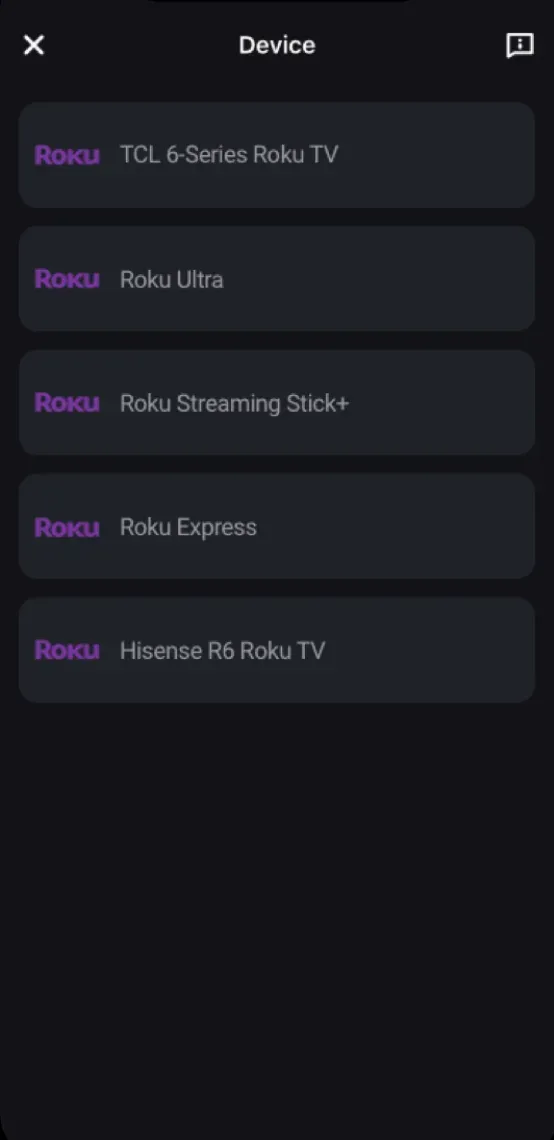
Step 3. Open the app and tap the top bar, and choose your Roku TV from the list.
Step 4. Press the Home button, then go to: Settings \> TV Picture Settings \> Picture mode settings
Step 5. Adjust TV brightness / Backlight and Picture mode (switch to Vivid or Bright if needed).
Step 6. Exit and test the picture with real video.
Tip: If the app connects but controls lag, restart the app or reconnect to the TV.
Why Does the Roku TV Still Look Dim After Changing It
Sometimes the problem is not the brightness slider. Another setting or the content itself may be limiting the image. Common causes include:
To fix the isse, you can follow the order via the physical buttons on the TV or using a remote app:
Step 1. Check whether the TV has a power-saving mode enabled.
Look for Energy saver, Power saving, or Automatic brightness, and turn them off temporarily if the screen is too dark.
Step 2. Test the same setting on a different input.
Some Roku TVs save picture settings per input. If HDMI 1 looks dim but the home screen looks fine, the problem may be isolated to one source.
Step 3. Compare SDR and HDR content.
Streaming apps can show different brightness levels depending on the source. If only one title looks dark, the issue may be the video format.
Step 4. Restart the TV after making picture changes.
A simple restart can help the picture settings settle. Power the TV off, wait 10 to 20 seconds, and turn it back on.
Step 5. Watch for any ambient light or auto-dimming feature.
Some Roku TV models reduce brightness in dark rooms or when a sensor thinks the room light is low. Test Automatic brightness both on and off.
Conclusion
The easiest way to turn up brightness on a Roku TV without the remote is to use the TV buttons or a mobile app to reach the picture settings, then raise the backlight or brightness and switch to a brighter picture mode. If the screen still looks dim, check for power-saving features, per-input picture settings, or content that is naturally darker than usual. Change one likely setting at a time and test the result on actual video, not just on a menu screen.
How to Turn Up Brightness on Roku TV Without Remote FAQ
Q: Can I change Roku TV brightness without the original remote?
Yes. You can often use the TV's physical buttons or the Roku mobile app if the TV is still on the network. Once you reach the picture settings, raise the backlight or brightness and choose a brighter picture mode.
Q: Why does my Roku TV still look dark after I increase brightness?
The TV may still be in an energy-saving mode, a dark picture preset, or a content mode like HDR that changes how the image is rendered. Check those settings one by one instead of only moving the brightness slider.
Q: What if the remote app cannot find my TV?
Make sure the phone and the TV are on the same Wi-Fi network and give the app a moment to scan. If the TV is offline, reconnect it first before trying to use the app as a controller.
Q: Is the brightest picture mode always the best choice?
No. Vivid or Bright can help in a sunlit room, but they can also oversaturate color or look harsh at night. Start with a brighter preset, then fine-tune the backlight and contrast until the picture looks balanced.
Q: Why does my screen dim automatically at night?
Your TV may have Ambient light sensor or Automatic brightness control. Turn these off in settings if you want consistent brightness.
Q: Is HDR supposed to look darker?
Sometimes yes. HDR content uses different tone mapping, which can appear dimmer if the TV's peak brightness is limited. Try increasing backlight or switching picture mode while watching HDR content.

 Sep 08, 2025