
How to control volume on Fire TV app without remote? Losing the physical remote does not mean you lose audio control on Fire TV. In many homes, your phone can replace the remote quickly, but only when device pairing, Wi-Fi, and TV audio routing are set correctly. If one of those layers is off, the app may connect while the volume still does nothing.
This guide gives you a clear sequence: first, how to set up volume control in the Fire TV app; second, how to troubleshoot when the controls are visible but unresponsive; and third, what to do when app control is not available. Follow the sections in order and you can usually restore volume control without buying a new remote immediately.
How to Control Volume on Fire TV App Without Remote
If you are searching for how to control volume on Fire TV app without remote due to Fire TV remote not working, start with setup discipline instead of random button testing. The goal is to confirm that the phone is paired to the right Fire TV device and that the device can pass volume commands to the TV or sound system.
Before touching the settings, check these basics:
Use this setup sequence:
Step 1. Connect your phone to the same Wi-Fi network as Fire TV.
Do not use mobile data during pairing. If your phone switches between router bands or guest Wi-Fi, the app may drop connection mid-control.
Step 2. Open the Fire TV app and wait for device detection.
If multiple devices appear, match the room name carefully. Selecting the wrong device is one of the fastest ways to think volume is broken when it is actually controlling another TV.
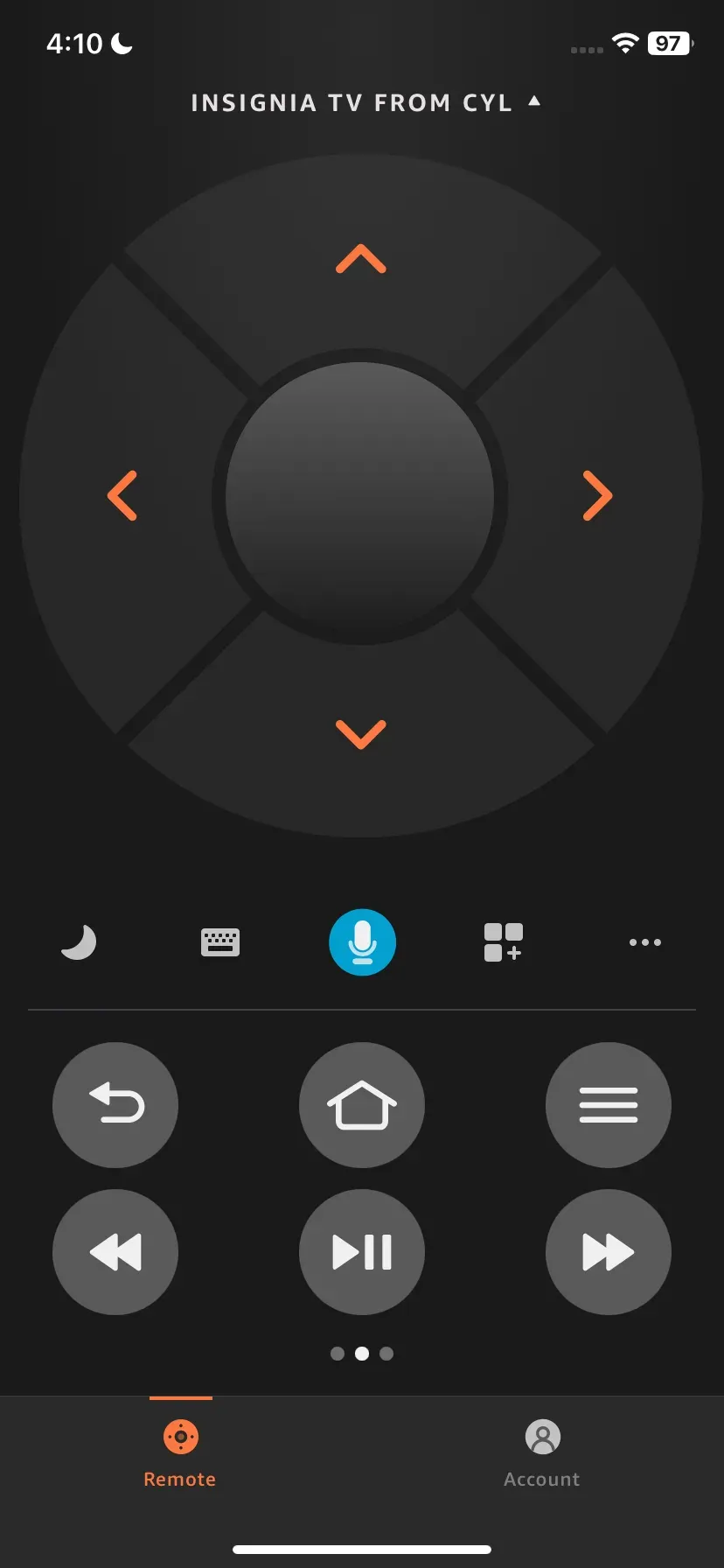
Step 3. Pair the app and open the remote interface.
At this point, test directional keys and Home first. If navigation works but volume does not, your pairing is good and the issue is probably in audio control routing.
Step 4. Test the volume keys in the app remote panel.
This is where most users evaluate Fire TV app volume control performance. Try volume up, volume down, and mute in a quiet scene so the result is obvious.
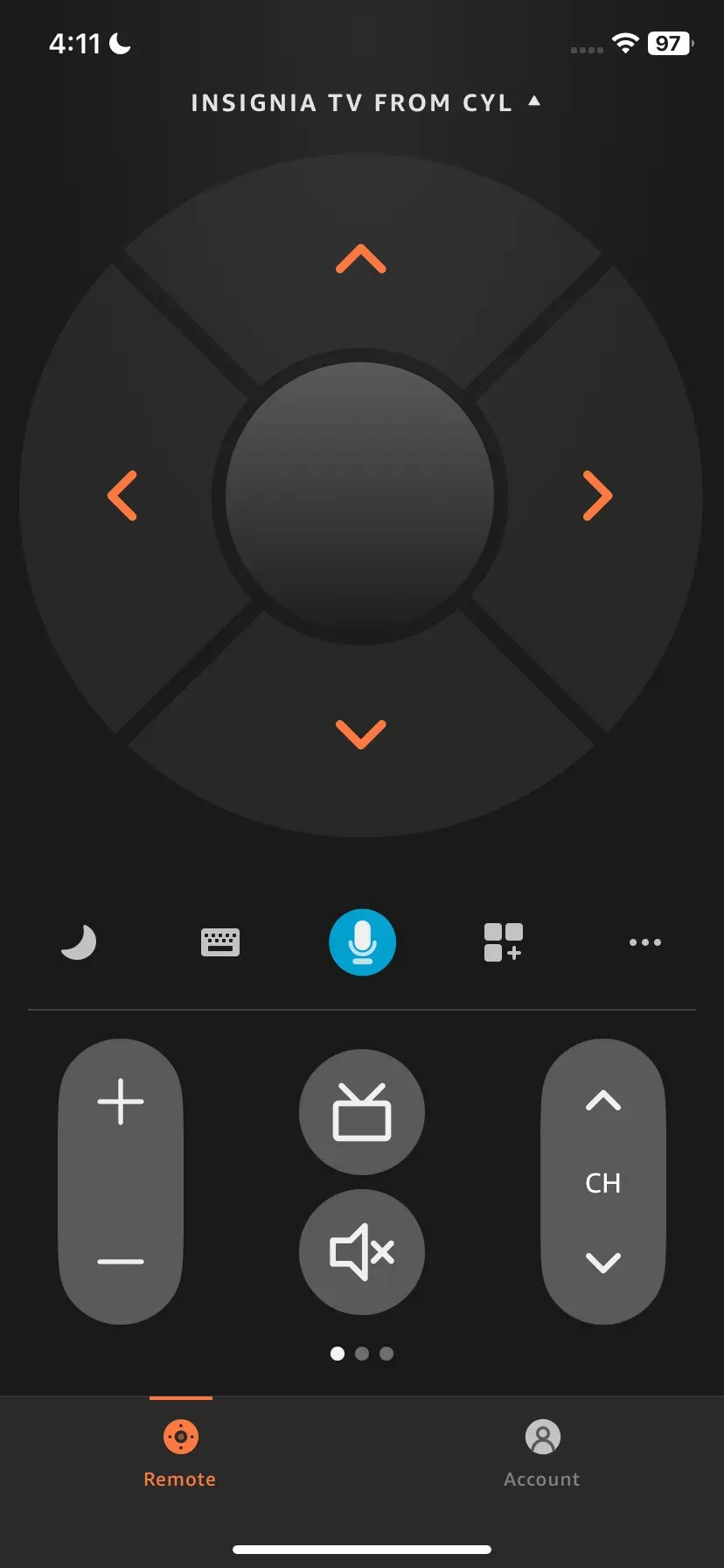
If your question is simply how to control volume on Fire TV app, this four-step setup solves most cases. If controls still fail, move straight to the next section instead of repeating the same taps.
How to Fix Fire TV App Not Changing Volume
When users report Fire TV app not working, the root cause is usually one of five buckets: network mismatch, wrong target device, HDMI-CEC state, external audio routing, or stale app pairing.
Start with this fast diagnosis table:
| Symptom | Likely cause | Practical fix |
|---|---|---|
| App connects but volume buttons do nothing | Audio control route is not available | Verify TV/soundbar control path and retest |
| Device appears and disappears in app | Wi-Fi handoff or unstable router state | Lock phone and Fire TV to the same stable network |
| Navigation works, volume fails | HDMI-CEC or external speaker path mismatch | Recheck CEC and active audio output settings |
| Only mute works | Partial control profile loaded | Restart app + Fire TV and re-pair |
| Nothing responds after update | Cached pairing session corruption | Sign out/in and pair again |
Then follow this repair order:
Step 1. Verify network consistency.
The phone and Fire TV must stay on the same subnet. If your phone roams to guest Wi-Fi, app commands may become intermittent.
Step 2. Re-open the app and reconnect to the correct Fire TV device.
If several devices exist at home, remove guessing. Select the room/device name that matches the screen you are watching.
Step 3. Check TV and sound system control settings.
If your setup includes a soundbar or receiver, confirm that it is the active output and not locked in a mode that ignores Fire TV control commands.
Step 4. Restart both endpoints.
Force close the app, restart Fire TV, then reconnect. This clears stale sessions that can block command translation.
Step 5. Re-test in this order: mute, volume up, volume down.
If mute works but level changes fail, continue with audio-route checks rather than redoing network setup.
Step 6. Remove and re-add app pairing if needed.
When persistent failures continue, re-pairing usually restores command mapping faster than repeated manual retries.
This section is also the answer to how to control volume from Fire TV app when your first setup attempt failed: fix the control path, not just the app interface.
If you still cannot recover app control, keep reading for alternatives that let you restore sound immediately.
Alternative Ways to Control Fire TV Volume Without Remote
App-based control is convenient, but it is not the only route. If you need immediate volume access, use another method first, then return to app troubleshooting later.
Use these alternatives when:
Alternative Method 1: Use Fire TV Volume Buttons
This method works best on Fire TV Edition televisions or setups where the display has reachable physical controls.
Step 1. Locate physical TV control buttons.
Depending on brand, buttons may be under the center bezel, on the right edge, or on the rear lower panel.
Step 2. Press volume up/down directly on the TV.
This bypasses app pairing and immediately confirms whether the display can change output level.
Step 3. Open TV menu with the same button cluster if available.
Some models use a joystick-style button to navigate input and audio settings.
Step 4. Verify audio output is not locked to a disconnected device.
If the TV expects a soundbar that is powered off, you may hear no change even when volume commands are sent.
Step 5. Use this as a stability bridge.
Once volume is stable through physical controls, return to app troubleshooting with less urgency.
Alternative Method 2: Use a Third-Party Remote App for Fire TV
If the official control route remains unstable, a third-party option can work as a temporary bridge. The Fire TV Remote app, developed by BoostVision, is a solid option.
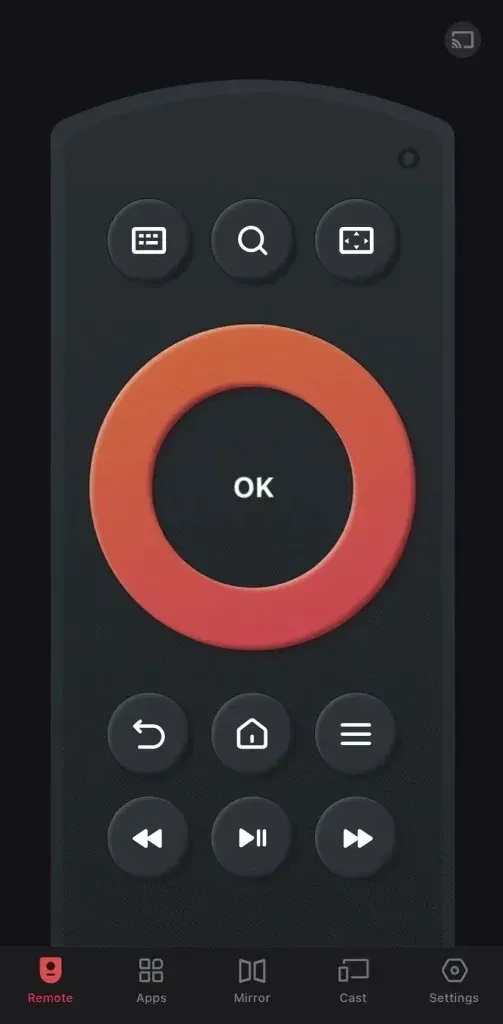
Note: Choose a reputable remote app with clear permissions. Avoid tools that request unrelated access. A remote-control app should mainly need local network access and basic device discovery.
How to control volume on Fire TV remote app:
Step 1. Connect phone and Fire TV to the same network.
The remote app still depends on local discovery, so network hygiene remains critical.
Step 2. Pair your phone to Fire TV via the remote app.
Step 3. Test the Fire TV volume control app.
Tap the Volume Up or Volume down on your phone screen and see if your Fire TV responds accordingly.
This approach can help you control Fire TV volume with phone when the official path is blocked, but do not ignore underlying network or audio-routing issues.
Conclusion
Controlling Fire TV volume without a physical remote is usually straightforward once the setup is correct. In most cases, the Fire TV app works reliably when your phone and device are on the same network and audio routing is properly configured. If volume controls appear but do not respond, the issue is rarely the app itself—it is more often related to HDMI-CEC settings, external speakers, or pairing inconsistencies.
By following a structured approach—verify connection, confirm device selection, check audio output, and reset pairing—you can resolve the majority of problems quickly. And when the app is not an option, physical TV controls or a trusted third-party remote app provide effective backups, allowing you to restore volume control without immediately replacing your remote.
How to Control Volume on Fire TV App Without Remote FAQ
Q: Can I control Fire TV volume with only my phone?
Yes, in many setups you can control Fire TV volume with only a phone, as long as app pairing is stable and the active TV or audio device accepts commands from Fire TV.
Q: Why does the Fire TV app connect but not change volume?
This usually means device pairing is fine but volume command routing is not. Check audio output path, HDMI-CEC state, and whether sound is coming from a soundbar or receiver.
Q: Does this work if my Fire TV device is offline?
No. App control depends on local network discovery. If the device is offline, restore network access first before expecting phone-based volume control.
Q: Is a third-party app safe for temporary control?
It can be, if you choose a reputable app like remote apps from BoostVision with limited permissions and test reliability. Use it as a bridge, not a blind permanent replacement.
Q: Should I buy a replacement remote immediately?
Not always. If app control or physical buttons work consistently, you can postpone replacement. Buy a new remote when fallback methods are unstable or inconvenient.
Q: What is the fastest troubleshooting order when volume fails?
Check network match, reconnect to the correct device, verify audio routing, restart app and Fire TV, then re-pair. This sequence resolves most real-world failures with minimal wasted time.

 Oct 10, 2025