
As a social media platform, TikTok allows you to browse pictures, short videos, and create works to share your daily life. Usually, you play this media app on mobile devices like smartphones and tablets. Have you ever thought about how to cast TikTok to TV? It means you can experience a bigger screen to enjoy videos and watch live streams.
Can You Stream TikTok to TV
Can you watch TikTok live on TV? You're in the right place. Whether you're at home in your living room or setting up a shared viewing experience with friends, casting TikTok to your TV is easier than you might think. Here you will know 3 simple and practical methods, including the Cast button, a universal TV cast app, and an HDMI cable.
How to Cast TikTok on TV
How to watch TikTok on TV? First, the simplest approach is installing TikTok on your TV if it supports this app. Some TVs such as Amazon Fire TV, Android TV, Samsung smart TV, LG smart TV, Vizio TV, and modern Roku TV allow the TikTok app to work on them.
To enjoy TikTok on TV, you can search for the TikTok app from the Apps menu on your TV, then install, open, and log in to sign into your TikTok account. For more detailed information, tap the corresponding link to get:
How to download apps on Roku TVHow to add apps to Vizio smart TVHow to download apps on LG Smart TVCast TikTok to TV through the Cast Button
If your TV doesn't support TikTok, or you don't want this application to occupy your television's memory, then can you watch TikTok on TV in other ways? One of the adoptable options is to cast TikTok to TV, and the easiest way is to click the cast button within the TikTok app.
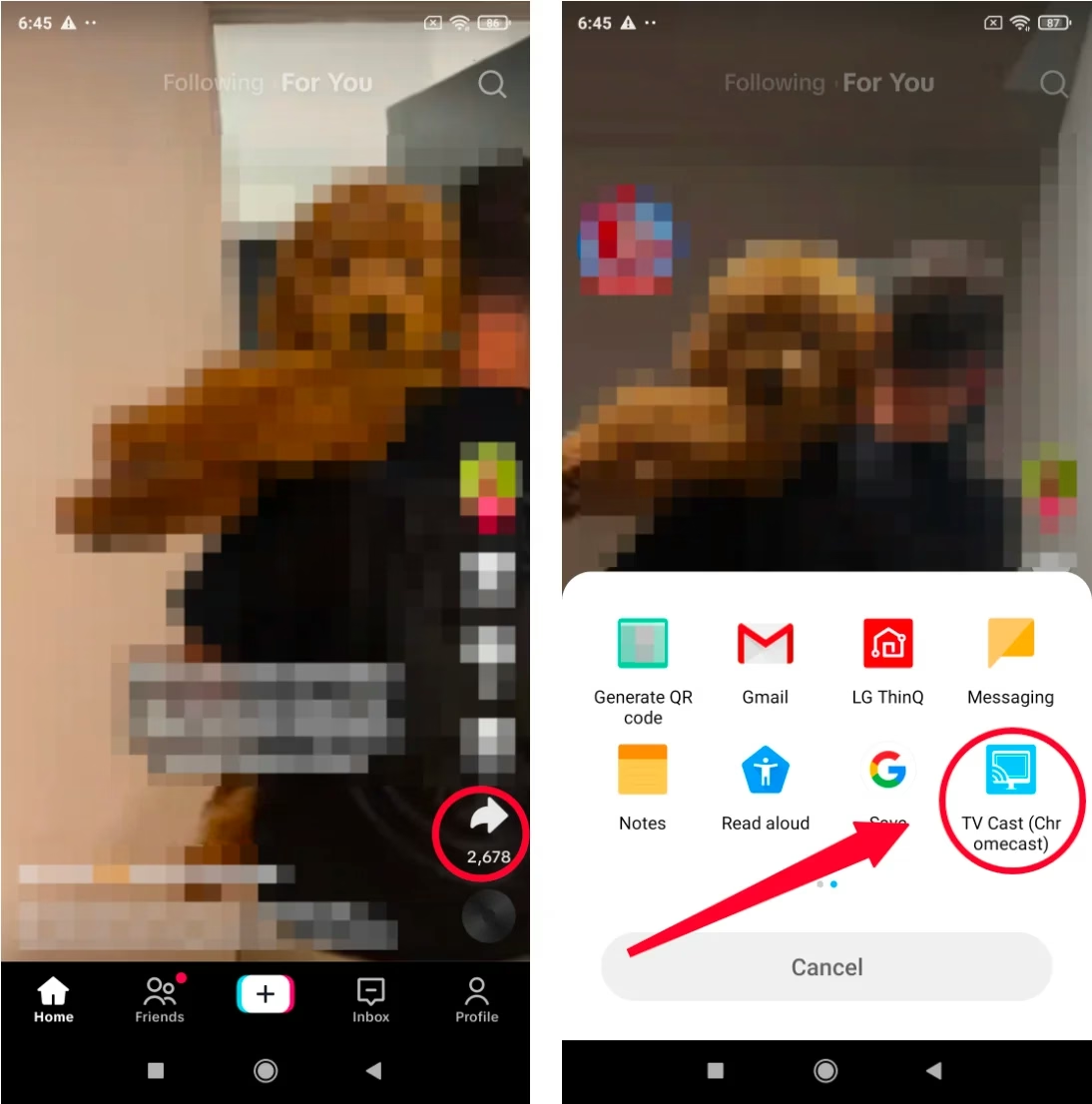
TikTok is compatible with the casting feature, so a Cast button will appear on your mobile device. After ensuring your phone and TV are connected to the same Wi-Fi network, you can follow the straightforward steps below.
Step 1. Open TikTok on your mobile device and tap the video you want to play on TV.
Step 2. Click the Share button and choose the Cast button. Then select your television from the device list.
Cast TikTok to TV through a TV Cast App
Supposing that the interior Cast button can't work for you, how to cast TikTok to smart TV? Fortunately, BoostVision developed a TV cast app for you, which is designed to work seamlessly with a variety of devices, including Roku, FireStick, Samsung, LG, Sony, Vizio, and other smart TVs.
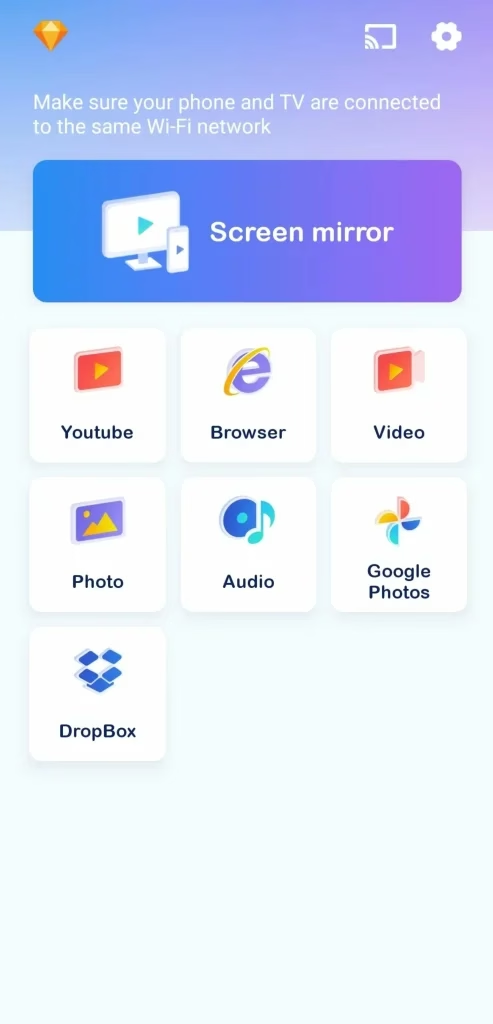


Step 1. Download the app on your mobile device, and connect your devices to the same wireless network.
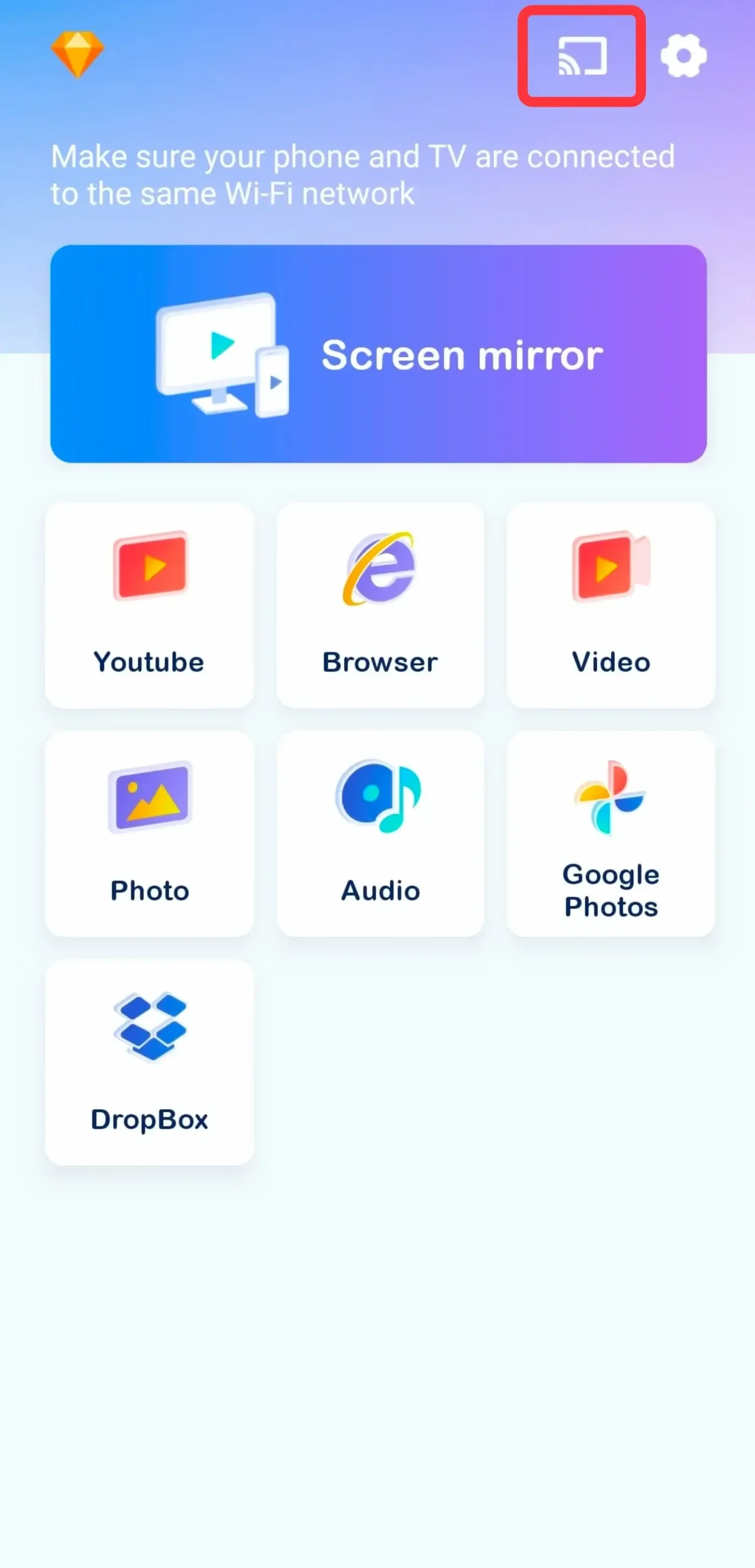
Step 2. Open the app and tap the Pairing button on the screen. Choose your TV from the device list to finish the pairing process.
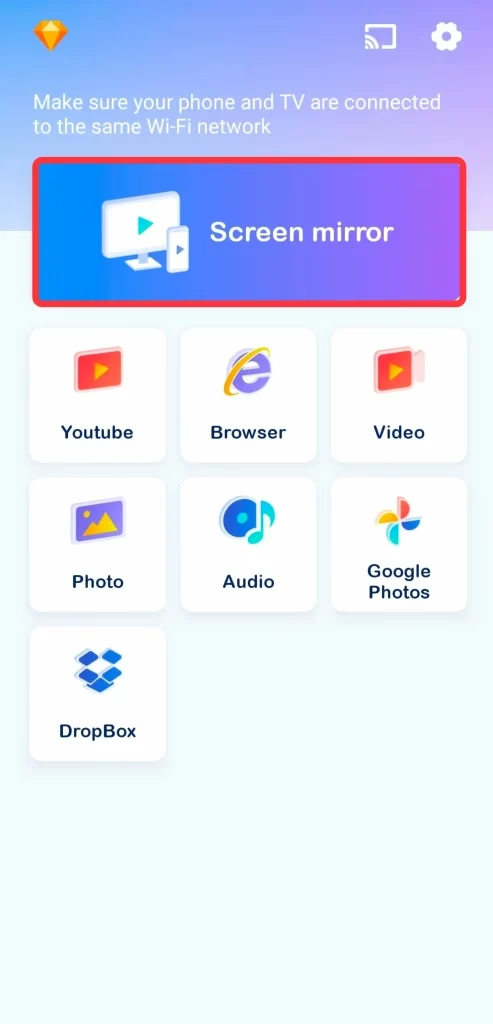
Step 3. Tap the Screen mirror button and follow the instructions to confirm. Then you will see the screen on your phone appearing on the bigger television screen.
Step 4. Open TikTok on your phone and it will also play videos on your TV. In response, you can swipe down or up on your phone to control the scene on your television screen.
Cast TikTok to TV via a USB-to-HDMI Cable
There is another wired connection answer to the question "Can you cast TikTok to TV?" - you can leverage an HDMI cable to cast TikTok to your TV. The physical connection will offer a more stable connection than the wireless connection will do.
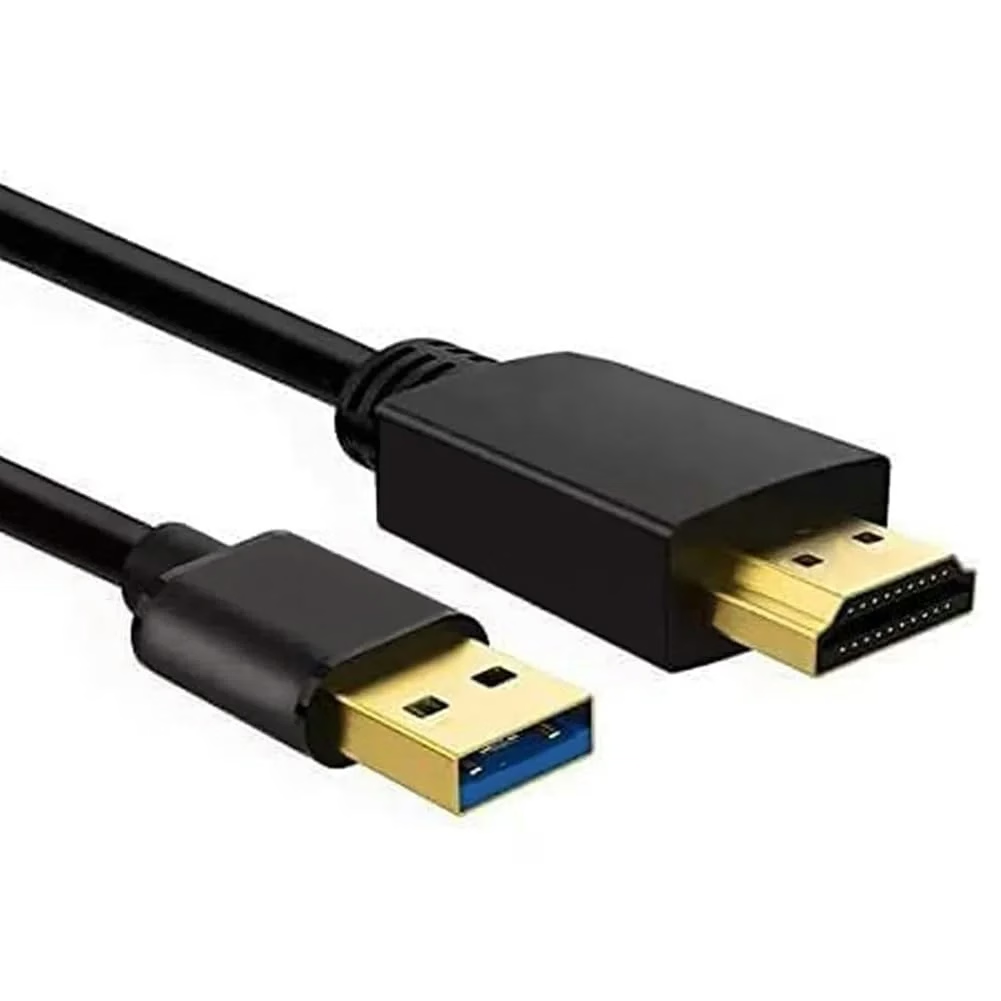
Step 1. Please prepare the USB-to-HDMI cable, and use it to connect your TV and phone referring to the user manual.
Step 2. Select the input you inserted on your TV. After that, your TV will mirror your phone screen, then you can open the TikTok app to display videos.
To Sum Up
How to cast Tik Tok to TV? You can install TikTok on your TV, or Tiktok cast to TV through the within the Cast button, a cast to TV app, or an HDMI cable. All in all, I recommend the app to cast to TV for its mightful compatible function. The old-fashioned wired connection way is stable, but it requires you to sit closer to the TV for the finite length of the cable.
How to Cast TikTok to TV FAQ
Q: Can I cast TikTok to my Roku TV?
You can download TikTok on your Roku TV. Alternatively, you are allowed to use the Cast button inside the app or adopt a TV cast app, or an HDMI cable to get help. Remember to connect to the same WiFi network if you plan to leverage the wireless connection approach.
Q: Can you cast TikTok on TV?
The answer is Yes. There are three methods for you to cast TikTok on your TV:
Castbutton within the TikTok app. - Download a TV cast app on your mobile device that installed TikTok. After a few pairing steps, you can start casting activities.

 May 12, 2026