 English
 Portuguese
 Spanish
 French
 German
 Japanese
 Vicky Green
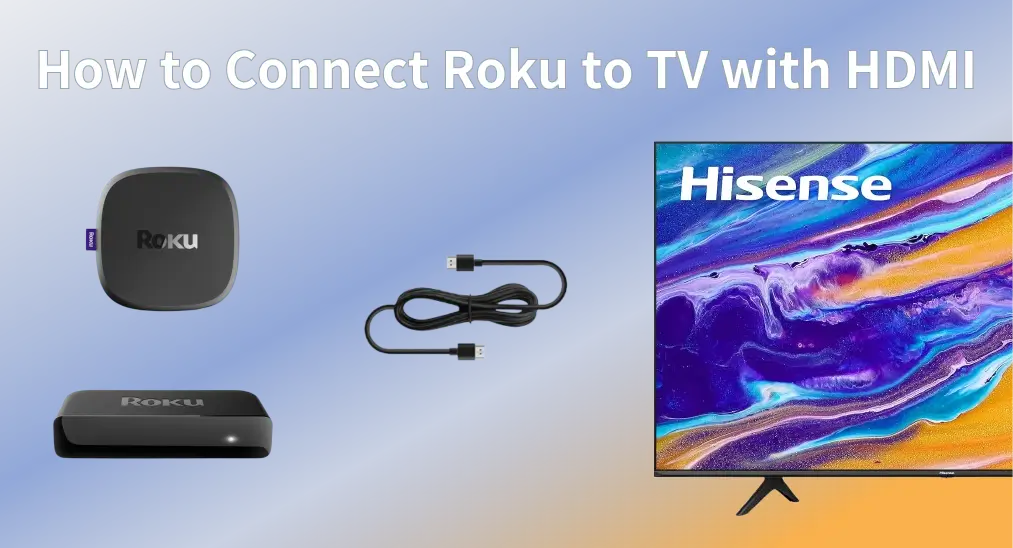
If you've just brought a Roku streaming device and can't wait to start watching your favorite shows, the first step is getting it connected to your TV. Whether you have a Roku Express, Streaming Stick, or Ultra, the most reliable way to hook it up is with an HDMI connection. How to connect Roku to TV with HDMI? Get started with the easy setup guide now.
Índice
Roku HDMI Setup: What You'll Need
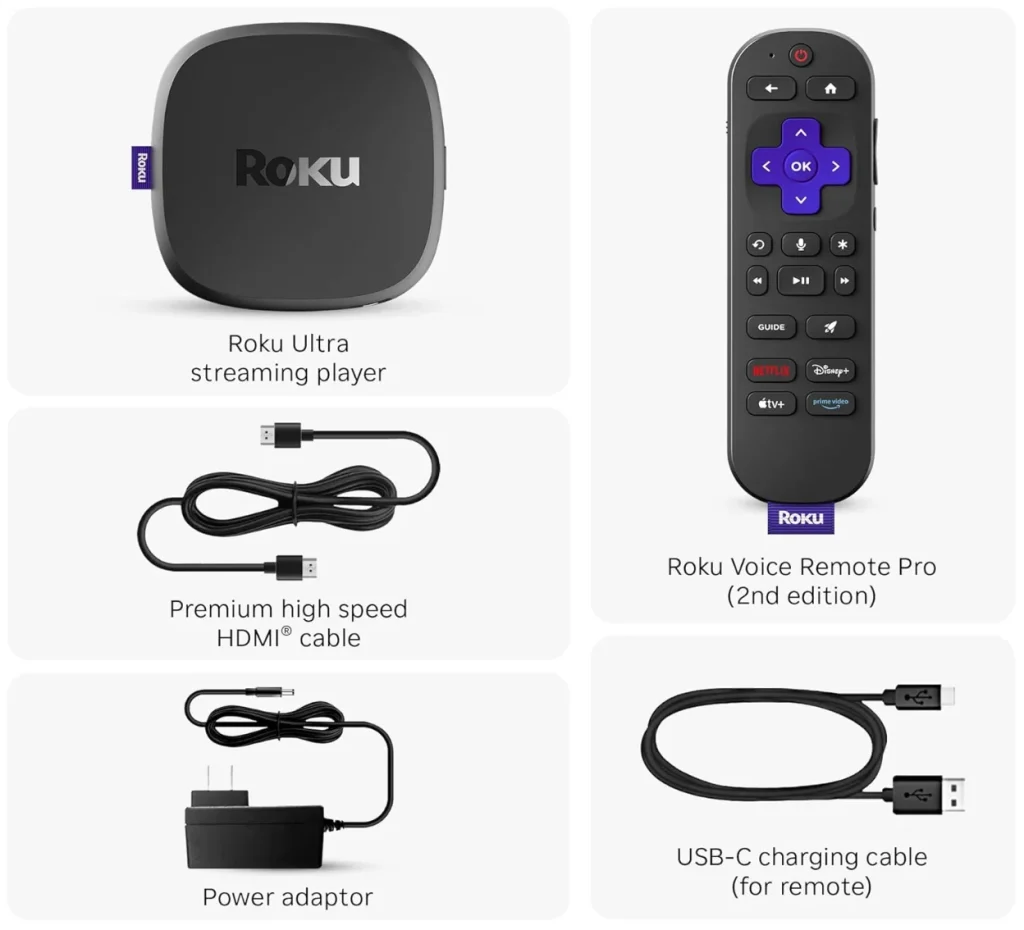
Before we begin, here's what you'll need for a smooth Roku setup on any TV. Most of the items come included with your Roku device, but it's good to understand what each one does and why you need it:
- Um dispositivo Roku
O dispositivo de streaming Roku é a unidade principal que transforma sua TV em um centro de entretenimento inteligente. Dependendo do modelo, ele pode parecer uma pequena caixa (Roku Express), um stick (Roku Streaming Stick) ou um dispositivo mais avançado (Roku Ultra).

The Streaming Stick is the most compact option and plus directly into your TV's HDMI port, ideal for wall-mounted TVs or minimal setups. The Express and Ultra models are better suited if you prefer a small box you can tuck near your TV stand, but they do require an HDMI cable.
(Você pode se interessar por: Roku Express vs. Stick: Qual é Melhor? [Análise Completa])
Se você tem uma TV que não é smart, conectar um dispositivo de streaming Roku a ela oferece acesso instantâneo a plataformas populares de streaming, como Netflix, Hulu, YouTube e muito mais.
Nota: A maioria dos controles remotos da TV Panasonic utiliza infravermelho (IR). Portanto, você deve garantir que haja uma linha de visão direta entre o controle remoto e sua TV Panasonic ao utilizá-lo.
- Um cabo HDMI (se necessário)
A maioria dos dispositivos Roku (como o Roku Ultra e o Express) precisa ser conectada à sua TV usando um cabo HDMI. Esse cabo transmite vídeo em alta definição e áudio do Roku para a TV.
If you're using a Roku Streaming Stick, it already has a built-in HDMI plug; hence, there is no separate cable needed.
- Uma TV com pelo menos uma entrada HDMI livre
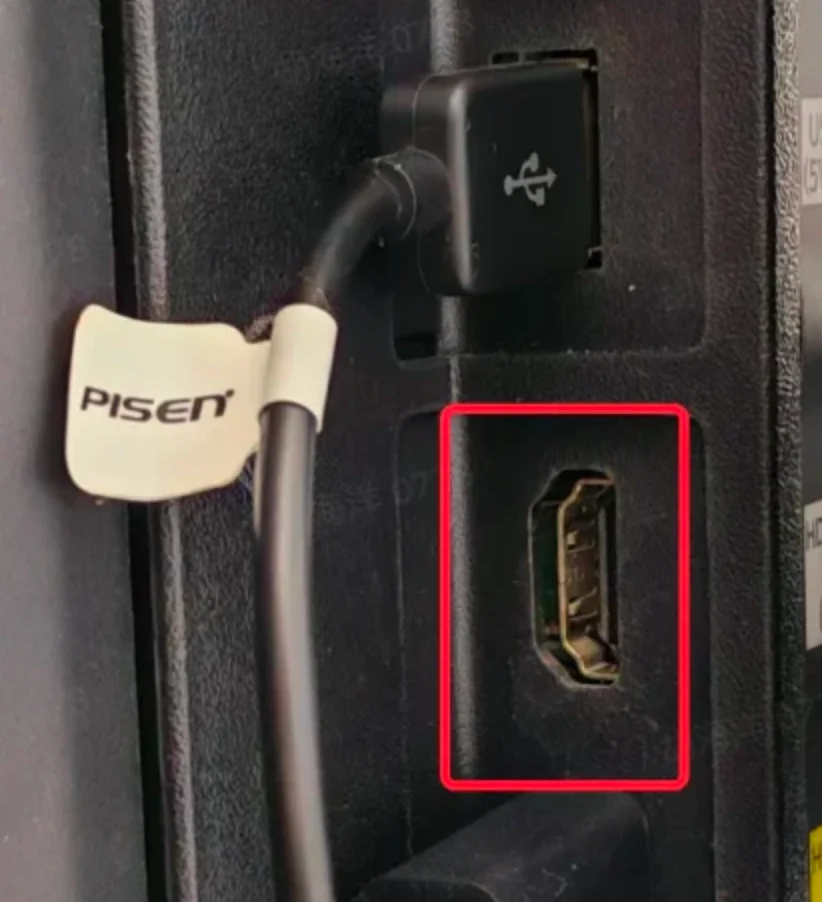
Your TV needs to have an open HDMI port where you can connect your Roku. Most modern TVs have at least one, usually labeled "HDMI 1", "HDMI 2", etc.
- Um cabo HDMI (se necessário)
A maioria dos dispositivos Roku (como o Roku Ultra e o Express) precisa ser conectada à sua TV usando um cabo HDMI. Esse cabo transmite vídeo em alta definição e áudio do Roku para a TV.
If you're using a Roku Streaming Stick, it already has a built-in HDMI plug; hence, there is no separate cable needed.
- Uma TV com pelo menos uma entrada HDMI livre
Your TV needs to have an open HDMI port where you can connect your Roku. Most modern TVs have at least one, usually labeled "HDMI 1", "HDMI 2", etc.
- Uma fonte de energia
Your Roku needs power to function. You can plug it into a wall outlet using the included power adapter, or in some cases, power it through your TV's USB port. However, not all TVs provide enough power via USB, especially for devices like the Roku Ultra, which raises the issue Roku não está funcionando; therefore, a wall outlet is generally the most reliable choice.
- Controle remoto Roku com pilhas
Um controle remoto Roku é sua principal forma de interagir com o Roku. Ele permite navegar pelos menus, selecionar aplicativos, ajustar o volume e muito mais. A maioria dos dispositivos Roku vem com um controle remoto, como o Roku Simple Remote e o Roku Voice Remote.
O que você precisa fazer é inserir um conjunto de pilhas novas no controle remoto Roku ou garantir que o controle remoto esteja totalmente carregado antes de iniciar a configuração do Roku via HDMI.
Como Conectar o Roku à TV com HDMI: Guia Passo a Passo
Once you've got everything ready from the checklist above, connecting your Roku to TV is super easy. The whole process requires no tech skills, friendly to beginners. Just follow these four simple steps:
Step 1. Plug the Roku into Your TV's HDMI Port
How to hook up Roku to TV with HDMI? Just take your Roku streaming device and plug it into one of the available HDMI ports on your TV. Plus, make a mental note of which one you're using, HDMI 1 or HDMI 2, which you'll need in the next step.
- Se você estiver usando um Roku Streaming Stick, conecte-o diretamente à porta HDMI, que não requer cabo.
- Se você estiver usando um Roku Express ou Roku Ultra, conecte-o usando o cabo HDMI que acompanha o dispositivo.
Passo 2. Ligue seu dispositivo Roku

Connect Roku's power cable to the device. Then, plug the other end into a wall outlet using the included power adapter, or if your TV has a USB port and supports enough power, you can plug it there instead. We recommend using the wall outlet for a more stable power supply, especially with Roku Ultra or older TVs.
Uma vez conectado, seu dispositivo Roku deve ligar automaticamente, o que geralmente é indicado por uma pequena luz na frente.
Passo 3. Ligue sua TV e escolha a entrada HDMI
Primeiro, ligue sua TV usando o controle remoto da TV (não o controle Roku). Em seguida, pressione o botão Entrada ou Fonte no controle e escolha a entrada HDMI onde você conectou o Roku. Por exemplo, se conectou o Roku na HDMI 2, escolha HDMI 2 como fonte de entrada.
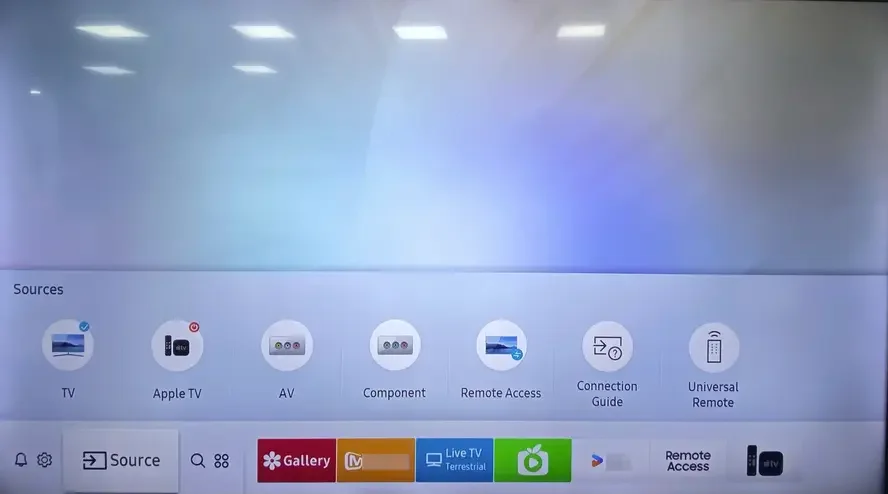
You should now see the Roku logo or welcome screen on your TV. If your TV show "No Signal", you need to:
- Verifique se o cabo HDMI ou o stick está totalmente conectado
- Tente usar uma porta HDMI diferente
- Make sure the TV input matches the port you're using
- Reinicie tanto o Roku quanto a TV
- Se disponível, tente usar um cabo HDMI diferente
Passo 4. Complete o processo de configuração na tela
Your Roku remote should pair automatically with your Roku device. You might see a message on screen confirming the connection. If the remote doesn't pair right away, press and hold the pairing button inside the battery compartment until the light starts flashing.
Em seguida, você pode navegar na tela do Roku usando o controle remoto e completar a etapa seguindo as instruções na tela:
- Escolha seu idioma
- Conecte-se à sua rede local
- Faça login ou crie uma conta Roku
- Selecione e instale aplicativos de streaming
Esta parte leva apenas alguns minutos, e o Roku vai guiá-lo passo a passo.
O Que Fazer Depois de Conectar o Roku à TV
Depois que seu dispositivo Roku estiver conectado e funcionando, você pode fazer mais do que apenas assistir a programas. Existem algumas maneiras úteis de tornar sua experiência de visualização ainda mais agradável:
- Transforme seu smartphone em um controle remoto Roku
You can control your Roku directly from your smartphone. BoostVision designed a free and powerful remote app for all Roku OS devices, including Roku Express, Ultra, Stick, and TVs. Just download the Aplicativo de controle remoto da Roku TV from the App Store or Google Play, and you'll be able to navigate menus, adjust the volume, and launch apps right from your phone.
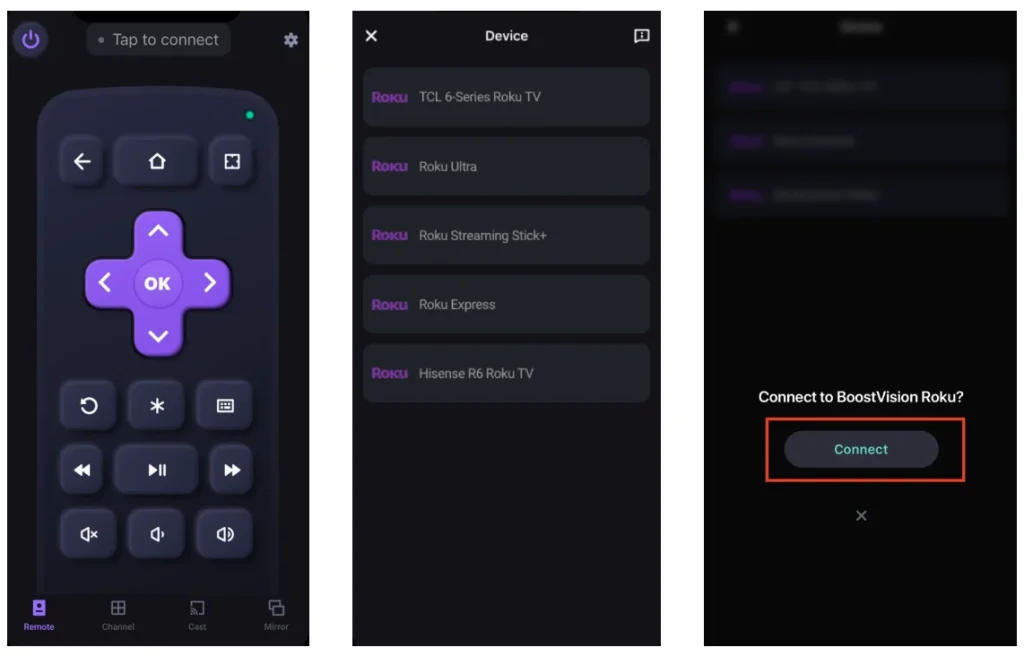
Baixe o controle remoto para Roku TV


- Share Connect from Your Phone to Roku
How to view phone screen or content on Roku? It's easy to mirror your screen to Roku with the dedicated Roku Screen Mirroring app, whether you're using an iPhone or Android. This is great for showing photos, videos, or even presentations on the big screen.
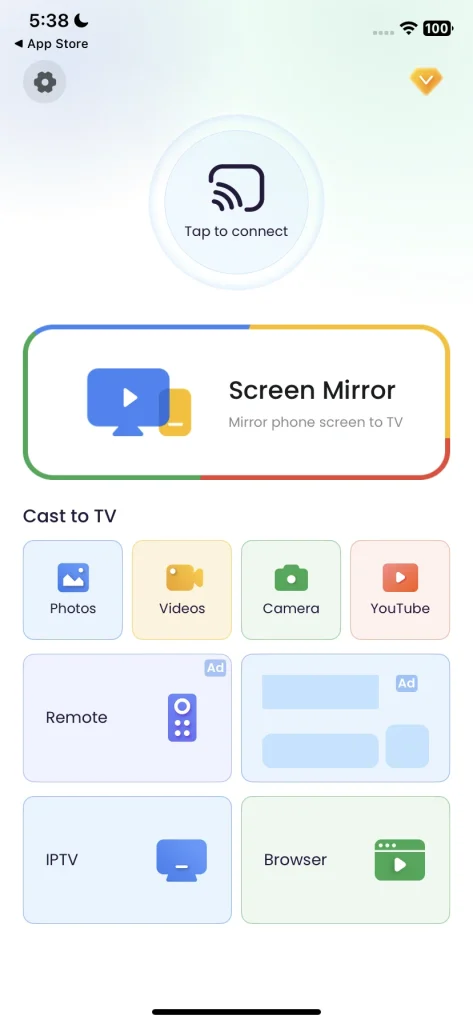
Baixe o Aplicativo de Espelhamento de Tela
Como Conectar o Roku à TV Sem HDMI
If you have an older or non-HD TV without HDMI ports, you might be wondering if you can still use your Roku. The good news is: yes, it's possible, but it depends on your Roku model and a few extra accessories.
The easiest solution is to use a Roku Express+, which was designed specifically to work with older TVs. It includes composite (red, white, yellow) AV cables in addition to HDMI, so you can connect it to TVs without HDMI ports. However, this model is no longer in production, so you'll likely need to find it from third-party sellers or a refurbished marketplace.

Se você já possui um Roku que só tem suporte para HDMI, a próxima melhor opção é usar um conversor de HDMI para AV. Este pequeno dispositivo converte o sinal digital HDMI do Roku em um sinal analógico que sua TV antiga pode reconhecer por meio das portas AV. Certifique-se apenas de escolher um conversor com alimentação própria para garantir um sinal mais estável.
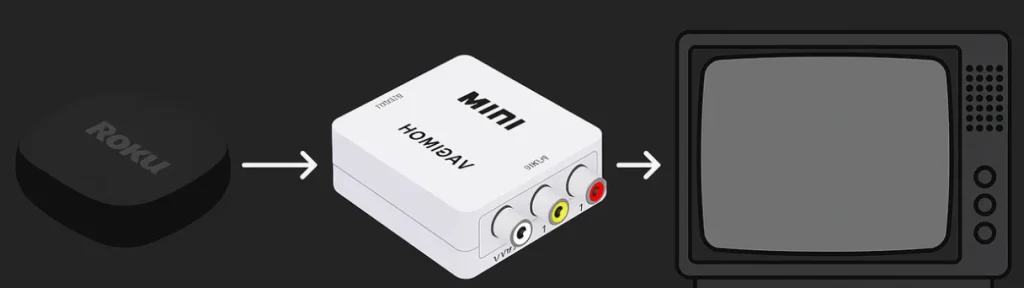
No entanto, essas alternativas podem não oferecer a mesma qualidade de vídeo em HD ou a mesma resposta rápida que uma conexão direta de Roku à TV via HDMI. Se sua TV for muito antiga, esta pode ser uma boa oportunidade para atualizar para um modelo mais novo com suporte a HDMI. Muitos modelos de TV já vêm com o sistema Roku OS integrado, como TCL, Hisense, JVC, Haier, Westinghouse, entre outros.
Conclusão
Setting up a Roku with HDMI is one of the easiest ways to start streaming on your TV. Just plug it in, connect to Wi-Fi, and you're good to go. If you run into any issues, don't worry; they're usually simple to fix.
Enjoy your new Roku setup, and don't forget to explore all the extra features that can make your viewing experience even better.
Como Conectar o Roku à TV com HDMI – Perguntas Frequentes
P: É possível usar Roku em uma TV que não seja Smart?
Yes. As long as your TV has an HDMI port, it doesn't need to be a Smart TV. Roku turns any display into a smart streaming device. All the apps and content run through Roku itself.
P: Qual porta HDMI devo usar para o Roku?
You can use any available HDMI port on your TV to connect your Roku device. TVs often have multiple HDMI inputs labeled as HDMI 1, HDMI 2, HDMI ARC, etc. Just remember which one you plug the Roku into, then switch your TV's input to that same HDMI number using your TV remote.
P: Por que o Roku não está conectando à minha TV?
If your Roku isn't showing up on the screen or says "No Signal", it could be due to a few common reasons: wrong input selected, loose or faulty HDMI connection, power issues, and TV compatibility or resolution mismatch. If your Roku is not connecting to your TV, try restarting both devices. If the problem persists, test the Roku on another TV to rule out hardware issues.
Vicky Green
Vicky Green é uma editora de conteúdo web da BoostVision que atualiza blogs regularmente para ajudar os leitores a melhorar sua experiência de TV e experiência de assistir. Ela acredita que paixão infinita, paciência suficiente e pensamentos críticos fortes podem gerar grande sucesso.