
If you are unable to use your Xfinity remote with your TV, you have come to the right place. In this guide, we provide a comprehensive, step-by-step troubleshooting process designed to help you identify and resolve any issues. With clear instructions and helpful tips, there's no need for further frustration—simply follow the guide below to quickly sort out the Xfinity remote not working.
Why Is My Xfinity Remote Not Working?
When a remote control doesn't work, it is often ascribed to dead batteries, incorrect programming, interference with the signal, or a problem with the remote's infrared sensor. Another possible reason for the Xfinity TV remote not working may also be due to TV issues.
This also applies to some specific cases, including the Xfinity voice remote not working red light, the Xfinity remote not working green light, and the Xfinity remote not working green then red light.
How to Fix My Xfinity Remote Not Working?
To find the ultimate solution, it's best to troubleshoot systematically, starting with simple fixes like replacing the batteries and reprogramming the remote. Below is a systematic troubleshooting guide for the Xfinity remote buttons not working.
Note: Keep in mind that your Xfinity remote functions effectively within a specific distance of up to 50 feet. If you move too far away from your television, the signal may weaken or completely fail. Therefore, during troubleshooting, it's advisable to remain within a suitable range to achieve optimal performance.
Fix 1. Check the Batteries
Why is my Xfinity voice remote not working red light? Press a button on your Xfinity remote. If the LED on the remote does not flash at all or flashes red five times, this replies that the batteries are very low and should be replaced.
So get a fresh pair of batteries, take out the old batteries from your Xfinity remote, and install the new ones with the correct polarity (the positive side of the battery should face the correct side indicated by the markings inside the battery compartment, and similarly for the negative side). Then, press a button on the remote and see if your TV responds.
Fix 2. Check Xfinity Remote Buttons
If you notice your Xfinity remote won't change channels but volume works or run into the Xfinity remote volume not working, the channel buttons on the remote may get stuck due to dirt, debris, and dust or completely fail. Here are some actions you can take to save those buttons:
Step 1. Flip your Xfinity remote upside down and gently shake it to see if any debris falls out and blow compressed air into the crevices around the buttons for a better cleaning result.
Step 2. Use a soft, damp, cloth or a cotton swab lightly moistened with water or rubbing alcohol to clean around the buttons to remove dirt or sticky residue.
Step 3. Press the stuck buttons firmly several times until they are released.
Fix 3. Switch to TV Mode
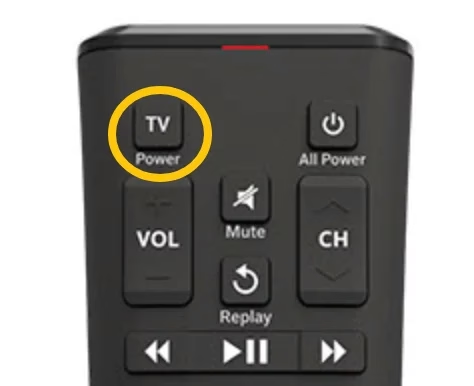
If the Xfinity remote does not work, the remote might be in the wrong mode. Provided you suffer Xfinity remote not working with TV, ensure the remote is in TV mode; to do so, press the TV button at the top of the remote.
Fix 4. Check the Signal
Does your Xfinity remote use infrared (IR)? There could be an obstruction blocking the signal if the Xfinity remote won't turn off TV or do something else. So ensure there is no signal obstruction. First, clear the objects blocking the front of the Xfinity remote or the TV. Then, point the remote directly at the TV, press a button, and see if the TV responds.
If the TV does not respond, test the remote by pointing it at a smartphone camera:
Fix 5. Reprogram Xfinity Remote to TV
Try reprogramming your Xfinity remote to your TV as the remote might be unpaired or not properly programmed with the TV, especially when you find the Xfinity voice remote not working blue light.
The programming procedure varies from model to model, and therefore, it is hard to cover all models in this guide. But there is an available compiled tutorial on how to program Xfinity remote to TV, and it might be helpful for you.
Fix 6. Reset Xfinity Remote
What to do when my Xfinity remote is not working? The remote might be malfunctioning due to internal errors, but don't worry, a factory reset may restore it. How to factory reset the Xfinity remote? If you have XR11, XR15, XR16, or XR100 models, you can refer to the tutorials below.
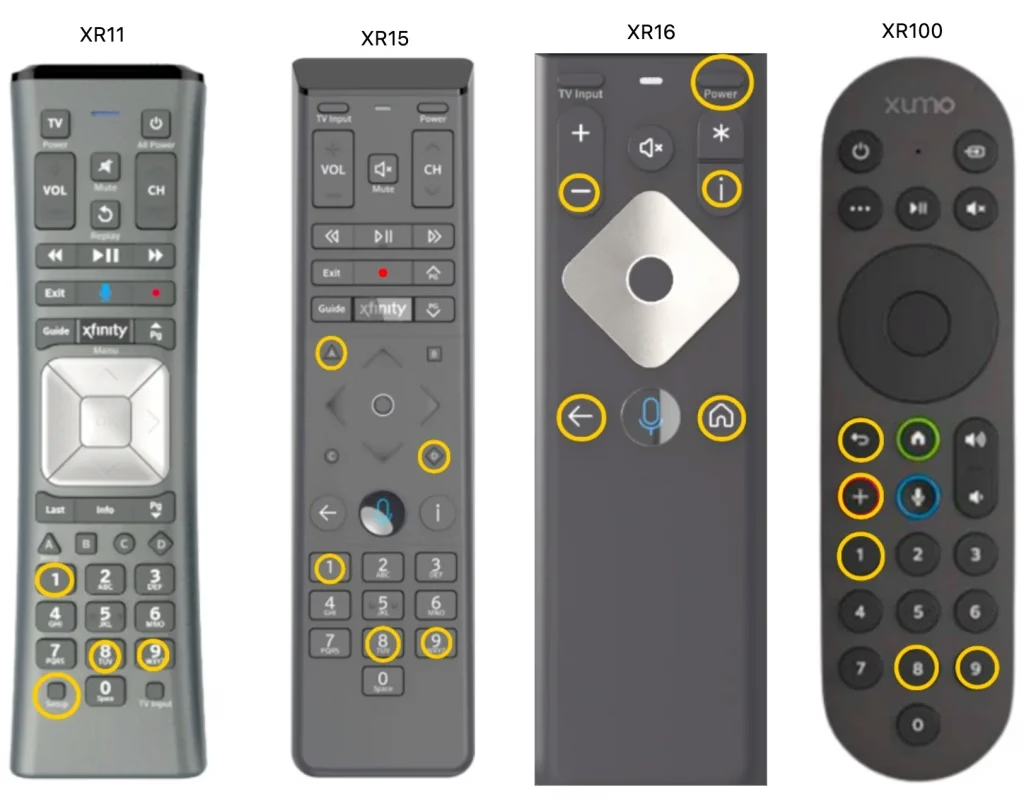
Reset XR11 model:Press theSetupbutton until the LED at the top of the remote changes from red to green. Then, press981. The LED flashing green twice indicates the remote was reset.Reset XR15 model:Press theAandDbuttons at the same time for 3 seconds until the status light changes from red to green. Then, press981. The LED blinking blue three times indicates the remote was reset.Reset XR16 model:Press and hold theInfoandHomebuttons simultaneously five times until the status light blinks. Then, press thePower,Last, andVolume Downbuttons on the remote in sequence. The LED will blink blue three times to indicate that the remote was reset.Reset XR100 model:Press and hold theBackand+buttons at the same time until the remote beeps. Then, press981and wait for the confirmation beep to finish resetting the remote.
The factory reset unpairs your Xfinity remote and TV, so you'll need to reprogram them.
Fix 7. Power Cycle the TV
If you continue to experience issues with your Xfinity remote, the remote itself may be defective. However, the problem may not be with the remote at all, but rather with your television. To help determine the root cause of the issue, you can try power cycling your TV.
Power cycling can help reset the TV's internal settings and resolve any temporary glitches that might interfere with remote functionality. To power cycle your TV, follow these simple steps:
Step 1. Unplug the TV's power cord from the electrical outlet.
Step 2. Wait for at least 60 seconds to ensure that the TV completely powers down and resets.
Step 3. After waiting, plug the power cord back into the outlet.
Step 4. Turn the TV on and test the remote to see if the issue persists.
This process helps refresh the TV's system and can often fix problems with remote responsiveness. If the issue is resolved after power cycling, the problem is likely with the TV, not the remote. However, if the problem continues, it may be necessary to contact Xfinity support for further troubleshooting or to consider replacing the remote.
Fix 8. Try a Remote App
If none of the troubleshooting steps above resolve the Xfinity remote control not working, you can try switching to a remote app to control your TV as an alternative way to control your TV. One reliable option is the remote control application from BoostVision, which is easy to use and supports a wide range of TV brands, including Roku, Samsung, LG, Hisense, Insignia, and more.
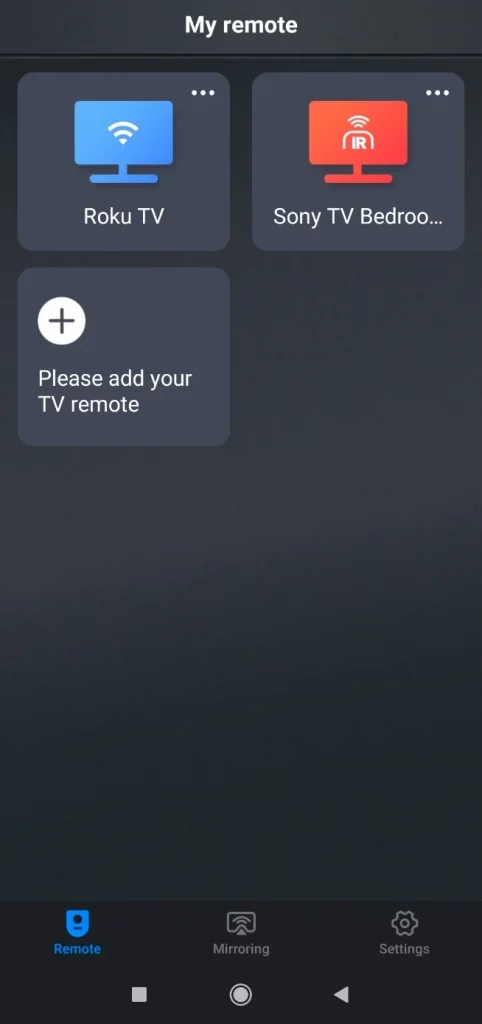


Once the app is set up, test whether your TV responds to the virtual tool. If the app successfully controls your TV, this indicates that the issue is with your Xfinity remote, which may need to be repaired or replaced. If the app doesn't work either, the problem might be related to the TV itself, in which case further investigation may be needed.
Fix 9. Contact Xfinity Support
Contact Xfinity Support for further assistance. A technician will be able to diagnose whether there is an underlying problem with your Xfinity remote, such as a hardware malfunction or software issue, and provide you with the appropriate solution. Depending on the diagnosis, they may offer a replacement remote or guide you through additional troubleshooting steps to resolve the issue.
While waiting for the reply, you can use the remote app mentioned above to interact with your television and watch what you like.
Conclusion
Troubleshooting your Xfinity remote requires a step-by-step approach, starting with simple fixes like replacing batteries or cleaning buttons. If these steps don't resolve the issue, reprogramming, resetting the remote, or even testing with a remote app can help identify the problem. Should the issue persist, contacting Xfinity support is your best option for further assistance.
Xfinity Remote Not Working FAQ
Q: Why is my Xfinity remote not responding?
The Xfinity remote may not work due to dead batteries, incorrect programming, or signal interference. Other potential issues include stuck buttons, a malfunctioning infrared sensor, or TV-related problems. If none of these fix the issue, the remote itself might be defective.
Q: How do I resync my Xfinity remote?
The resyncing process depends on which model of Xfinity remote you have. For example, the resyncing process of the XR11 model:
Setupbutton until the LED at the top of the remote changes from red to green. Then, press981. The LED flashing green twice indicates the remote was reset. - Program the remote: turn on the device you want to program the remote to, press and hold the
Setupbutton until the LED changes from red to green, and type the remote code. If it blinks green twice, the code you entered is correct, and try controlling your device with the remote.

 Oct 29, 2024