
Lost your remote or dealing with one that no longer works? You can still adjust the sound without it. This guide explains how to turn volume up on Vizio TV without remote using five practical methods. Some rely on built-in hardware, while others use connected devices or apps you may already have.
Solution 1: Turn Volume Up on Vizio TV with Vol Buttons
If you need an immediate fix, start with the controls built into the TV. Most Vizio models include physical buttons that allow basic operations, including volume adjustment.
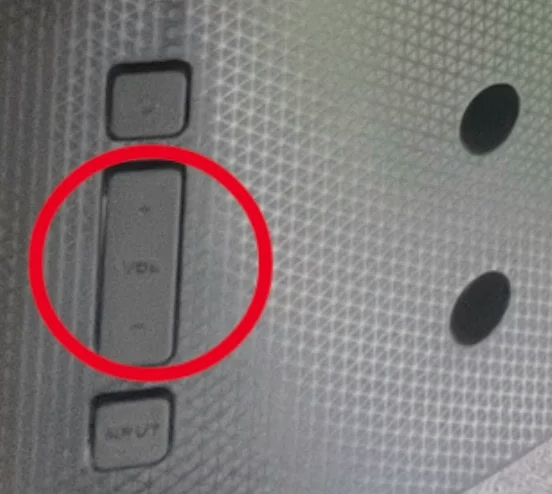
Where is the volume button on Vizio TV? You can find it at the lower right back, on the left or right side, or the bottom border.
Find the Volume Button at the Lower Right Back
On many newer Vizio TVs, especially mobile or slim models, the buttons are placed on the lower right rear panel. Look for labels like Vol+ and Vol-. Press these to increase or decrease the sound directly.
Find the Volume Button on the Left or Right Side
Some models move the controls to the side edges for easier access. Run your hand along the left or right side of the frame to locate them, then press to adjust volume.
Find the Volume Button at the Bottom Border
Older Vizio TVs often place buttons along the bottom edge. If your TV is an earlier model, check underneath the screen frame and use the buttons there to control volume.
Solution 2: Turn Volume Up on Vizio TV via Vizio Mobile App
If your TV is connected to Wi-Fi, the official Vizio app provides full remote functionality from your phone. This is one of the most convenient long-term solutions.
The app connects over your local network and mirrors remote control features, including volume control.
Step 1. Get the app from Google Play or App Store.
Step 2. Launch the app and log in to your Vizio TV account or continue as a guest.
Step 3. Choose your Vizio TV and wait for further instructions.
Step 4. Enter the 4-digit code that appears on the TV screen into the app.
Step 5. Press the settings button (shaped like a gear icon) on the app and tap on the Audio option.
Step 6. Adjust the volume on the Vizio TV according to the app's instructions.
Make sure both your phone and TV are on the same Wi-Fi network for this to work.
Solution 3: Turn Volume Up on Vizio TV via Universal Remote App
How to turn volume up on Vizio TV without remote? Aside from using the Vizio Mobile app, the Universal TV Remote app from BoostVision can also help you complete that.
The Universal Remote app also turns your Android or iOS devices into a remote for Vizio TV. But the difference is that the third-party app features universal compatibility, which means it can support other brands of smart TVs including LG, Samsung, Roku, etc.
Here is the tutorial on how to raise volume on Vizio TV without remote.
Step 1. Download the app and install it on your phone.


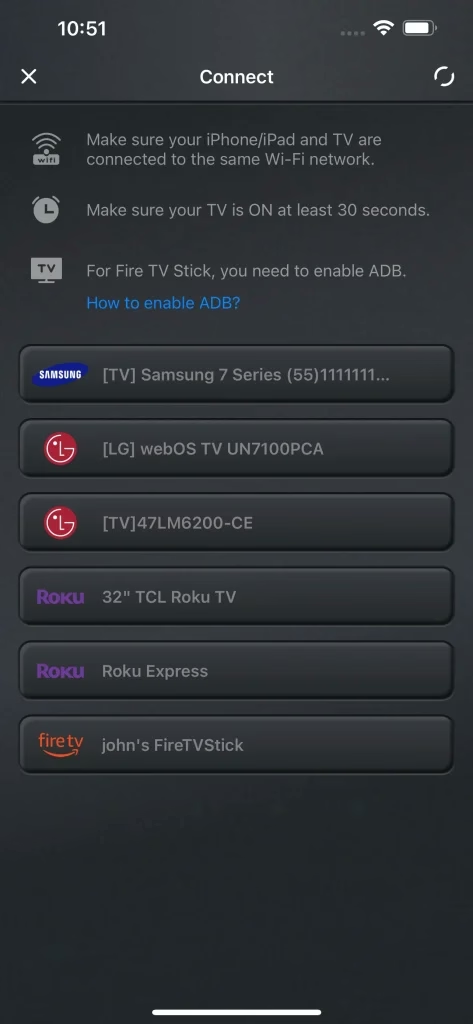
Step 2. Check if your phone and Vizio TV are connected to the same network.
Step 3. Launch the app and tap the Tap to connect optio, choose your Vizo list from the device list, and follow the on-screen instructions to complete the connection.
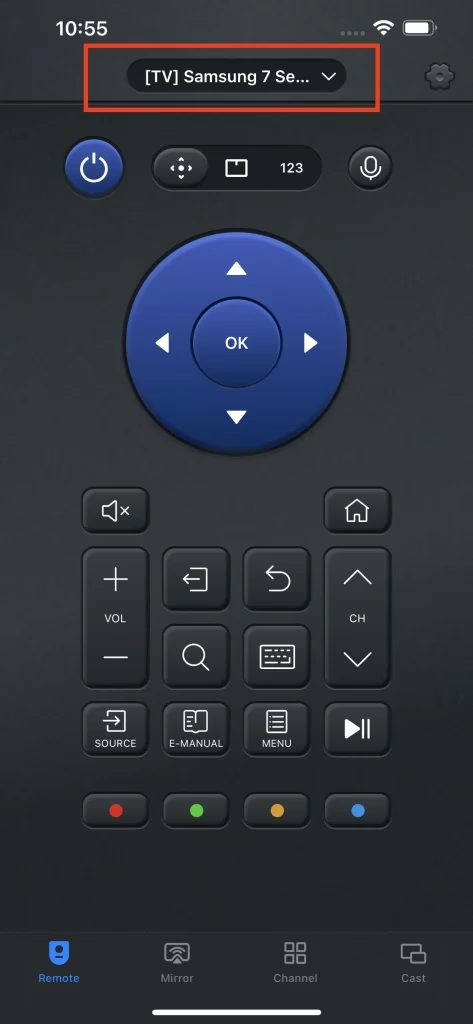
Step 4. Use the VOL+ or VOL- buttons to raise or lower the volume on Vizio TV.
This option is especially useful if you manage multiple TVs or want a single app for all devices.
Solution 4: Turn Volume Up on Vizio TV with Sound Bar
If your TV is connected to a soundbar, you may not need to control the TV directly. Many soundbars handle volume independently and can act as the primary audio controller.
To make this work, the soundbar must be properly connected—HDMI ARC is the most reliable option.
Step 1. Turn off both Vivio TV and the soundbar.
Step 2. Connect one end of the HDMI cable to the HDMI ARC port on Vizio TV.
Step 3. Connect the other end to the HDMI ARC port on the soundbar.
Once connected, power both devices back on. You can now use the soundbar’s remote or app to adjust volume, which will reflect on the TV output.
Solution 5: Turn Volume Up on Vizio TV via Game Console
If you have a gaming console connected, it can double as a control hub. Consoles like PS4 or PS5 support HDMI-CEC, which allows them to manage certain TV functions, including volume.
Step 1. Use an HDMI cable to set up a connection between your Vizio TV and game console.
Step 2. Use your PS4 controller to select Settings and System.
Step 3. Choose the Enable HDMI Device Link option.
Step 4. When the connection finishes, hold the PS4/5 Home button.
Step 5. On the new menu, go to the path: Adjust Sound and Devices > Volume Control (Speaker for Controller).
Step 6. Use the left or right button on the controller to raise or lower the volume.
That's all about how to raise volume on Vizio TV without remote with the help of a game console.
Bottom Line
There are several reliable ways to control volume on a Vizio TV without a remote, ranging from built-in buttons to connected devices and mobile apps.
Physical buttons offer a quick fix, while apps provide more flexibility once set up. External devices like soundbars and game consoles can also take over volume control in certain setups.
If you frequently use your TV without a remote, setting up a mobile app or a secondary control method will save time and avoid interruptions.
How to Turn Volume up on Vizio TV Without Remote FAQ
Q: How can I control my Vizio TV without a remote?
You can use the TV’s physical buttons, a mobile app like Vizio SmartCast, a universal remote app, or connected devices such as a game console. The best option depends on what devices are already available to you.
Q: Do all Vizio TV have volume buttons?
All Vizio TVs include a power button, but not all models have separate volume buttons. Some use a single multi-function control. If no volume control is available on the TV, you’ll need to use an app or external device.
Q: Can I turn volume up on Vizio TV without remote on all models?
Yes, but the method may vary. Most models support at least one alternative, such as physical controls, mobile apps, or HDMI-connected devices.
Q: Why are Vizio volume buttons not responding?
This could be caused by stuck buttons, hardware wear, or temporary software issues. Restarting the TV or cleaning the buttons may help resolve the problem.
Q: Does SmartCast app require same Wi-Fi?
Yes. Your phone and TV must be connected to the same local network for the app to detect and control the TV.
Q: Can input device volume override TV volume?
Yes. Devices like streaming boxes, consoles, or soundbars can control or limit audio output, which may affect how volume changes on the TV.
 Aug 21, 2023