
If channels are missing on an LG TV, first identify whether the problem affects LG Channels, LG's internet streaming service, or antenna channels received through the TV tuner. They use different connections and settings, so the same fix does not apply to both.
Choose the correct troubleshooting path
| What is missing? | Connection used | Go to |
|---|---|---|
| LG Channels streaming service | Wired or wireless internet | [Fix LG Channels streaming](#fix-lg-channels-streaming) |
| Local broadcast channels from an antenna | Antenna/coaxial cable | [Restore antenna channels](#restore-missing-antenna-channels) |
| Channels supplied by a cable or satellite box | HDMI or another external input | Check the box, input and provider |
LG states that LG Channels requires an internet connection, while antenna channels are found through Auto Tuning. Confirm the source before changing settings.
Fix LG Channels streaming
1. Confirm that the TV supports LG Channels
LG says the service is available on supported LG smart TVs and smart monitors from 2016 onward, but availability varies by model and country. If the feature is absent, check the support information for the exact model and region instead of assuming that the TV is faulty.
2. Check the TV's internet connection
LG Channels is internet-based. Open another streaming app or network feature on the TV. If other online services also fail, restore the TV's wired or wireless connection first.
3. Check the location setting
LG advises setting the TV's broadcast country and LG Services Country to the location where the TV is actually being used. Menu names vary by webOS version, so use LG's instructions for the model year.
4. Accept the required user agreements
LG lists the TV's user agreements as a requirement for LG Channels. Open the privacy or user-agreement settings and confirm the required agreements if the service does not appear or open.
5. Open LG Channels from Home or Input
Depending on the model, LG Channels can be launched from the Home screen or the Input/Source menu. LG also notes that no separate LG Channels account is required.
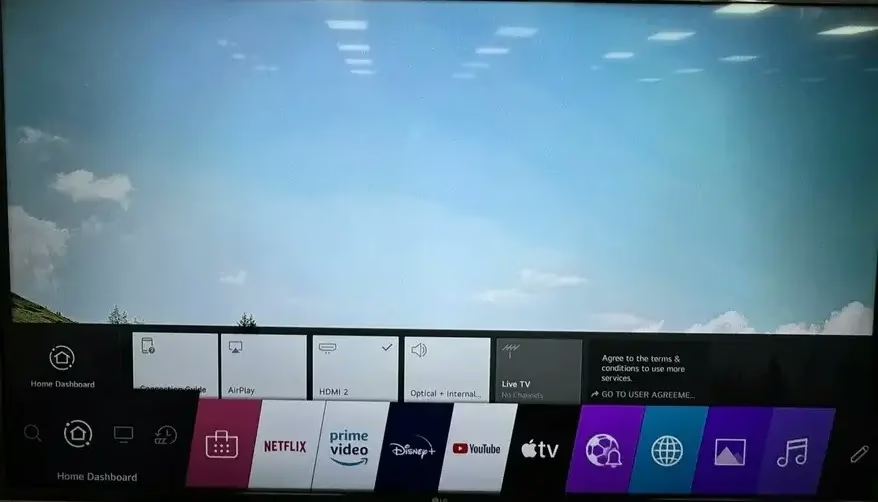
Example LG Home Dashboard. Menu layout varies by model and webOS version.
6. Use the exact model's support page if the service still fails
Do not factory-reset the TV as an early step. Record the TV model, webOS version and any on-screen error, then use LG support for model-specific instructions.
Restore missing antenna channels
1. Check the antenna connection
Confirm that the antenna or coaxial cable is firmly connected to the TV's antenna input. Reception can vary with location, weather, terrain and antenna placement.
2. Select Live TV
Choose the TV's Live TV input before tuning. If channels come from an external cable or satellite box, select the box's input instead; the TV's antenna scan will not configure the provider's box.
3. Run Auto Tuning
LG's menu path varies by webOS version. In the TV settings, locate Channels or General > Channels, choose Channel Tuning or Tune Channels, and run Auto Tuning. Follow LG's model-year instructions if the wording differs.
4. Check signal strength for a missing station
LG provides a Manual Tuning screen that shows signal strength and quality on supported models. If a particular broadcast channel remains missing, check that screen and adjust the antenna rather than repeatedly resetting the TV.
5. Ask the broadcaster or service provider when appropriate
If the antenna scan finds other stations but not one specific station, verify that station's current frequency and local availability. If channels are supplied by a set-top box, contact the cable or satellite provider.
Official LG instructions
When to contact LG support
Contact LG with the exact model number if LG Channels should be supported but remains unavailable after the internet, location and agreements are checked, or if Auto Tuning cannot detect channels despite a verified antenna signal.
LG Channels Not Working FAQ
Q: Does LG Channels require an internet connection?
Yes. LG states that LG Channels requires a wired or wireless internet connection because it is an internet streaming service.
Q: Do I need a separate account for LG Channels?
No separate LG Channels account is required. LG does require the applicable user agreements to be accepted on the TV.
Q: Will Auto Tuning fix LG Channels streaming?
No. Auto Tuning searches for channels received through the TV's antenna input. For LG Channels streaming, check the internet connection, supported model and region, location setting, and user agreements instead.
Q: What should I do when only antenna channels are missing?
Check the antenna or coaxial connection, select Live TV, run Auto Tuning, and use Manual Tuning to check signal strength when that option is available on the model.