
You just plugged in your Roku TV, and now you're staring at the setup screen. What's next?
If you skip linking your Roku device to an account, you miss out on channels, syncing, and personalized recommendations. So yes, this step is essential.
Whether you're searching how to add Roku TV to account or just trying to get things working fast, I'll walk you through the cleanest way to do it, plus a better workaround if your remote is nowhere to be found.
How to Add Roku TV to Account: What You Need First
You've powered on your Roku TV, but it's asking you to link an account. That's normal.
Without linking, you can't install channels or sync preferences. So if you're wondering how to add Roku TV to account, this is the step that unlocks everything.
Before you start, make sure you have:
That's really it.
How to Add Roku TV to Your Account (Standard Method)
This is the official process. It only takes a few minutes if everything goes smoothly.
Step 1. Turn on the TV and follow the on-screen setup prompts.
Step 2. Choose your Wi-Fi network and enter the password.
Note: No internet means no activation, so don't skip this.
Step 3. Once connected, your TV will display a unique activation code.
Step 4. On your phone or computer, go to Roku's official linking page, then enter the code shown on your TV.
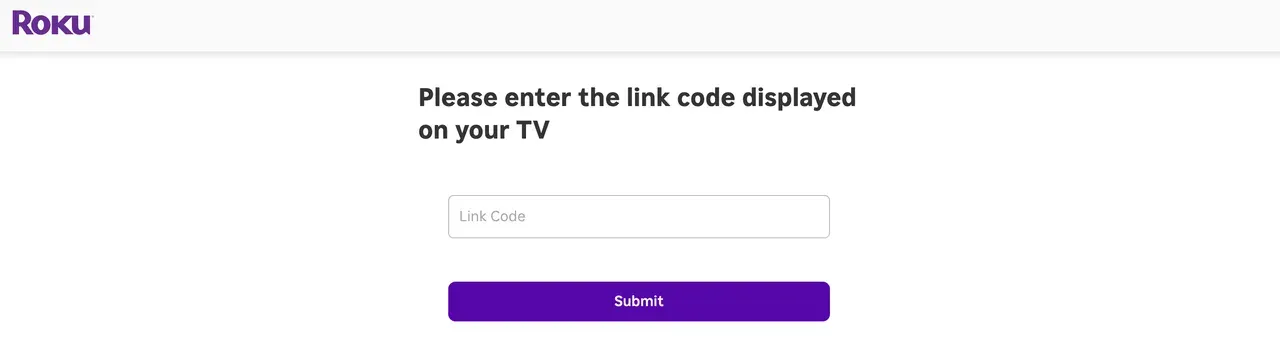
Step 5. Sign in or create a Roku account if you don't have one yet.
Step 6. After confirmation, your TV will automatically finish setup and install channels.
That's it. Your device is now officially tied to your account.
How to Add a TV to My Roku Account Without a Remote
Roku remote not working? Without a remote, you can't complete the initial setup using the TV alone. But you can use a mobile app to control the TVApps like the Roku Remote application from BoostVision can connect over Wi-Fi and give you full control, including navigation and typing. It's especially useful during setup when you need to enter passwords or activation steps.
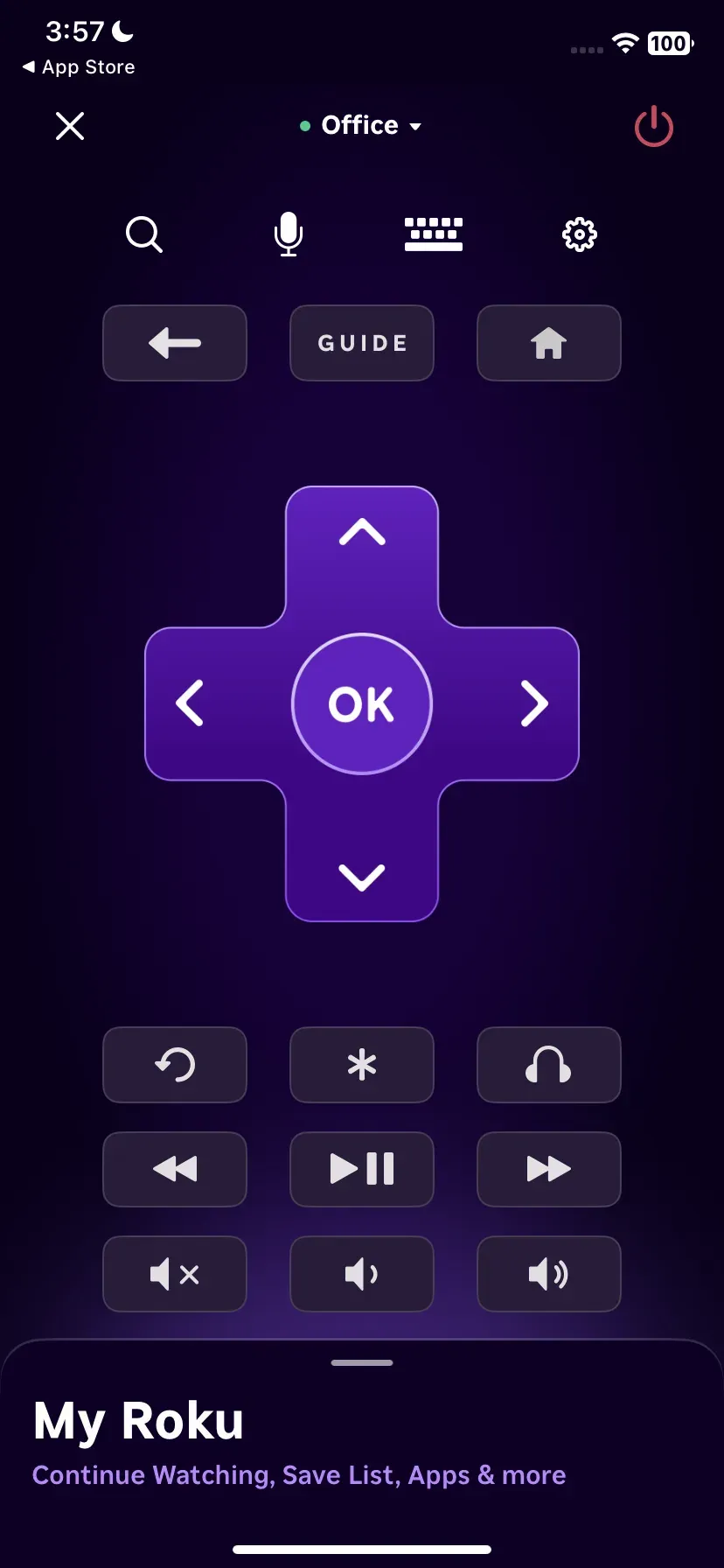
How to Use the remote app to add device to Roku account:
Step 1. Install the Roku Remote app on your phone from the app store.
Step 2. Make sure your phone and Roku TV are on the same Wi-Fi network.
Step 3. Open the app and connect to your TV.
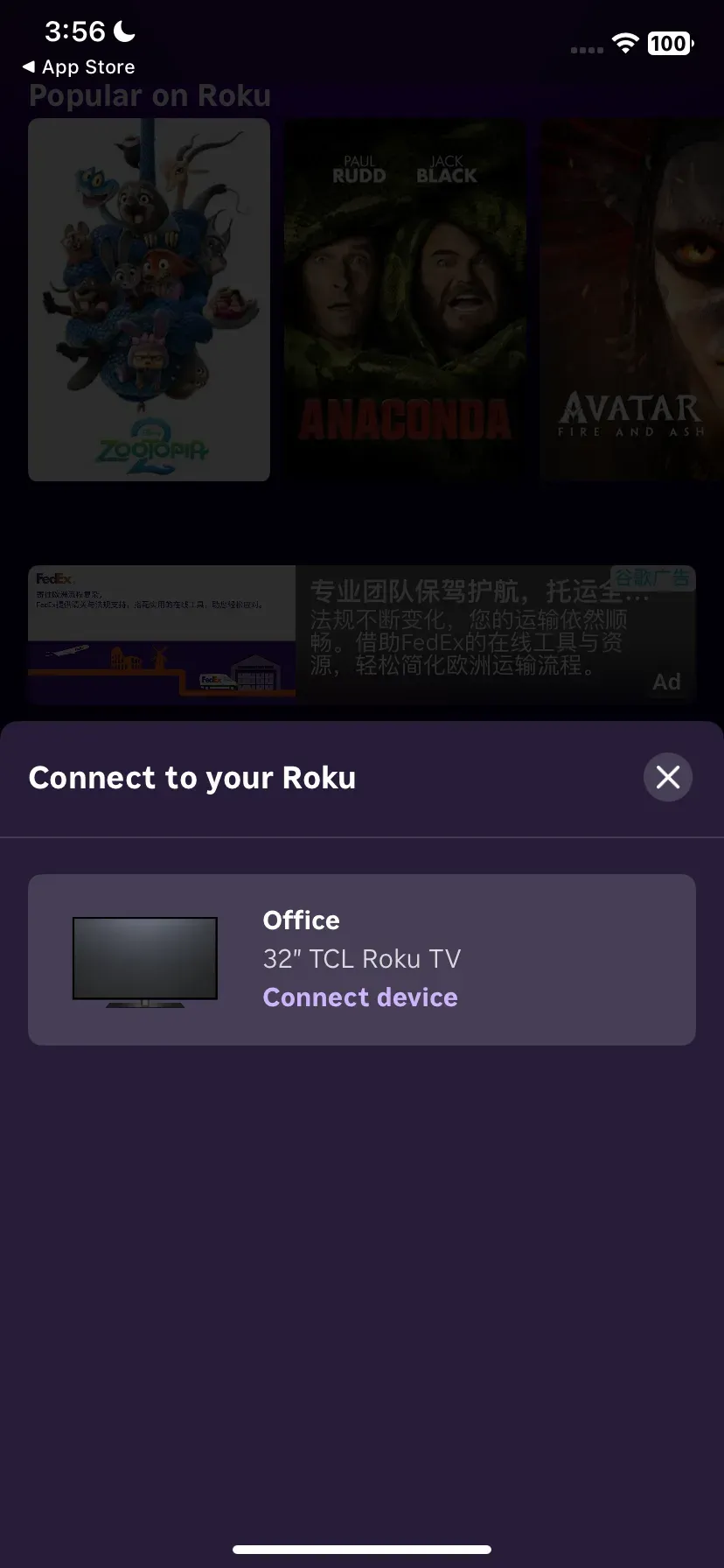
Step 4. Use the app as your remote to complete the setup steps above.
Once connected, it works just like a physical remote, sometimes even faster when typing.
How to Add TV to Roku Account If It's Already Set Up
Maybe your TV is already running but not linked to your account. That's fixable.
Step 1. Go to Settings on your Roku TV
Step 2. Select System.
Step 3. Choose About.
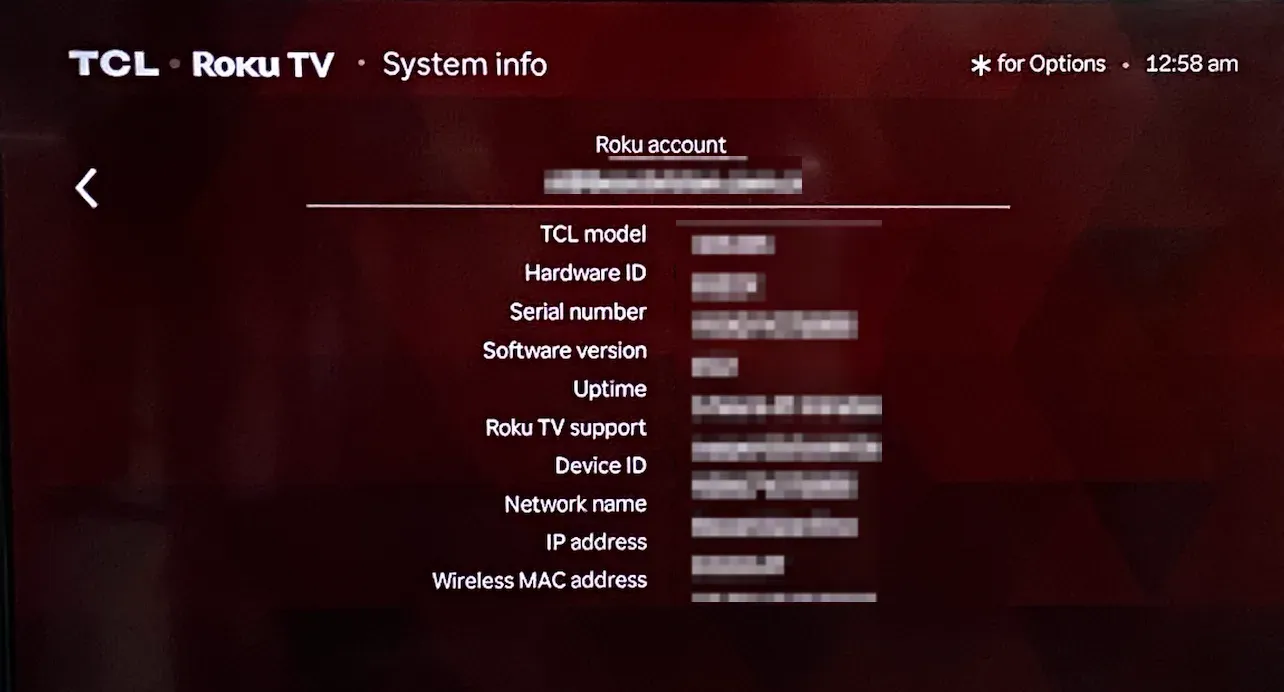
If no account is shown, you'll need to factory reset your Roku device and go through activation again:
It's not ideal, but it's the only clean way to add a Roku TV to account after initial setup.
Common Issues When Adding Roku TV to Account
A few things can slow you down:
If something feels off, restarting the TV usually fixes it.
Final Thoughts
Adding a Roku TV to your account is simple once you know the flow. The only real hiccup is when the remote isn't around.
But even that isn't a dealbreaker. Using your phone as a remote, especially with tools like a Roku remote app, keeps the process moving without extra hassle. No waiting, no extra purchases.
If your goal is to get set up quickly and move on to streaming, that's the route I'd take.
How to Add a Roku TV to Your Account FAQ
Q: Is tablo compatible with Roku?
Yes, Tablo works with Roku. You can install the Tablo app from the Roku Channel Store and stream live TV or recordings once your device is linked to your account.
Q: How do I add another Roku device to my account on Roku TV?
You don't manually "add" a device inside settings. Instead, activate the new Roku device using the same account. During setup, enter the activation code on Roku's website while logged in, and it will automatically link.
Q: Does it cost to activate a Roku TV?
No, activation is completely free. If you're asked to pay to activate your Roku TV, it's likely a scam. Always use the official Roku linking page.
Q: Can I have more than one TV on my Roku account?
Yes, one Roku account can manage multiple TVs and streaming devices. All linked devices will share the same subscriptions and installed channels.
Q: Can you setup Roku without payment?
Yes. You can complete the entire setup process without entering payment details. Adding a payment method is optional and only needed for purchases or subscriptions.
Q: What's the lifespan of a Roku device?
Most Roku devices last around 3 to 5 years, depending on usage and software support. Performance may slow over time, especially on older models.
Q: Do all TVs work with Roku?
Not all TVs have Roku built in, but any TV with an HDMI port can work with a Roku streaming device. Roku TVs already have the system integrated, so no extra hardware is needed.

 Aug 08, 2025