







 English
 Portuguese
 Spanish
 French
 German
 Japanese
 Vicky Green

AirPlay is a useful feature that allows you to stream content from your Apple devices to a compatible TV, speaker, or other devices. However, there are times when you might want to turn it off—whether it's because you no longer need the connection, you're experiencing issues, or you're simply looking to conserve battery life. In this detailed guide, we'll walk you through Como desativar o AirPlay em vários dispositivos, incluindo iPhone, iPad, Mac e TV.
Índice
Por que desligar o AirPlay?
Before we dive into the step-by-step tutorial on how to turn AirPlay off, it's important to understand why you might need to do so:
- Pare a Conexão Automática: AirPlay might automatically connect to nearby devices, especially when you don't intend to use it. Turning off AirPlay can help prevent these unwanted connections.
- Conservação de Bateria: AirPlay uses a lot of energy. If you're looking to save battery life, turning off AirPlay when you're not using it is a good idea.
- Privacidade e Segurança: Sometimes, AirPlay can be used by other devices in your home network to connect to your iPhone, iPad, or Mac. Turning off AirPlay ensures that your device isn't accessible to others without your permission.
- Solução de problemas: If you're facing issues like O AirPlay não está funcionando or AirPlay won't disconnect, essas etapas podem ajudar a resolver o problema.
Como desativar o AirPlay no iPhone e iPad
When you want to disconnect your iPhone or iPad from an AirPlay-enabled device, the process is fairly simple. However, whether you're ending a session or disabling automatic connections, knowing how to control AirPlay can prevent unwanted streaming to nearby devices. This can be particularly helpful when you're near multiple AirPlay-enabled devices but only want to use a specific one.
Desconectar AirPlay no iPhone e iPad
Como desconectar o AirPlay? As etapas abaixo irão desconectar a sessão do AirPlay e impedir que seu dispositivo transmita conteúdo para o dispositivo de destino.:
Paso 1. Deslize para baixo a partir do canto superior direito da tela (para iPhone X ou posterior) ou deslize para cima a partir da parte inferior (para iPhone 8 ou anterior) para acessar o Centro de Controle.
Paso 2. Toque na AirPlay ícone (dois retângulos sobrepostos).

Paso 3. Escolha Pare o Espelhamento de Tela or Desligar AirPlay da lista de dispositivos.

Desativar o AirPlay Automático no iPhone e iPad
Como desativar o AirPlay no iPad ou iPhone para evitar a conexão automática? Você pode realizar os passos abaixo:
Paso 1. Open the Configurações aplicativo no seu iPhone ou iPad.
Paso 2. Desça até o Em geral opção e selecionar AirPlay & Handoff.
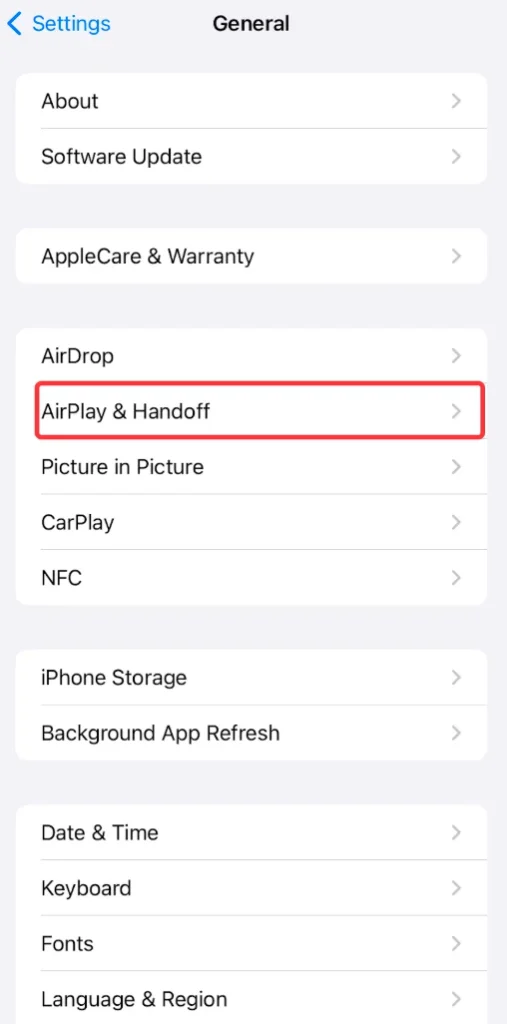
Paso 3. Toque AirPlay automático para TVs.
Paso 4. Escolha o Nunca opção. Isso impedirá que seu dispositivo se conecte automaticamente a TVs habilitadas para AirPlay próximas.
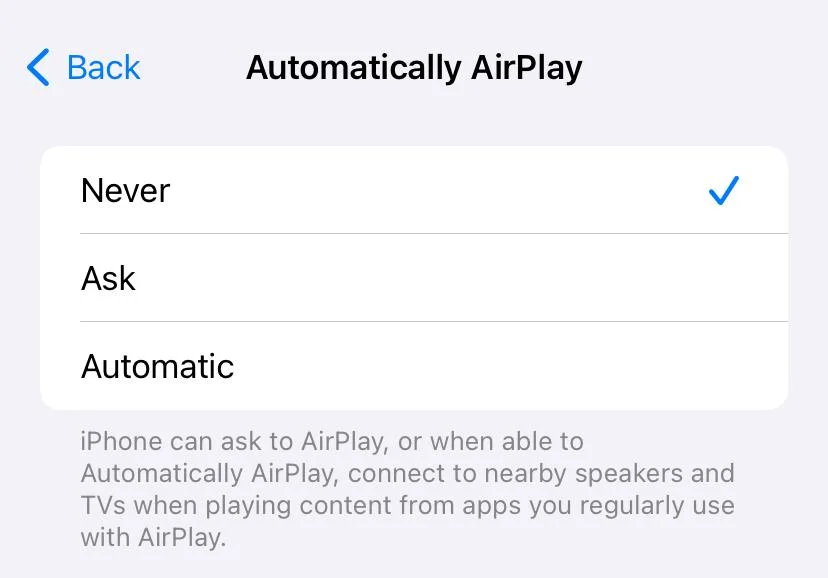
By doing this, you ensure that your device won't automatically connect to AirPlay-enabled devices when you're near them.
Como Desativar o AirPlay no Mac
If you're using a Mac, it can be especially useful to know how to disable AirPlay when working on multiple tasks or trying to avoid unwanted connections. Mac computers can both send and receive AirPlay content, making it easy to quickly share screens with other devices. While this is great for multitasking, it can sometimes confuse when you don't want the device to connect automatically.
Desconectar AirPlay no Mac
Como desativar o Apple AirPlay no Mac? Comece encerrando a sessão de AirPlay em um MacBook:
Paso 1. Clique no My Fire TV Centro de Controle icon located in the top-right corner of the Mac's menu bar and tap the Espelhamento .

Paso 2. Choose the device you're AirPlay seu Mac Para. Isso desconecta o dispositivo, o que interrompe o espelhamento de tela do seu Mac através do AirPlay.
Desativar o AirPlay Automático no Mac
To ensure that your Mac won't connect to other devices without your consent, you can turn off AirPlay in this way:
Paso 1. Clique no My Fire TV Apple ícone no canto superior esquerdo da tela do Mac e escolha o Configurações do Sistema .

Paso 2. Vá para a guia Geral à esquerda e encontre o Recetor AirPlay Desative a opção desligando-a e inserindo sua senha, se solicitado.

Como desativar o AirPlay na TV
While AirPlay is a fantastic feature for streaming media to a compatible TV, there are instances where you might not want your TV to accept an incoming AirPlay connection. Disabling AirPlay on your TV ensures that your Apple devices can't automatically connect to it without permission, keeping your network secure and ensuring that content is only shared when you choose to do so.
Here are steps to disable AirPlay on some popular platforms, including Apple TV, Samsung TV, and Roku TV. Let's check how to turn off AirPlay on TV.
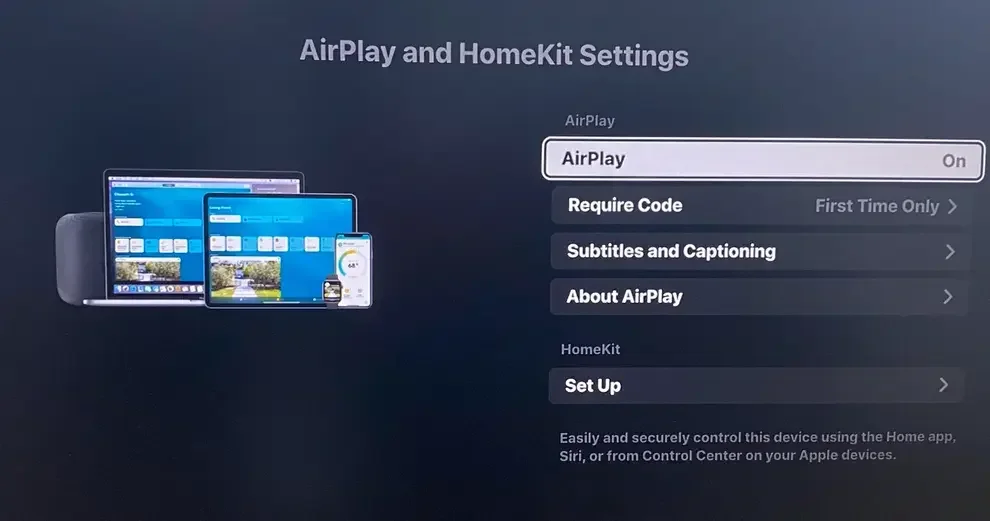
Desativar o AirPlay na Apple TV
Here's how to disable AirPlay on Apple TV:
Paso 1. Abra o aplicativo Ajustes na sua Apple TV.
Paso 2. Find the AirPlay .
Paso 3. Ative a opção AirPlay para Desligar para evitar solicitações de AirPlay recebidas.
Desligar o AirPlay na TV Samsung
Como desativar o AirPlay na TV Samsung? Execute da seguinte forma:
Paso 1. Pressione o casa botão no controle remoto da sua TV Samsung.
Paso 2. Vá para o Menu Opção na tela da TV, depois escolha a Configurações opção e o Todas as Configurações .
Paso 3. Vá para o Conexões tab and choose Configurações do Apple AirPlay.
Paso 4. Turn the AirPlay opção para Desligar.
Desligar o AirPlay na Roku TV
Roku TV is also compatible with AirPlay, allowing you to connect your iPhone to the TV wirelessly. However, if you use an Android phone, the feature is useless, and turning it off could be a good choice. Here's how to turn off AirPlay on Roku:
Paso 1. Pressione o casa botão no controle remoto da sua Roku TV.
Paso 2. Vá para Configurações > Apple AirPlay e HomeKit > Iniciar configuração do Apple AirPlay & HomeKit.
Paso 3. Troque o AirPlay option to the Desligar estado.
As etapas para desativar o AirPlay em TVs inteligentes são semelhantes: vá para Configurações > AirPlay & HomeKit > AirPlay. Para mais detalhes, consulte o manual da sua TV.
Corrigido: AirPlay Não Desliga
Ocasionalmente, os usuários se deparam com uma situação frustrante onde AirPlay won't turn off despite their attempts to disconnect. This can happen for several reasons, such as a glitch in the system, an active connection that's not displaying properly, or the device failing to fully disconnect from the AirPlay receiver. It can be particularly annoying when you need to switch back to regular functionality, but AirPlay refuses to stop.
Se você se encontrar nessa situação, há várias etapas de solução de problemas que você pode seguir para desconectar o AirPlay:
- Reinicie seu dispositivo: If you're having trouble with disconnecting AirPlay, try restarting your iPhone, iPad, Mac, or TV. This can sometimes reset the connection and turn off AirPlay.
- Forçar Encerrar o AirPlay: If you're using a Mac, force quit the AirPlay application by going to Apple Menu > Forçar Encerrar, then selecting AirPlay e clicando Forçar Encerramento.
- Esquecer DispositivoSe o seu dispositivo continuar conectando automaticamente ao AirPlay, você pode removê-lo da lista de dispositivos conhecidos nas configurações de Wi-Fi ou o AirPlay & Handoff Configurações no seu iPhone/iPad.
If you're still facing issues, you can always check the device's manual or Apple's support site for specific solutions related to your device.
Como espelhar a tela na TV sem AirPlay
While AirPlay is a popular method for screen mirroring and media sharing, it's not your only option. Screen mirroring apps are a great alternative if you prefer not to use AirPlay or want a more versatile mirroring experience.
These apps allow you to stream content directly to your TV without the need for AirPlay or an Apple-specific device. This can be useful if you're trying to mirror content from a device that isn't Apple-based or if you simply prefer the features of a third-party app.
O Aplicativo de espelhamento de tela funciona em dispositivos Android e iOS, permitindo uma conexão sem fio a várias TVs, como Samsung, Roku, TCL, Hisense, Sharp, LG, Vizio e Sony TV.
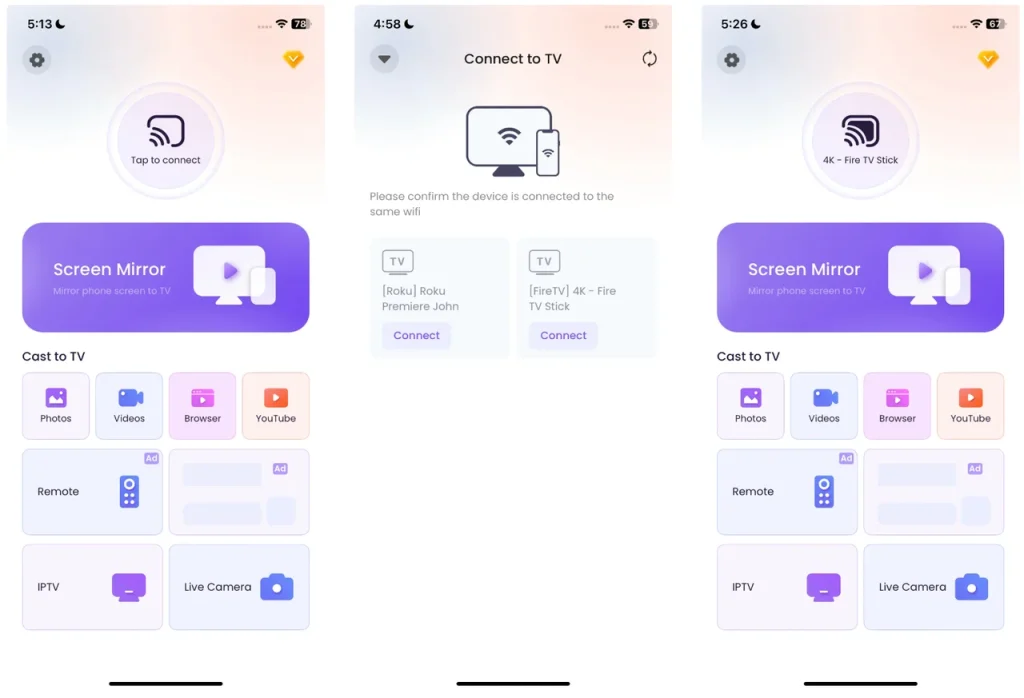
Paso 1. Baixe o aplicativo de espelhamento de tela e instale-o em seu dispositivo móvel.
Baixe o Aplicativo de Espelhamento de Tela


Paso 2. Certifique-se de que tanto a sua TV quanto o seu telefone estejam conectados à mesma rede Wi-Fi. Abra o aplicativo de espelhamento de tela no seu telefone e selecione sua TV na lista de dispositivos disponíveis.
Paso 3. Depois de selecionar sua TV, escolha o conteúdo que deseja espelhar. Você pode transmitir vídeos, imagens ou até mesmo sua tela inteira para a TV.
Este aplicativo fornece uma maneira fácil e eficiente de espelhar seu conteúdo, dispensando a necessidade de AirPlay.
Conclusão
Knowing how to turn off AirPlay is crucial if you want to prevent unwanted connections, conserve battery life, or simply troubleshoot issues with your Apple devices. Whether you're turning off AirPlay on iPhone, iPad, Mac, or TV, we've provided simple steps to end AirPlay sessions and disable automatic connections. And if you'd prefer to screen mirror without using AirPlay, there are other apps available to help you stream content to your TV seamlessly.
Como desativar o AirPlay FAQ
P: Por que o meu AirPlay está travado?
AirPlay may get stuck if there's an active connection that isn't properly disconnecting, or if there's a system glitch. To resolve this, try restarting your device, force quitting any AirPlay apps, or disconnecting from the AirPlay device manually through the Control Center or System Preferences.
P: Por que o AirPlay não está funcionando?
O AirPlay pode não funcionar devido a problemas como problemas de conectividade de rede, falhas de software ou problemas de compatibilidade entre dispositivos. Certifique-se de que ambos os dispositivos estejam na mesma rede Wi-Fi, reinicie-os e verifique se há atualizações de software. Se o problema persistir, tente desconectar e reconectar a sessão do AirPlay.
Vicky Green
Vicky Green é uma editora de conteúdo web da BoostVision que atualiza blogs regularmente para ajudar os leitores a melhorar sua experiência de TV e experiência de assistir. Ela acredita que paixão infinita, paciência suficiente e pensamentos críticos fortes podem gerar grande sucesso.