
AirPlay is a useful feature that allows you to stream content from your Apple devices to a compatible TV, speaker, or other devices. However, there are times when you might want to turn it off—whether it's because you no longer need the connection, you're experiencing issues, or you're simply looking to conserve battery life. In this detailed guide, we'll walk you through how to turn off AirPlay on various devices, including iPhone, iPad, Mac, and TV.
Why Turn Off AirPlay?
Before we dive into the step-by-step tutorial on how to turn AirPlay off, it's important to understand why you might need to do so:
Stop Automatic Connection: AirPlay might automatically connect to nearby devices, especially when you don't intend to use it. Turning off AirPlay can help prevent these unwanted connections.Battery Conservation: AirPlay uses a lot of energy. If you're looking to save battery life, turning off AirPlay when you're not using it is a good idea.Privacy and Security: Sometimes, AirPlay can be used by other devices in your home network to connect to your iPhone, iPad, or Mac. Turning off AirPlay ensures that your device isn't accessible to others without your permission.Troubleshooting: If you're facing issues likeAirPlay not workingorAirPlay won't disconnect, these steps can help resolve the problem.
How to Turn Off AirPlay on iPhone and iPad
When you want to disconnect your iPhone or iPad from an AirPlay-enabled device, the process is fairly simple. However, whether you're ending a session or disabling automatic connections, knowing how to control AirPlay can prevent unwanted streaming to nearby devices. This can be particularly helpful when you're near multiple AirPlay-enabled devices but only want to use a specific one.
Disconnect AirPlay on iPhone and iPad
How to disconnect AirPlay? The steps below will disconnect the AirPlay session and stop your device from streaming content to the target device.:
Step 1. Swipe Down from the upper-right corner of your screen (for iPhone X or later) or swipe up from the bottom (for iPhone 8 or earlier) to access the Control Center.
Step 2. Tap on the AirPlay icon (two overlapping rectangles).
Step 3. Choose Stop Mirroring or Turn Off AirPlay from the list of devices.

Turn Off Automatic AirPlay on iPhone and iPad
How to turn off AirPlay on iPad or iPhone to prevent automatic connection? You can perform the steps below:
Step 1. Open the Settings app on your iPhone or iPad.
Step 2. Scroll down to the General option and select AirPlay & Handoff.
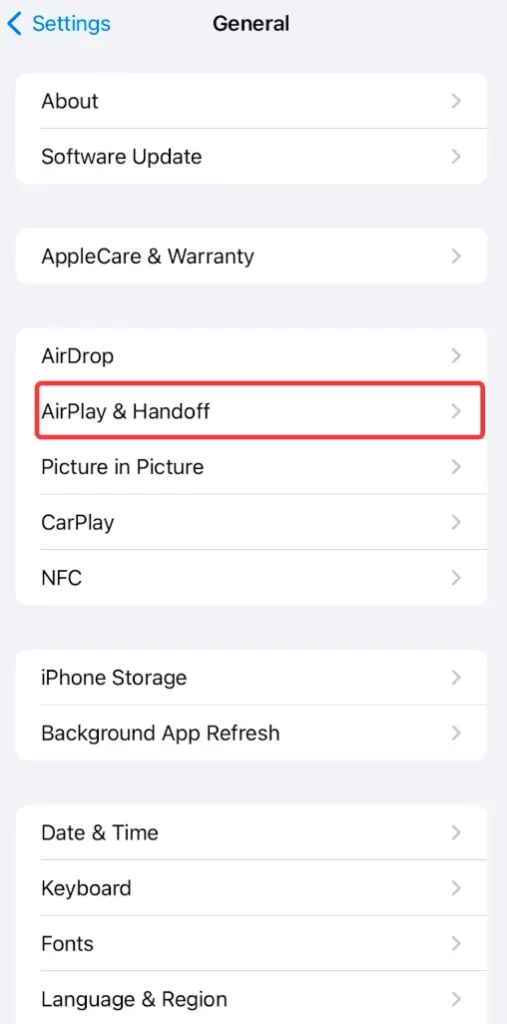
Step 3. Tap Automatic AirPlay to TVs.
Step 4. Choose the Never option. This will prevent your device from automatically connecting to nearby AirPlay-enabled TVs.
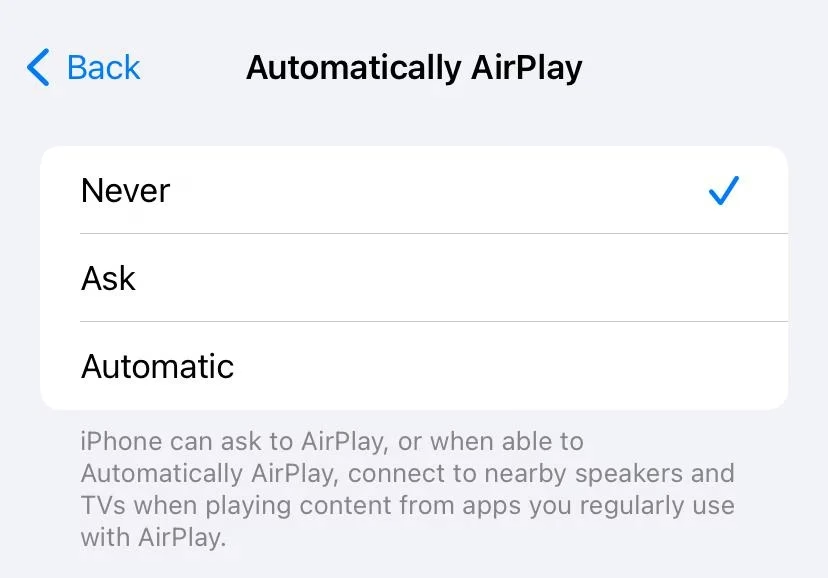
By doing this, you ensure that your device won't automatically connect to AirPlay-enabled devices when you're near them.
How to Turn Off AirPlay on Mac
If you're using a Mac, it can be especially useful to know how to disable AirPlay when working on multiple tasks or trying to avoid unwanted connections. Mac computers can both send and receive AirPlay content, making it easy to quickly share screens with other devices. While this is great for multitasking, it can sometimes confuse when you don't want the device to connect automatically.
Disconnect AirPlay on Mac
How to turn off Apple AirPlay on Mac? Start with ending the AirPlay session on a MacBook:
Step 1. Click the Control Center icon located in the top-right corner of the Mac's menu bar and tap the Screen Mirroring option.
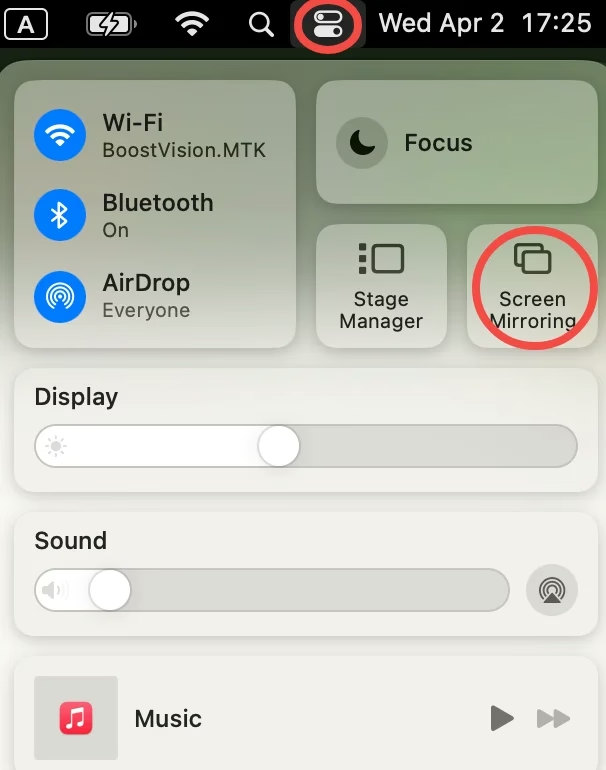
Step 2. Choose the device you're AirPlay your Mac to. This disconnects the device, which stops mirroring your Mac screen through AirPlay.
Turn Off Automatic AirPlay on Mac
To ensure that your Mac won't connect to other devices without your consent, you can turn off AirPlay in this way:
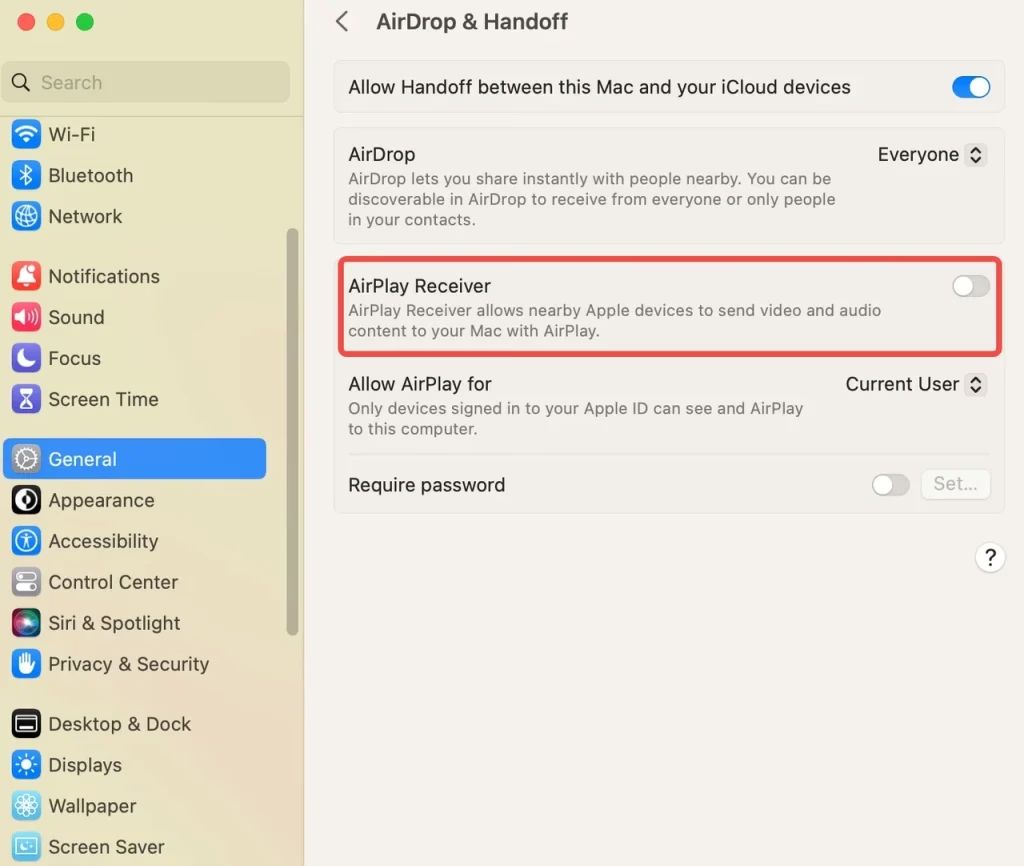
Step 1. Click the Apple icon in the top-left corner of the Mac screen and choose the System Settings option.
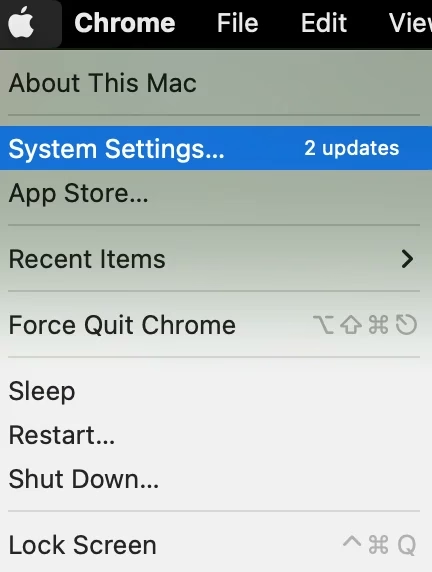
Step 2. Go to the General tab on the left and find the AirPlay Reciver option. Disable the option by switching it off and entering your password if asked.
How to Turn Off AirPlay on TV
While AirPlay is a fantastic feature for streaming media to a compatible TV, there are instances where you might not want your TV to accept an incoming AirPlay connection. Disabling AirPlay on your TV ensures that your Apple devices can't automatically connect to it without permission, keeping your network secure and ensuring that content is only shared when you choose to do so.
Here are steps to disable AirPlay on some popular platforms, including Apple TV, Samsung TV, and Roku TV. Let's check how to turn off AirPlay on TV.
Turn Off AirPlay on Apple TV
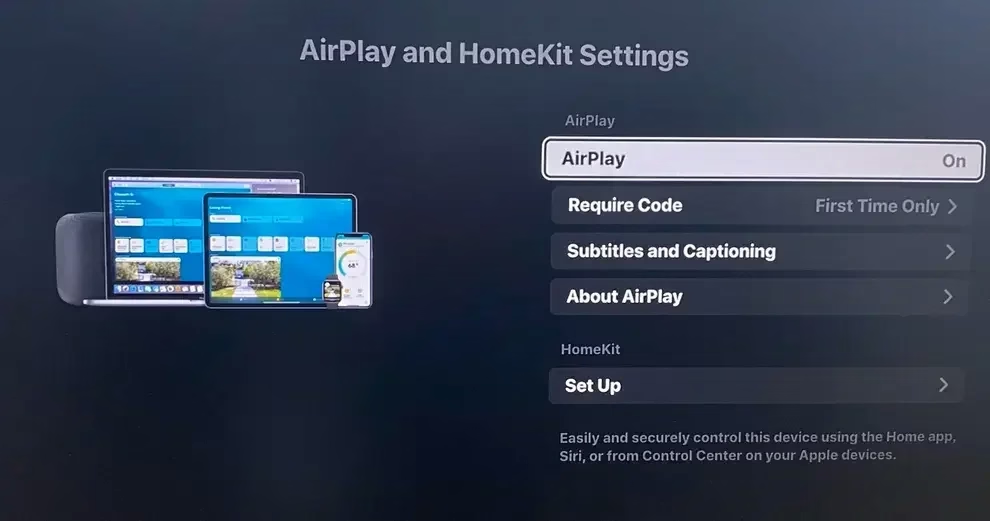
Here's how to disable AirPlay on Apple TV:
Step 1. Open the Settings app on your Apple TV.
Step 2. Find the AirPlay option.
Step 3. Turn the AirPlay option to Off to prevent incoming AirPlay requests.
Turn Off AirPlay on Samsung TV
How to turn off AirPlay on Samsung TV? Perform like this:
Step 1. Press the Home button on your Samsung TV remote.
Step 2. Go to the Menu option on the TV screen, then choose the Settings option and the All Settings option.
Step 3. Go to the Connections tab and choose Apple AirPlay Settings.
Step 4. Turn the AirPlay option to Off.
Turn Off AirPlay on Roku TV
Roku TV is also compatible with AirPlay, allowing you to connect your iPhone to the TV wirelessly. However, if you use an Android phone, the feature is useless, and turning it off could be a good choice. Here's how to turn off AirPlay on Roku:
Step 1. Press the Home button on your Roku TV remote.
Step 2. Go to Settings > Apple AirPlay & HomeKit > Launch Apple AirPlay & HomeKit setup.
Step 3. Switch the AirPlay option to the Off state.
The steps to turn off AirPlay on smart TVs are similar: go to Settings > AirPlay & HomeKit > AirPlay. For details, please check your TV manual.
Fixed: AirPlay Not Turning Off
Occasionally, users run into a frustrating situation where AirPlay won't turn off despite their attempts to disconnect. This can happen for several reasons, such as a glitch in the system, an active connection that's not displaying properly, or the device failing to fully disconnect from the AirPlay receiver. It can be particularly annoying when you need to switch back to regular functionality, but AirPlay refuses to stop.
If you find yourself in this situation, there are several troubleshooting steps you can take to disconnect AirPlay:
Restart Your Device: If you're having trouble with disconnecting AirPlay, try restarting your iPhone, iPad, Mac, or TV. This can sometimes reset the connection and turn off AirPlay.Force Quit AirPlay: If you're using a Mac, force quit the AirPlay application by going toApple Menu > Force Quit, then selectingAirPlayand clickingForce Quit.Forget Device: If your device keeps connecting to AirPlay automatically, you can remove it from the list of known devices in your Wi-Fi settings or theAirPlay & Handoffsettings on your iPhone/iPad.
If you're still facing issues, you can always check the device's manual or Apple's support site for specific solutions related to your device.
How to Screen Mirror on TV Without AirPlay
While AirPlay is a popular method for screen mirroring and media sharing, it's not your only option. Screen mirroring apps are a great alternative if you prefer not to use AirPlay or want a more versatile mirroring experience.
These apps allow you to stream content directly to your TV without the need for AirPlay or an Apple-specific device. This can be useful if you're trying to mirror content from a device that isn't Apple-based or if you simply prefer the features of a third-party app.
The Screen Mirroring app works on both Android and iOS devices, allowing a wireless connection to multiple TVs, such as Samsung, Roku, TCL, Hisense, Sharp, LG, Vizio, and Sony TV.
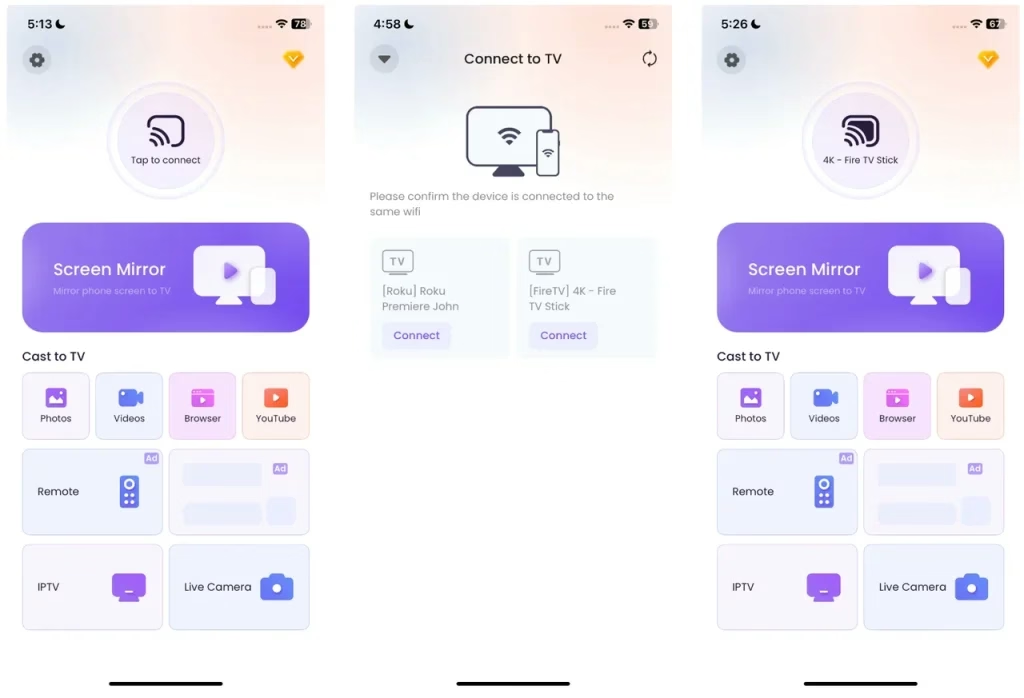
Step 1. Download the screen mirroring app and install it on your mobile device.



Step 2. Ensure both your TV and phone are connected to the same Wi-Fi network. Open the screen mirroring app on your phone and select your TV from the list of available devices.
Step 3. After selecting your TV, choose the content you want to mirror. You can stream videos, images, or even your entire screen to the TV.
This app provides an easy and efficient way to mirror your content, bypassing the need for AirPlay.
Conclusion
Knowing how to turn off AirPlay is crucial if you want to prevent unwanted connections, conserve battery life, or simply troubleshoot issues with your Apple devices. Whether you're turning off AirPlay on iPhone, iPad, Mac, or TV, we've provided simple steps to end AirPlay sessions and disable automatic connections. And if you'd prefer to screen mirror without using AirPlay, there are other apps available to help you stream content to your TV seamlessly.
How to Turn Off AirPlay FAQ
Q: Why is my AirPlay stuck on?
AirPlay may get stuck if there's an active connection that isn't properly disconnecting, or if there's a system glitch. To resolve this, try restarting your device, force quitting any AirPlay apps, or disconnecting from the AirPlay device manually through the Control Center or System Preferences.
Q: Why is AirPlay not working?
AirPlay may not work due to issues like network connectivity problems, software glitches, or compatibility issues between devices. Ensure both devices are on the same Wi-Fi network, restart them, and check for any software updates. If the problem persists, try disconnecting and reconnecting the AirPlay session.
 Jan 09, 2025