



 English
 Portuguese
 Spanish
 French
 German
 Japanese
 Vicky Green

AirPlay is a useful feature that allows you to stream content from your Apple devices to a compatible TV, speaker, or other devices. However, there are times when you might want to turn it off—whether it's because you no longer need the connection, you're experiencing issues, or you're simply looking to conserve battery life. In this detailed guide, we'll walk you through Comment désactiver AirPlay sur divers appareils, y compris iPhone, iPad, Mac et TV.
Table des matières
Pourquoi désactiver AirPlay ?
Before we dive into the step-by-step tutorial on how to turn AirPlay off, it's important to understand why you might need to do so:
- Arrêter la connexion automatique: AirPlay might automatically connect to nearby devices, especially when you don't intend to use it. Turning off AirPlay can help prevent these unwanted connections.
- Conservation de la batterie: AirPlay uses a lot of energy. If you're looking to save battery life, turning off AirPlay when you're not using it is a good idea.
- Confidentialité et sécurité: Sometimes, AirPlay can be used by other devices in your home network to connect to your iPhone, iPad, or Mac. Turning off AirPlay ensures that your device isn't accessible to others without your permission.
- Dépannage: If you're facing issues like AirPlay ne fonctionne pas ou AirPlay won't disconnect, ces étapes peuvent aider à résoudre le problème.
Comment désactiver AirPlay sur iPhone et iPad
When you want to disconnect your iPhone or iPad from an AirPlay-enabled device, the process is fairly simple. However, whether you're ending a session or disabling automatic connections, knowing how to control AirPlay can prevent unwanted streaming to nearby devices. This can be particularly helpful when you're near multiple AirPlay-enabled devices but only want to use a specific one.
Déconnecter AirPlay sur iPhone et iPad
Comment déconnecter AirPlay ? Les étapes ci-dessous déconnecteront la session AirPlay et arrêteront votre appareil de diffuser du contenu vers l'appareil cible. :
Étape 1. Balayez vers le bas depuis le coin supérieur droit de votre écran (pour iPhone X ou ultérieur) ou balayez vers le haut depuis le bas (pour iPhone 8 ou antérieur) pour accéder à la Centre de contrôle.
Étape 2. Appuyez sur le AirPlay icône (deux rectangles superposés).

Étape 3. Choisir Arrêter la duplication d'écran ou Désactiver AirPlay de la liste des appareils.
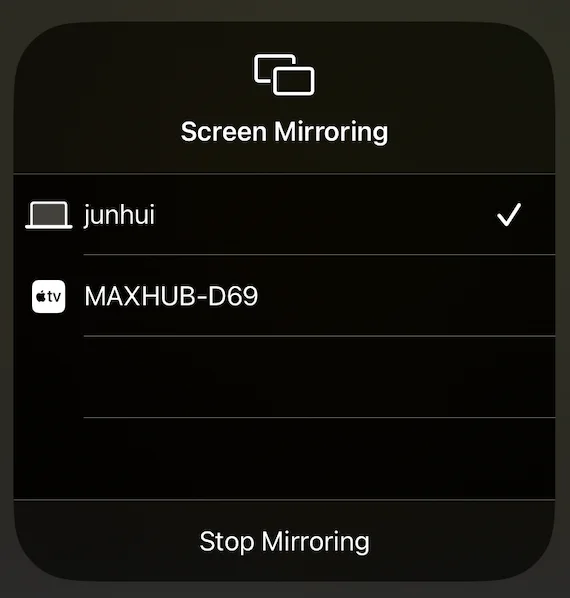
Désactiver AirPlay automatique sur iPhone et iPad
Comment désactiver AirPlay sur iPad ou iPhone pour empêcher la connexion automatique ? Vous pouvez effectuer les étapes ci-dessous :
Étape 1. Open the Paramètres Appli sur votre iPhone ou iPad.
Étape 2. Faites défiler vers le bas pour Général option and select AirPlay et Handoff.
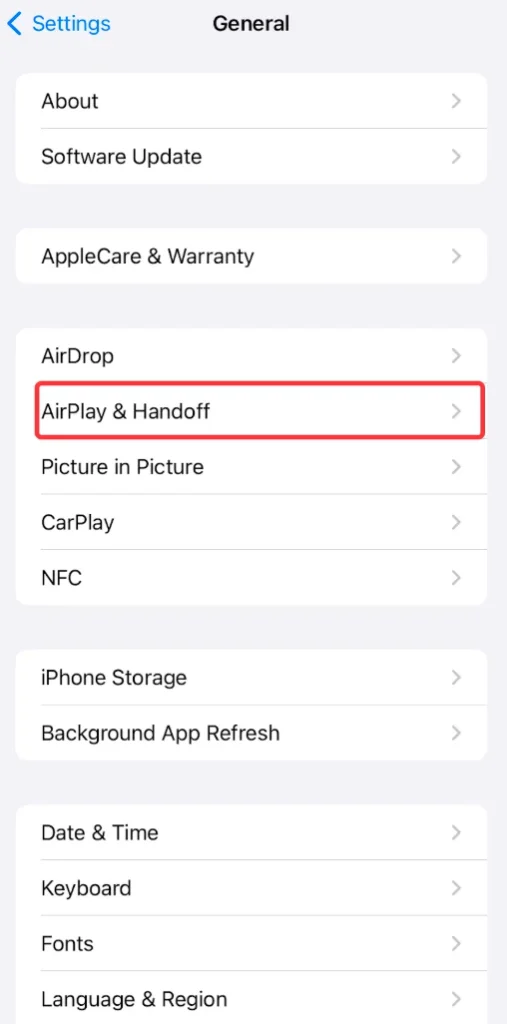
Étape 3. Appuyez Duplication d'écran automatique sur les TV.
Étape 4. Choisir le Jamais option. Cela empêchera votre appareil de se connecter automatiquement aux TV compatibles AirPlay à proximité.
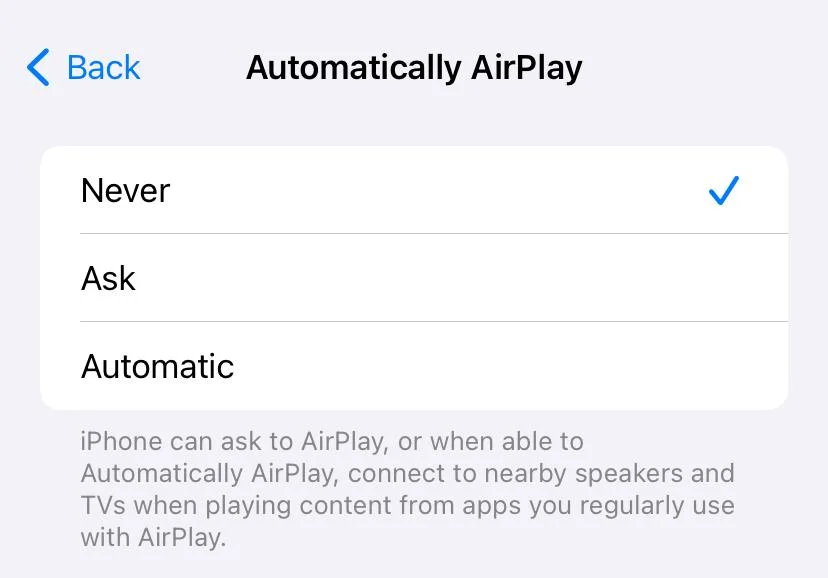
By doing this, you ensure that your device won't automatically connect to AirPlay-enabled devices when you're near them.
Comment désactiver AirPlay sur Mac
If you're using a Mac, it can be especially useful to know how to disable AirPlay when working on multiple tasks or trying to avoid unwanted connections. Mac computers can both send and receive AirPlay content, making it easy to quickly share screens with other devices. While this is great for multitasking, it can sometimes confuse when you don't want the device to connect automatically.
Déconnecter AirPlay sur Mac
Comment désactiver Apple AirPlay sur Mac ? Commencez par mettre fin à la session AirPlay sur un MacBook :
Étape 1. Cliquez sur le Centre de contrôle icon located in the top-right corner of the Mac's menu bar and tap the Duplication d'écran Option.

Étape 2. Choose the device you're Diffuser votre Mac Cela déconnecte l'appareil, ce qui arrête la duplication d'écran de votre écran Mac via AirPlay.
Désactiver AirPlay automatique sur Mac
To ensure that your Mac won't connect to other devices without your consent, you can turn off AirPlay in this way:
Étape 1. Cliquez sur le Apple icône dans le coin supérieur gauche de l'écran Mac et choisissez le Paramètres système Option.

Étape 2. Allez à l'onglet Général à gauche et trouvez le Receveur AirPlay option. Désactivez l'option en l'éteignant et en entrant votre mot de passe si demandé.

Comment désactiver AirPlay sur TV
While AirPlay is a fantastic feature for streaming media to a compatible TV, there are instances where you might not want your TV to accept an incoming AirPlay connection. Disabling AirPlay on your TV ensures that your Apple devices can't automatically connect to it without permission, keeping your network secure and ensuring that content is only shared when you choose to do so.
Here are steps to disable AirPlay on some popular platforms, including Apple TV, Samsung TV, and Roku TV. Let's check how to turn off AirPlay on TV.
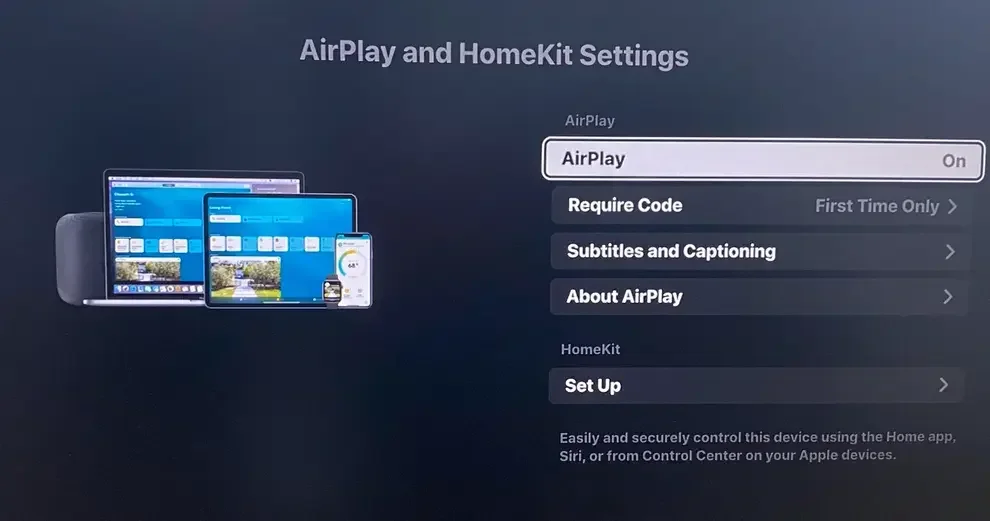
Désactiver AirPlay sur l'Apple TV
Here's how to disable AirPlay on Apple TV:
Étape 1. Ouvrez l'application Réglages sur votre Apple TV.
Étape 2. Find the AirPlay Option.
Étape 3. Activer l'option AirPlay Éteint. pour empêcher les demandes AirPlay entrantes.
Désactiver AirPlay sur TV Samsung
Comment désactiver AirPlay sur la TV Samsung ? Effectuez comme ceci :
Étape 1. Appuyez sur le Accueil Bouton sur votre télécommande de TV Samsung.
Étape 2. Allez à la Menu option sur l'écran du TV , puis choisissez le Paramètres option et le Tous les paramètres Option.
Étape 3. Allez à la Connexions onglet et choisir Paramètres Apple AirPlay.
Étape 4. Tournez le AirPlay option de Éteint..
Désactiver AirPlay sur Roku TV
Roku TV is also compatible with AirPlay, allowing you to connect your iPhone to the TV wirelessly. However, if you use an Android phone, the feature is useless, and turning it off could be a good choice. Here's how to turn off AirPlay on Roku:
Étape 1. Appuyez sur le Accueil bouton sur votre télécommande TV Roku.
Étape 2. Go to Paramètres > Apple AirPlay & HomeKit > Lancer la configuration d'Apple AirPlay & HomeKit.
Étape 3. Basculer le AirPlay option à la Éteint. état.
Les étapes pour désactiver AirPlay sur les téléviseurs intelligents sont similaires : allez dans Réglages > AirPlay & HomeKit > AirPlay. Pour plus de détails, veuillez consulter le manuel de votre TV.
Réparation: AirPlay ne s'éteint pas
Parfois, les utilisateurs rencontrent une situation frustrante où AirPlay won't turn off despite their attempts to disconnect. This can happen for several reasons, such as a glitch in the system, an active connection that's not displaying properly, or the device failing to fully disconnect from the AirPlay receiver. It can be particularly annoying when you need to switch back to regular functionality, but AirPlay refuses to stop.
Si vous vous trouvez dans cette situation, il existe plusieurs étapes de dépannage que vous pouvez suivre pour déconnecter AirPlay :
- Redémarrez votre appareil: If you're having trouble with disconnecting AirPlay, try restarting your iPhone, iPad, Mac, or TV. This can sometimes reset the connection and turn off AirPlay.
- Forcer à quitter AirPlay: If you're using a Mac, force quit the AirPlay application by going to Menu Apple > Forcer à quitter, puis sélectionner AirPlay et en cliquant Force Quit.
- Oublier l'appareil: Si votre appareil se connecte automatiquement à AirPlay, vous pouvez le supprimer de la liste des appareils connus dans vos paramètres Wi-Fi ou le AirPlay et Handoff paramètres sur votre iPhone/iPad.
If you're still facing issues, you can always check the device's manual or Apple's support site for specific solutions related to your device.
Comment dupliquer l'écran sur TV sans AirPlay
While AirPlay is a popular method for screen mirroring and media sharing, it's not your only option. Screen mirroring apps are a great alternative if you prefer not to use AirPlay or want a more versatile mirroring experience.
These apps allow you to stream content directly to your TV without the need for AirPlay or an Apple-specific device. This can be useful if you're trying to mirror content from a device that isn't Apple-based or if you simply prefer the features of a third-party app.
The Application de duplication d'écran fonctionne sur les appareils Android et iOS, permettant une connexion sans fil à plusieurs TV, telles que Samsung, Roku, TCL, Hisense, Sharp, LG, Vizio et Sony TV.
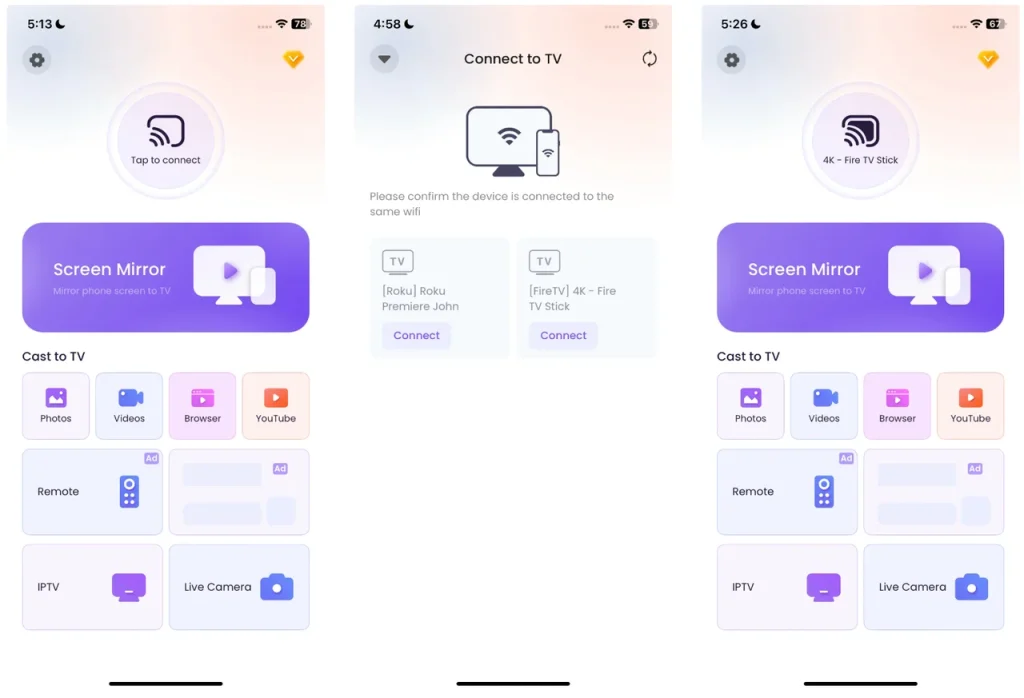
Étape 1. Téléchargez l'application de duplication d'écran et installez-la sur votre appareil mobile.
Téléchargez l'application de duplication d'écran : Diffuser sur TV


Étape 2. Assurez-vous que votre TV et votre téléphone sont connectés au même réseau Wi-Fi. Ouvrez l'application de duplication d'écran sur votre téléphone et sélectionnez votre TV dans la liste des appareils disponibles.
Étape 3. Après avoir sélectionné votre TV, choisissez le contenu que vous souhaitez dupliquer l'écran. Vous pouvez diffuser des vidéos, des images, ou même votre écran entier sur la TV.
Cette application offre un moyen facile et efficace de dupliquer votre contenu, évitant ainsi le besoin d'AirPlay.
Conclusion
Knowing how to turn off AirPlay is crucial if you want to prevent unwanted connections, conserve battery life, or simply troubleshoot issues with your Apple devices. Whether you're turning off AirPlay on iPhone, iPad, Mac, or TV, we've provided simple steps to end AirPlay sessions and disable automatic connections. And if you'd prefer to screen mirror without using AirPlay, there are other apps available to help you stream content to your TV seamlessly.
Comment désactiver AirPlay FAQ
Q : Pourquoi mon AirPlay est-il bloqué ?
AirPlay may get stuck if there's an active connection that isn't properly disconnecting, or if there's a system glitch. To resolve this, try restarting your device, force quitting any AirPlay apps, or disconnecting from the AirPlay device manually through the Control Center or System Preferences.
Q : Pourquoi AirPlay ne fonctionne-t-il pas ?
AirPlay peut ne pas fonctionner en raison de problèmes tels que des problèmes de connectivité réseau, des bugs logiciels ou des problèmes de compatibilité entre les appareils. Assurez-vous que les deux appareils sont sur le même réseau Wi-Fi, redémarrez-les et vérifiez les mises à jour logicielles. Si le problème persiste, essayez de déconnecter et reconnecter la session AirPlay.
Vicky Green
Vicky Green est une éditrice de contenu web chez BoostVision qui met régulièrement à jour des blogs pour aider les lecteurs à améliorer leur expérience TV et leur expérience de visionnage. Elle croit qu'une passion sans fin, suffisamment de patience et une forte capacité de réflexion critique peuvent engendrer un grand succès.