




 English
 Portuguese
 Spanish
 French
 German
 Japanese
 Vicky Green

AirPlay is a useful feature that allows you to stream content from your Apple devices to a compatible TV, speaker, or other devices. However, there are times when you might want to turn it off—whether it's because you no longer need the connection, you're experiencing issues, or you're simply looking to conserve battery life. In this detailed guide, we'll walk you through So schalten Sie AirPlay aus. auf verschiedenen Geräten, einschließlich iPhone, iPad, Mac und fernseher.
Inhaltsverzeichnis
Warum AirPlay ausschalten?
Before we dive into the step-by-step tutorial on how to turn AirPlay off, it's important to understand why you might need to do so:
- Automatische Verbindung stoppen: AirPlay might automatically connect to nearby devices, especially when you don't intend to use it. Turning off AirPlay can help prevent these unwanted connections.
- Batterieeinsparung: AirPlay uses a lot of energy. If you're looking to save battery life, turning off AirPlay when you're not using it is a good idea.
- Datenschutz und Sicherheit: Sometimes, AirPlay can be used by other devices in your home network to connect to your iPhone, iPad, or Mac. Turning off AirPlay ensures that your device isn't accessible to others without your permission.
- Fehlerbehebung: If you're facing issues like AirPlay funktioniert nicht oder AirPlay won't disconnect, diese Schritte können das Problem lösen.
So schalten Sie AirPlay auf dem iPhone und iPad aus
When you want to disconnect your iPhone or iPad from an AirPlay-enabled device, the process is fairly simple. However, whether you're ending a session or disabling automatic connections, knowing how to control AirPlay can prevent unwanted streaming to nearby devices. This can be particularly helpful when you're near multiple AirPlay-enabled devices but only want to use a specific one.
AirPlay auf iPhone und iPad trennen
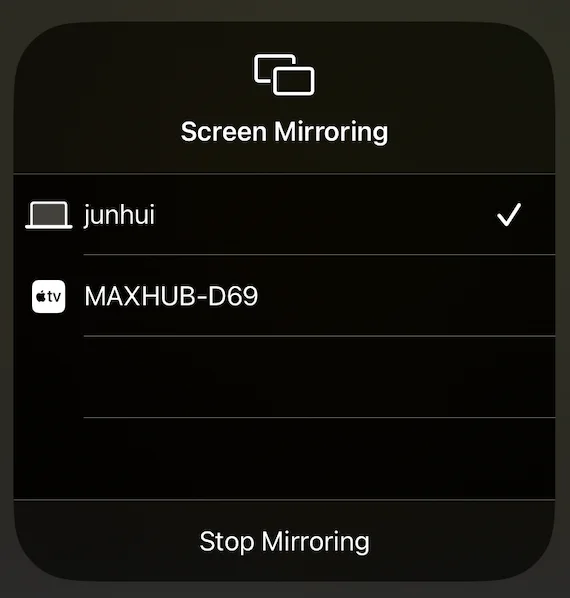
Wie trennt man AirPlay? Die Schritte unten beenden die AirPlay-Sitzung und verhindern, dass Ihr Gerät Inhalte auf das Zielgerät überträgt.:
Schritt 1. Wischen Sie vom oberen rechten Bildschirmrand nach unten (für iPhone X oder neuer) oder wischen Sie von unten nach oben (für iPhone 8 oder älter), um auf die Kontrollzentrum.
Schritt 2. Tippen Sie auf den AirPlay Symbol (zwei überlappende Rechtecke).

Schritt 3. Wählen Stopp Bildschirmspiegelung oder AirPlay ausschalten aus der Liste der Geräte.
Deaktivieren Sie die automatische Bildschirmspiegelung auf dem iPhone und iPad.
Wie schalte ich AirPlay auf dem iPad oder iPhone aus, um eine automatische Verbindung zu verhindern? Sie können die folgenden Schritte ausführen:
Schritt 1. Open the Einstellungen App auf Ihrem iPhone oder iPad.
Schritt 2. Scroll down to the Allgemein option and select AirPlay & Handoff.
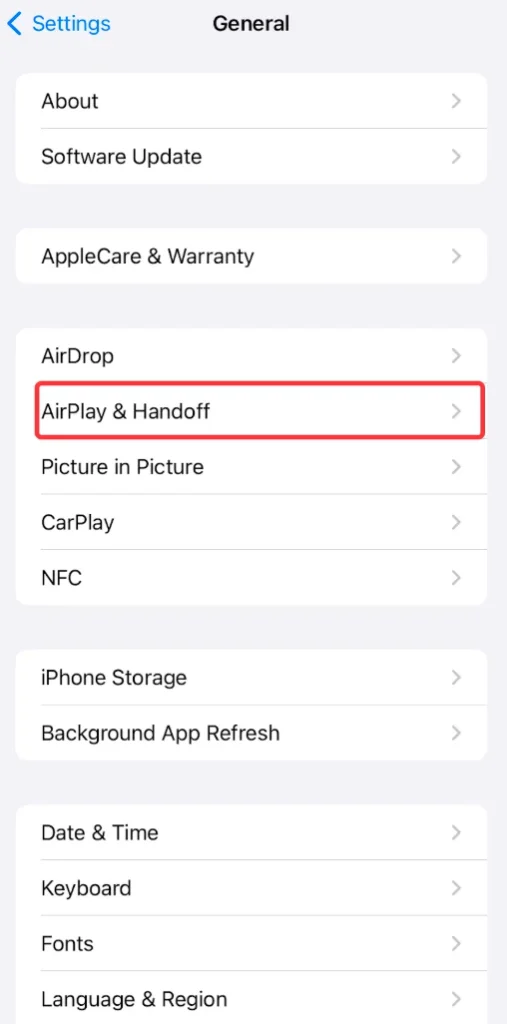
Schritt 3. Tippen Automatisches AirPlay zu Fernsehern.
Schritt 4. Wählen Sie die Nie Option. Dies verhindert, dass Ihr Gerät automatisch eine Verbindung zu in der Nähe befindlichen AirPlay-fähigen fernsehern herstellt.
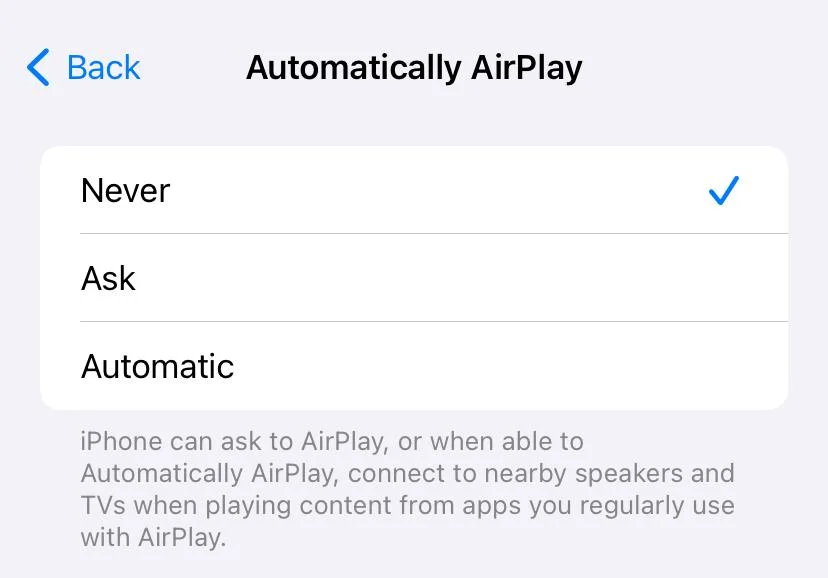
By doing this, you ensure that your device won't automatically connect to AirPlay-enabled devices when you're near them.
Wie man AirPlay auf dem Mac ausschaltet
If you're using a Mac, it can be especially useful to know how to disable AirPlay when working on multiple tasks or trying to avoid unwanted connections. Mac computers can both send and receive AirPlay content, making it easy to quickly share screens with other devices. While this is great for multitasking, it can sometimes confuse when you don't want the device to connect automatically.
AirPlay auf dem Mac trennen
Wie schalte ich Apple AirPlay auf dem Mac aus? Beginnen Sie mit dem Beenden der AirPlay-Sitzung auf einem MacBook:
Schritt 1. Klicken Sie auf die Kontrollzentrum icon located in the top-right corner of the Mac's menu bar and tap the Bildschirmspiegelung option.

Schritt 2. Choose the device you're AirPlay deinen Mac . Dadurch wird das Gerät getrennt, was die bildschirmspiegelung Ihres Mac über AirPlay stoppt.
Automatisches AirPlay auf dem Mac ausschalten
To ensure that your Mac won't connect to other devices without your consent, you can turn off AirPlay in this way:
Schritt 1. Klicken Sie auf die Apfel Symbol in der oberen linken Ecke des Mac-Bildschirms und wählen Sie die Systemeinstellungen option.

Schritt 2. Gehen Sie zum Reiter Allgemein auf der linken Seite und finden Sie die AirPlay-Empfänger Option. Deaktivieren Sie die Option, indem Sie sie ausschalten und Ihr Passwort eingeben, wenn Sie dazu aufgefordert werden.

Wie man AirPlay auf dem fernseher ausschaltet
While AirPlay is a fantastic feature for streaming media to a compatible TV, there are instances where you might not want your TV to accept an incoming AirPlay connection. Disabling AirPlay on your TV ensures that your Apple devices can't automatically connect to it without permission, keeping your network secure and ensuring that content is only shared when you choose to do so.
Here are steps to disable AirPlay on some popular platforms, including Apple TV, Samsung TV, and Roku TV. Let's check how to turn off AirPlay on TV.
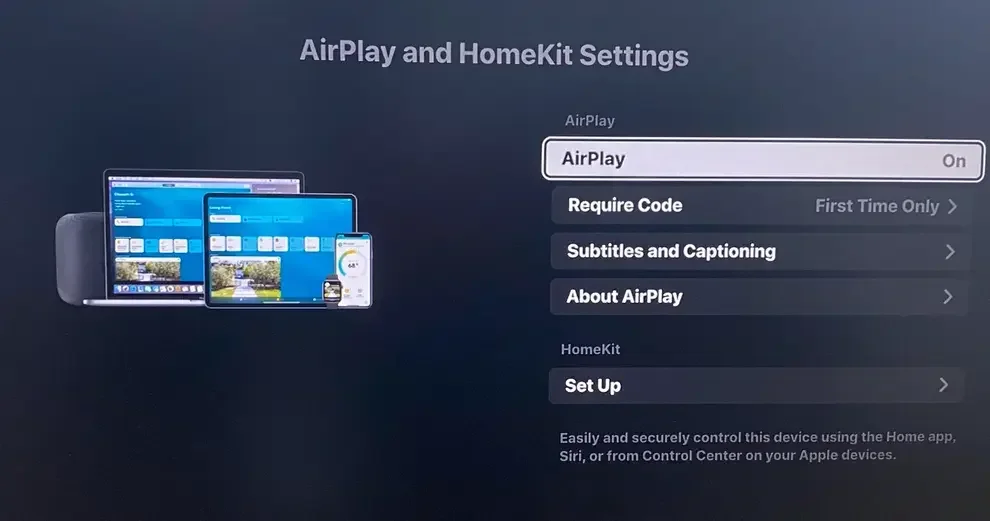
AirPlay auf dem Apple fernseher ausschalten
Here's how to disable AirPlay on Apple TV:
Schritt 1. Öffnen Sie die App "Einstellungen" auf Ihrem Apple-Fernseher.
Schritt 2. Find the AirPlay option.
Schritt 3. Schalten Sie die AirPlay-Option ein Off um eingehende AirPlay-Anfragen zu verhindern.
AirPlay auf Samsung fernseher ausschalten
Wie schaltet man AirPlay auf einem Samsung fernseher aus? Führen Sie es so aus:
Schritt 1. Drücken Sie die Zuhause Taste auf Ihrer Samsung Fernseher Fernbedienung.
Schritt 2. Gehen Sie zu dem Menü Option auf dem fernseher bildschirm, dann wählen Sie die Einstellungen Option und die Alle Einstellungen option.
Schritt 3. Gehen Sie zu dem Verbindungen Registerkarte und auswählen Einstellungen für Apple AirPlay.
Schritt 4. Drehen Sie die AirPlay Option zu Off.
AirPlay auf Roku fernseher ausschalten
Roku TV is also compatible with AirPlay, allowing you to connect your iPhone to the TV wirelessly. However, if you use an Android phone, the feature is useless, and turning it off could be a good choice. Here's how to turn off AirPlay on Roku:
Schritt 1. Drücken Sie die Zuhause Taste auf Ihrer Roku-Fernbedienung.
Schritt 2. Gelangen Einstellungen > Apple AirPlay & HomeKit > Starten Sie die Einrichtung von Apple AirPlay & HomeKit.
Schritt 3. Wechseln Sie den AirPlay Option zur Off Staat.
Die Schritte zum Ausschalten von AirPlay auf Smart-Fernsehern sind ähnlich: Gehe zu Einstellungen > AirPlay & HomeKit > AirPlay. Für weitere Informationen, sieh bitte im Handbuch deines Fernsehers nach.
Behoben: AirPlay wird nicht ausgeschaltet
Gelegentlich geraten Benutzer in eine frustrierende Situation, in der AirPlay won't turn off despite their attempts to disconnect. This can happen for several reasons, such as a glitch in the system, an active connection that's not displaying properly, or the device failing to fully disconnect from the AirPlay receiver. It can be particularly annoying when you need to switch back to regular functionality, but AirPlay refuses to stop.
Wenn Sie sich in dieser Situation befinden, gibt es mehrere Schritte zur Fehlerbehebung, die Sie unternehmen können, um AirPlay zu trennen:
- Starten Sie Ihr Gerät neu: If you're having trouble with disconnecting AirPlay, try restarting your iPhone, iPad, Mac, or TV. This can sometimes reset the connection and turn off AirPlay.
- AirPlay zwangsbeenden: If you're using a Mac, force quit the AirPlay application by going to Apple-Menü > Sofort beenden, dann auswählen AirPlay und Klicken Beenden erzwingen.
- Gerät vergessen: Wenn Ihr Gerät sich automatisch mit AirPlay verbindet, können Sie es aus der Liste der bekannten Geräte in Ihren WLAN-Einstellungen oder der AirPlay & Handoff Einstellungen auf Ihrem iPhone/iPad.
If you're still facing issues, you can always check the device's manual or Apple's support site for specific solutions related to your device.
Wie man Bildschirmspiegelung auf dem Fernseher ohne AirPlay macht
While AirPlay is a popular method for screen mirroring and media sharing, it's not your only option. Screen mirroring apps are a great alternative if you prefer not to use AirPlay or want a more versatile mirroring experience.
These apps allow you to stream content directly to your TV without the need for AirPlay or an Apple-specific device. This can be useful if you're trying to mirror content from a device that isn't Apple-based or if you simply prefer the features of a third-party app.
The Bildschirmspiegelung-App funktioniert auf sowohl Android- als auch iOS-Geräten und ermöglicht eine drahtlose Verbindung zu mehreren Fernsehern wie Samsung, Roku, TCL, Hisense, Sharp, LG, Vizio und Sony fernseher.
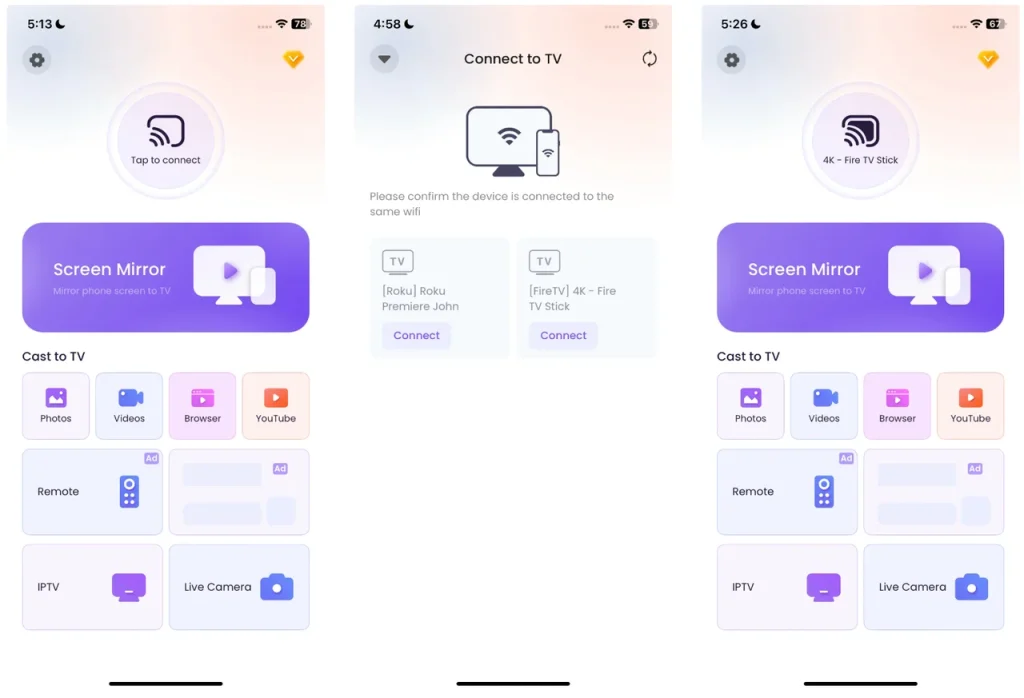
Schritt 1. Laden Sie die Bildschirmspiegelung-App herunter und installieren Sie sie auf Ihrem Mobilgerät.
Laden Sie die Bildschirmspiegelung: Fernseher Übertragen App herunter


Schritt 2. Stellen Sie sicher, dass sowohl Ihr Fernseher als auch Ihr Telefon mit demselben WLAN-Netzwerk verbunden sind. Öffnen Sie die bildschirmspiegelung-App auf Ihrem Telefon und wählen Sie Ihren Fernseher aus der Liste der verfügbaren Geräte aus.
Schritt 3. Nachdem Sie Ihren Fernseher ausgewählt haben, wählen Sie den Inhalt aus, den Sie bildschirmspiegeln möchten. Sie können Videos, Bilder oder sogar Ihren gesamten Bildschirm auf den Fernseher übertragen.
Diese App bietet eine einfache und effiziente Möglichkeit, Ihre Inhalte zu spiegeln und umgeht die Notwendigkeit von AirPlay.
Fazit
Knowing how to turn off AirPlay is crucial if you want to prevent unwanted connections, conserve battery life, or simply troubleshoot issues with your Apple devices. Whether you're turning off AirPlay on iPhone, iPad, Mac, or TV, we've provided simple steps to end AirPlay sessions and disable automatic connections. And if you'd prefer to screen mirror without using AirPlay, there are other apps available to help you stream content to your TV seamlessly.
Wie AirPlay deaktiviert wird FAQ
F: Warum bleibt mein AirPlay eingeschaltet?
AirPlay may get stuck if there's an active connection that isn't properly disconnecting, or if there's a system glitch. To resolve this, try restarting your device, force quitting any AirPlay apps, or disconnecting from the AirPlay device manually through the Control Center or System Preferences.
F: Warum funktioniert AirPlay nicht?
AirPlay funktioniert möglicherweise nicht aufgrund von Problemen wie Netzwerkverbindungsproblemen, Softwarefehlern oder Kompatibilitätsproblemen zwischen Geräten. Stellen Sie sicher, dass beide Geräte im selben WLAN-Netzwerk sind, starten Sie sie neu und prüfen Sie auf Software-Updates. Wenn das Problem weiterhin besteht, versuchen Sie, die AirPlay-Sitzung zu trennen und erneut zu verbinden.
Vicky Green
Vicky Green ist eine Web-Content-Redakteurin von BoostVision, die regelmäßig Blogs aktualisiert, um den Lesern zu helfen, ihr Fernseherlebnis zu verbessern. Sie glaubt, dass endlose Leidenschaft, genügend Geduld und starke kritische Gedanken großen Erfolg bringen können.