
A Smart TV has neither a remote nor a network connection, which sounds terrible, in many people's views. But after reading this post, their views will be changed. This post shows how to connect Philips TV to WiFi without remote in different ways.
How to Connect Philips TV to WiFi Without Remote
Take it easy. Whether the remote for Philips TV is lost, damaged, or simply not operational, some methods to access the WiFi settings on the TV are available for connection setup. Start "Philips TV connect to WiFi".
Method 1. Use the TV Buttons
How to connect WiFi to Philips TV without remote? Most Philips TVs have physical buttons, including Power, Volume, Menu, Channel, and Input, on the bottom, left, or right panels. So, you can attempt to set up a network connection on Philips TV with these buttons.
You can access the TV settings by pressing the Menu button, then press the Volume and Channel buttons to locate the WiFi settings, and then choose the WiFi network you want to connect your Philips TV to.
However, if your Philips TV lacks the Menu button, try the following methods, and they may help you.
Method 2. Use a Keyboard or Mouse
Philips TV allows you to connect external devices through built-in external connectivity ports, which signifies that you can connect a wired keyboard or mouse by plugging it into a USB port present at the back or side of the TV.
Once the keyboard or mouse is connected to your Philips TV, you can press the arrow keys on the keyboard to navigate to the WiFi settings or use the mouse to click and go through the menus to connect your Philips TV to WiFi without a remote.
Method 3. Use an IR Remote App
If you have an Android phone with an IR blaster, then you can use the phone to control your TV.
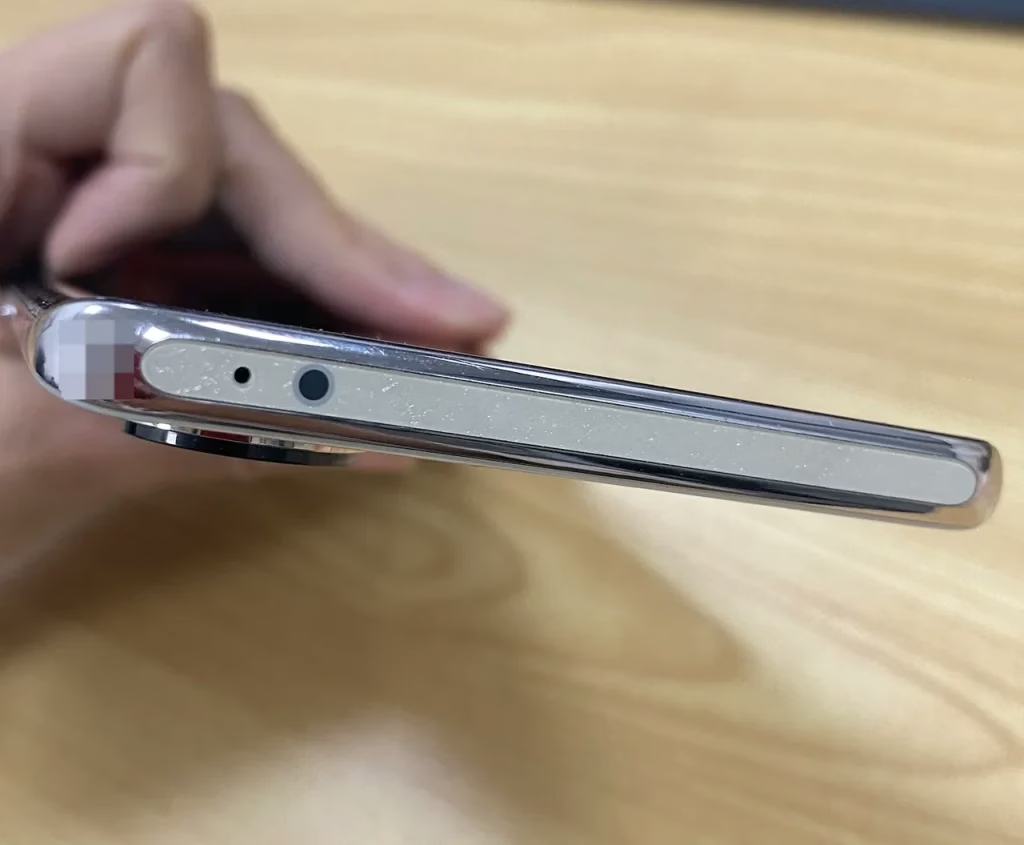
How to connect Philips TV to WiFi manually in this way? The tutorial is below.
Step 1. Launch the IR remote app on your Android phone. If there is no preinstalled one, you can choose the Universal Remote app by BoostVision, which introduced IR technology recently.
Download Universal TV Remote
Step 2. Add your TV, then choose IR TV Remote, and according to the on-screen instructions, choose your TV brand and model.
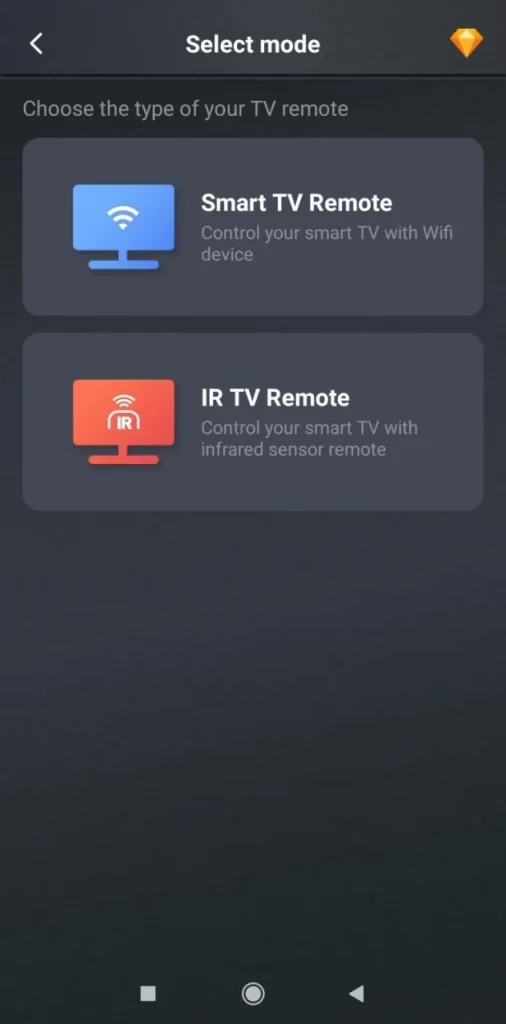
Step 3. Point your Android phone directly at your Philips TV and test the functions, like power and volume.
Step 4. Use the IR remote app to access the WiFi settings and choose your WiFi network.
Method 4. Use a WiFi Remote App
Another way to connect WiFi to Philips TV is to use a WiFi remote app. But different from other ways, this way is feasible only if your Philips TV was previously connected to a WiFi network.
To connect Philips TV to WiFi in this way, in addition to a WiFi remote app, two Android devices and the name of password of the WiFi network that your TV previously was connected to are required.
Which is the best WiFi remote app? If you have a Philips Roku TV, the Philips Roku TV Remote app from BoostVision is recommended for its multiple functions and stability.
Download Remote for Roku TV
If everything is okay, follow the tutorial on how to connect Philips Roku TV to WiFi without remote:
Step 1. Install the remote app on one of your Android devices.
Step 2. Take the other mobile device and turn on the hotspot function on it.
Step 3. Set the name and password of the hotspot to the previous network that your Philips Roku TV was connected to. This will let the TV connect to the hotspot automatically.
Step 4. Connect the Android device with the remote app to the hotspot.
Step 5. Launch the remote app on the Android device and connect it to your Philips Roku TV.
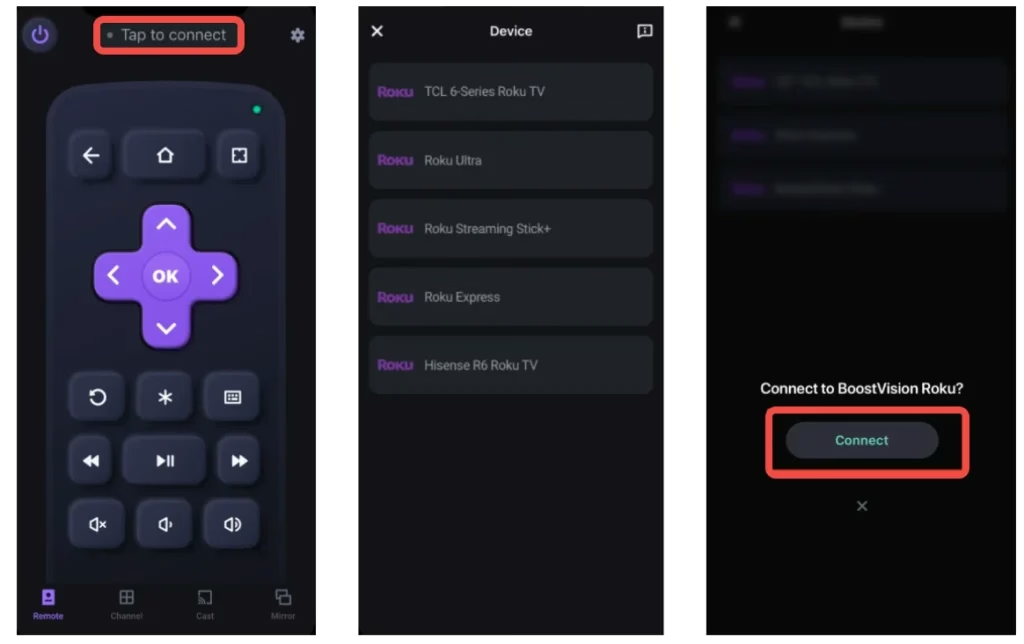
Step 6. Once connected, you can use the remote app to navigate to Home > Settings > Network > Set Up Connection > Wireless, choose your WiFi network, and enter the password.
After setting up a wireless network on your Philips Roku TV, you can use the remote app to access various apps on the TV for content streaming.
Why Won't My Philips TV Connect to WiFi
If Philips TV keeps disconnecting from WiFi, several potential causes could be at play, including weak WiFi signal, signal interference, outdated firmware, and network congestion. Here are some DIY solutions.
#1. Boost WiFi Signal
WiFi signal strength can affect connectivity, resulting in Philips TV not connecting to WiFi.
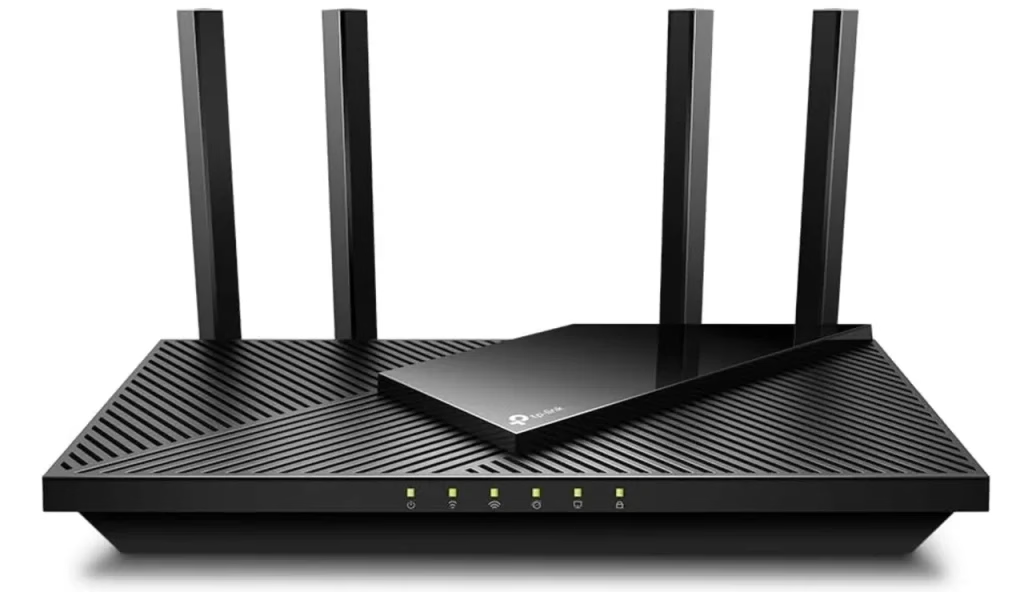
First, move your router closer to your Philips TV if possible. Then, restart your router by unplugging it, waiting 30 seconds, and plugging it back in. Wait for the router to fully reboot and try reconnecting your Philips TV to WiFi. Last, disconnect some devices to reduce network load if multiple devices are connected.
#2. Restart Philips TV
Provided the connectivity issue is caused by TV glitches, restart your Philips TV. Turn off the TV and unplug it from the power source. Wait about a minute, then plug it back and turn it on. Try connecting Philips TV to WiFi when the TV boots.
#3. Check for Interference
Household devices such as microwaves, cordless phones, or Bluetooth devices can interfere with WiFi settings, causing Philips TV not to connect to WiFi. Therefore, try powering off nearby devices temporarily to see if they're causing the issue.
#4. Reset Network Settings
If your Philips TV keeps disconnecting from WiFi, try resetting your network settings to re-establish a clean connection. To do so, go to the WiFi settings and choose the option to forget your network. Then, reconnect to the WiFi network.
#5. Update TV Firmware
An outdated firmware version can cause connectivity issues. When your Philips TV is not connected to WiFi, download an update from the Philips website using a USB drive, then plug the USB drive into the TV, and install the update.
#6. Use an Ethernet Cable
If you have an Ethernet cable, you can try setting up a wired connection on your Philips TV. Compared to a wireless connection, a wired connection is not convenient but more stable.
To set up a wired connection, plug one end of an ethernet cable into your Philips TV's LNA port and the other into the router's port.
#7. Factory Reset Philips TV
As a last resort, factory reset your Philips TV by choosing the Factory Reset option or pressing the physical reset button. Note this will erase your customized settings, so only do it if necessary.
#8. Contact Philips Support
If all else does not work, Philips TV not connecting to WiFi may be hardware-related. Hardware issues should be fixed by professionals, so contact Philips support to get further assistance or possible repairs.
Conclusion
How to connect Philips TV to WiFi without remote? As you see, connecting Philips TV to WiFi is easy even though there is no remote. Four different ways have been detailed above, and you can choose the one according to your case. Certainly, the third and fourth methods are highly recommended, which can contribute to network connection setup as well as other TV controls.
How to Connect Philips TV to WiFi Without Remote FAQ
Q: How to connect a Philips TV to the Wi-Fi?
While pointing your Philips TV remote to the TV, open network settings, choose wireless connection, select your WiFi network, enter your WiFi password, and confirm the connection.
Q: Can I control my Philips TV with my phone without a remote?
Yes, you can control your Philips TV with your phone without a remote. For example, you can use the Universal Remote app released by BoostVision. The app supports both IR and WiFi technology and multiple functions for easy TV control.
Q: How do I get to the menu on my Philips TV without the remote?
You can connect a remote app to your Philips TV, like the Universal Remote app, and then press the menu or settings button on the app interface to get to the menu.
![Philips Roku TV Power Button Manual [2025 Updated]](/_next/image?url=https%3A%2F%2Fhelpful-fun-dead826d03.media.strapiapp.com%2Fphilips_roku_tv_power_button_banner_3318c4fa4b.avif&w=3840&q=80)

