



 English
 Portuguese
 Spanish
 French
 German
 Japanese
 Auric Celine

If you want to show your iPhone screen on a bigger display like a TV or projector, screen mirroring is a handy tool. Whether you're sharing photos, videos, or presentations, it's super useful. In this guide, we'll show you how to turn on screen mirroring on iPhone, troubleshoot common problems, and answer some frequently asked questions.
Índice
O Que É Espelhamento de Tela no iPhone
Screen mirroring lets you wirelessly share your iPhone's display on a larger screen like a TV, projector, or smart display. Once enabled, anything you see on your iPhone will appear on the connected device, making it perfect for watching movies, viewing photos, playing games, or presenting.

The feature works through Apple's AirPlay technology and is compatible with various devices, including Apple TV, select smart TVs, and popular streaming boxes.
Screen mirroring is great for enjoying media on a bigger screen, collaborating on projects, or easily sharing content with others. It's a simple way to make your iPhone experience more versatile, whether you're working or just having fun.
Como Ativar o Espelhamento de Tela no iPhone
Now that you know what screen mirroring is, let's dive into the detailed steps on how to turn screen mirroring on iPhone. Whether you're connecting to an Apple TV or a smart TV, the process is relatively simple.
Etapa 1. Conecte-se à Mesma Rede Wi-Fi
Primeiro, certifique-se de que tanto o seu iPhone quanto o dispositivo para o qual você deseja espelhar (como uma Apple TV ou smart TV) estejam conectados à mesma rede Wi-Fi. Isso é essencial para que os dispositivos se comuniquem.

Paso 1. Open the control center on your iPhone. If you're using an iPhone with Face ID (iPhone X or later), swipe down from the top-right corner of the screen to open the Control Center. If you have an iPhone with a Home button (iPhone 8 or earlier), swipe up from the bottom of the screen.

Paso 2. Toque no ícone de Wi-Fi para selecionar a rede correta e, em seguida, insira a senha para conectar.
Etapa 2. Ative o Espelhamento de Tela
In the Control Center, locate the Espelhamento option. This is usually represented by an icon with two overlapping rectangles, symbolizing the connection between your iPhone and the display you're mirroring to. If you're not sure where to find it, it's typically right next to other options like "AirDrop" or "Do Not Disturb."

Paso 1. Abra o Centro de Controle novamente.
Etapa 2. Clique em Espelhamento de Tela no Centro de Controle para criar a conexão entre seu iPhone e o dispositivo.
Etapa 3. Emparelhe Seu Dispositivo
You'll see a list of available devices ready to mirror your screen. Pick the one you want to connect to, whether it's an Apple TV, smart TV, or another AirPlay-compatible device, and you're all set!

Paso 1. If you're connecting to an Apple TV or another device that requires a PIN, a four-digit code will appear on the screen. Simply enter this code on your iPhone to establish the connection.
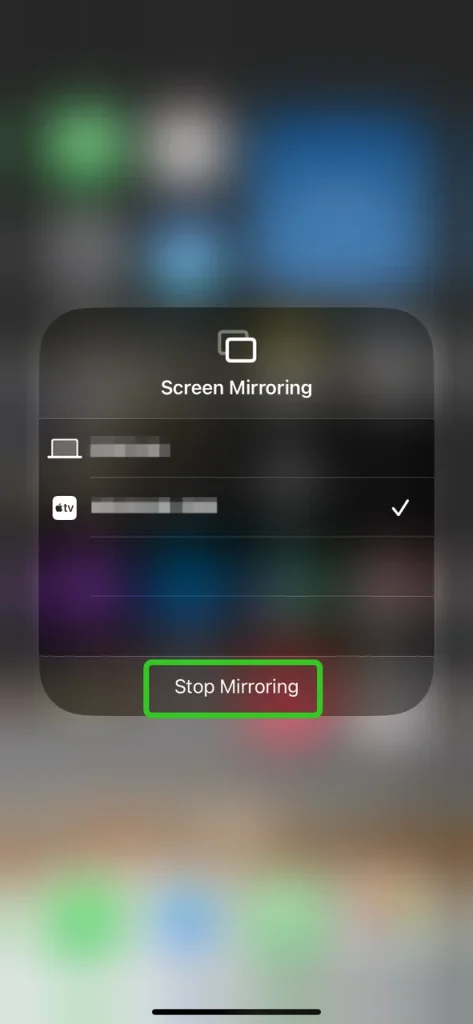
Paso 2. Após concluir o processo de pareamento, você poderá ver a tela do iPhone no dispositivo receptor e aproveitar seu tempo de espelhamento imersivo.
Dicas: Como desligar o espelhamento de tela no iPhone? Sobre como desligar o espelhamento de tela no iPhone, você pode tocar na opção Parar Espelhamento na interface da lista de Espelhamento de Tela.
Como usar AirPlay do iPhone para Android TV
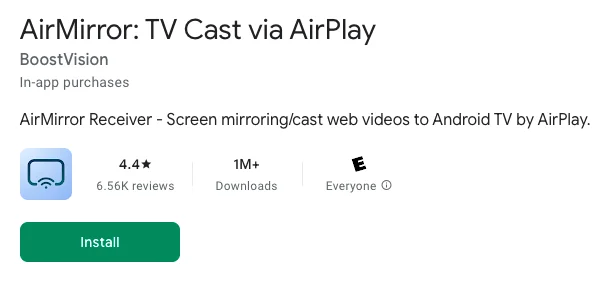
If you want to screen mirroring iPhone to your Android TV, there's a AirPlay receiver app from BoostVision can do you a favor. This app will transform your Android TV to an AirPlay-enbale device that you can directly mirror the screen or air cast photos, web videos and audios from iOS devices to Android TV without device compatibility.

Etapa 1. Baixe o aplicativo AirMirror cast na Android TV onde você deseja receber o conteúdo.
Paso 2. Certifique-se de que seu iPhone e TV estejam conectados à mesma rede sem fio.
Paso 3. Abra o aplicativo receptor de espelhamento e o nome da Android TV será exibido (lembre-se dele).
Etapa 4. Toque em Espelhamento de Tela no dispositivo Apple e escolha o nome da Android TV para começar a transmitir o conteúdo.
Espelhamento de Tela no iPhone Não Está Funcionando
Sometimes, you might encounter issues when trying to mirror your iPhone's screen to another device. Below are some common problems and their potential solutions:

Problemas de Conexão Wi-Fi
Tanto o seu iPhone quanto o dispositivo para o qual deseja espelhar devem estar conectados à mesma rede Wi-Fi. Se estiverem em redes diferentes, o espelhamento de tela não funcionará. Verifique sua conexão Wi-Fi e certifique-se de que ambos os dispositivos estejam na mesma rede.
AirPlay está desativado
If the device you're mirroring to, like an Apple TV, has AirPlay disabled, screen mirroring won't connect. Make sure AirPlay is enabled on the receiving device.
Software desatualizado
Às vezes, uma versão desatualizada do iOS pode impedir o funcionamento correto do espelhamento de tela. Certifique-se de que tanto o seu iPhone quanto o dispositivo receptor estejam com as atualizações de software mais recentes instaladas.
Compatibilidade de Dispositivos
Nem todos os dispositivos são compatíveis com o espelhamento de tela via AirPlay. Certifique-se de que o dispositivo para o qual deseja espelhar seja compatível com AirPlay e espelhamento de tela.
Interferência de Bluetooth e AirDrop
Se o Bluetooth ou o AirDrop estiverem ativados no seu iPhone, isso pode causar interferência no processo de espelhamento de tela. Desative o Bluetooth e o AirDrop e tente novamente.
Para resumir
Now that you know how to activate screen mirroring on iPhone and also enable it, you're all set to share your iPhone's display with any compatible device. Just follow the steps in this guide to start mirroring in no time, and use the troubleshooting tips to resolve any issues that come up along the way.
Como Ativar o Espelhamento de Tela no iPhone - Perguntas Frequentes
P: Como ativar o espelhamento de tela no iPhone?
To turn on screen mirroring on your iPhone, swipe down from the top-right corner or swipe up from the bottom to open the Control Center. Tap the "Screen Mirroring" button, then select the device you want to mirror your screen to, such as an Apple TV or smart TV.
P: Por que o espelhamento de tela não está aparecendo no meu iPhone?
If screen mirroring isn't showing on your iPhone, it could be due to a few reasons:
Your devices might not be on the same Wi-Fi network, AirPlay might be disabled on the device you're trying to mirror to, or your iPhone's software might need an update. Make sure both devices are connected to the same network, AirPlay is turned on, and that both devices are running the latest software.
P: Como usar o AirPlay do iPhone para a TV?
- Certifique-se de que seu iPhone e sua TV estejam conectados à mesma rede Wi-Fi.
- Ative o recurso AirPlay na sua TV.
- Deslize para baixo a partir do canto superior direito (em iPhones com Face ID) ou deslize para cima a partir da parte inferior (em modelos mais antigos com botão Home) para abrir a Central de Controle.
- Tap the "Screen Mirroring" button, and a list of available devices will appear. Select your TV (or Apple TV) from the list. If prompted, enter the code that appears on your TV. Once connected, your iPhone screen will start mirroring to the TV.
P: Como desligar o espelhamento do iPhone?
Basta abrir a interface de espelhamento de tela no seu iPhone, e você verá a opção Parar Espelhamento. Então, toque neste botão para desligar o espelhamento do seu iPhone.
P: Alguém pode fazer o espelhamento de tela do meu iPhone sem eu saber?
Não, ninguém pode espelhar a tela do seu iPhone sem o seu conhecimento. O espelhamento de tela com um iPhone requer sua permissão e geralmente envolve estar conectado à mesma rede Wi-Fi e selecionar seu dispositivo através do AirPlay. Quando alguém tenta espelhar sua tela, uma solicitação aparece no seu iPhone pedindo aprovação.
Auric Celine
Auric Celine é uma redatora de conteúdo web para a BoostVision, interessada em dispositivos inteligentes e atenta à experiência visual. Ela visa produzir informações profissionais para ajudar outros a se envolverem na tendência de mídia de transmissão e terem uma experiência visual maravilhosa assim como ela.