
If you want to show your iPhone screen on a bigger display like a TV or projector, screen mirroring is a handy tool. Whether you're sharing photos, videos, or presentations, it's super useful. In this guide, we'll show you how to turn on screen mirroring on iPhone, troubleshoot common problems, and answer some frequently asked questions.
What Is Screen Mirroring on iPhone
Screen mirroring lets you wirelessly share your iPhone's display on a larger screen like a TV, projector, or smart display. Once enabled, anything you see on your iPhone will appear on the connected device, making it perfect for watching movies, viewing photos, playing games, or presenting.
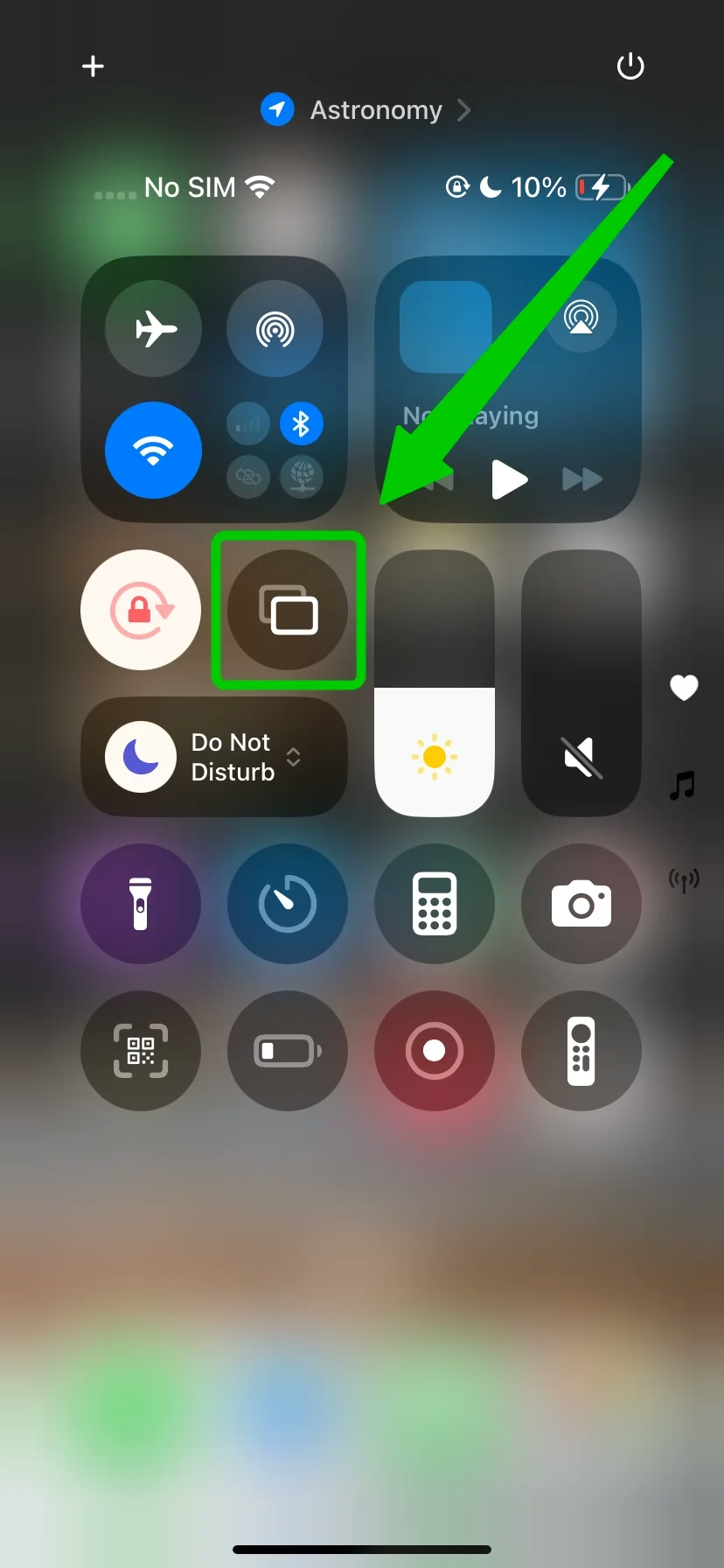
The feature works through Apple's AirPlay technology and is compatible with various devices, including Apple TV, select smart TVs, and popular streaming boxes.
Screen mirroring is great for enjoying media on a bigger screen, collaborating on projects, or easily sharing content with others. It's a simple way to make your iPhone experience more versatile, whether you're working or just having fun.
How to Turn on Screen Mirroring iPhone
Now that you know what screen mirroring is, let's dive into the detailed steps on how to turn screen mirroring on iPhone. Whether you're connecting to an Apple TV or a smart TV, the process is relatively simple.
Move 1. Connect to the Same Wi-Fi Network
First, ensure that both your iPhone and the device you want to mirror to (like an Apple TV or smart TV) are connected to the same Wi-Fi network. This is crucial for the devices to communicate.
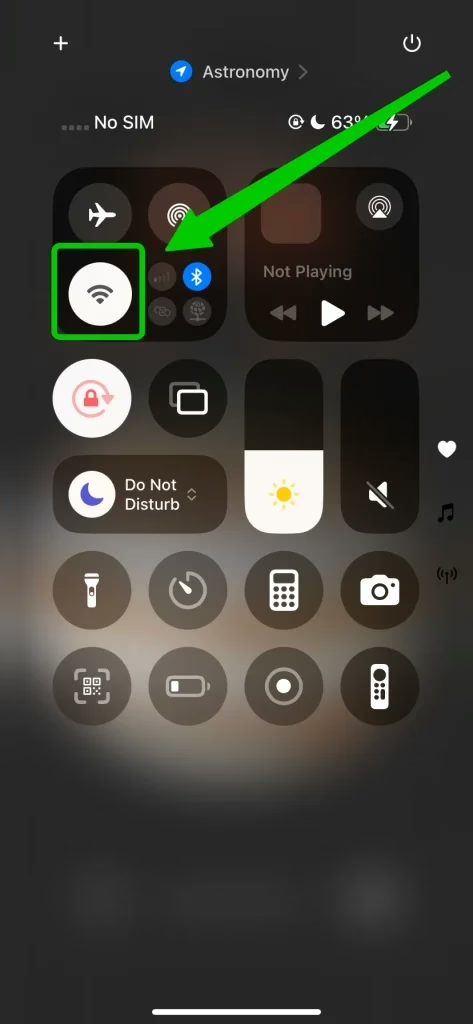
Step 1. Open the control center on your iPhone. If you're using an iPhone with Face ID (iPhone X or later), swipe down from the top-right corner of the screen to open the Control Center. If you have an iPhone with a Home button (iPhone 8 or earlier), swipe up from the bottom of the screen.
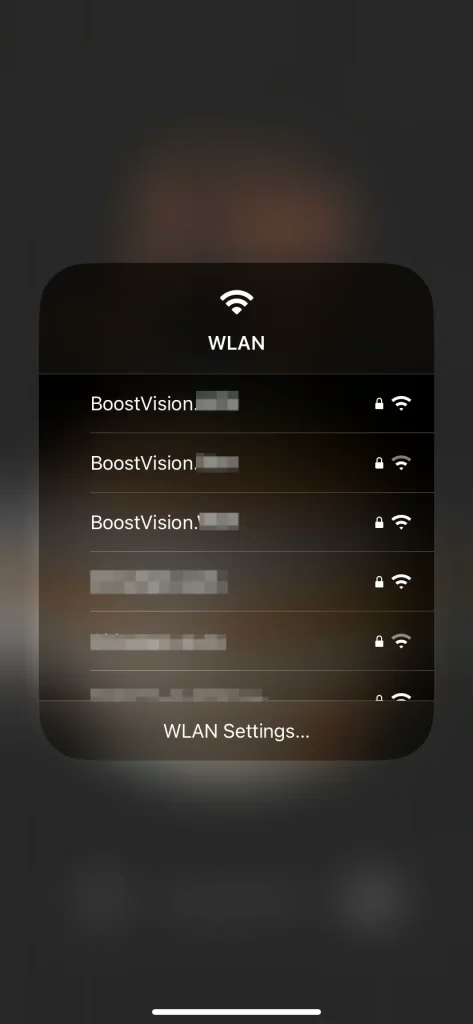
Step 2. Tap the Wi-Fi icon to select the right network, then enter the password to connect.
Move 2. Enable Screen Mirroring
In the Control Center, locate the Screen Mirroring option. This is usually represented by an icon with two overlapping rectangles, symbolizing the connection between your iPhone and the display you're mirroring to. If you're not sure where to find it, it's typically right next to other options like "AirDrop" or "Do Not Disturb."
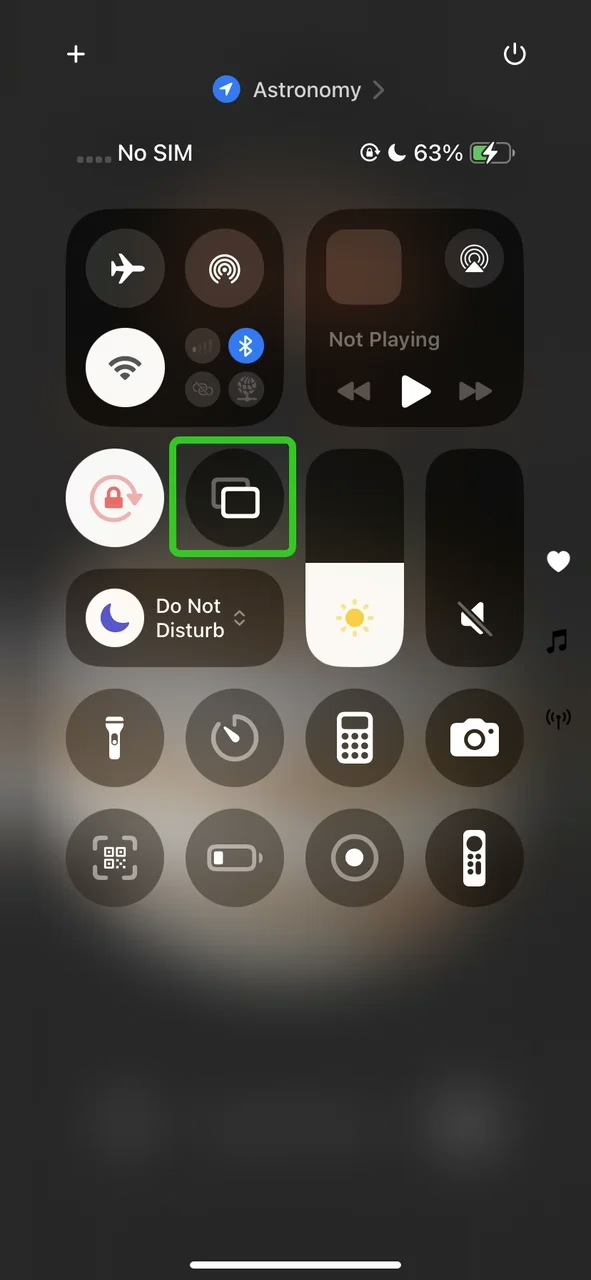
Step 1. Launch the Control Center again.
Step 2. Click the Screen Mirroring in the Control Center to create the connection between your iPhone and the device.
Move 3. Pair Your Device
You'll see a list of available devices ready to mirror your screen. Pick the one you want to connect to, whether it's an Apple TV, smart TV, or another AirPlay-compatible device, and you're all set!
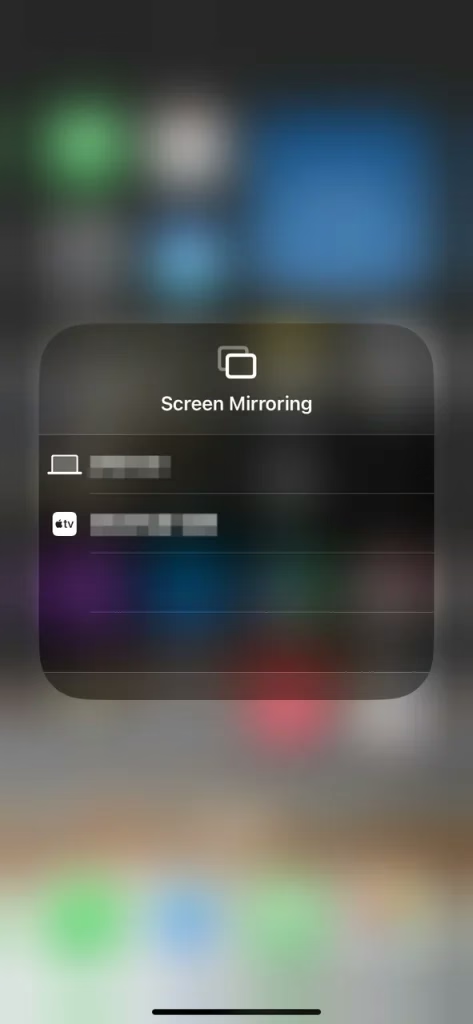
Step 1. If you're connecting to an Apple TV or another device that requires a PIN, a four-digit code will appear on the screen. Simply enter this code on your iPhone to establish the connection.
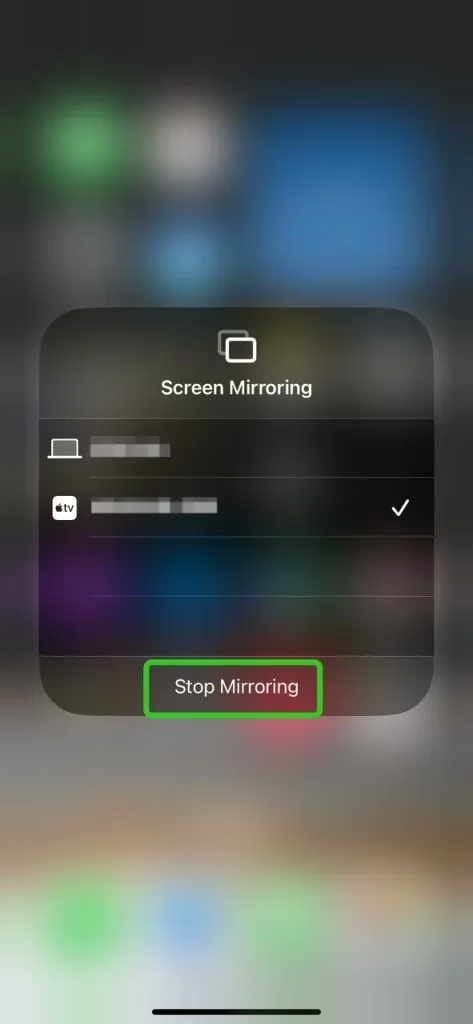
Step 2. After finishing the pairing process, you can see the iPhone screen on the receiver device and enjoy your immersive mirroring time.
Tips: How to turn screen mirroring off on iPhone?About how to turn off screen mirroring on iPhone, you can tap the Stop Mirroring option on the Screen Mirroring list interface.
How to AirPlay iPhone to Android TV
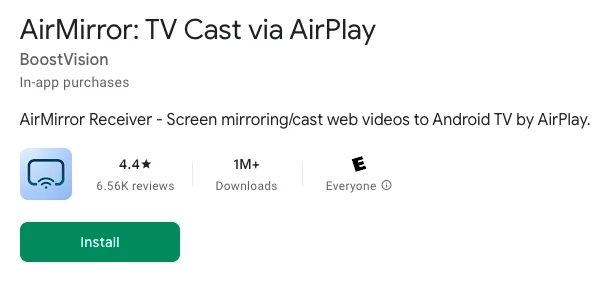
If you want to screen mirroring iPhone to your Android TV, there's a AirPlay receiver app from BoostVision can do you a favor. This app will transform your Android TV to an AirPlay-enbale device that you can directly mirror the screen or air cast photos, web videos and audios from iOS devices to Android TV without device compatibility.

Step 1. Download the AirMirror cast app on Android TV where you want to receive content.
Step 2. Ensure your iPhone and TV are covered by the same wireless network.
Step 3. Launch the mirroring receiver app and the name of Android TV will be shown (remember it).
Step 4. Tap Screen Mirroring on the Apple device and choose the Android TV name to start streaming content.
Screen Mirroring on iPhone Not Working
Sometimes, you might encounter issues when trying to mirror your iPhone's screen to another device. Below are some common problems and their potential solutions:
Wi-Fi Connection Issues
Both your iPhone and the device you want to mirror must be connected to the same Wi-Fi network. If they are on different networks, screen mirroring will not work. Check your Wi-Fi connection and ensure both devices are on the same network.
AirPlay Is Disabled
If the device you're mirroring to, like an Apple TV, has AirPlay disabled, screen mirroring won't connect. Make sure AirPlay is enabled on the receiving device.
Outdated Software
Sometimes, an outdated iOS version can prevent screen mirroring from working properly. Ensure that your iPhone and the receiving device are both running the latest software updates.
Device Compatibility
Not all devices support screen mirroring via AirPlay. Make sure that the device you want to mirror to is compatible with AirPlay and screen mirroring.
Bluetooth and AirDrop Interference
If you have Bluetooth or AirDrop enabled on your iPhone, it could cause interference with the screen mirroring process. Turn off Bluetooth and AirDrop, and try again.
To Sum Up
Now that you know how to activate screen mirroring on iPhone and also enable it, you're all set to share your iPhone's display with any compatible device. Just follow the steps in this guide to start mirroring in no time, and use the troubleshooting tips to resolve any issues that come up along the way.
How to Turn On Screen Mirroring on iPhone FAQ
Q: How to turn on screen mirroring on iPhone?
To turn on screen mirroring on your iPhone, swipe down from the top-right corner or swipe up from the bottom to open the Control Center. Tap the "Screen Mirroring" button, then select the device you want to mirror your screen to, such as an Apple TV or smart TV.
Q: Why is screen mirroring not showing on my iPhone?
If screen mirroring isn't showing on your iPhone, it could be due to a few reasons:
Your devices might not be on the same Wi-Fi network, AirPlay might be disabled on the device you're trying to mirror to, or your iPhone's software might need an update. Make sure both devices are connected to the same network, AirPlay is turned on, and that both devices are running the latest software.
Q: How to AirPlay from iPhone to TV?
Q: How do I turn iPhone mirroring off?
Simply launch the screen mirroring interface on your iPhone, and you will see the Stop Mirroring option. Then, tap this button to turn your iPhone mirorring off.
Q: Can someone screen mirror my iPhone without me knowing?
No, someone cannot screen mirror your iPhone without your knowledge. Screen mirroring with an iPhone requires your permission and usually involves connecting to the same Wi-Fi network and selecting your device through AirPlay. When someone tries to mirror your screen, a prompt appears on your iPhone asking for approval.


![[2025 Methods] How to Mirror iPhone to TV?](/_next/image?url=https%3A%2F%2Fhelpful-fun-dead826d03.media.strapiapp.com%2Fhow_to_mirror_iphone_to_tv_banner_820defdccc.avif&w=3840&q=80)

