

 English
 Portuguese
 Spanish
 French
 German
 Japanese
 Auric Celine

If you want to show your iPhone screen on a bigger display like a TV or projector, screen mirroring is a handy tool. Whether you're sharing photos, videos, or presentations, it's super useful. In this guide, we'll show you how to turn on screen mirroring on iPhone, troubleshoot common problems, and answer some frequently asked questions.
Table des matières
Qu’est-ce que la Recopie d’Écran sur iPhone
Screen mirroring lets you wirelessly share your iPhone's display on a larger screen like a TV, projector, or smart display. Once enabled, anything you see on your iPhone will appear on the connected device, making it perfect for watching movies, viewing photos, playing games, or presenting.

The feature works through Apple's AirPlay technology and is compatible with various devices, including Apple TV, select smart TVs, and popular streaming boxes.
Screen mirroring is great for enjoying media on a bigger screen, collaborating on projects, or easily sharing content with others. It's a simple way to make your iPhone experience more versatile, whether you're working or just having fun.
Comment Activer la Recopie d’Écran sur iPhone
Now that you know what screen mirroring is, let's dive into the detailed steps on how to turn screen mirroring on iPhone. Whether you're connecting to an Apple TV or a smart TV, the process is relatively simple.
Étape 1. Connectez-vous au Même Réseau Wi-Fi
Tout d’abord, assurez-vous que votre iPhone et l’appareil sur lequel vous souhaitez effectuer la recopie (comme une Apple TV ou une smart TV) sont connectés au même réseau Wi-Fi. C’est essentiel pour que les appareils puissent communiquer.

Étape 1. Open the control center on your iPhone. If you're using an iPhone with Face ID (iPhone X or later), swipe down from the top-right corner of the screen to open the Control Center. If you have an iPhone with a Home button (iPhone 8 or earlier), swipe up from the bottom of the screen.

Étape 2. Appuyez sur l’icône Wi-Fi pour sélectionner le bon réseau, puis saisissez le mot de passe pour vous connecter.
Étape 2. Activez la Recopie d’Écran
In the Control Center, locate the Duplication d'écran option. This is usually represented by an icon with two overlapping rectangles, symbolizing the connection between your iPhone and the display you're mirroring to. If you're not sure where to find it, it's typically right next to other options like "AirDrop" or "Do Not Disturb."

Étape 1. Ouvrez à nouveau le Centre de contrôle.
Étape 2. Cliquez sur Recopie d’écran dans le Centre de contrôle pour établir la connexion entre votre iPhone et l’appareil.
Étape 3. Associez Votre Appareil
You'll see a list of available devices ready to mirror your screen. Pick the one you want to connect to, whether it's an Apple TV, smart TV, or another AirPlay-compatible device, and you're all set!

Étape 1. If you're connecting to an Apple TV or another device that requires a PIN, a four-digit code will appear on the screen. Simply enter this code on your iPhone to establish the connection.
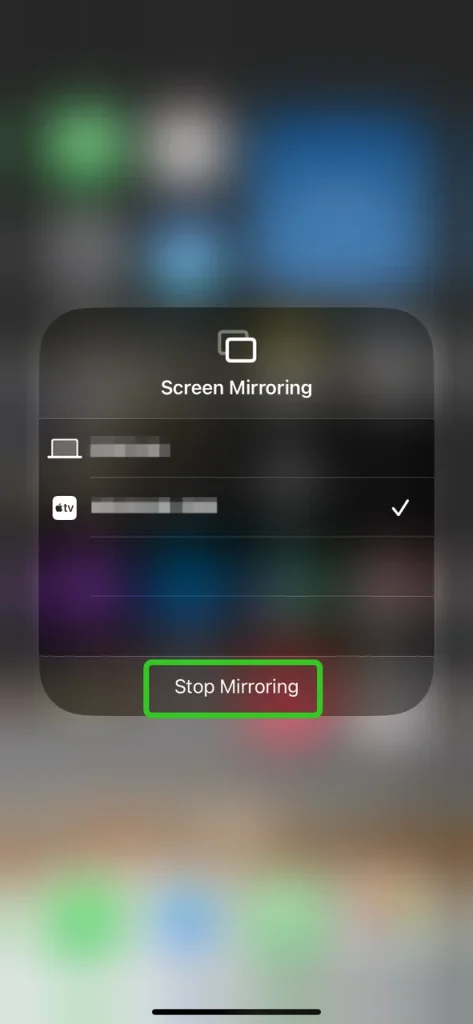
Étape 2. Une fois le processus d’appairage terminé, vous pouvez voir l’écran de votre iPhone sur l’appareil récepteur et profiter pleinement de votre expérience de recopie immersive.
Conseils : Comment désactiver la recopie d’écran sur iPhone ? Pour désactiver la recopie d’écran sur iPhone, vous pouvez appuyer sur l’option Arrêter la recopie dans l’interface de la liste de recopie d’écran.
Comment utiliser AirPlay de l’iPhone vers Android TV
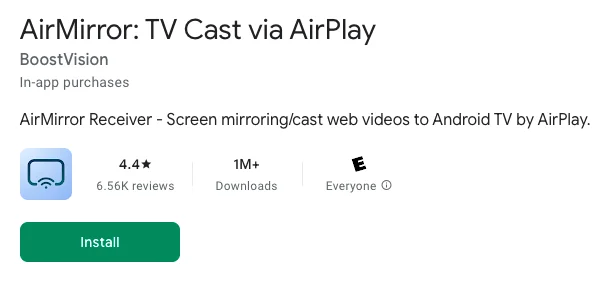
If you want to screen mirroring iPhone to your Android TV, there's a AirPlay receiver app from BoostVision can do you a favor. This app will transform your Android TV to an AirPlay-enbale device that you can directly mirror the screen or air cast photos, web videos and audios from iOS devices to Android TV without device compatibility.

Étape 1. Téléchargez l’application AirMirror cast sur l’Android TV où vous souhaitez recevoir le contenu.
Étape 2. Assurez-vous que votre iPhone et votre TV sont connectés au même réseau sans fil.
Étape 3. Lancez l’application réceptrice de mirroring et le nom de l’Android TV s’affichera (retenez-le).
Étape 4. Appuyez sur Recopie d’écran sur l’appareil Apple et choisissez le nom de l’Android TV pour commencer à diffuser du contenu.
Recopie d’écran sur iPhone ne fonctionne pas
Sometimes, you might encounter issues when trying to mirror your iPhone's screen to another device. Below are some common problems and their potential solutions:

Problèmes de connexion Wi-Fi
Votre iPhone et l’appareil sur lequel vous souhaitez effectuer la recopie doivent être connectés au même réseau Wi-Fi. S’ils sont sur des réseaux différents, la recopie d’écran ne fonctionnera pas. Vérifiez votre connexion Wi-Fi et assurez-vous que les deux appareils sont sur le même réseau.
AirPlay est désactivé
If the device you're mirroring to, like an Apple TV, has AirPlay disabled, screen mirroring won't connect. Make sure AirPlay is enabled on the receiving device.
Logiciel obsolète
Parfois, une version obsolète d’iOS peut empêcher la recopie d’écran de fonctionner correctement. Assurez-vous que votre iPhone et l’appareil de réception disposent des dernières mises à jour logicielles.
Device Compatibility
Tous les appareils ne prennent pas en charge la recopie d’écran via AirPlay. Assurez-vous que l’appareil vers lequel vous souhaitez effectuer la recopie est compatible avec AirPlay et la recopie d’écran.
Interférences Bluetooth et AirDrop
Si le Bluetooth ou AirDrop est activé sur votre iPhone, cela peut interférer avec le processus de recopie d’écran. Désactivez le Bluetooth et AirDrop, puis réessayez.
Pour résumer
Now that you know how to activate screen mirroring on iPhone and also enable it, you're all set to share your iPhone's display with any compatible device. Just follow the steps in this guide to start mirroring in no time, and use the troubleshooting tips to resolve any issues that come up along the way.
Comment Activer la Duplication d’Écran sur iPhone - FAQ
Q : Comment activer la duplication d’écran sur iPhone ?
To turn on screen mirroring on your iPhone, swipe down from the top-right corner or swipe up from the bottom to open the Control Center. Tap the "Screen Mirroring" button, then select the device you want to mirror your screen to, such as an Apple TV or smart TV.
Q : Pourquoi la duplication d’écran ne s’affiche-t-elle pas sur mon iPhone ?
If screen mirroring isn't showing on your iPhone, it could be due to a few reasons:
Your devices might not be on the same Wi-Fi network, AirPlay might be disabled on the device you're trying to mirror to, or your iPhone's software might need an update. Make sure both devices are connected to the same network, AirPlay is turned on, and that both devices are running the latest software.
Q : Comment utiliser AirPlay de l’iPhone vers la télévision ?
- Assurez-vous que votre iPhone et votre télévision sont connectés au même réseau Wi-Fi.
- Activez la fonction AirPlay sur votre télévision.
- Faites glisser vers le bas depuis le coin supérieur droit (sur les iPhones avec Face ID) ou vers le haut depuis le bas (sur les anciens modèles avec bouton Home) pour ouvrir le Centre de Contrôle.
- Tap the "Screen Mirroring" button, and a list of available devices will appear. Select your TV (or Apple TV) from the list. If prompted, enter the code that appears on your TV. Once connected, your iPhone screen will start mirroring to the TV.
Q : Comment désactiver la duplication sur iPhone ?
Il vous suffit d’ouvrir l’interface de duplication d’écran sur votre iPhone, où vous verrez l’option Arrêter la duplication. Ensuite, appuyez sur ce bouton pour désactiver la duplication sur votre iPhone.
Q: Quelqu'un peut-il dupliquer l'écran de mon iPhone sans que je le sache ?
Non, personne ne peut dupliquer l’écran de votre iPhone à votre insu. La duplication d’écran avec un iPhone nécessite votre permission et implique généralement une connexion au même réseau Wi-Fi ainsi que la sélection de votre appareil via AirPlay. Lorsqu’une personne tente de dupliquer votre écran, une demande d’autorisation apparaît sur votre iPhone.
Auric Celine
Auric Celine est rédactrice de contenu web pour BoostVision, elle s'intéresse aux appareils intelligents et attire l'attention sur l'expérience visuelle. Elle vise à fournir des informations professionnelles pour aider les autres à s'engager dans la tendance des médias en diffusion et à avoir une expérience visuelle aussi merveilleuse qu'elle.