
How to mirror Android to Roku free? To handle screen mirroring, you are supposed to activate this feature both on your Android and Roku, then request a connection to your Roku. Once connected, you will see your mobile screen on your TV.
Do Your Devices Support Screen Mirroring?
How to screen mirror to Roku tv from Android? Before implementing screen mirroring steps, you should make sure that your devices support the screen mirroring feature. It indicates you need to check the models of your devices in advance.
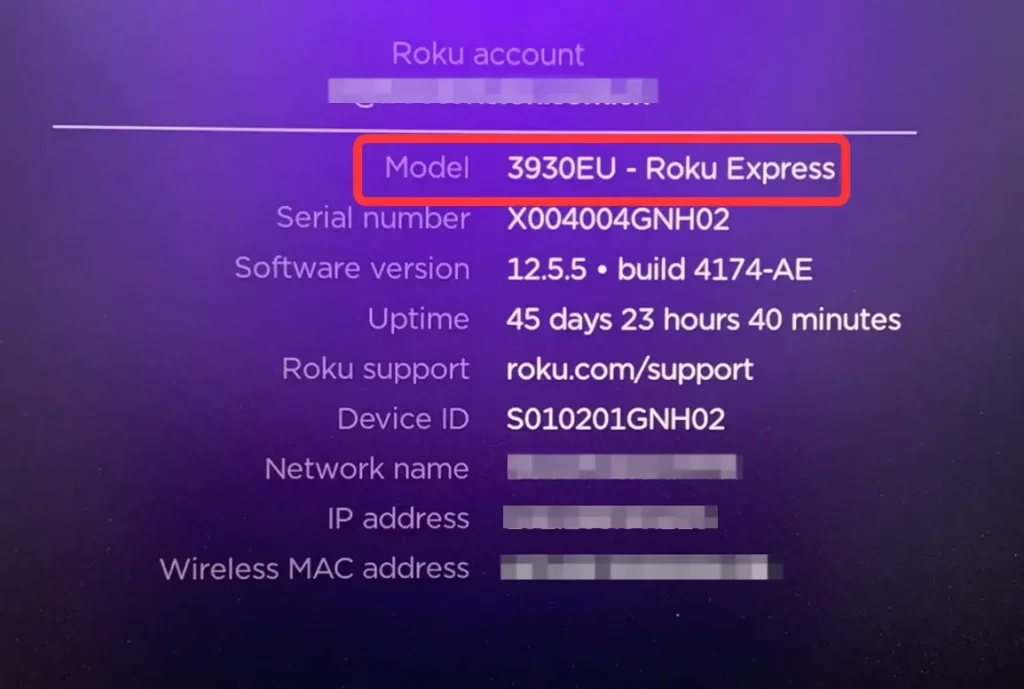
Check the Model of Your Roku
Luckily, most recent Roku devices support screen mirroring, but there are a few exceptions. The Roku Express model 3700 and Roku Express+ model 3710 don't support screen mirroring. For the Roku Express+ model 3910, you can only mirror via HDMI output. To find out which model you have, just go to Settings > System > About on your Roku.
Check the Model of Your Android
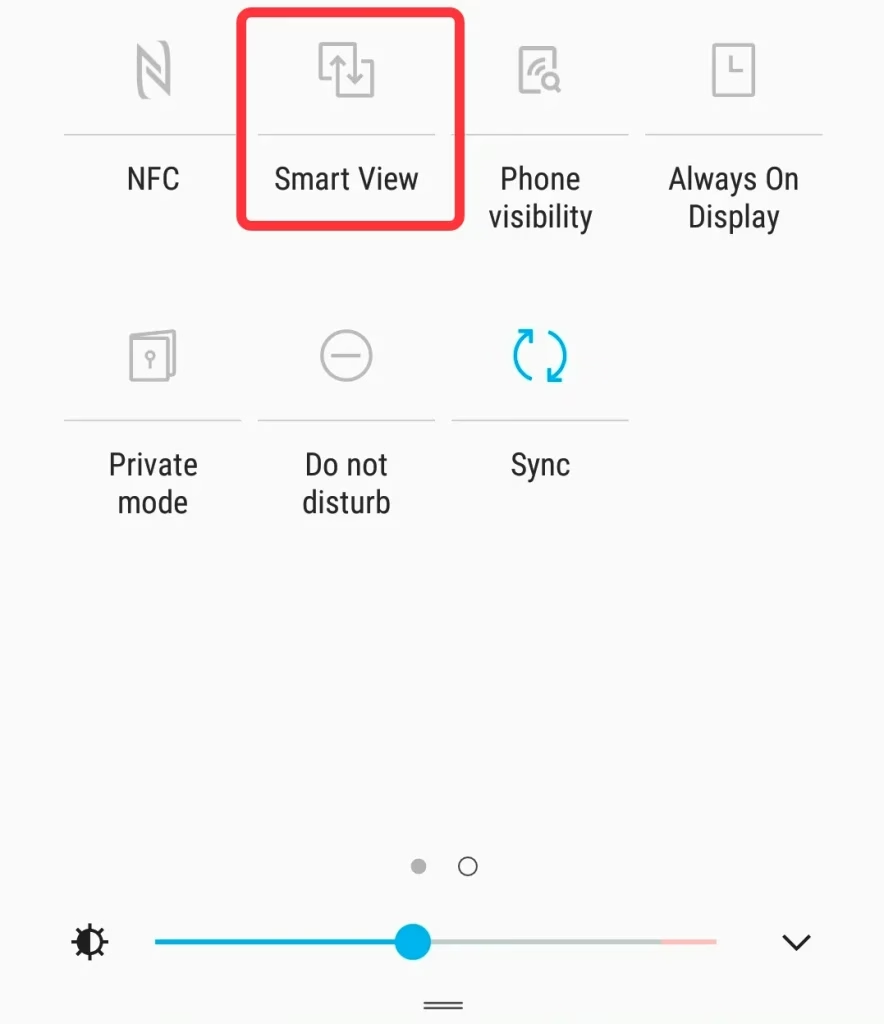
Generally, if your Android device is running version 10.0 or later, it likely supports screen mirroring. To check your version, go to Settings > About. If you're unsure whether your device supports mirroring, you can refer to the product information or visit the official website. Android devices often use specific terms for the screen mirroring feature, including:
How to Mirror Android to Roku
How to screen mirror on Roku TV with Android? Three easy methods are prepared for you, including the built-in mirror feature on Android, a Roku mirror app driven on Android, and an HDMI cable. Now let's read on to check out the ways to achieve it.
Use the Built-in Mirror Feature on Android
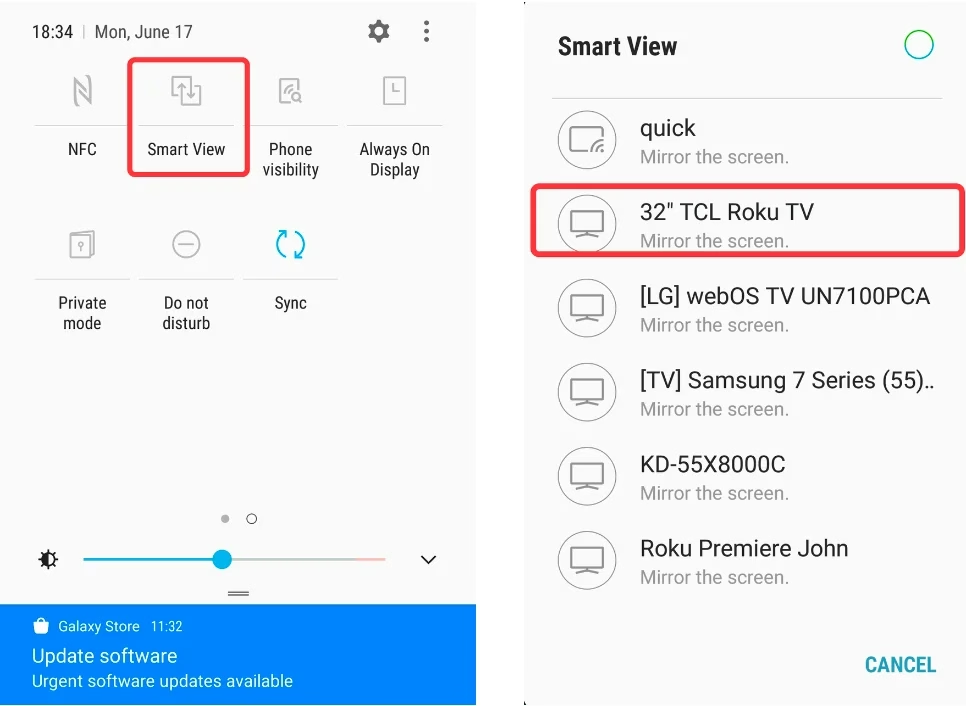
How to screen mirror from Android to Roku? This method uses Smart View on a Samsung Android phone as an example. You can refer to these exact steps to do similar operations on your Android device.
Step 1. Connect your Android and Roku to the same Wi-Fi, which you can check from the WiFi in Settings on Android and Home > Settings > Network > About on Roku.
Step 2. Pull down the status bar, find and tap Smart View. Select your Roku from the device list to start the connection.
Step 3. Follow the instructions on your Roku to start screen mirroring.
Use a Universal Mirror App on Android
How to screen mirror Android to Roku? The second way is to use the free universal mirror app that is designed by BoostVision. It supports a variety of TV devices, such as Roku, FireStick, Samsung, LG, Sony, Vizio, and so on, which can broadcast your Android screen with low latency, reliability, and stability.


Step 1. Download and install the universal mirroring app from the download entry above on your Android device. Ensure both your Android phone and Roku device are connected to the same wireless network.
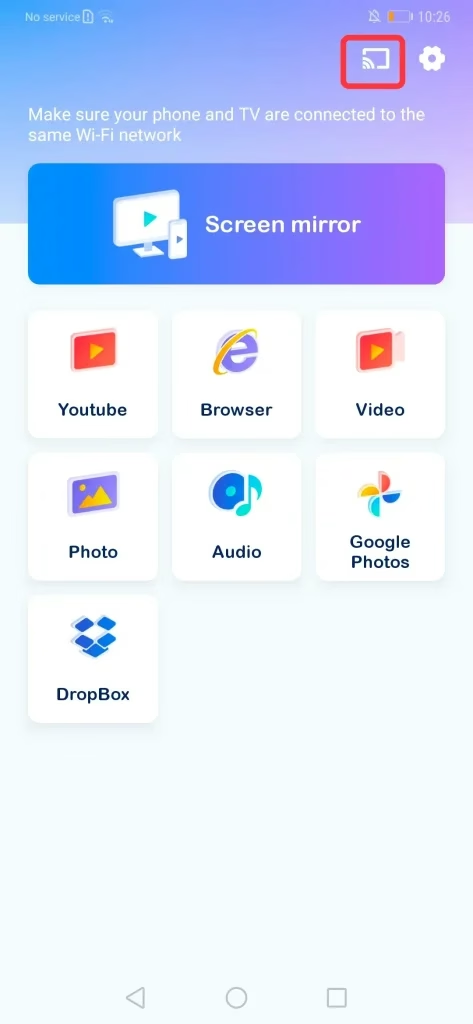
Step 2. Tap the connection entry from the up-to-right corner of this interface to connect your Roku.
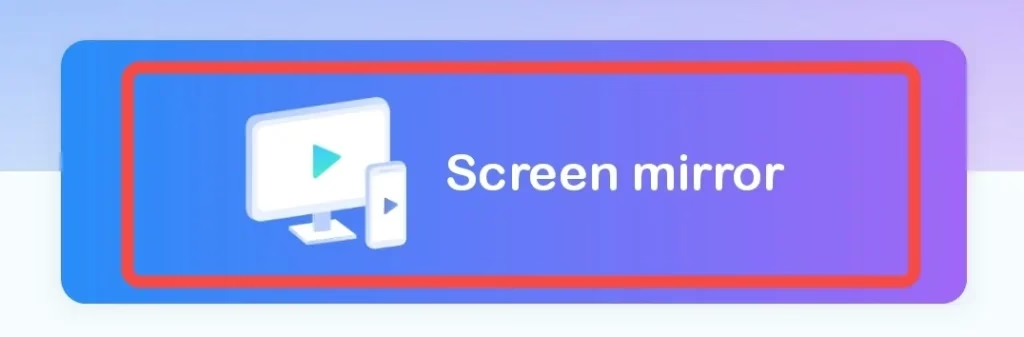
Step 3. Click the Screen mirror feature on the application and choose the Start mirroring button to confirm. Then you will see your Android screen on your Roku.
Use a USB-C to HDMI Adapter
How to screen mirror on Roku with Android? The last means is to use a USB-C to HDMI adapter and this will be helpful if you wonder how to mirror Android to Roku without WiFi.
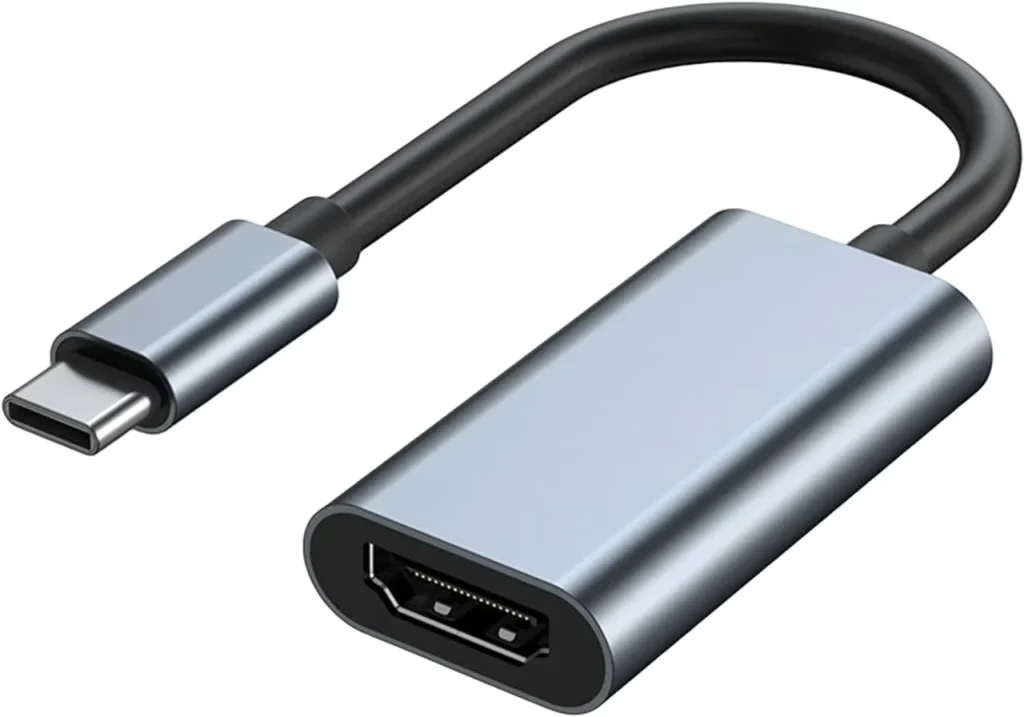
As you can see from the picture, you need a USB-C to HDMI adapter and an HDMI cable to conduct this method. If you get ready to do it, now follow the steps as follows:
Step 1. Connect the USB-C to HDMI adapter to the USB-C port on your Android, then connect the other end to the HDMI cable.
Step 2. Insert another side of the HDMI cable into your Roku's HDMI port.
Step 3. Navigate your Roku to change the display source input to the correct HDMI port. When all is done, your Roku screen will display your Android.
Bottom Line
How to screen mirror on Android to Roku? After connecting your Android and Roku, a screen mirroring request will appear. Once you want to stop using screen mirroring, you can simply press the Home button on remote. Hope this article has given satisfactory answers about how to mirror Android phone to Roku TV for you.
How to Mirror Android to Roku Free FAQ
Q: How can I cast from Android to Roku for free?
Just like how to screen mirror this passage mentioned above. You can use the built-in cast feature on your Android devices, leverage the universal mirror & cast app of BoostVision, or use a USB-C to HDMI adapter to mirror your Android to Roku.
Q: Why won't my Android phone mirror my Roku TV?
Maybe your devices do not support mirror features, or the mirror feature are not activated on your devices. Additionally, you can check if both your devices are connected to the same Wi-Fi. Provided the three preconditions are met, you can try to reconnect the two devices or restart all your devices, including your Android phone, Roku TV, and Wi-Fi router.