
Google Chromecast makes it easy to stream from your phone to your TV, but sometimes you may see the error "Could not Communicate With Your Chromecast". This is usually caused by a connection issue. While it can be frustrating, the problem is often simple to fix, and this guide will outline the most common causes and solutions.
Reason 1: Devices have their Wi-Fi turned off
The first thing you should check is if you have turned the Wi-Fi of your devices off. Basically, Google Chromecast works with Wi-Fi networks, so if you turned the Wi-Fi switch off, you have no way to connect to your Wi-Fi network, and your device could not communicate with your Chromecast.
Different devices have different ways to turn on their Wi-Fi signal, but if they are absolutely on the very top of your settings menu, no matter you are using an Android device or an iOS device.
Reason 2: Not connecting to the same Wi-Fi network
If your router broadcasts both 2.4GHz and 5GHz Wi-Fi, your phone and Chromecast may end up on different bands. Even if they share the same network name, they function as separate connections. If your phone is on one and your Chromecast is on the other, they won't be able to communicate.
The solution is rather simple. You can distinguish the Wi-Fi network by its name. The one with 5GHz usually has a "5" or "5G" after the name of the Wi-Fi, while the 2.4GHz one keeps its original name or has a "2.4" after its name. Choose the same one for your TV and so do your mobile device.
Reason 3: Wi-Fi network issues
When you have both devices set and linked them to the same Wi-Fi network, but it still doesn't meet each other, there is a chance that your Wi-Fi network is corrupted, and in that case, you should restart your router to fix this issue.
Restarting a router is rather simple, but don't make it wrong. Usually, you need to have two devices to cast a Wi-Fi network, one is the modem for wiring the network to your house, and the other one is the router which casts the Wi-Fi network. Most network carriers nowadays will provide you with a device that integrates modem and router, but before you restart a device, please distinguish them to prevent you from restarting the wrong one.
Reason 4: Chromecast connection issues
If you have already made sure that your Wi-Fi network has nothing wrong, but you still can't have your phone communicate with your Chromecast devices, it could be the connection issues that happened to your Chromecast device.
To solve this problem, you should restart your Chromecast device and give the connection a reset. Restarting a Chromecast is rather simple, just follow these steps.
Step 1. Turn off the TV.
Step 2. Unhook the Chromecast device from the TV by removing the HDMI cable and also unplug the USB power supply cable.
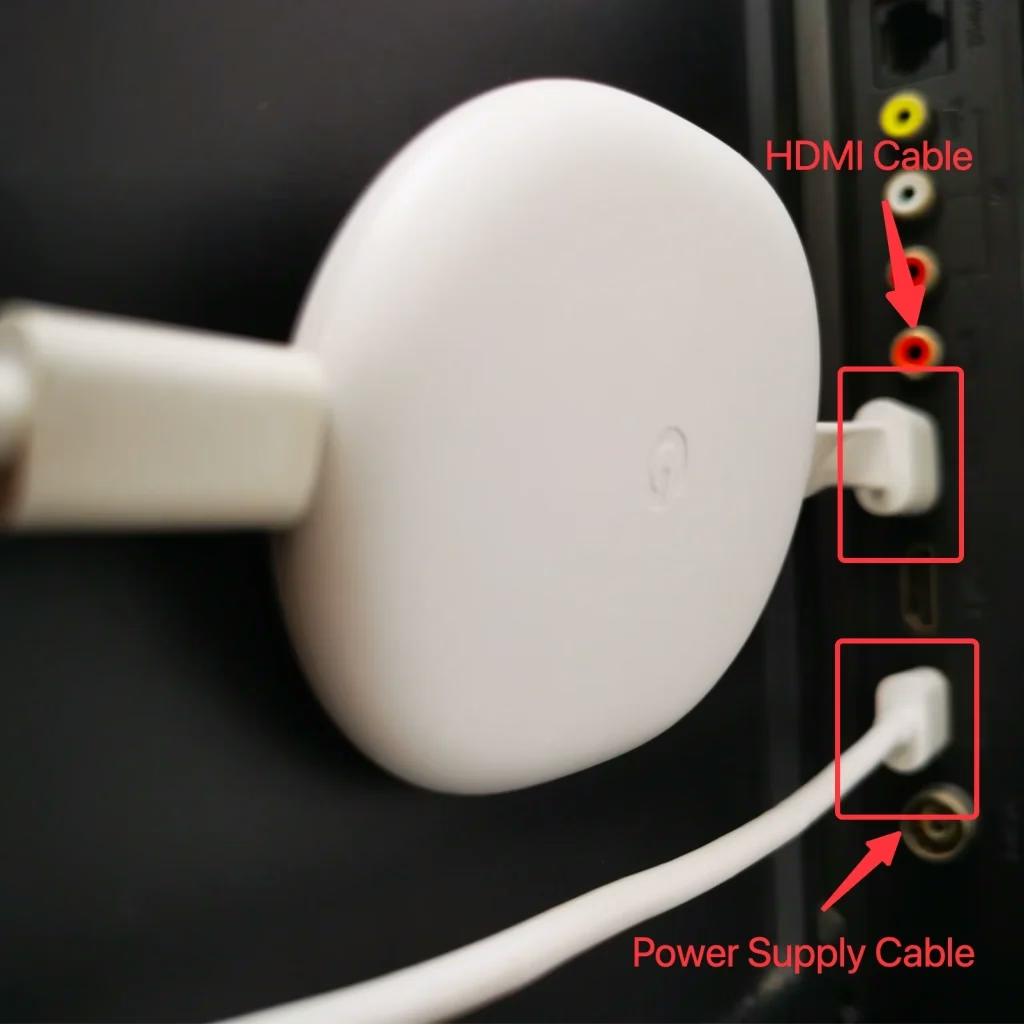
Step 3. Wait for 60 seconds and replug everything back to TV.
Step 4. Turn on the TV and see if it connects.
Reason 5: Phone application critical failure
Usually, you connect your phone to Chromecast with the Google Home app, but it could be experiencing a critical failure that makes your device cannot communicate with your Chromecast. Since you have no way to really debug it by yourself, you should consider finding another application as a replacement.
Personally, I recommend TV Cast for Chromecast by BoostVision, for the sake of stability and user-friendliness.



After you have downloaded and installed the app, follow these steps to connect to your Chromecast devices.
Step 1. Make sure your phone and your Chromecast device are connecting to the same Wi-Fi network.
Step 2. Click the Tap to Connect area.
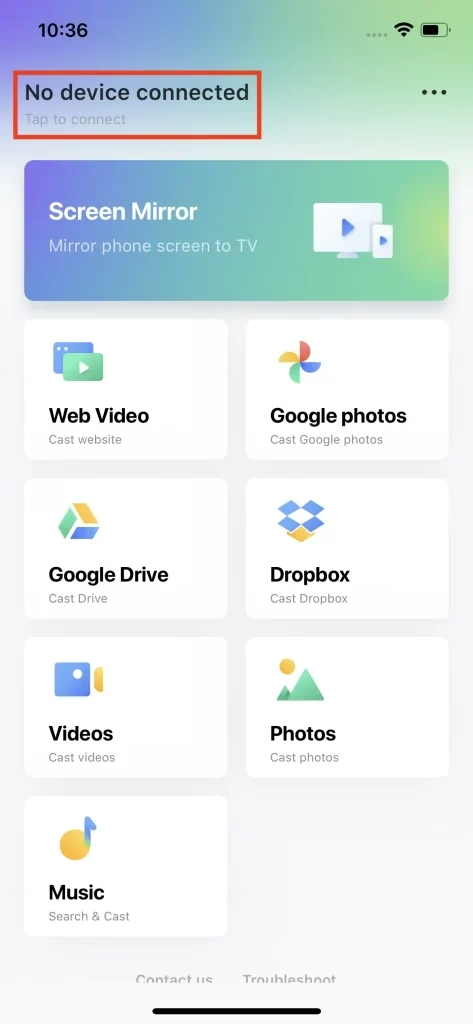
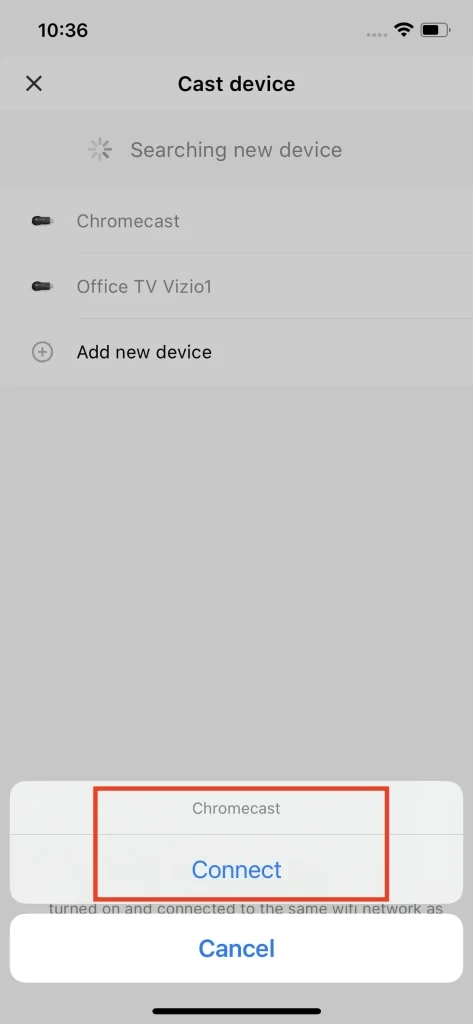
Step 3. Choose your Chromecast from the devices list and click the Connect button.
Conclusion
In order to solve the problem of your phone could not communicate with your Chromecast, you should proceed to check your network, since network problem causes the communication issue nine times out of ten. Restarting your Chromecast device and the router might work, and if it doesn't, just go ahead and swap to another app, and in most cases, it works perfectly fine.
Could not Communicate With Your Chromecast FAQ
Q: Why can't my device communicate with Chromecast?
The reason that your device cannot communicate with Chromecast is mainly because of a bad network connection. To solve this problem, you can try restarting your router, and also restarting your Chromecast. If restarting doesn't work, you can swap to another app (e.g. TV Cast for Chromecast) and see if you can connect.
Q: Why can't I cast to my Google Chromecast?
There are several reasons you can't cast content to your Google Chromecast.
Q: How to fix could not communicate with Chromecast?
Q: Could not communicate to Chromecast from iPhone?
If your iPhone says it "could not communicate with Chromecast", first check that your iPhone and Chromecast are connected to the same Wi-Fi network.
Restart your iPhone, Chromecast, and router, then try again. Make sure the Google Home app is updated, and enables Local Network Access for the Google Home app under iPhone Settings > Privacy > Local Network. If it still doesn't work, reset your Chromecast and set it up again through the Google Home app.

 Mar 26, 2025