
If you need a free Samsung TV remote app for iPhone, the short answer is yes: you can turn your iPhone into a practical Samsung TV controller in minutes, even when your original remote is missing. For most people, setup only requires a shared Wi-Fi network, a compatible Samsung Smart TV, and a quick pairing step.
This guide is for everyday iPhone users who want a simple, reliable way to control power, volume, navigation, and text input from their phone. You will get a step-by-step setup flow, compatibility checks, common fixes when pairing fails, and clear safety tips before you connect.
Key Takeways
Why Use an iPhone Controller for Samsung TV
Using your iPhone as a Samsung TV controller solves a common real-world problem: the physical Samsung remote is lost, has dead batteries, or responds slowly. A phone-based Samsung TV controller can restore basic control fast, especially for wall-mounted TVs where side buttons are hard to reach.
For general users, the biggest benefit is convenience. Your phone is already in your hand, so launching a controller is often faster than searching couch cushions for a remote. You can also type Wi-Fi passwords, streaming search terms, and account logins from your iPhone keyboard instead of clicking one letter at a time.
A second benefit is backup control. Even if you later find the original remote, keeping an iPhone controller configured gives you a fallback whenever the remote disconnects, stops responding, or breaks. This is especially useful in homes with kids, guests, or multiple TVs.
Is There a Free Samsung TV Remote for iPhone
Let's be honest: searching for a free Samsung TV remote app for iPhone often leads to a sea of apps cluttered with intrusive ads or hidden subscriptions. However, you actually have two very solid paths.
If you want the "official" experience, Samsung SmartThings is the gold standard. It's built by Samsung, meaning it won't suddenly stop working after a TV firmware update.
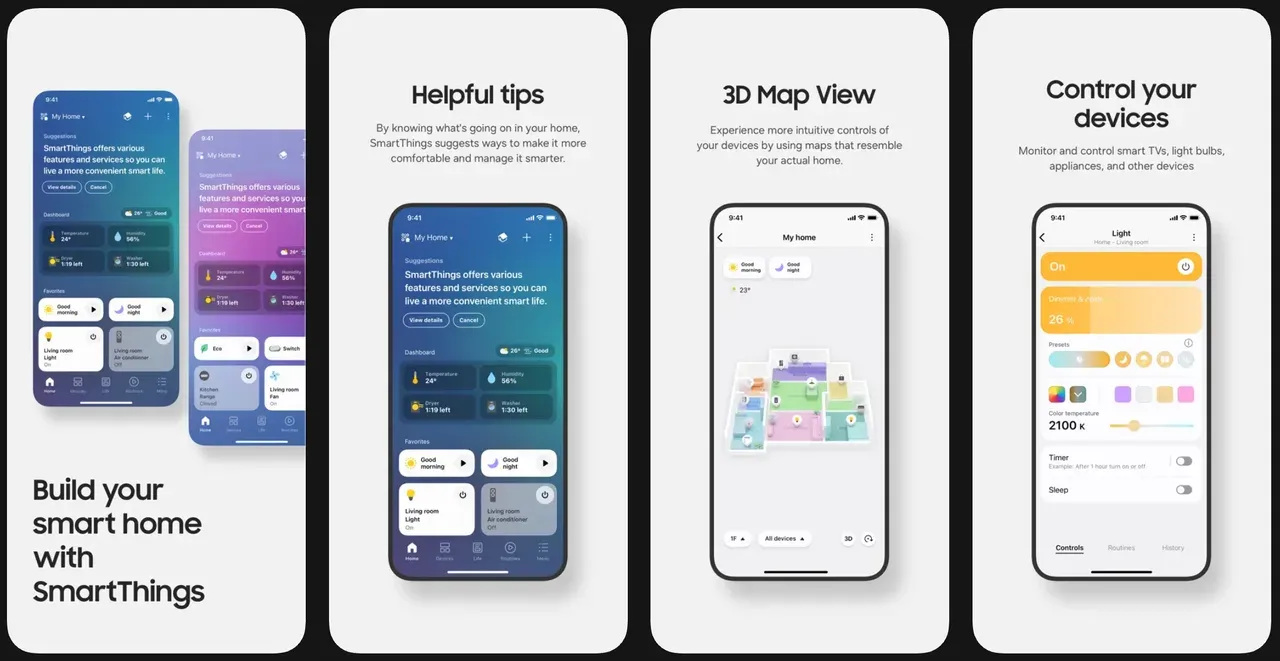
On the flip side, if you find the SmartThings interface a bit bloated or slow to load, a third-party option like Universal Remote for Smart TV might be your best bet. These apps often focus purely on the remote interface, stripping away the "smart home" extras for a faster, more tactile feel.
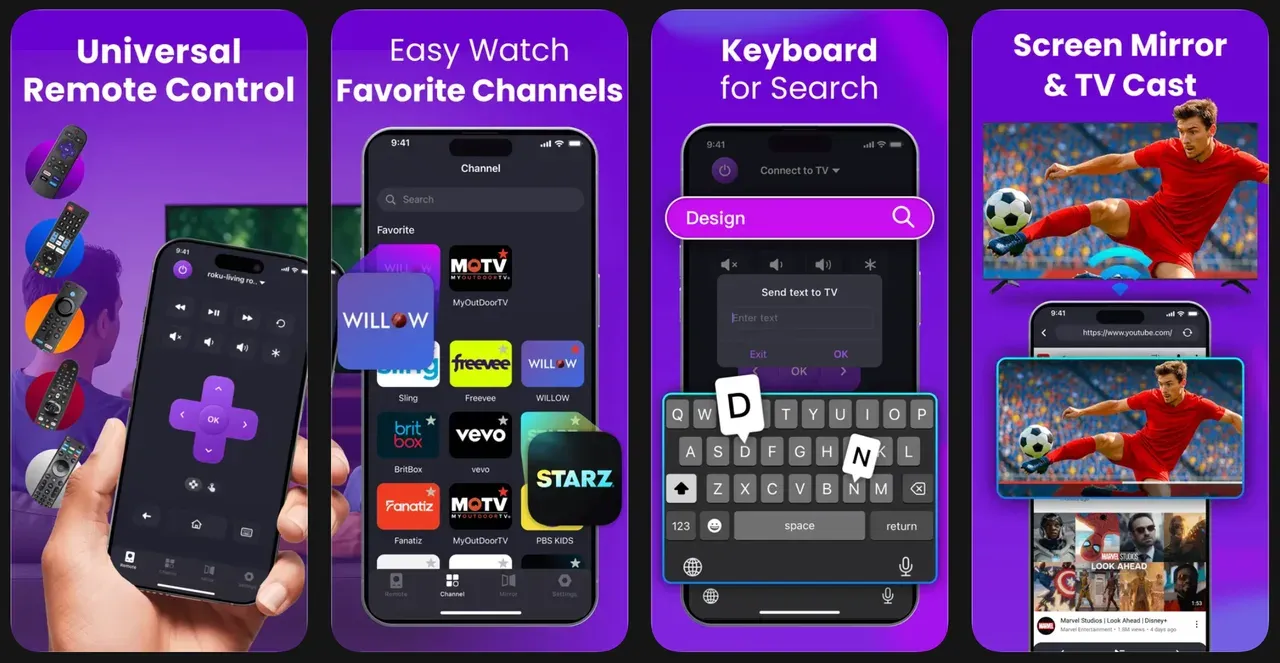
Which is the best free remote app for Samsung TV? Check their differences:
| Feature | Samsung SmartThings (Official) | Universal Remote for Smart TV (Third-Party) |
|---|---|---|
| Best For | Smart home integration & reliability | Quick access & simple UI |
| Setup Speed | Moderate (requires Samsung account login) | Fast (plug & play style pairing) |
| Keyboard Input | Excellent (full system integration) | Very Good |
| Touchpad / Gesture Control | Limited or model dependent | Often includes built-in touchpad simulation |
| Power & Volume Control | Fully supported with native sync | Supported on most models |
| Input Switching (HDMI/Source) | Fully integrated with TV system | Usually supported, may vary by TV brand |
| Voice Control | Supports Bixby and compatible voice assistants | No |
| Channel Control | Full support on Samsung TV tuners | Supported if compatible with TV system |
| Multi-Device Control | Can control multiple Samsung devices in one app | Usually TV-only focus |
| Stability | High (official firmware-level compatibility) | Varies by developer and TV model |
| Offline LAN Control | Yes, over local network | Yes, if same WiFi network |
| Ads | No ads | Often ad-supported in free versions |
| Cross-Brand Support | Samsung TVs primarily | Supports multiple TV brands |
| Price | Free | Free (with ad-supported versions) |
In my experience, the best free Samsung TV remote app for iPhone is the one that actually stays connected. While SmartThings is feature-rich, third-party apps often win on sheer speed when you just need to mute a loud commercial.
Security and Privacy Basics
When you download a Samsung smart TV remote iOS app, you are essentially giving a software tool access to your home network. It's a fair trade for convenience, but stay sharp.
Stick to apps with high ratings and transparent privacy policies. Official apps like SmartThings are vetted by Samsung, but if you go the third-party route, ensure the app doesn't ask for unnecessary permissions like your GPS location or contacts. A Samsung TV remote app for iPhone only needs "Local Network" access to function. If it asks for more, keep scrolling.
How to Set Up a Samsung TV Remote App on Your iPhone
Ready to ditch the search for that lost plastic clicker? Follow these steps to get your Samsung TV remote app iPhone connection up and running.
Step 1: Keep Your iPhone and TV on the Same Wi-Fi Network
Ensure your iPhone and your Samsung TV are breathing the same air—digitally speaking. They must be on the same Wi-Fi SSID. If your router has separate 2.4GHz and 5GHz bands, stick both devices on the same one to avoid "ghost" disconnections.
Step 2: Try Pairing Your iPhone to Your Samsung TV
Step 3: Test the Controls with Your iPhone
Once paired, try the volume toggle first. If the TV reacts, you're golden. You can now use your Samsung iPhone remote to navigate Netflix, YouTube, or adjust your picture settings without leaving the couch.
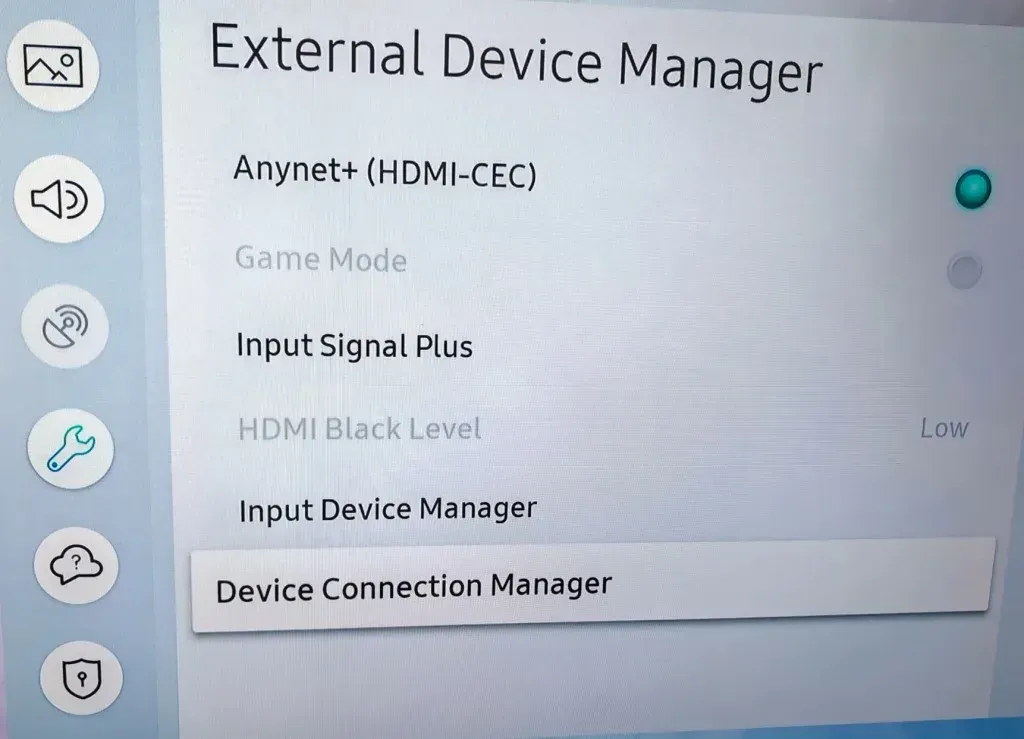
Common Problems and Fast Fixes
Sometimes technology just refuses to cooperate. If your Samsung TV remote iPhone connection is acting up, don't panic.
Final Thoughts
Which one should you choose? If you're already in the Samsung ecosystem, the official app is a no-brainer. But for those who find the official app's login process tedious, the best free remote app for Samsung TV is likely a lightweight third-party alternative that gets straight to the buttons.
Losing a remote is frustrating, but your iPhone is a more-than-capable replacement. Why spend $30 on a piece of plastic that will just fall behind the radiator again?
Free Samsung TV Remote App for iPhone FAQ
Q: Is there a truly free iPhone controller for Samsung TV?
Yes. Many tools offer a free tier that covers core actions like navigation, volume, home/back, and text input. Advanced extras may be limited, but free mode is usually enough for daily control when your original remote is unavailable.
Q: Why won't my iPhone find my Samsung TV?
The most common cause is network mismatch. Your iPhone and TV must be on the same local network, not separate guest or isolated bands. Also, confirm local network permission on iOS and keep the TV awake on the home screen during scanning.
Q: Can I control Samsung TV from iPhone without Wi-Fi?
In most cases, network-based control requires Wi-Fi or wired LAN on the TV side. If the TV and phone are not on the same network, discovery usually fails. For no-network situations, a physical remote remains the most consistent option.
Q: Is it safe to connect my iPhone to a smart TV controller?
It can be safe when you use trusted apps, private home Wi-Fi, and proper permissions. Always review connection prompts, remove unknown paired devices, and avoid open shared networks. Basic router security and software updates improve both privacy and reliability.
Q: What should I do if controls work but power does not?
That behavior is usually model-specific. Some TVs accept navigation commands but restrict power control depending on standby mode or settings. Keep navigation as your fallback, then check TV firmware and power-control options before assuming the app is broken.
Q: Do I need the original Samsung remote for first-time setup?
Not always, but it helps. Some TVs can be paired directly through on-screen approval, while others may require one-time setting changes that are easier with the original remote. If you cannot complete setup, temporary button controls or a replacement remote can unblock you.

 Mar 23, 2026