


 English
 Portuguese
 Spanish
 French
 German
 Japanese
 Auric Celine

If you've ever wanted to share your mobile content on a bigger screen without the hassle of cables, Transmissão AllShare could be the solution you've been looking for. This wireless technology makes it easy to mirror your smartphone or tablet screen to your TV, opening up a world of convenience and entertainment.
Índice
O que é AllShare Transmission
All Share Cast is a wireless screen mirroring technology developed by Samsung, enabling you to stream content from mobile devices to your TV. To use this feature, you typically need an AllShare Cast dongle, which connects to your TV's HDMI port.
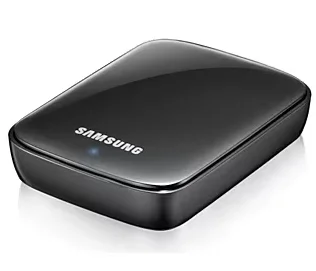
Este dongle capacita seu dispositivo a se comunicar sem fio com sua TV, permitindo que você compartilhe conteúdo, como vídeos, fotos e aplicativos. Uma vez O dongle está configurado., you can easily connect your mobile device to the TV using the AllShare Cast feature in your device's settings.
Como usar o AllShare para transmissão em TV Samsung
Now that you've got a basic understanding of Samsung AllShare, let's take a closer look at how to use AllShare Cast Android (or other mobile device) on your TV. We'll cover the different methods you can use and the compatible devices you need to know about for the best experience.
Espelhe a tela sem o dongle de transmissão AllShare.
If you don't have the AllShare cast dongle, you can follow the detailed steps below to finish the connection process.
Paso 1. Ligue sua TV Samsung e pressione o controle remoto da TV para acessar Menu > Rede > Espelhamento.
Dica: Se você O controle remoto da TV Samsung não está funcionando., você pode tentar um controle remoto virtual para TV Samsung Para substituí-lo. Após concluir o processo de emparelhamento simples, você pode tocar nos botões na tela para controlar sua TV Samsung.

Baixar Controle Remoto para TV Samsung


Paso 2. Ative o Espelhamento No recurso do seu telefone Samsung ou Galaxy Tab, selecione sua Smart TV na lista de dispositivos.
Dispositivos compatíveis: Galaxy S III, Galaxy Note II, Galaxy S 4, Galaxy S 4 Active, Galaxy S 4 Zoom, Galaxy Note 10.1" (2013 and 2014 edition), Galaxy Note Pro 12.2", Galaxy Note 8", Galaxy Tab 38", Galaxy Tab 3 Lite, Galaxy Tab Pro 8.4/10.1/12.2", Galaxy Tab S 8.4"/10.5", Galaxy Note 3, Galaxy Mega, Galaxy Mega 2, Galaxy Avant, Galaxy S 5, Galaxy S 5 Active, Galaxy S 5 Sport, Galaxy S 5 mini, Galaxy Alpha, Galaxy Note 4, Galaxy Note Edge, Galaxy S 6 and Galaxy S 6 Edge.
Espelhamento de Tela com o Dongle de Transmissão AllShare
Depois de possuir o dongle AllShare Cast, você pode usar os cabos que vêm com o dispositivo para espelhar a tela do seu Samsung em uma TV.
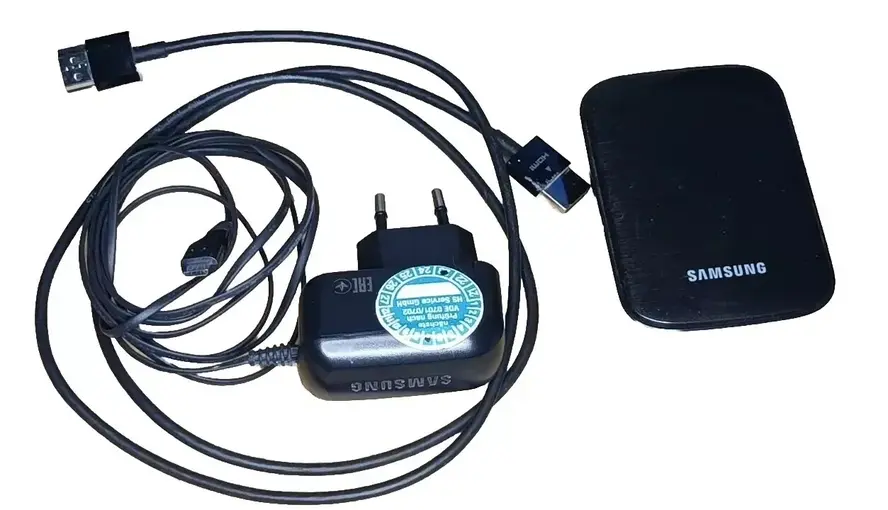
Paso 1. Conecte o carregador na entrada de energia do AllShare Transmission Wireless Hub. Após alguns segundos, o indicador de status ficará vermelho.
Paso 2. Use o cabo HDMI para conectar o AllShare Cast Wireless Hub à sua HDTV. Na sua TV Samsung, altere a fonte de entrada to match the HDMI port you've connected to.
Paso 3. Quando o indicador de status começar a piscar em vermelho, pressione o Reiniciar Pressione o botão por 30 segundos. O indicador deve ficar azul, o que significa que o hub AllShare Transmission está pronto para aceitar outro dispositivo. Agora você pode conectá-lo a um telefone ou tablet.
Paso 4. Deslize para baixo a partir do topo da tela do seu telefone, onde você pode ver a barra de sinal e bateria. Deslize para baixo mais uma vez, você pode ver a Conexão Rápida configurações na parte inferior do menu de notificações.
Paso 5. Abra as configurações e ele começará a escanear dispositivos. Escolha sua TV Samsung na lista de dispositivos disponíveis e ele começará o espelhamento de tela.
Better Alternative to AllShare Cast for Screen Mirroring - Smart TV Cast App
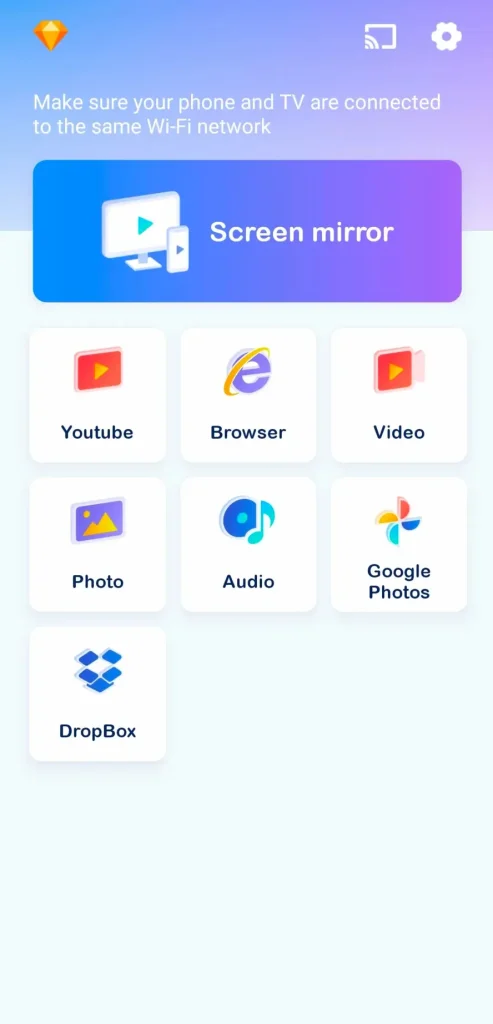
AllShare Cast service is limited to Samsung brand devices, so you can't use AllShare Cast iPhone or AllShare Cast Mac, and you have to adopt other measures to get help. This Aplicativo Universal de Transmissão para Smart TV from BoostVision sem dúvida, atende à maioria das suas necessidades de espelhamento de tela ou transmissão para televisões inteligentes a partir de um dispositivo móvel.
Baixe o Smart TV Cast
Paso 1. Instale o aplicativo Smart TV Cast no seu dispositivo móvel e, em seguida, certifique-se de que seu dispositivo móvel e a televisão estejam na mesma rede WiFi.

Paso 2. Inicie o aplicativo em seu smartphone ou tablet e toque no Transmissão ícone no canto superior direito da interface do aplicativo.
Paso 3. Escolha sua TV na lista de dispositivos para conectar, depois clique no Espelhamento de tela button or one of the Transmissão recursos abaixo (Vídeo, Foto, YouTube, Navegador).
Paso 4. Siga as instruções na tela para iniciar o espelhamento ou transmissão. Então, você pode ter uma experiência elevada em uma tela grande.
Conclusão
While Allshare Cast is an easy and effective way to mirror your mobile screen to your TV, the Smart TV Cast app offers a more versatile and feature-rich alternative. It's simple to use and supports a wider range of devices, making it an excellent option for those looking to enhance their screen mirroring experience.
Perguntas Frequentes sobre Allshare Transmission
P: O que é AllShare Transmission?
AllShare Cast is a Samsung technology that allows users to wirelessly mirror their device's screen to a TV or other compatible displays. It uses a dongle to establish a connection between your mobile device and the TV.
P: Posso fazer a transmissão para a minha TV Samsung?
Yes, you can cast to your Samsung TV in a few different ways depending on the device you're using. For Android devices, you can use the Smart View feature to mirror your screen to the TV, and for iPhones or iPads, you can use AirPlay to wirelessly share content. Additionally, you can choose an HDMI adapter, AllShare Cast, or a TV cast app.
Auric Celine
Auric Celine é uma redatora de conteúdo web para a BoostVision, interessada em dispositivos inteligentes e atenta à experiência visual. Ela visa produzir informações profissionais para ajudar outros a se envolverem na tendência de mídia de transmissão e terem uma experiência visual maravilhosa assim como ela.