



 English
 Portuguese
 Spanish
 French
 German
 Japanese
 Vicky Green
Partager



Are you struggling to connect your Apple TV to Wi-Fi without a remote? Don't worry; we've got you covered! In this blog post, we'll explore various methods to help you connect your Apple TV to Wi-Fi without the need for a physical Apple TV remote. Let's see Comment connecter Apple TV au wifi sans télécommande.
Table des matières
Comment connecter Apple TV à WiFi sans télécommande
Connecting Apple TV to WiFi is a breeze. However, connecting Apple TV to WiFi without a remote might seem tricky, but it’s entirely possible with a few creative solutions. Here are three effective methods to achieve this, and they work when your Apple TV is connected to a network, but you want to switch it to a different one, more stable and robust.
If you haven't set up a network connection on your Apple TV, use an Ethernet cable. Plug one end of the Ethernet cable into the Ethernet port (unavailable on Apple TV 4K 3rd generation) and the other end into your router. Then, your Apple TV will detect the network automatically and connect to it.

Method 1. Use the iPhone's Remote Feature
L'un des moyens les plus simples de contrôlez votre Apple TV sans télécommande physique is by using your iPhone or iPad. Apple's built-in Remote feature allows you to seamlessly control your Apple TV from your iOS device.

Typically, the remote feature is located in the Control Center. So, go to the Control Center on your iPhone and look for the feature. If it isn't listed, go to Paramètres > Centre de contrôle, trouver Télécommande Apple TV under Plus de contrôles, et appuyez sur le Plus vert Icône pour ajouter la fonctionnalité au Centre de contrôle.

Here's how to connect Apple TV to WiFi with iPhone:
Étape 1. Assurez-vous que votre iPhone ou iPad est connecté au même réseau Wi-Fi que votre Apple TV.
Étape 2. Appuyez sur le Télécommande Apple TV Icône dans le Centre de Contrôle pour lancer l'application de télécommande.
Étape 3. Appuyez sur le Choisissez une TV option sur l'écran de l'iPhone.
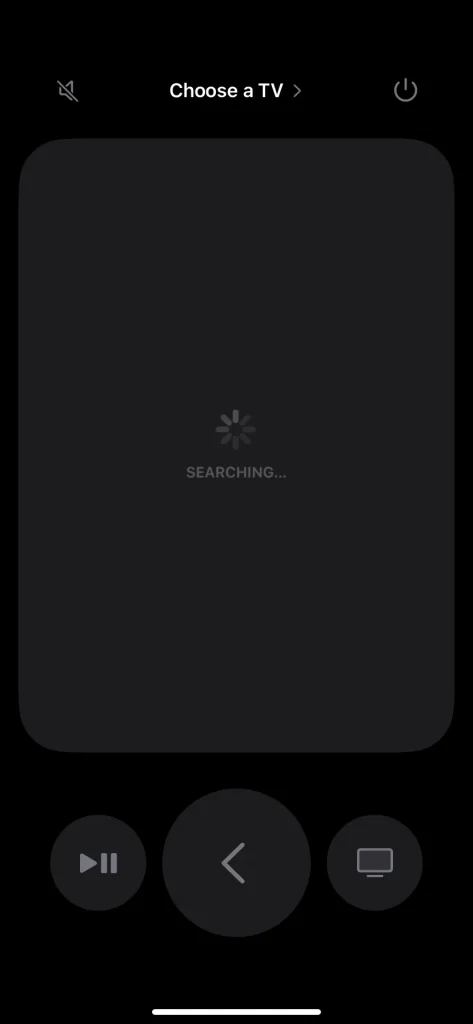
Étape 4. Choisissez votre Apple TV dans la liste des appareils et entrez le code à 4 chiffres affiché sur l'écran de votre Apple TV si cela vous est demandé.
Étape 5. Une fois connecté, connectez votre Apple TV à un réseau Wi-Fi.
Méthode 2. Utiliser un téléphone Android comme télécommande pour Apple TV
If you don't have an iOS device, you can still use an Android phone as a remote for your Apple TV. BoostVision, un développeur de logiciels à distance professionnel, a lancé le Application de télécommande universelle pour TV cela vous permet de contrôler les appareils de streaming principaux avec votre appareil mobile, y compris Apple TV, Roku TV & Stick et plus encore.

Le tiers Application de télécommande pour Apple TV makes it possible to control all generations of Apple TVs with an Android phone or tablet. So, if you've misplaced your Apple TV remote and have an Android mobile device, then the remote app is a great option. Here's how to connect Apple TV to WiFi using an Android phone:
Téléchargez la télécommande universelle pour TV


Étape 1. Obtenez le Télécommande Universelle Téléchargez l'application depuis le Google Play Store et installez-la sur votre téléphone Android.
Étape 2. Assurez-vous que le téléphone Android est connecté au réseau utilisé par votre Apple TV.
Étape 3. Lancez l'application de télécommande sur votre téléphone et suivez les instructions affichées à l'écran pour la connecter à votre Apple TV.

Étape 4. Une fois connecté, vous pouvez utiliser votre téléphone Android comme une télécommande virtuelle pour configurer une connexion réseau différente sur votre Apple TV.
Méthode 3. Utiliser un clavier Bluetooth.
Another option is to use a Bluetooth keyboard to control your Apple TV. Most Bluetooth keyboards have dedicated keys for navigation, play/pause, and other media controls. Here's how to set it up:
Étape 1. Turn on your Bluetooth keyboard and make sure it's in pairing mode.
Étape 2. Sur votre Apple TV, allez à Paramètres > Télécommandes et appareils > Bluetooth Utilisant un iPhone ou un téléphone Android.

Étape 3. Sélectionnez votre clavier Bluetooth dans la liste des appareils disponibles et suivez les instructions affichées à l'écran pour le jumeler.
Étape 4. Une fois apparié, vous pouvez utiliser votre clavier Bluetooth pour contrôler votre Apple TV.
Connecter Apple TV au WiFi
Pour configurer une connexion réseau sur Apple TV, choisissez Paramètres >Général) > Réseau > Wi-Fi, choisissez votre réseau Wi-Fi et saisissez le mot de passe. Notez que l'option Wi-Fi disparaîtra lorsque l'appareil de diffusion sera connecté à un câble Ethernet.
Est Apple TV ne se connecte pas au WiFi.? Le problème est toujours lié au routeur, au firmware, aux anomalies inconnues et aux paramètres incorrects. Si vous rencontrez un problème de connectivité réseau avec votre Apple TV, vérifiez ces causes possibles une par une.
Conclusion
Connecter votre Apple TV à un réseau Wi-Fi sans télécommande peut sembler intimidant, mais avec les méthodes décrites dans cet article de blog, vous devriez pouvoir la mettre en marche rapidement. En suivant les instructions étape par étape fournies, vous pouvez profiter d'une diffusion fluide et de divertissements sur votre Apple TV sans avoir besoin d'une télécommande physique.
Comment connecter Apple TV à WiFi sans télécommande FAQ
Q: Comment connecter l'Apple TV au Wi-Fi ?
Vous pouvez connecter votre Apple TV au Wi-Fi en vous rendant à Paramètres >Général) > Réseau > Wi-Fi, choisissez votre réseau WiFi et saisissez le mot de passe.
Q: Comment réinitialiser le Wi-Fi sur Apple TV?
Pour réinitialiser votre Wi-Fi sur Apple TV, allez à Paramètres > Réseau, sélectionnez votre réseau WiFi et choisissez Oublier le réseau. Ensuite, reconnectez-vous à votre WiFi en le sélectionnant et en entrant le mot de passe.
Vicky Green
Vicky Green est une éditrice de contenu web chez BoostVision qui met régulièrement à jour des blogs pour aider les lecteurs à améliorer leur expérience TV et leur expérience de visionnage. Elle croit qu'une passion sans fin, suffisamment de patience et une forte capacité de réflexion critique peuvent engendrer un grand succès.