
リモコンなしで Apple TV を Wi-Fi に接続するのに苦労していませんか?心配しないで;ご対応させていただきます!このブログ投稿では、物理的な Apple TV リモコンを必要とせずに Apple TV を Wi-Fi に接続するためのさまざまな方法を検討します。リモコンを使わずに Apple TV を Wi-Fi に接続する方法を見てみましょう。
リモコンなしでApple TVをWiFiに接続する方法
Apple TV を WiFi に接続するのは簡単です。ただし、リモコンを使わずに Apple TV を WiFi に接続するのは難しいように思えるかもしれませんが、いくつかの創造的なソリューションを使えば完全に可能です。これを実現するための効果的な方法を 3 つ紹介します。これらの方法は、Apple TV がネットワークに接続されているが、より安定して堅牢な別の方法に切り替えたい場合に機能します。
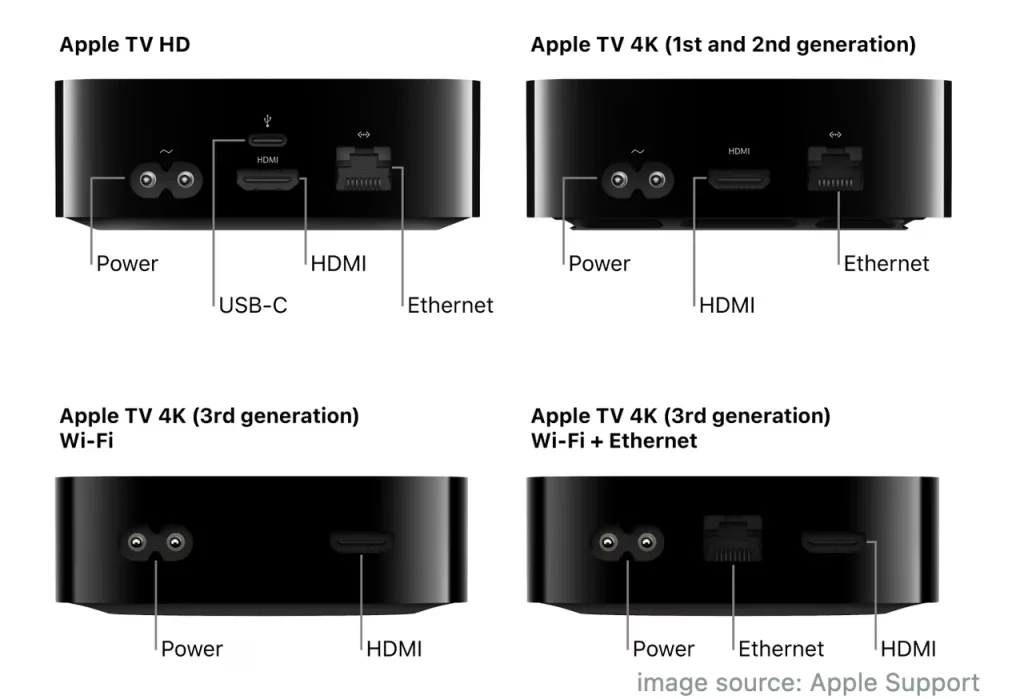
Apple TV でネットワーク接続を設定していない場合は、イーサネット ケーブルを使用してください。 Ethernet ケーブルの一端を Ethernet ポート (Apple TV 4K 第 3 世代では利用不可) に接続し、もう一端をルーターに接続します。その後、Apple TV はネットワークを自動的に検出し、接続します。
方法 1. iPhone のリモート機能を使用する
物理的なリモコンなしで Apple TV を制御する する最も簡単な方法の 1 つは、iPhone または iPad を使用することです。 Apple に組み込まれたリモート機能を使用すると、iOS デバイスから Apple TV をシームレスに制御できます。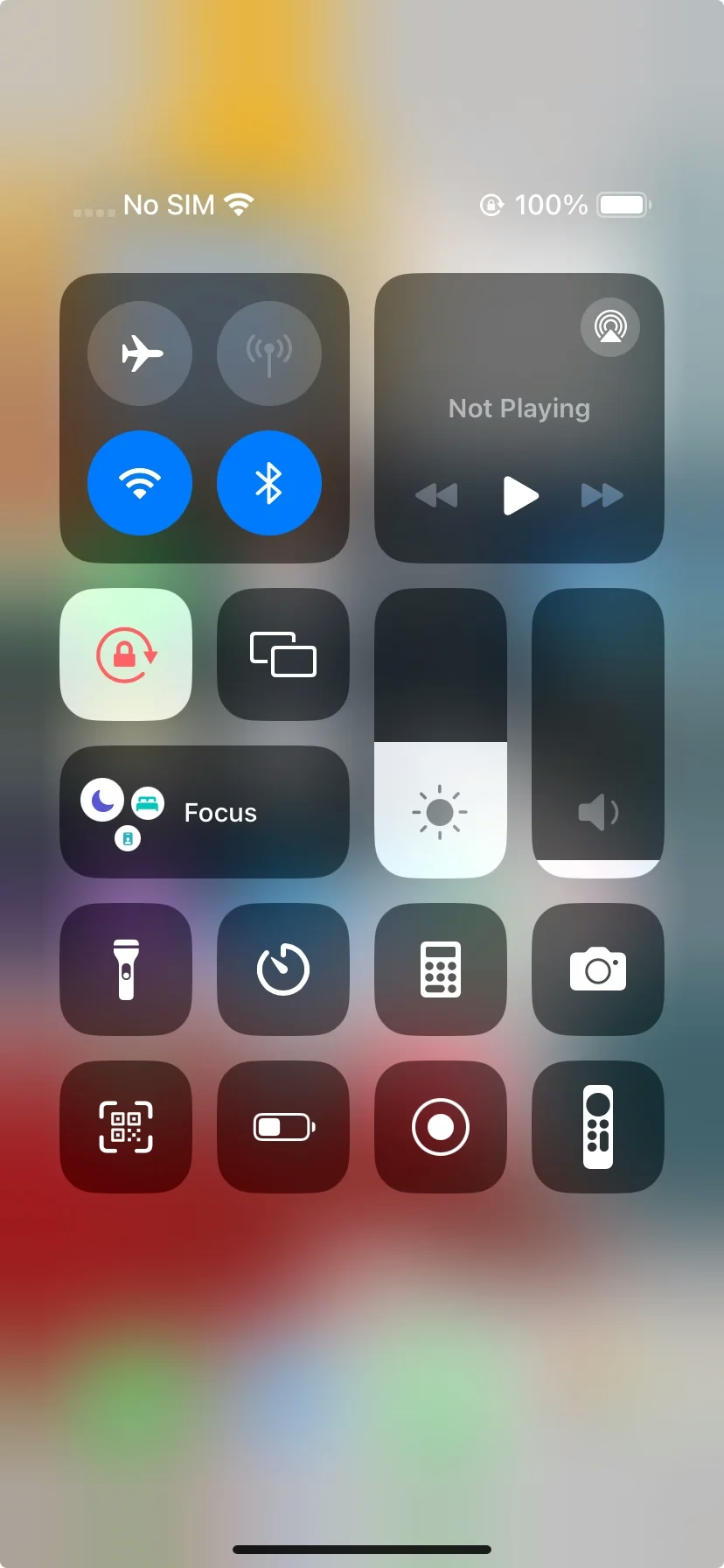
通常、リモート機能はコントロール センターにあります。そこで、iPhone のコントロールセンターにアクセスして、その機能を探してください。リストにない場合は、設定 > コントロール センター に移動し、その他のコントロール で Apple TV リモコン を見つけ、緑色のプラス アイコンをタップして機能をコントロール センターに追加します。
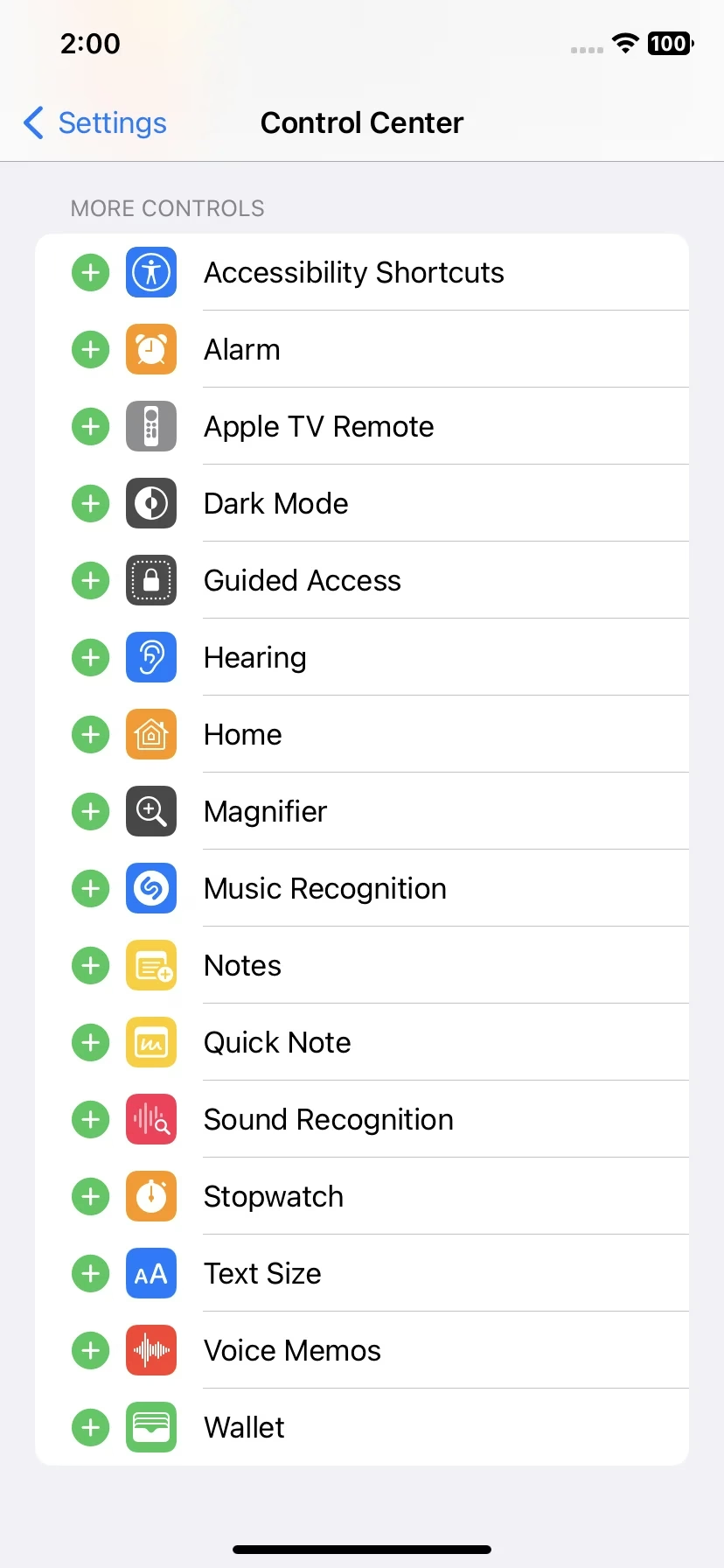
iPhone を使用して Apple TV を WiFi に接続する方法は次のとおりです。
ステップ 1. iPhone または iPad が Apple TV と同じ Wi-Fi ネットワークに接続されていることを確認します。
ステップ 2. コントロールセンターの Apple TV リモート アイコンをタップして、リモート アプリを起動します。
ステップ 3. iPhone 画面で [テレビを選択] オプションをタップします。
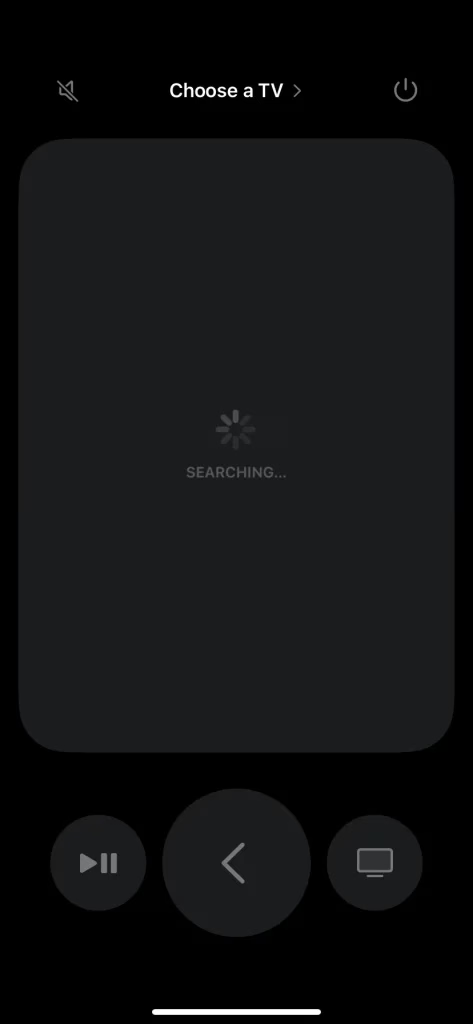
ステップ 4. デバイスリストから Apple TV を選択し、プロンプトが表示されたら Apple TV 画面に表示される 4 桁のコードを入力します。
ステップ 5. 接続したら、Apple TV を Wi-Fi ネットワークに接続します。
方法 2. Android Phone を Apple TV リモコンとして使用する
iOS デバイスをお持ちでない場合でも、Android スマートフォンを Apple TV のリモコンとして使用できます。プロのリモート ソフトウェア開発者である ブースト ビジョン は、Apple TV、Roku TV & Stick などを含む、主流のストリーミング デバイスをモバイル デバイスで制御できるようにする ユニバーサル TV リモコンアプリ をリリースしました。
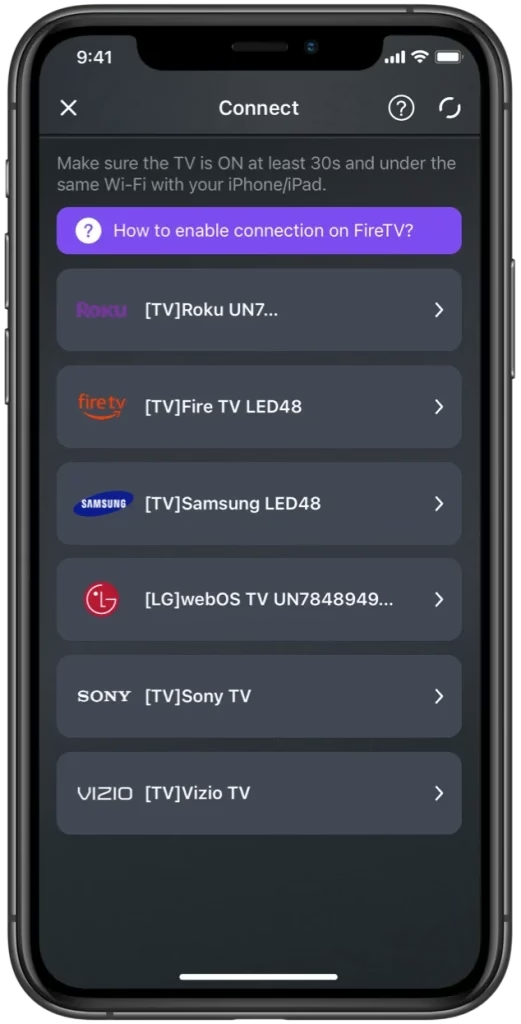
サードパーティの Apple TV 用リモートアプリ を使用すると、Android スマートフォンまたはタブレットですべての世代の Apple TV を制御できるようになります。したがって、Apple TV のリモコンを紛失してしまった場合で、Android モバイル デバイスをお持ちの場合は、リモート アプリが最適なオプションとなります。 Android スマートフォンを使用して Apple TV を WiFi に接続する方法は次のとおりです。
ユニバーサル TV リモコンをダウンロード
ステップ 1. Google Play ストアから Universal TV Remote アプリを入手し、Android スマートフォンにインストールします。
ステップ 2. Android スマートフォンが Apple TV が使用するネットワークに接続されていることを確認します。
ステップ 3. 携帯電話でリモート アプリを起動し、画面上の指示に従って Apple TV に接続します。
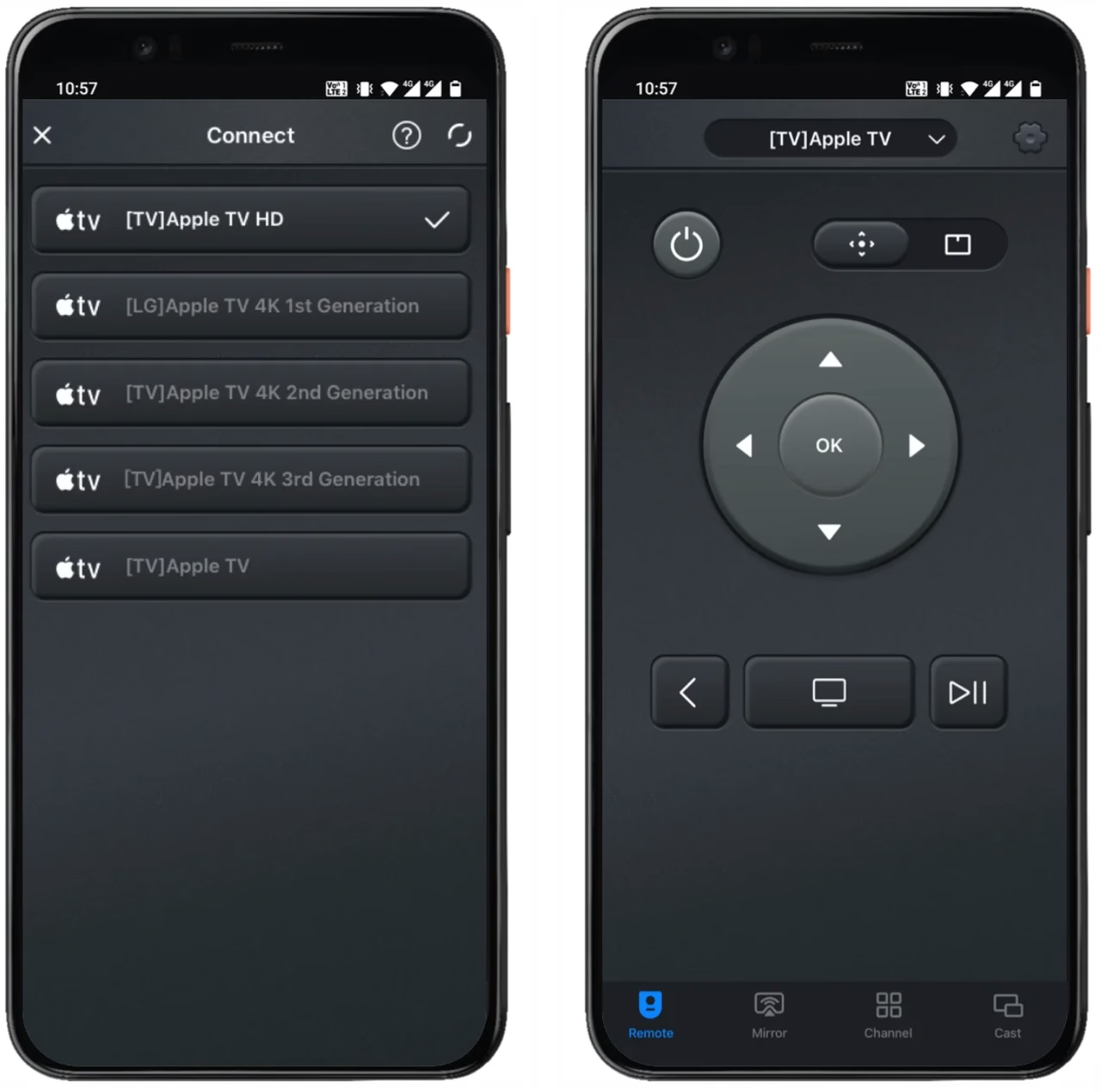
ステップ 4. 接続したら、Android スマートフォンを仮想リモコンとして使用して、Apple TV に別のネットワーク接続をセットアップできます。
方法 3. Bluetooth キーボードを使用する
もう 1 つのオプションは、Bluetooth キーボードを使用して Apple TV を制御することです。ほとんどの Bluetooth キーボードには、ナビゲーション、再生/一時停止、その他のメディア コントロール用の専用キーが付いています。設定方法は次のとおりです。
ステップ 1. Bluetooth キーボードの電源をオンにし、ペアリング モードになっていることを確認します。
ステップ 2. Apple TV で、iPhone または Android スマートフォンを使用して、設定 > リモコンとデバイス > Bluetooth に移動します。
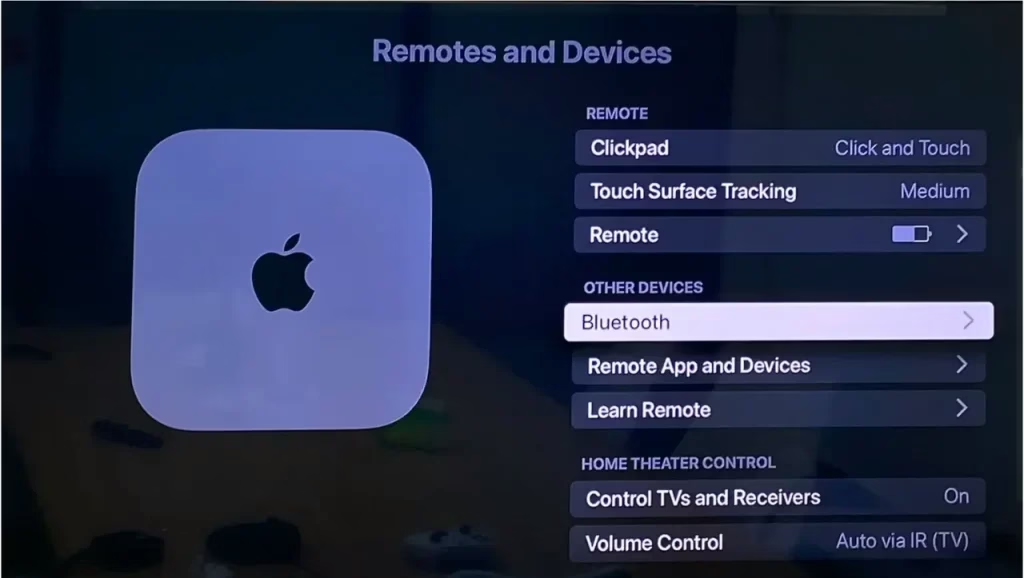
ステップ 3. 利用可能なデバイスのリストから Bluetooth キーボードを選択し、画面上の指示に従ってペアリングします。
ステップ 4. ペアリングすると、Bluetooth キーボードを使用して Apple TV を制御できるようになります。
Apple TVをWiFiに接続する
Apple TV でネットワーク接続を設定するには、設定 > (全般) > ネットワーク > Wi-Fi を選択し、WiFi ネットワークを選択し、パスワードを入力します。ストリーミング デバイスがイーサネット ケーブルに接続されている場合、Wi-Fi オプションは表示されなくなることに注意してください。
Apple TVがWiFiに接続できないですか?この問題は常にルーター、ファームウェア、未知の不具合、不適切な設定に関連しています。 Apple TV のネットワーク接続に問題がある場合は、考えられる原因を 1 つずつ確認してください。結論
リモコンを使わずに Apple TV を Wi-Fi に接続するのは難しそうに思えるかもしれませんが、このブログ投稿で概説した方法を使えば、すぐに起動して実行できるはずです。提供される段階的な手順に従うことで、物理的なリモコンを必要とせずに、Apple TV でシームレスなストリーミングやエンターテイメントを楽しむことができます。
リモートを使用せずに Apple TV を WiFi に接続する方法に関するよくある質問
Q: Apple TV を Wi-Fi に接続するにはどうすればよいですか?
Apple TV を Wi-Fi に接続するには、設定 > (一般) > ネットワーク > Wi-Fi に移動し、WiFi ネットワークを選択し、パスワードを入力します。
Q: Apple TV で Wi-Fi をリセットするにはどうすればよいですか?
Apple TV で Wi-Fi をリセットするには、[設定] > [ネットワーク] に移動し、WiFi ネットワークを選択し、[ネットワークを削除] を選択します。次に、Wi-Fi を選択してパスワードを入力して、Wi-Fi に再接続します。