
Can't uninstall apps on Firestick because there is no Uninstall option or the uninstalling seems to take forever? If you are vexed about this issue, you come to the right place. Here come the solutions for Firestick not uninstalling apps and workarounds to free up your Firestick storage.
Why Can't Uninstall Apps on Firestick?
Why can't you uninstall apps on Firestick? I would like to answer this question from two aspects, namely no uninstall option on Firestick and Firestick stuck on uninstalling applications.
No Uninstall Option on Firestick
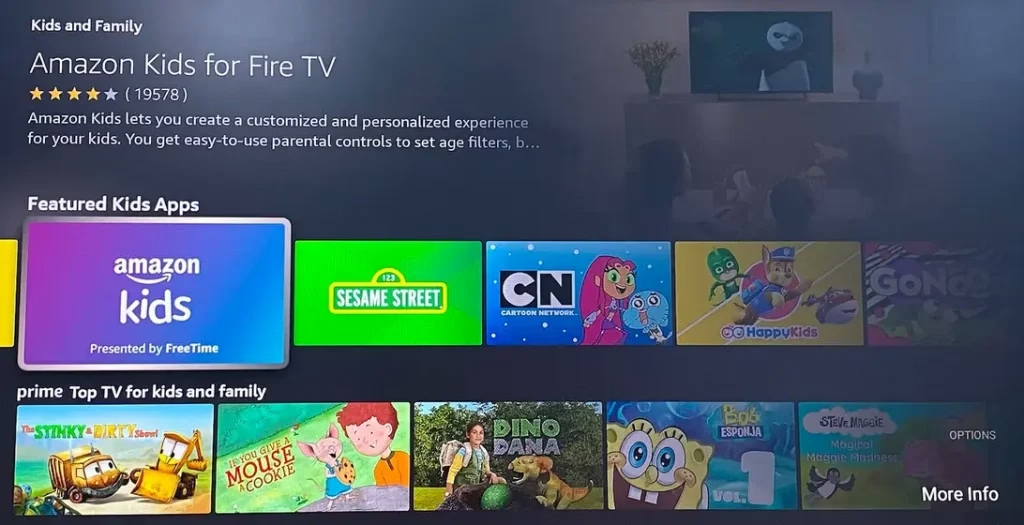
Every app you installed after setting up your Firestick should have the uninstall option. However, some apps that come pre-installed on the streaming device cannot be uninstalled and don't have the uninstall option. These apps are often integrated into the Fire OS or owned by Amazon, such as Freevee and Amazon Kids, and are designed to be a permanent part of Firestick's software ecosystem.
Firestick Stuck on Uninstalling Apps
When Firestick is stuck on uninstalling apps, it could be caused by insufficient storage, system glitches, app corruption, outdated software, or background processes.
Background processes: If other processes are running in the background (like software updates or app installation), they can cause the uninstall process to hang.
Insufficient storage: If the streaming device is low on storage, it may struggle to uninstall apps properly.
System glitches: Sometimes, Firestick can experience software glitches that cause processes like uninstalling to freeze.
App corruption: If the app you are trying to uninstall is corrupted or hasn't been updated properly, it might prevent successful uninstallation.
Outdated software: An outdated Fire OS can trigger various performance issues on Firestick.
How to Fix Firestick Not Uninstalling Apps?
Whether you encounter the no uninstall option for apps you installed or the uninstalling loop issue with your Firestick, you can try the solutions below to get rid of it.
Tip: The fixes below require a working remote. If your Firestick remote can't work properly, try the Fire TV Stick Remote app by BoostVision, which enables you to control your Firestick as smoothly as using a physical remote.
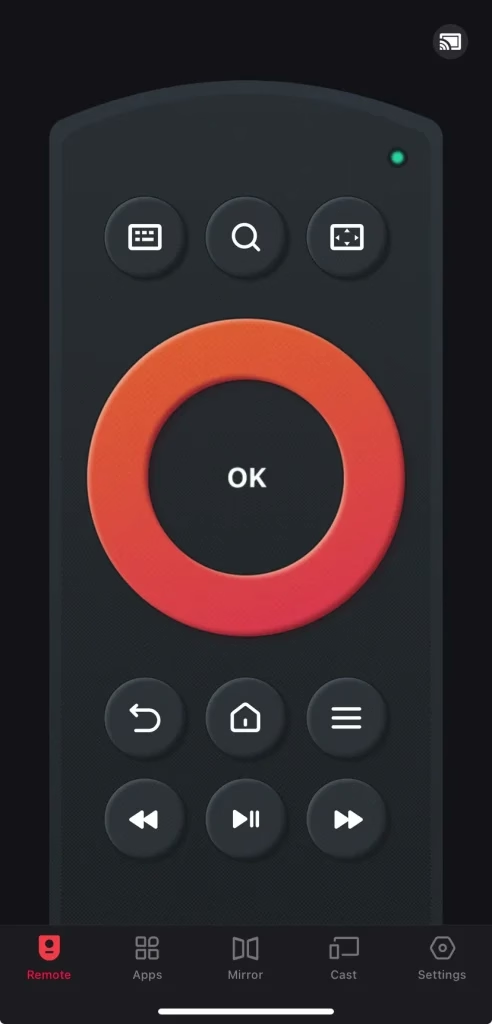
Download Remote for Fire TV & Fire Stick
Fix 1. Restart Your Firestick
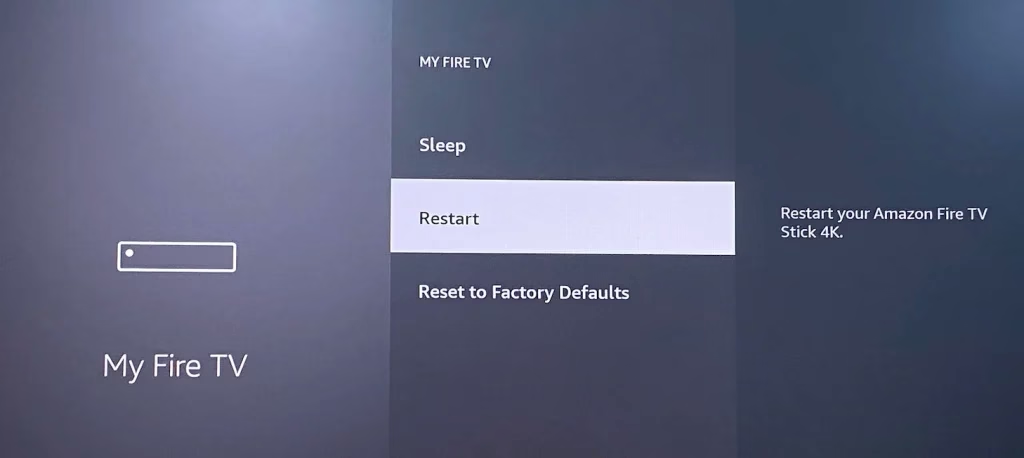
Try restoring the uninstall option or terminating the uninstalling loop by restarting your Firestick. To restart the Firestick, choose Settings > My Fire TV > Restart.
Fix 2. Clear App Cache
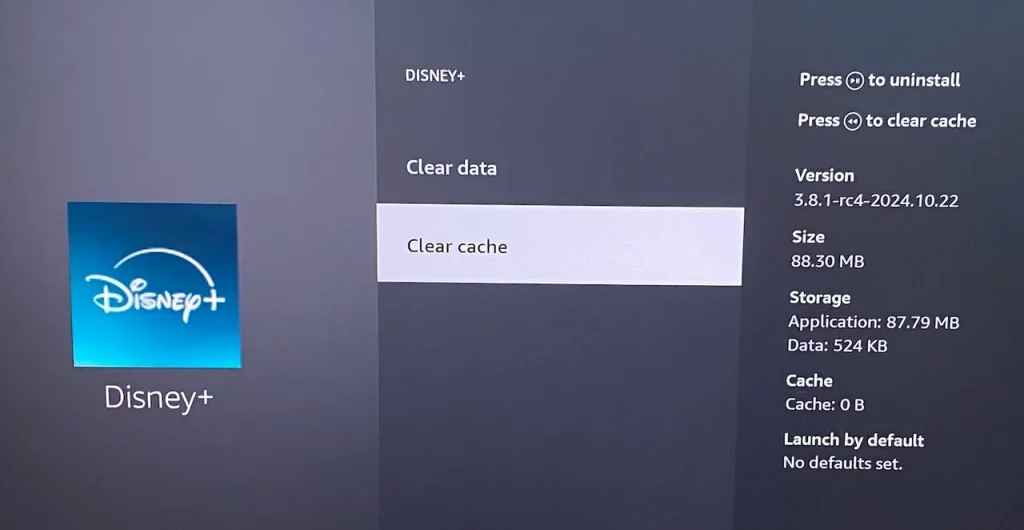
Try clearing the app cache on your Firestick first, then uninstalling it again. Just go to Settings > Applications > Manage Installed Applications, select the app, and choose Clear cache and Clear data.
Fix 3. Check for Updates
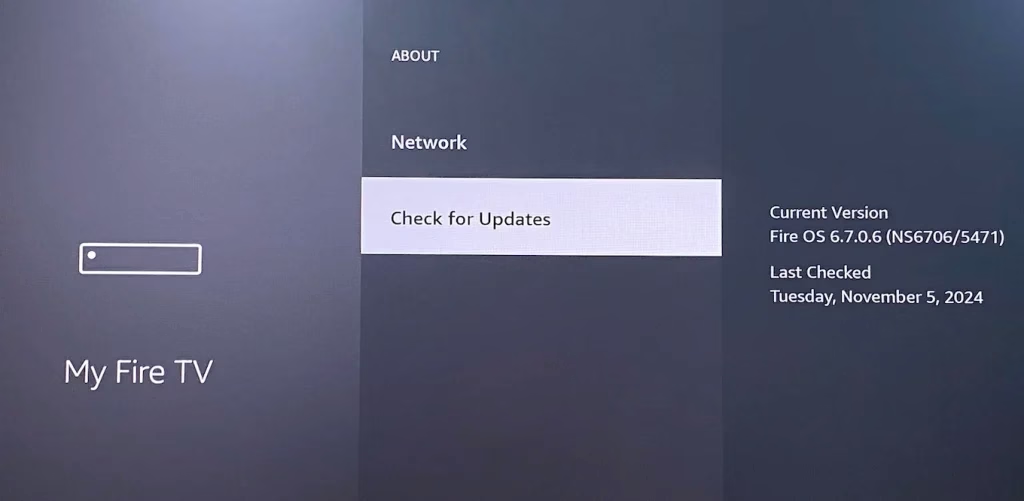
Make sure your Amazon streaming device is running the latest version of the software when your Firestick won't uninstall apps. You can go to Settings > My Fire TV > About > Check for updates.
Fix 4. Use the DefSquid App
Lohanky, an Amazon Forum user, shared another way to uninstall third-party apps:
Well I had the same situation and I didn't want to reset my fire stick to the factory, I found another solution. Download an application called DefSquid it is very good it helps you optimize your Fire Stick and also from there you can delete any application quickly. It worked for me I hope it works for you!!
Once you jailbreak your Firestick, the DefSquid app will help you improve the device's Firestick performance by clearing temporary files, scanning malware, and here, more importantly, uninstalling apps. This app enables you to uninstall most third-party apps, but it won't allow you to delete system apps such as Amazon Kids. You can get more information from YouTube video.
Fix 5. Factory Reset Firestick
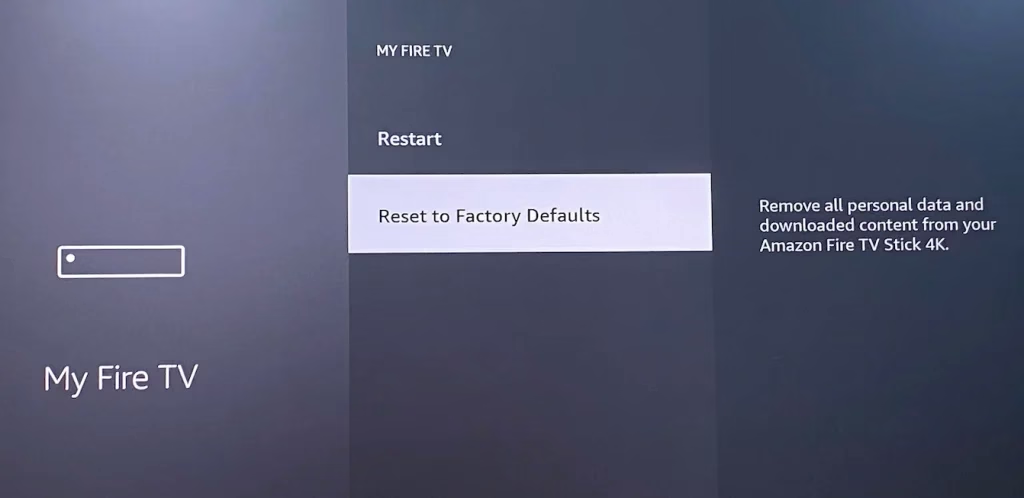
Lastly, perform a factory reset. A factory reset will remove all apps you installed on your Firestick, as well as your settings and other data. If that is what you expect, you can factory reset your Firestick right now by pressing the Menu button on the remote control and choosing My Fire TV > Reset to Factory Defaults.
If uninstalling apps is only for getting more storage, a factory reset is not recommended, and there are many other effective ways to achieve this without data loss (discussed in the next part).
How to Make Firestick Storage Larger?
Firestick comes with a small storage device, with only 5.28 GB available. You can clear the app cache and uninstall unused apps (though pre-installed apps can't be uninstalled) on your Firestick to free up the storage. Additionally, you can choose to expand its storage by connecting an external storage device.
To add more storage, an On The Go (OTG) cable 2-pack is necessary. The OTG cable includes a dongle USB-A port that connects to your Fire TV power supply. Furthermore, a USB drive is also needed, and Amazon recommends USB 3.0 and no more than 128 GB of storage space. Once you get the two externals, proceed to the steps below:
Step 1. Unplug your Firestick from the power outlet and plug the OTG cable into your Firestick.
Step 2. Plug your Firestick power cable into the micro USB port on the OTG cable.
Step 3. Plug your USB drive into the USB port on the OTG cable.
Step 4. Plug your Firestick back into the power outlet.
Step 5. If you want to set the USB drive as internal storage, go to Settings > My Fire TV > USB Drive > Format to Internal Storage, and wait until it finishes.
Conclusion
Can you uninstall apps on Firestick now? When your Firestick has low storage, uninstalling apps could help you solve the issue. However, if there is no uninstall option, the app might be re-installed, and Amazon doesn't allow you to remove it; if your Firestick gets stuck in uninstalling apps, you may need to take some actions, such as restarting your device.
Lastly, Firestick comes with a small storage, and it is better to add an extra storage device, like a USB drive, rather than trying to free up the small storage device.
Can't Uninstall Apps on Firestick FAQ
Q: Why won't Firestick uninstall apps?
Preinstalled apps on your Firstick can't be uninstalled, such as Amazon Kids, Freevee, etc. However, if you can't uninstall other apps, Firestick not uninstalling apps may be caused by insufficient storage, system glitches, app corruption, outdated software, and background processes.
Q: How do I force quit an app on Firestick TV?
Press the Home button on your Firestick remote, then navigate to Settings > Applications > Manage Installed Applications, next choose the app you want to quit, and choose Force stop.