
If your Samsung TV remote is lost, unresponsive, or out of battery, your iPhone can take over in a few minutes. You can handle power, volume, navigation, and text input from your phone when both devices are on the same network.
This guide explains how to control Samsung TV with iPhone using the fastest setup path. You'll also learn how to connect iPhone to Samsung TV remote features, what causes pairing failures, and what to do when your iPhone Samsung TV remote not working issue appears.
What You Need Before You Start
Before attempting to control a Samsung TV from your phone, it's important to confirm that your devices meet the basic requirements. Most connection failures happen because of network or compatibility issues rather than incorrect setup steps.
Checking these prerequisites ensures the discovery process works smoothly and prevents troubleshooting later.
TV Requirements
1. Samsung Smart TV with network control support.
2. TV connected to home Wi-Fi or Ethernet.
3. TV powered on and sitting on the home screen during pairing.
4. Updated firmware for stable device discovery.
iPhone Requirements
1. iPhone on a current iOS version.
2. Same home network as the TV.
3. Local Network permission enabled for the controller method you use.
4. Bluetooth can stay on, but Wi-Fi is the key requirement.
Network Requirements
1. Both devices must be on the same SSID.
2. Guest Wi-Fi and AP isolation should be off.
3. VPN should be disabled for first-time pairing.
If your iPhone is on Home-5G and the TV is on Home-4G, many routers still separate traffic and pairing can fail. Start by putting both on exactly the same network name.
How to Control Samsung TV with iPhone
There are several ways to control Samsung TV from iPhone, as there are many remote apps for Samsung TV, including Samsung's official ecosystem and third-party remote apps for Samsung TV. The best method depends on your device compatibility and the level of control you need.
The sections below explain the most reliable methods to connect iPhone to Samsung TV remote controls, including a recommended third-party remote solution.
Method 1: SmartThings Samsung TV iPhone Setup (Official Method)
Samsung's SmartThings ecosystem is the most stable first-party method. It allows your iPhone to discover and control Samsung TVs over your home network with minimal configuration.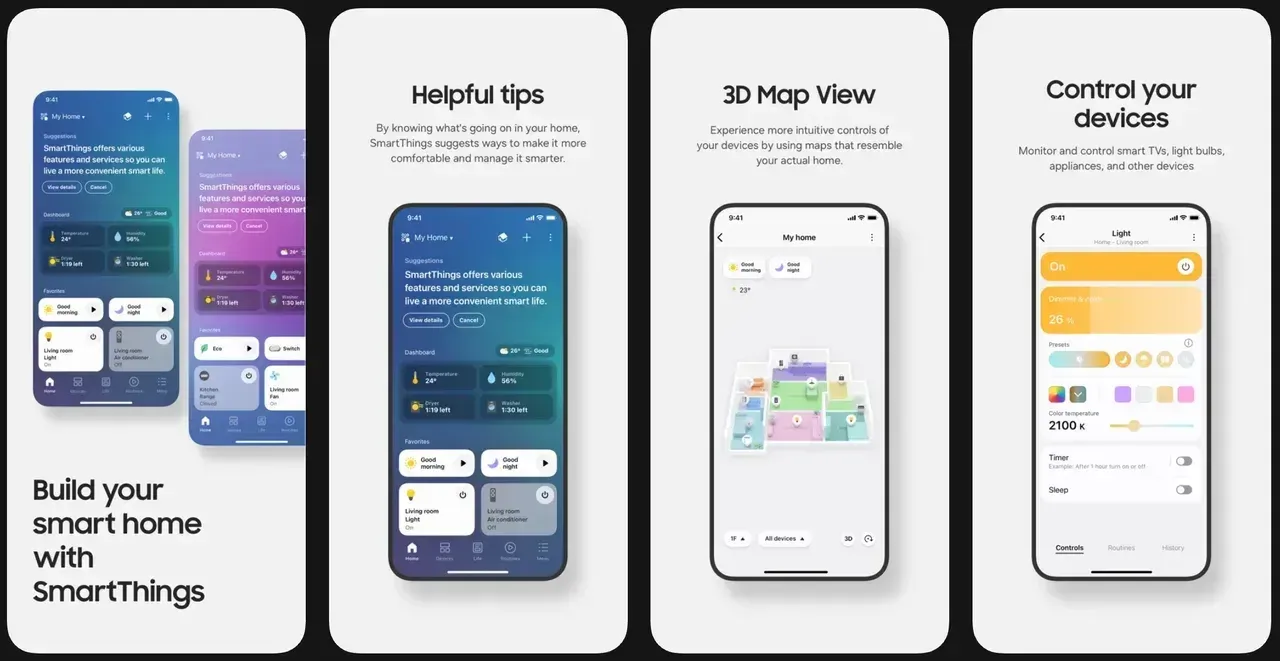
Many users choose this option because it offers native compatibility and consistent updates.
Step 1. Install SmartThings.
Download SmartThings from the App Store and sign in using a Samsung account.
Step 2. Connect Devices To The Same Network.
Ensure both your iPhone and Samsung TV are connected to the same Wi-Fi network.
Step 3. Add The TV.
Tap Add Device → TV → Samsung, then wait for the app to detect your TV.
Step 4. Approve Pairing On The TV.
A confirmation prompt will appear on the Samsung TV screen. Approve it to complete pairing.
Step 5. Test Remote Controls.
After pairing, test:
Once completed, you can easily control Samsung TV from iPhone whenever both devices are on the same network.
Method 2: Use A Samsung TV Remote App For iPhone
If SmartThings does not work reliably or your setup requires faster access, using a Samsung TV remote app for iPhone can be a practical alternative.
Third-party remote apps often provide simplified pairing and additional control options for smart TVs. One reliable option is Universal Remote For Smart TV, which allows users to quickly connect their iPhone and control compatible Samsung TVs.
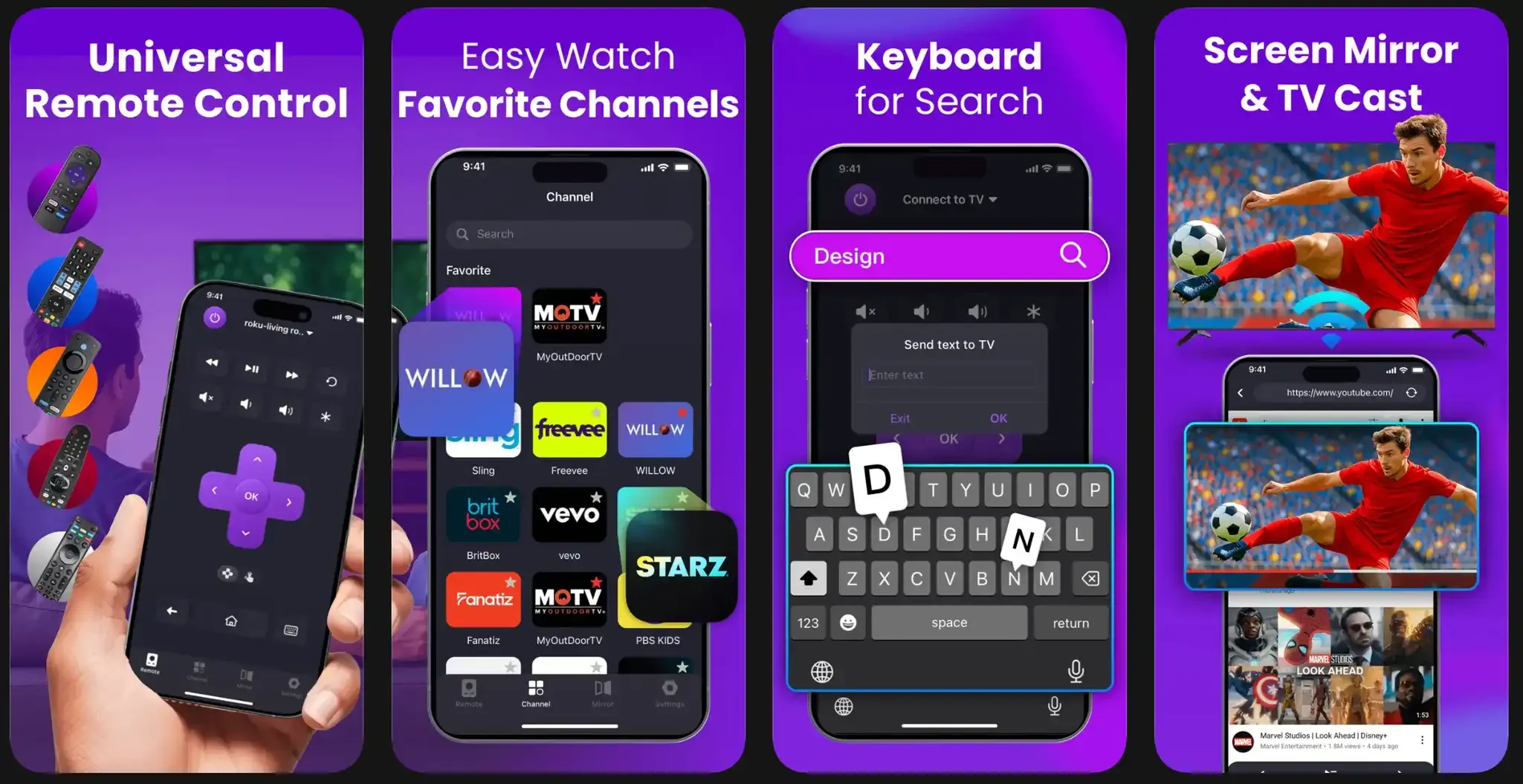
How to connect iPhone to Samsung TV for remote control:
1. Install Universal Remote for Smart TV from the App Store.
2. Launch the app and grant Local Network permission.
3. Tap Scan for Devices.
4. Select your Samsung TV from the list.
5. Approve the connection prompt on the TV.
Once paired, the app provides common controls, including navigation, volume, home, and input switching. This method works well if you want a quick way to connect iPhone to Samsung TV remote functions without going through Samsung account setup.
Method 3: Apple TV Remote (If Apple TV Is Connected)
If your Samsung TV is mainly used through an Apple TV device, you can control playback and navigation from your iPhone using the built-in Apple TV Remote.
This approach does not control the entire Samsung system but works well when Apple TV is your primary interface.
How to set up your Samsung TV remote on your iPhone:
1. Open Control Center on iPhone.
2. Tap Apple TV Remote.
3. Select your Apple TV device.
4. Enter the pairing code if prompted.
5. Use touch navigation and playback controls.
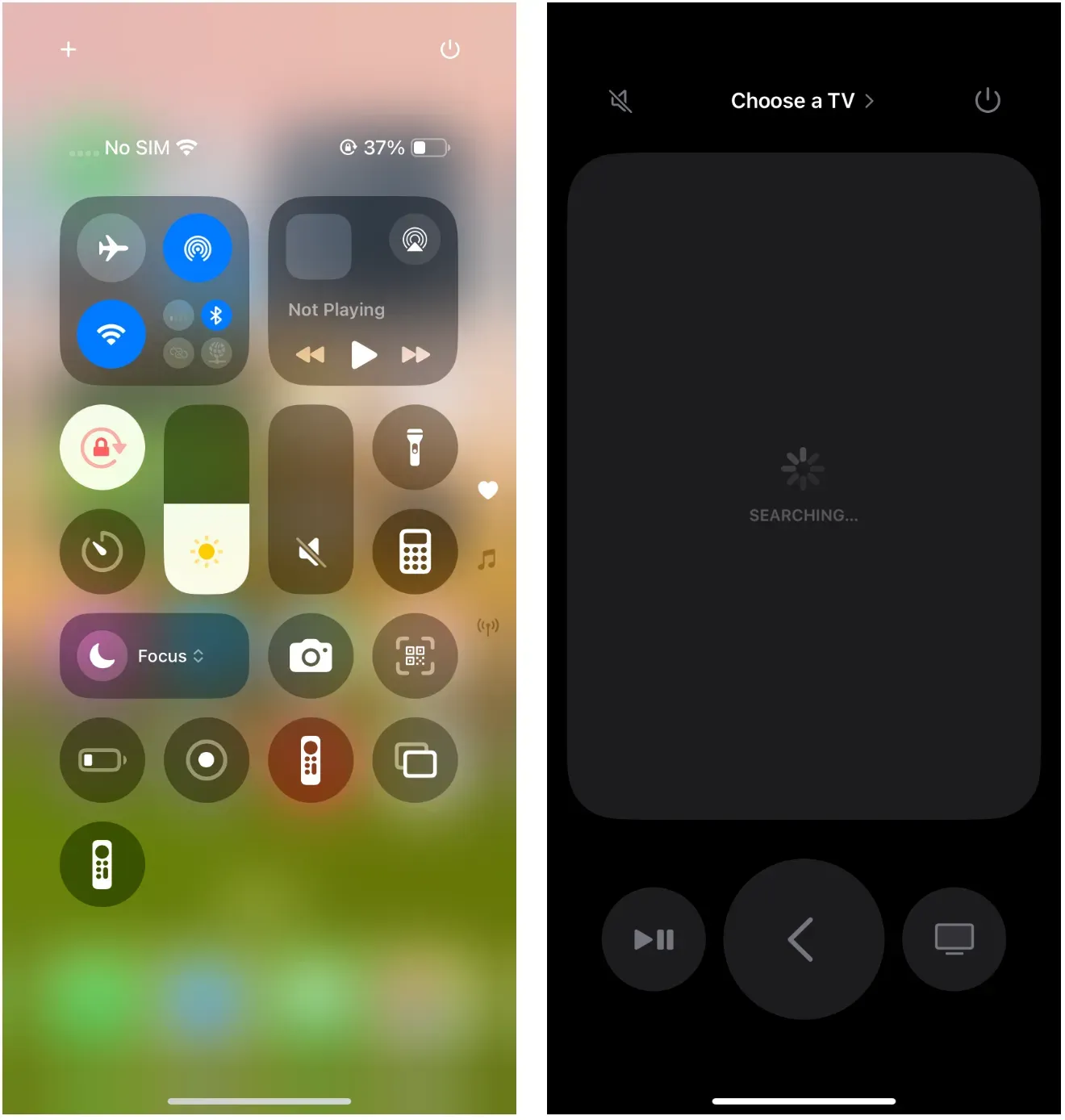
This method works best when the Samsung TV is simply displaying Apple TV content.
Troubleshooting: iPhone Samsung TV Remote Not Working
Is your Samsung TV remote not working on iPhone? If you successfully paired your device but commands stop responding, the issue is usually related to network discovery or expired pairing permissions. Use the fixes below in order to quickly restore control.
Fix 1: Verify network alignment again
Fix 2: Restart both devices
A fresh restart resolves many stale connection sessions.
Fix 3: Reset pairing trust
If the trust prompt never appears, stay on TV home screen and rescan immediately.
Fix 4: Check permission and router edge cases
Complex router environments can block discovery even when internet works.
Fix 5: Confirm model and firmware limitations
Some older Samsung TVs allow limited command support. Navigation may work while power does not. Update TV firmware first. If limits remain, use an alternative control path.
Conclusion
Learning how to control Samsung TV with iPhone is easier than most people expect once the setup order is correct. In most cases, the key steps are simple: make sure both devices are on the same Wi-Fi network, keep the TV on the home screen during pairing, approve the connection prompt, and then test the basic controls.
For most users, starting with SmartThings Samsung TV iPhone setup is the most reliable approach, especially if your home already uses multiple Samsung devices. If you want additional convenience features—such as faster navigation, a keyboard for typing, or touchpad-style control—a Samsung TV remote app for iPhone like Universal Remote for Smart TV can provide a more flexible experience.
If your iPhone Samsung TV remote not working issue appears, it is usually caused by network mismatches, expired pairing sessions, or router restrictions. Following the troubleshooting steps in this guide can typically restore control within a few minutes.
Once the connection is established, your phone becomes a practical backup remote. Whether you want to connect iPhone to Samsung TV remote functions, type quickly in search boxes, or simply avoid losing the physical remote again, using your iPhone as a TV controller can make everyday viewing much easier.
How to Control Samsung TV with iPhone FAQ
Q: Can I control my Samsung TV with iPhone without Wi-Fi?
In most cases, no. iPhone control methods for Samsung TV rely on local network discovery. If your TV and iPhone are not on the same network, pairing usually fails. For offline situations, a physical replacement remote is still the most reliable fallback.
Q: Why does my iPhone find the TV but buttons do nothing?
This usually means pairing was only partially completed or the TV-side trust session expired. Remove the saved TV, reconnect, and approve the prompt again on the TV screen.
Also test navigation first before power toggle, because power behavior varies by model.
Q: Do all Samsung TVs support iPhone control?
No. Most newer Samsung Smart TVs support network-based control, but older models can be limited. Firmware version and model year both matter. If your model has limited support, you may still get basic navigation but not full command coverage.
Q: Is SmartThings better than a third-party controller?
It depends on your setup. If most of your home devices are part of the Samsung ecosystem, SmartThings is usually the best option because it integrates directly with Samsung TVs and other Samsung appliances. As the official platform, it typically provides stable connections and smooth device management within the Samsung environment.
However, a professional third-party remote app can offer more advanced control features. Many third-party controllers include tools like a keyboard for fast text input, a touchpad for easier navigation, and even screen mirroring or casting support. These extra functions can make them more convenient for daily TV use, especially if you want more than basic remote controls.
Q: Why does power control fail while volume works?
That behavior can be normal on some Samsung models due to standby and remote-power handling differences. Update TV firmware, retest, and treat navigation as the core fallback. If power control remains unavailable, the connection can still be valid for most daily viewing tasks.
Q: Can multiple iPhones control the same Samsung TV?
Yes. As long as each device completes pairing, multiple users can connect iPhone to Samsung TV remote controls and operate the TV. This can be helpful in households where several people want quick remote access.

 Mar 23, 2026