
How to connect Roku Express to WiFi without remote? When a Roku Express loses its remote, Wi-Fi setup can feel harder than it should. The good news is that you usually still have a path back online, but the right method depends on whether the Roku is already tied to a network or has gone fully offline.
In the best case, your phone can take over as the controller. In the harder case, a temporary hotspot or a known network bridge can get the device back into range long enough to change settings. This guide walks through the fastest order to try, then shows what to do when the first method does not work.
What You Need Before Roku Express WiFi Setup Without Remote
The simplest setup is the one that removes guesswork before you touch the network menu. A Roku Express does not need a special cable or service plan, but it does need a reachable network path and a device you can control.
Check these basics first:
There is one important limit to keep in mind. If the Roku Express has never been online before, your phone may not see it yet. In that case, you will need to use a temporary network bridge or a Roku replacement remote for the first connection.
How to Connect Roku Express to Wi-Fi Without Remote
The fastest path is to use a Roku remote app when the device is still reachable on the same network. That lets you move through the menus without the original remote and update Wi-Fi from the Roku side.
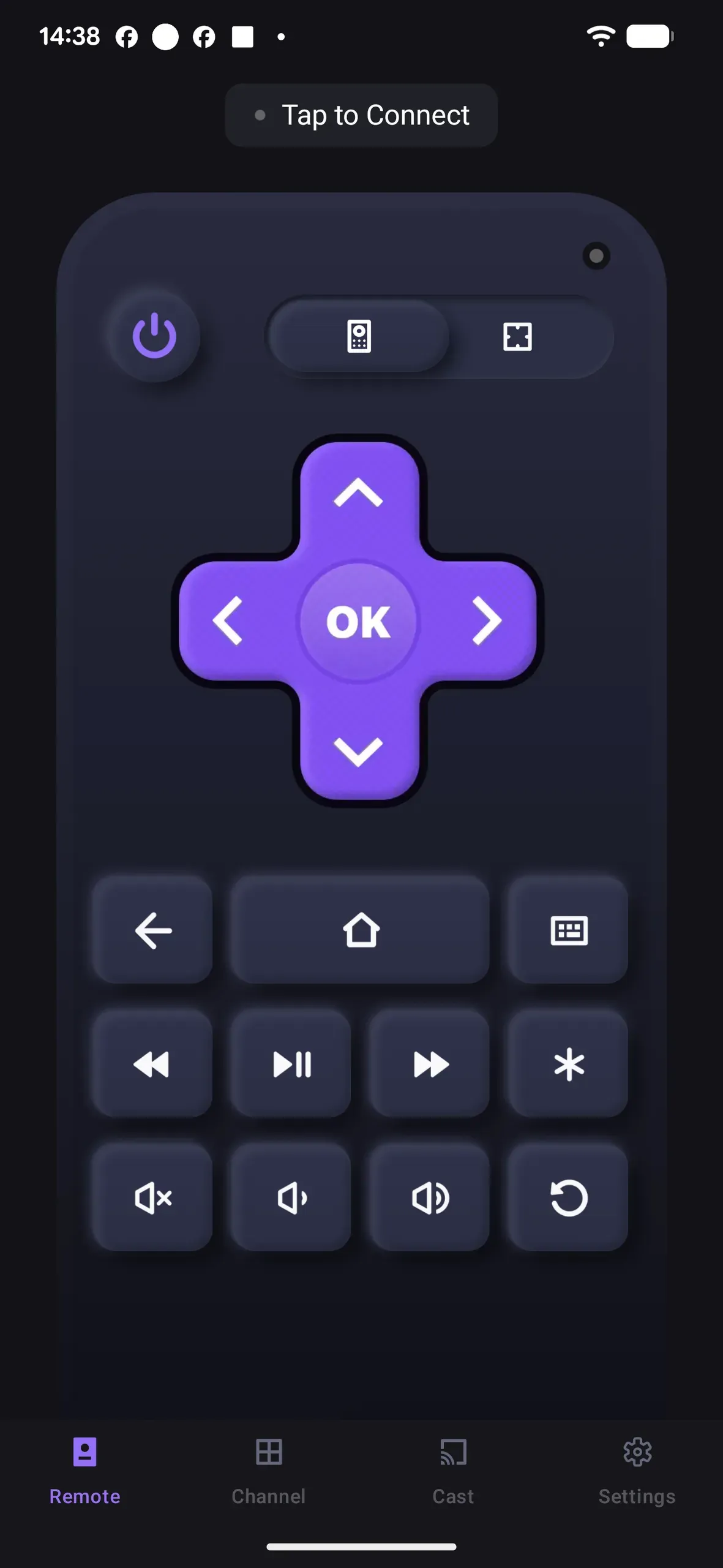
Step 1. Turn on the Roku Express and confirm the TV is on the correct HDMI input.
If the screen is blank, switch inputs before doing anything else. The Roku remote app cannot help if the device is not actually powered on or if the TV is showing a different source.
Step 2. Connect your phone to the same Wi-Fi network that the Roku Express is already using.
This matters because the Roku mobile app works best when both devices are on the same local network. If the Roku is still online, your phone should be able to discover it after a short scan.
Step 3. Open the Roku mobile app and let it search for the device.
Allow local network permission if your phone asks for it. Once the app finds the Roku Express, open the remote controls and treat the phone like a normal remote.
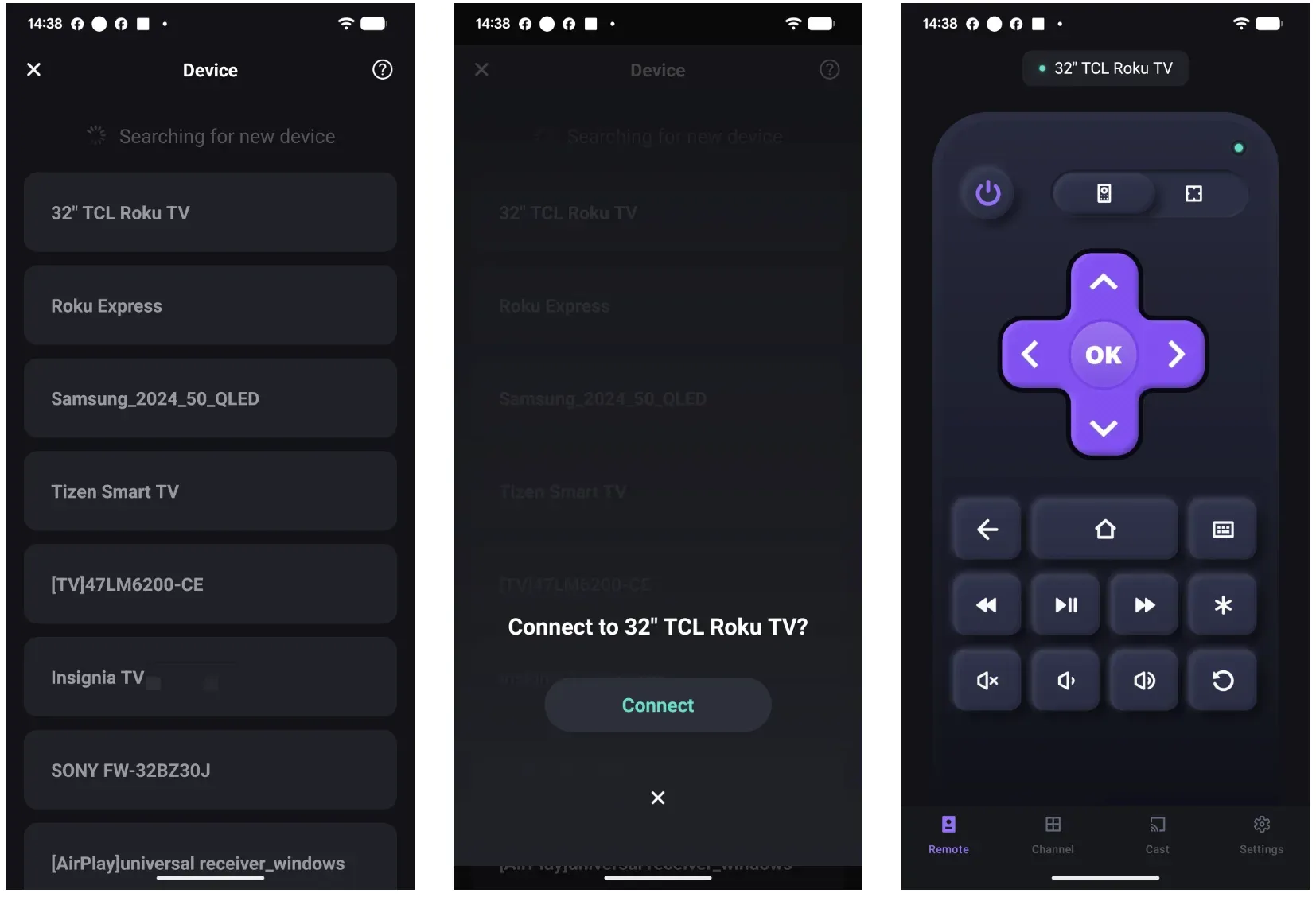
Step 4. Go to the network settings on the Roku.
Use the app remote to follow this path:
1. Press Home.
2. Open Settings.
3. Go to Network.
4. Choose Set up connection.
5. Select Wireless.
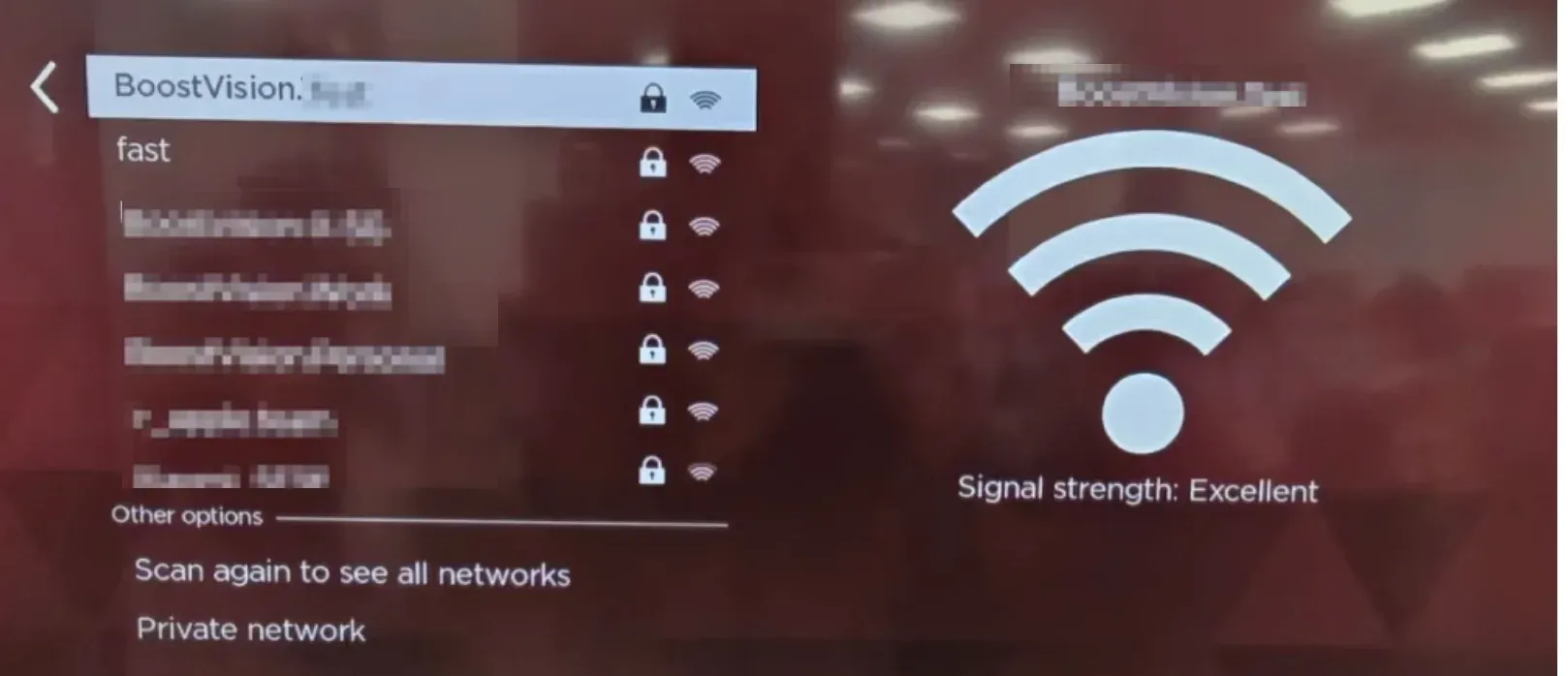
That path may look slightly different by software version, but the goal is the same: reach the wireless setup screen from the Roku menu.
Step 5. Choose your Wi-Fi network and enter the password.
Pick the new network from the list, then type the password carefully. A single typo is enough to make the connection fail, so slow down when entering the credentials.
Step 6. Wait for the connection test to finish.
Roku should show a confirmation once it joins the network. If the connection succeeds, the app should still see the device after a refresh.
Step 7. Test the connection with one quick app or menu action.
Open the home screen, launch a channel, or move back into Settings once more. That quick test confirms the Roku is not just connected for a moment, but actually usable.
If Roku Express Is Offline and the App Cannot Find It
If your Roku dropped off Wi-Fi and your phone cannot discover it, you need a temporary bridge. The most common workaround is to recreate the last known network long enough for the Roku to reconnect.
Step 1. Identify the last network the Roku Express was using.
If you still know the SSID and password, you are in good shape. If not, check your router label, saved Wi-Fi passwords on your phone, or any notes where the network name was stored.
Step 2. Create a temporary hotspot or spare Wi-Fi network with the same name and password.
Use a phone hotspot or another router to match the old network exactly. Roku is more likely to reconnect automatically when it sees the same network identity it used before.
Step 3. Wait a few minutes for the Roku Express to come back online.
This part is easy to rush. Give the device a little time to detect the network and finish reconnecting before you open the app again.
Step 4. Open the phone controller and confirm that the device is visible.
Once the Roku is back on the temporary network, the app should be able to control it again. At that point, move into Settings > Network and switch to the permanent Wi-Fi you actually want to use.
Step 5. Save the change and then turn off the temporary hotspot.
Only shut down the bridge after the Roku Express has joined the new network. If you turn it off too early, the device may drop offline again before the new connection is stable.
This workaround is useful, but it has a limit. It only helps if the Roku Express has connected to that network before. If the device is brand new and never finished first-time setup, you will usually need the original remote, a replacement remote, or another direct control method to complete the first pairing.
Common Roku Express WiFi Setup Without Remote Problems and Quick Fixes
Most remote-free Wi-Fi issues fall into a few predictable buckets. The fastest fix is usually the one that matches the symptom instead of restarting the whole process.
| Symptom | Likely cause | Quick fix |
|---|---|---|
| Roku does not appear in the app | Phone and Roku are on different networks | Put both devices on the same network or use the temporary hotspot trick |
| Wi-Fi password keeps failing | Typo or wrong saved password | Re-enter the password slowly and double-check capitalization |
| Roku reconnects, then drops offline again | Weak signal or unstable router | Move the Roku closer to the router or restart the router |
| App can see the Roku but controls lag | Network is overloaded | Pause downloads, reduce nearby device traffic, then try again |
| No network screen appears | Roku is not fully powered on or TV is on the wrong input | Recheck power and HDMI input before retrying |
If your phone never finds the Roku Express, do not keep tapping random buttons. Re-run the setup in this order instead:
Step 1. Confirm the TV input.
Step 2. Confirm the Roku has power.
Step 3. Put your phone on the same network or hotspot.
Step 4. Refresh the Roku app.
Step 5. Only then retry the network menu.
If you are still stuck after those checks, a replacement remote or the TV's own controls may be the fastest backup path.
Conclusion
The best way to connect a Roku Express to Wi-Fi without the remote is to use your phone as the controller when the device is still on a known network.
If the Roku has already gone offline, the next best move is to recreate the last network with a temporary hotspot so the device can reconnect long enough for you to change settings. That order matters because it saves time and avoids unnecessary resets.
Start with the easiest path, verify that your phone can see the Roku, and only fall back to a bridge or replacement remote if the device has never been online before.
How to Connect Roku Express to Wi-Fi Without Remote FAQ
Q: Can I connect a Roku Express to Wi-Fi without the remote at all?
Yes, in many cases you can. If the Roku Express is already connected to a network, your phone can act as the controller and let you change Wi-Fi settings. If the device is fully offline, you may need a temporary hotspot or a replacement remote to get past first-time setup.
Q: Can my phone find the Roku Express if it is not on Wi-Fi yet?
Not usually. The controller generally needs to find the Roku on the same local network first. That is why the temporary hotspot method is so useful when the original network is gone but the Roku has connected before.
Q: What if I do not know the old Wi-Fi name and password?
Try checking the router label, your phone's saved networks, or any password manager you use. If the Roku Express has already been on that network, matching the old SSID and password is often the easiest way to bring it back online long enough to update it.
Q: Can I use a TV remote instead of the Roku remote?
Sometimes. If your TV supports HDMI-CEC and the Roku input responds to the TV remote, you may be able to move through some menus. That is not guaranteed on every setup, so a phone controller or a temporary network bridge is usually the more reliable route.
Q: What should I do if the Roku Express keeps dropping after I change the network?
Move the device closer to the router, reduce interference, and make sure the password was entered correctly. If the signal is weak, a stable 2.4 GHz connection is often more forgiving than a crowded network with a poor signal.

 May 12, 2026