
Si recientemente compró un televisor Samsung y notó que no hay botones en el televisor Samsung, no está solo. Muchos modelos más nuevos vienen con diseños minimalistas, lo que hace que los usuarios se pregunten cómo controlar su televisor. Si bien este elegante diseño puede verse genial, puede resultar un poco incómodo, especialmente si el control remoto se pierde o se rompe.
¿No hay botones en su televisor Samsung?
Si tiene dificultades para encontrar un televisor Samsung visible sin botones, no se preocupe: ¡es por diseño! Muchos modelos modernos de Samsung han adoptado un enfoque minimalista, ocultando los botones fuerza, volumen y aporte en lugares discretos o incluso eliminándolos por completo.
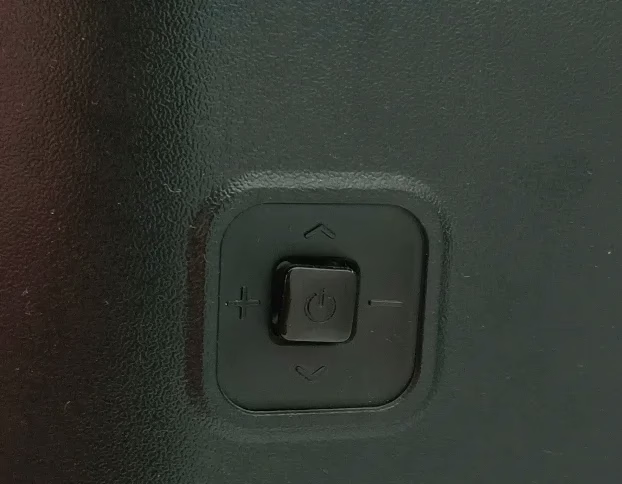
Esto es especialmente cierto en el caso de televisores más delgados con pantallas de borde a borde, donde el diseño tiene prioridad sobre los controles tradicionales. Sin embargo, no todas las esperanzas están perdidas. Todavía existen varias formas de controlar el televisor Samsung sin botones, ya sea que prefiera usar una aplicación, un control remoto o incluso comandos de voz.
Cómo controlar el televisor Samsung sin botones
La falta de botones en su televisor Samsung puede parecer un problema, pero existen formas sencillas de tomar el control sin depender del control remoto. Ya sea buscando controles ocultos o usando soluciones basadas en aplicaciones, lo guiaremos a través de opciones sencillas para administrar su televisor.
Utilice la aplicación gratuita Samsung TV Remote
Existe una aplicación remota gratuita de Samsung que se puede descargar en su teléfono inteligente y le permite controlar su televisor como un control remoto tradicional. Una vez conectado vía Wi-Fi, podrás ajustar el volumen, cambiar canales e incluso encender/apagar el televisor desde tu dispositivo móvil.
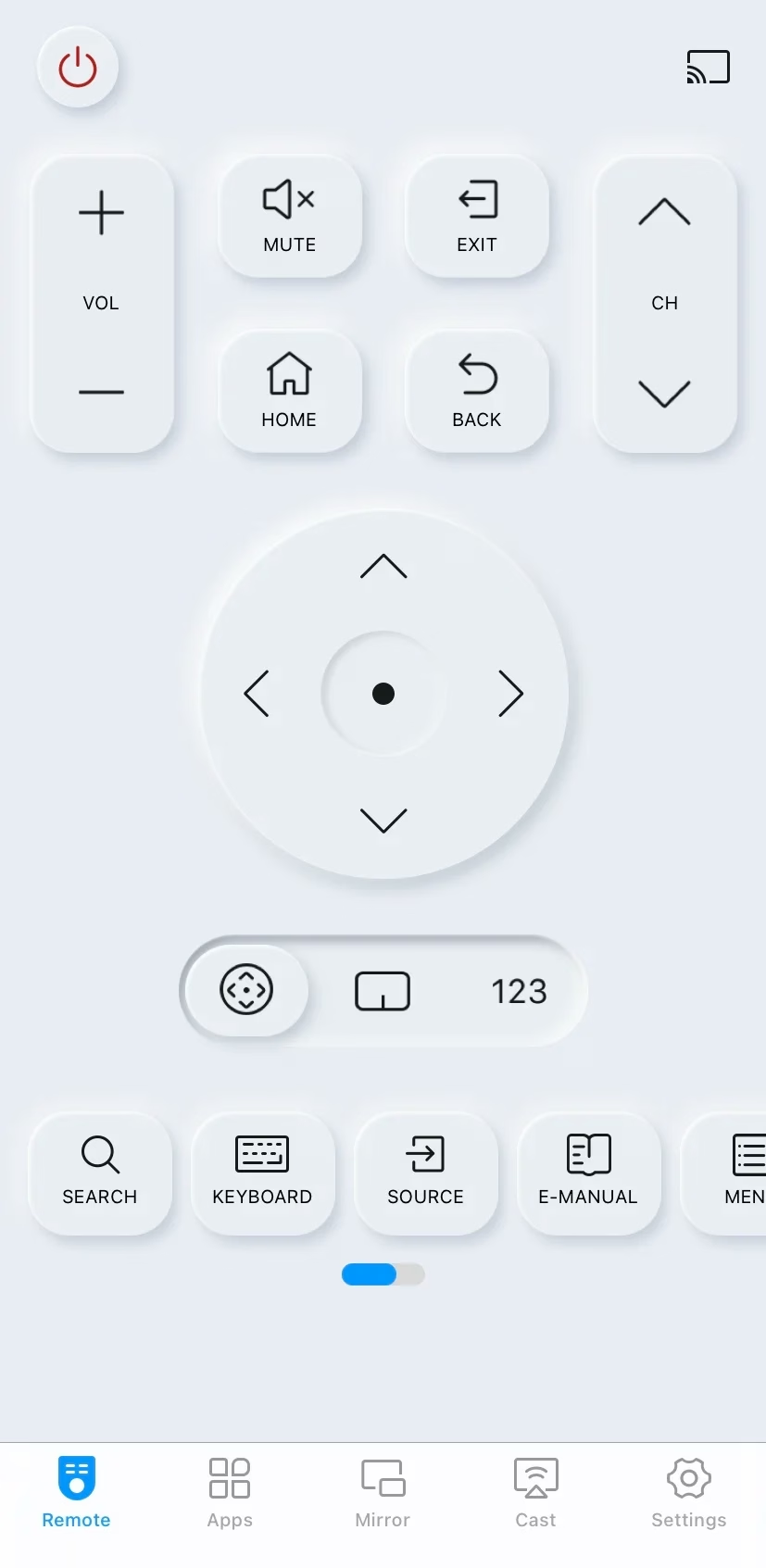
Descargar control remoto para TV Samsung
Paso 1. Si su televisor Samsung no tiene botones, instale el control remoto virtual de Samsung en su dispositivo móvil, luego asegúrese de que su dispositivo y el televisor Samsung estén cubiertos por la misma red inalámbrica.
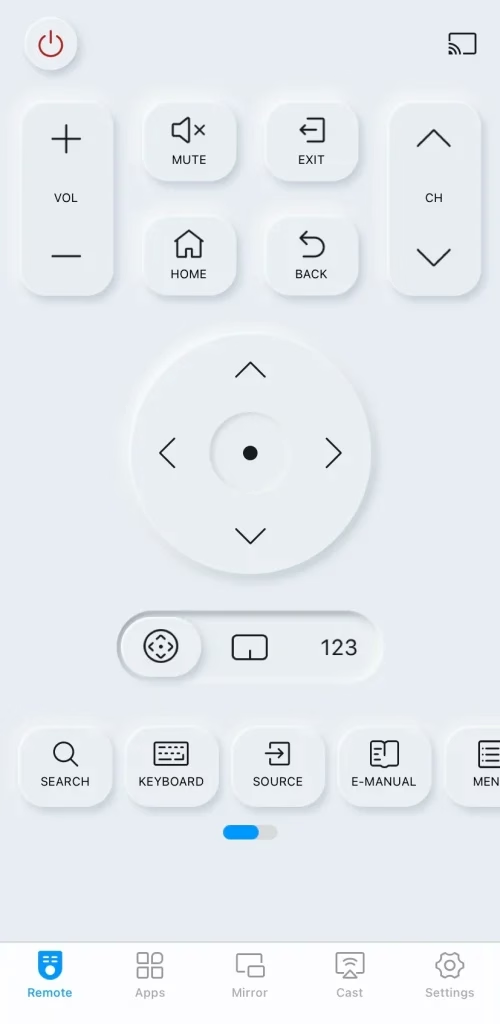
Paso 2. Inicie la aplicación remota y toque la entrada de emparejamiento para elegir su televisor Samsung de la lista de dispositivos.
Paso 3. Después de completar el proceso de emparejamiento, puedes usar la aplicación remota como control remoto físico para controlar tu televisor Samsung.
Utilice asistentes de voz (Alexa, Asistente de Google)
Si tienes un altavoz inteligente controlado por voz (como Amazon Alexa o Google Assistant), puedes conectarlo a tu televisor Samsung y controlar funciones básicas usando comandos de voz. Este método puede resultar especialmente útil cuando tu televisor Samsung no tiene botones y no tienes el control remoto a mano.
Para configurar Alexa como tu asistente de voz en tu televisor Samsung, puedes hacerlo durante la configuración inicial o más tarde a través del menú Configuración. Antes de comenzar, asegúrese de tener la aplicación Amazon Alexa instalada en su teléfono inteligente.
Paso 1. Vaya a Configuración > General > Voz > Asistente de voz, luego elija Alexa y confirme seleccionando Aceptar.
Paso 2. Usa la cámara de tu teléfono para escanear el código QR que aparece en la pantalla, que te dirigirá al sitio web de Amazon.
Paso 3. Inicie sesión en su cuenta de Amazon o cree una nueva si es necesario. Una vez que haya iniciado sesión, toque Permitir para otorgar permisos. Su televisor se vinculará a su cuenta de Amazon. Siga las instrucciones que aparecen en pantalla para completar la configuración.
Utilice un control remoto universal
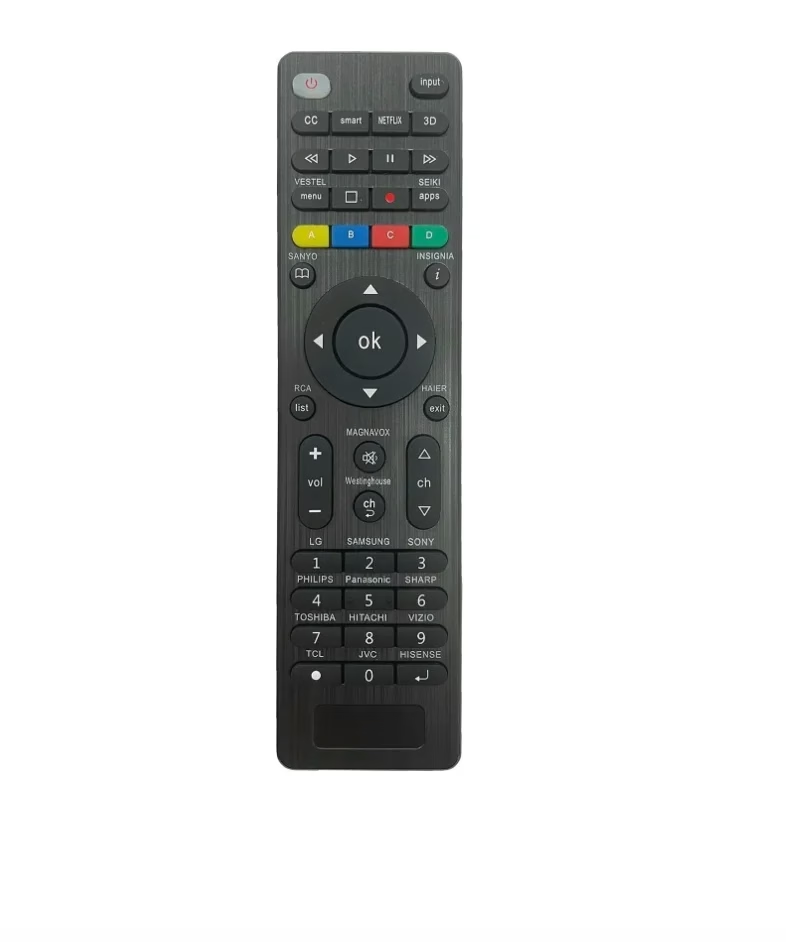
Un control remoto universal es una forma práctica de controlar su televisor Samsung junto con otros dispositivos. La mayoría de los controles remotos universales están equipados con códigos preprogramados para marcas de televisores populares, incluido Samsung, lo que facilita la configuración. Todo lo que necesitas hacer es programar el control remoto presionando el botón de emparejamiento y tendrás control total de tu televisor, como con el control remoto original.
Si aún no tienes un control remoto universal, ¡no te preocupes! Puedes comprar el control remoto universal fácilmente en tu tienda de electrónica local o en línea, y configurarlo rápidamente. Con solo unos simples pasos, tendrás un control remoto optimizado que controla tu televisor Samsung y otros dispositivos, haciendo que tu configuración de entretenimiento sea más conveniente y menos abarrotada.
Utilice HDMI-CEC
Si su televisor y dispositivos conectados admiten HDMI-CEC, puede controlar su televisor Samsung usando otros dispositivos como una consola de juegos o un dispositivo de transmisión. HDMI-CEC permite que cualquier dispositivo conectado a los puertos HDMI de su televisor encienda o apague el televisor e incluso ajuste el volumen. Esta función proporciona una manera fácil de controlar su televisor sin la necesidad de un control remoto o botones integrados.
Para resumir
¿Cómo encender el televisor Samsung sin control remoto ni botones? Puedes usar la aplicación remota virtual de Samsung TV, asistentes de voz como Alexa y Google Assistant, un control remoto universal físico y HDMI-CEC. Con estas soluciones, puede administrar fácilmente su televisor sin controles remotos ni visibles.
Preguntas frecuentes sobre la ausencia de botones en el televisor Samsung
P: ¿Dónde están los botones en un televisor Samsung?
En la mayoría de los televisores Samsung, los botones están ocultos en el panel posterior o en el bisel inferior. En algunos modelos, hay un único botón estilo joystick ubicado en la parte posterior del televisor, que puede presionar para encender y apagar el televisor y navegar por los menús.
P: ¿Cómo enciendo un televisor que no tiene botones?
Si su televisor Samsung no tiene botones, puede encenderlo usando la aplicación de control remoto de TV en su teléfono, un control remoto universal o asistentes de voz como Alexa o Google Assistant. También puede utilizar dispositivos conectados a través de HDMI-CEC para alimentar el televisor automáticamente.

 Mar 23, 2026