

 English
 Portuguese
 Spanish
 French
 German
 Japanese
 ビッキー
ビッキー

AirPlay is one of Apple's most beloved features, allowing users to effortlessly stream content like videos, music, and photos from their Apple devices (iPhone, iPad, Mac) to a compatible TV. With this feature, you can share media with friends or simply enjoy content on a larger screen. However, not all TVs natively support AirPlay, which can leave users wondering, "テレビでAirPlayを利用する方法?" In this comprehensive guide, we'll walk you through different ways to enable AirPlay on various TV brands, including Vizio, Samsung, LG, Roku, and even Android TV.
目次
Keytakes: Apple AirplayをAndroid TVに接続する最も簡単な方法は何ですか?3つの方法があります。AirPlayレシーバーアプリをインストールすること、Apple TVを設定すること、そしてテレビを最新モデルにアップグレードすることです。最も簡単で経済的な方法は最初のものかもしれません。
方法1: AirPlay レシーバーアプリをインストールする
If your TV doesn't natively support AirPlay, installing an AirPlay receiver app is one of the best solutions to get the feature working. There are several apps designed to make non-AirPlay enabled TVs compatible with Apple's streaming protocol.
Android TV用AirMirrorを試してみてください。
アンドロイドTV利用者向け、 画面ミラーリング 設計者 BoostVision is a great option. This app, available on Google Play, allows Android TV owners to receive AirPlay content from Apple devices. Whether you own an older Android TV or one that doesn't support AirPlay natively, AirMirror transforms your device into an AirPlay-compatible receiver.
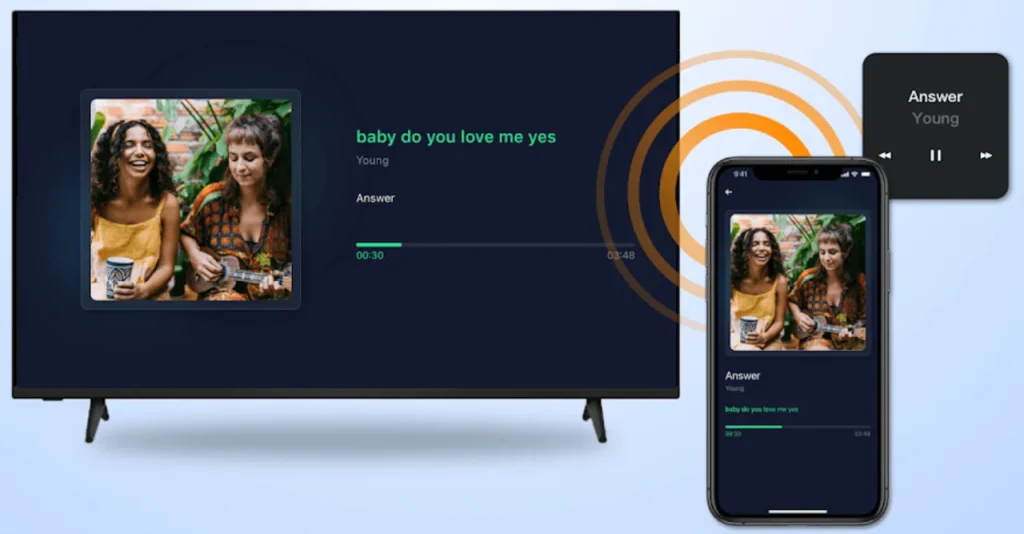
インストール後、Android TVとAppleデバイスの両方が同じWi-Fiネットワークに接続されていることを確認してください。その後、メディアを直接TVにストリーミングできます。AirMirrorは、Android TVやGoogle TVでのAirPlayに対する簡単で効果的なソリューションを提供し、iPhoneやMacから写真、ビデオ、音楽を簡単に共有できます。
Fire TV のためのAirPlayキャストを試してみてください。
テレビでAirPlayを利用する方法は?Fire TVユーザーのために、 AirPlay キャストアプリ Firestickの互換性をAirPlayと拡張するのに役立ちます。このアプリはFire TVデバイスがAirPlayストリームを受信することを可能にし、AppleデバイスからFire TV Stickにコンテンツをストリームする能力を提供します。
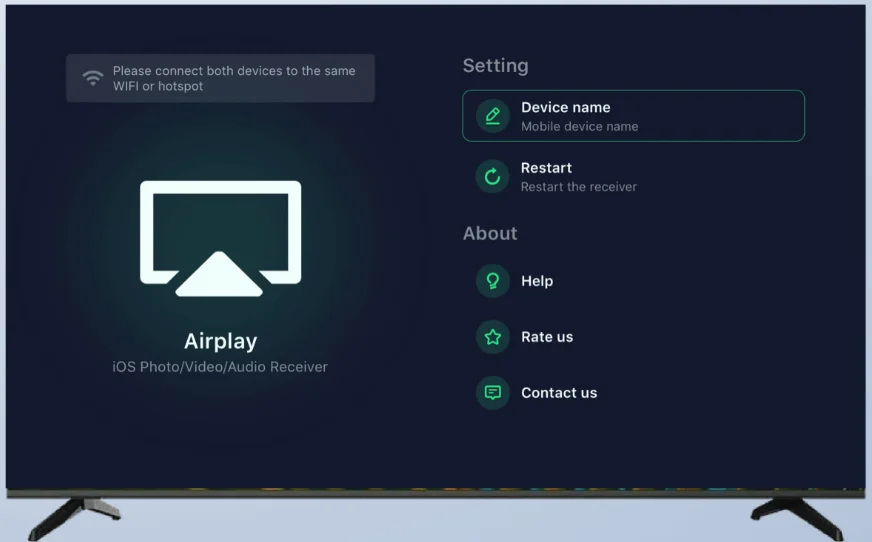
After installation, ensure both your Apple device and Fire OS streaming device are on the same Wi-Fi network, and you'll be able to AirPlay to Firestick.
方法2: Apple TVを設定する
AirPlayをサポートしていないテレビをお持ちの場合や、シームレスで高品質なストリーミング体験を望む場合、Apple TVのセットアップは確実な解決策です。Apple TVは初めからAirPlayをサポートしており、すべてのAppleデバイスからコンテンツをストリーミングするための強力なハブとして機能します。

Simply plug your Apple TV into your TV's HDMI port, set it up, and ensure both your Apple TV and Apple device are on the same Wi-Fi network. With Apple TV, you can easily mirror your iPhone or iPad screen or stream media to your TV without any interruptions.
One of the key advantages of using an Apple TV is its stability and high-quality performance. You can rely on it to deliver a smooth, lag-free experience, particularly if you're streaming high-definition content. Furthermore, Apple TV provides access to a host of other streaming services like Netflix, Hulu, and Disney+, making it a great all-in-one solution for entertainment.
方法3: テレビを最新モデルにアップグレードする
How to get AirPlay on TV? If you're looking for a long-term solution and prefer to avoid using additional apps or hardware like Apple TV, upgrading to a newer TV model with built-in AirPlay support might be the best option. Many recent smart TVs come with AirPlay 2 互換性があり、サードパーティーアプリを必要とせずにAppleデバイスから直接コンテンツをストリーミングできます。

Popular TV brands that now offer AirPlay compatibility include Samsung, LG, Vizio, Sony, and Roku. Here's a quick look at how to get AirPlay on some of the leading TV brands:
サムスンテレビでAirPlayを利用する方法
サムスンは、新しいスマートテレビにAirPlayのサポートを統合し、Appleデバイスから簡単にコンテンツをストリームできるようにしています(確認 サムスンTVにAirPlay). こちらはAirPlay 2に対応しているサムスンのテレビです:
- 2023年ネオQLED 8KおよびネオQLED 4Kテレビ
- 2023年のフレーム、OLED、QLEDテレビ
- 2022年の8Kおよび4K QLEDテレビとOLEDテレビ。
- 2022年 フレーム、セロ、セリフ テレビ
- 2022年4K QLEDテレビ
- 2021年の8Kおよび4K QLEDテレビ
- 2021年フレームテレビ
- 2021年クリスタルUHDテレビ
- 2020年の8Kおよび4K QLEDテレビ
- 2020 フレームとセリフテレビ
- 2020年プレミアプロジェクターとクリスタルUHDテレビ
- 2019年の8Kおよび4K QLEDテレビ
- 2019年フレーム、セリフ、および4K UHDテレビ。
- 2018年フレームテレビ
- 2018 QLED 4K
- 2018 4K UHD TV
- 2018 スマートフルHDTV N5300
サムスンTVでAirPlayを使用するには、TVとAppleデバイスの両方が同じWi-Fiネットワークに接続されていることを確認してください。Appleデバイスで、画面の右上隅から下にスワイプして、コントロールセンターにアクセスし、選択します。 画面ミラーリング、利用可能なデバイスからサムスンTVを選択します。コンテンツはすぐにテレビ画面に表示されるはずです。
Vizio TVでAirPlayを取得する方法
Vizioのテレビでは、AirPlayは多くの最近のSmartcastモデルで利用可能です。
- Vizio Dシリーズ(2018年、2019年、2020年)
- Vizio Eシリーズ(2016年、2017年、2018年 UHDモデル)
- VIZIO Mシリーズ(2016年、2017年、2018年、2019年、2020年、2021年、2022年、2023年)
- VIZIO Mシリーズクアンタム(2019、2020、2021、2022、2023)
- Vizio OLED (2020、2021、2022)
- VIZIO Pシリーズ(2016年、2017年、2018年、2019年、2020年、2021年、2022年)
- VIZIO Pシリーズ クアンタム(2018年、2019年、2020年、2021年)
- VIZIO P-Series Quantum X(2019年、2020年、2021年、2022年)
- VIZIO Vシリーズ(2018年、2019年、2020年、2021年、2022年、2023年)
もし Vizio TVでAirPlayを使用する、Appleデバイスとテレビの両方が同じWi-Fiネットワークに接続されていることを確認します。iPhone、iPad、またはMacでAirPlayアイコンまたは画面ミラーリングオプションを選択してAirPlay機能にアクセスし、利用可能なデバイスからVizio TVを選択します。メディアはVizio TVにストリーミングされ始めます。
LGテレビでAirPlayを利用する方法
LG's smart TVs come with AirPlay support in their recent models, making it easy to stream content from Apple devices. To use LGテレビのAirPlay、LGテレビとAppleデバイスの両方が同じWi-Fiネットワークに接続されていることを確認し、スマホ、iPad、またはMacからAirPlayにアクセスします。画面ミラーリングを行うか、映画や写真などの個別のメディアを直接テレビにストリームできます。
テーブルを見てAirPlay対応のLGテレビを確認してください。
| モデル年 | LGのAirPlay対応テレビ |
| 2024(webOS 24) | OLED:すべてのOLEDモデル QNED:すべてのQNEDモデル UHD:UTシリーズ、NANOシリーズ |
| 2023年(webOS 23) | OLED: すべてのOLEDモデル QNED: すべてのQNEDモデル UHD: URシリーズ、NANOシリーズ |
| 2022 (webOS 22) | OLED:全てのOLEDモデル QNED:全てのQNEDモデル UHD:UQシリーズ、NANOシリーズ |
| 2021 (webOS 6.0) | OLED:すべてのOLEDモデル QNED:すべてのQNEDモデル UHD:UPシリーズ、NANOシリーズ |
| 2020 (webOS 5.0) | OLED:BX/CX/GX/WX/ZX/RXUHD:UNシリーズ、NANOシリーズ |
| 2019 (webOS 4.5) | OLED: B9/C9/E9/W9/Z9UHD: UMシリーズ、SMシリーズ |
| 2018 (webOS 4.0) | OLED:B8/C8/E8/W8/Z8UHD:UKシリーズ、SKシリーズ |
Roku TVでAirPlayを利用する方法
Roku テレビとストリーミングプレーヤーは、AirPlay のサポートも統合されています。指定された Roku OS バージョンを実行している必要があり、Apple HomeKit と AirPlay 2 でのストリーミングをサポートします。
| Roku OS 9.4 またはそれ以上 | Roku OS 10.0 またはそれ以上 | |
| Roku TV | Axxxx, Cxxxx, CxxGB, 7xxxx | 5xxx, 6xxx |
| Roku Streaming Stick+ | 3810, 3811 | |
| Roku Streaming Stick 4K | 3820 | |
| Roku Streaming Stick 4K+ | 3821 | |
| Roku Express | 3700 | |
| Roku Express+ | 3710 | |
| Roku Express 4K | 3940 | |
| Roku Express4K+ | 3941 | |
| Roku Premiere | 3920, 4620 | |
| Roku Premiere+ | 3921, 4630 | |
| Roku Ultra | 4600, 4640, 4660, 4661, 4670, 4800, 4802, 4850 | |
| Roku Ultra LT | 4662, 4801 | |
| Roku 4 | 440 |
もし Roku TVでAirPlayを使用する, ensure your TV is running the latest software version, and both your Roku TV and Apple device are connected to the same Wi-Fi network. Once you've ensured this, you can use the Screen Mirroring or AirPlay option from your Apple device to stream content to your Roku TV.
ソニーTVでAirPlayを取得する方法
Sony's smart TVs, particularly those running Android TV OS, offer AirPlay 2 support. Check the compatibility list:
- ソニーA75Kシリーズ(2022年)
- ソニー A75WL シリーズ (2023)
- ソニーA80Kシリーズ(2022)
- ソニーA80Lシリーズ(2023年)
- ソニーA8Hシリーズ(2020)
- ソニーA90Kシリーズ(2022年)
- ソニーA95Kシリーズ(2022年)
- ソニー A95L シリーズ (2023)
- ソニーA9Fシリーズ(2018年)
- ソニー A9G シリーズ (2019)
- ソニー A9Sシリーズ (2020)
- ソニー W880K/W830K シリーズ(2022年)
- ソニー X72Kシリーズ (2022)
- ソニー X75Kシリーズ (2022)
- ソニーX80Hシリーズ (2020)
- ソニー X80Jシリーズ(2021年)
- ソニー X80K シリーズ (2022)
- ソニーX80Lシリーズ(2023)
- Sony X85G Series (2019 55" and above models)
- ソニー X85H シリーズ (2020)
- ソニーX85Jシリーズ(2021年)
- ソニー X85Kシリーズ(2022年)
- ソニーX85Lシリーズ(2023)
- ソニー X90Hシリーズ(2020)
- ソニーX90Jシリーズ(2021)
- ソニー X90Kシリーズ(2022年)
- ソニー X90L シリーズ (2023)
- ソニー X90S シリーズ (2022)
- ソニーX91Jシリーズ(2021年)
- ソニーX93Lシリーズ(2023年)
- ソニー X95G シリーズ(2019)
- ソニーX95Hシリーズ(2020)
- ソニーX95Jシリーズ(2021年)
- ソニーX95Kシリーズ(2022)
- ソニー X95Lシリーズ(2023年)
- ソニーZ8Hシリーズ(2020年)
- ソニー Z9F シリーズ (2018)
- ソニーZ9Gシリーズ(2019)
- ソニーZ9Jシリーズ(2021年)
- ソニー Z9Kシリーズ (2022)
ソニーTVでAirPlayを使用するには、ソニーTVとAppleデバイスの両方が同じWi-Fiネットワークに接続されていることを確認してください。AppleデバイスからAirPlayアイコンを選択し、ソニーTVを選んでメディアのストリーミングを開始します。このプロセスはスムーズで、音楽、ビデオ、写真のストリーミングに優れた体験を提供します。
AirPlay対応テレビリスト
AirPlay対応は、さまざまなテレビブランドで利用可能になりました。ここに、AirPlay互換性を備えた人気のあるテレビモデルの一部を示します:
- サムスンTV: 2018年以降のハイエンドモデル(例:QLEDシリーズ)とほとんどの2019年以降のモデルはAirPlay 2をサポートしています。
- LG テレビ: 2019年以降のwebOS 4.0以降 (例: OLEDやNanoCellシリーズ)を搭載したテレビは、AirPlay 2に対応しています。
- ヴィジオ テレビ: 2019年以降のMシリーズQuantumおよび2020年以降のOLEDシリーズ(SmartCast 3.0以上が必要)。
- ソニーTV: 2019年以降のAndroid TV/Google TVモデル(例:X950G、A9Gシリーズ)。
- Roku TV: 2021年以降のモデル(Roku OS 10.0+搭載)は、AirPlay 2を有効にするためにソフトウェアアップデートが必要です。
- TCL テレビ: Roku TVモデル(2021年以降、Roku OS 10.0以降);Android TV/Google TVモデル(2019年以降)。
- ヒセンステレビ: 2020年以降のRoku TVまたはAndroid TVモデル(例: U7G、U8Gシリーズ)。
- シャープテレビ: 2019年以降のAndroid TVモデル(例:AQUOSシリーズ)。
- パナソニックテレビ: 2019年以降のモデルで、My Home Screen 4.0を搭載しているもの(例:GX800、HX940シリーズ)。
- フィリップステレビ: 2019年以降のAndroid TVモデル(例:PUS8505、OLED 805シリーズ)。
- インシグニアテレビ: 2021+ Fire TV Editionモデル(Fire OS 7.0+が必要)。
With AirPlay compatibility now available on so many popular TV brands, it's easier than ever to enjoy seamless streaming from your Apple devices to your TV screen. Whether you own a Samsung, LG, Vizio, Roku, or another supported TV, you can quickly get started with AirPlay and enhance your viewing experience.
AirPlayは便利ですが、時々動作しないことがあります(確認 AirPlayが動作しない). さらに、現時点ではすべてのテレビで利用できるわけではありません。幸いなことに、大画面視聴のための多くの代替選択肢があります。
例えば、サードパーティのアプリを使用して、スマホからTVへの画面ミラーリングやキャストを行うことができます。この機能は、サムスン、ソニー、Roku、Vizio、Fire TV & Fire Stickなどのデバイスで利用可能です。BoostVisionのリモコンアプリを使用すると、リモコンアプリをスマホにインストールして、スマホから直接オンライン動画をTVにキャストできます。以下は、これを達成するためのステップです。 ステップ1: リモコンアプリをスマホにインストールします。 ステップ2: 同じWi-FiネットワークにスマホとTVを接続します。 ステップ3: リモコンアプリを開き、画面ミラーリングまたはキャストのオプションを探します。 ステップ4: 表示されるデバイスのリストから、接続したいTVを選択します。 ステップ5: 接続が確立されたら、TVにキャストしたいオンライン動画を選択します。 これで、スマホの画面をTVにミラーリングまたはキャストすることができます。詳細な手順やトラブルシューティングについては、リモコンアプリのFAQを参照してください。 画面ミラーリングアプリ to stream content from your iPhone to TV effortlessly. The app also connects your devices via a Wi-Fi network, so you don't need any other tools.

画面ミラーリングアプリをダウンロードします


デバイスが同じWi-Fiネットワークに接続されると、iPhoneで画面ミラーリングアプリを起動します。次に、アプリインターフェースで接続ボタンをタップし、デバイスリストからテレビを選んで、接続が確立されるのを待ちます。そして、iPhoneをテレビにストリーミングすることができます。
おわり:テレビでAirPlayを楽しむ
あなたのテレビでAirPlayを利用することは、Android TV、Fire TV、またはサムスン、Vizio、LG、ソニー、Rokuのような主要なスマートテレビブランドを持っているかどうかにかかわらず、これまでになく簡単です。 AirPlayレシーバーアプリをインストールする、Apple TVを設定する、新しいAirPlay対応のテレビモデルにアップグレードするなど、テレビでAirPlayの利点を楽しむためのいくつかの方法があります。
So, if you've been wondering, "How to get AirPlay on my TV?" or "How to use AirPlay on Sony TV or Roku TV?", this guide has all the information you need. Start streaming today and enjoy a seamless entertainment experience right from your Apple device to your TV!
TVでAirPlayを使用する方法のFAQ
Q: どうすれば自分のテレビにAirPlayできるか確認できますか?
To determine if your TV supports AirPlay, check the specifications or user manual for your model. If you have a newer smart TV (2019 or later for brands like Samsung, LG, Vizio, Sony, and Roku), it likely includes AirPlay 2 compatibility. Additionally, ensure your TV is connected to the same Wi-Fi network as your Apple device. If AirPlay is supported, you should see the option to stream or mirror content when you swipe down on your Apple device's Control Center.
Q: AirPlayがテレビに表示されないのはなぜですか?
If AirPlay isn't showing up on your TV, first ensure that both your TV and Apple device are connected to the same Wi-Fi network. Then, check if your TV's software is up to date, as outdated firmware may prevent AirPlay from working. If the issue persists, try restarting both your TV and Apple device, or check for any settings that may block AirPlay, such as network restrictions or security features on your TV.
ビッキー
ビッキー・グリーンは、視聴体験を向上させるために定期的にブログを更新しているBoostVisionのウェブコンテンツエディターです。彼女は、果てしない情熱と十分な忍耐、そして強い批判的思考が大きな成功を生むと信じています。