
When your Toshiba Fire TV remote is not working, it can interrupt streaming right when you are ready to watch. The remote may stop responding completely, only the Power button may work, or the TV may react slowly after you press a button.
The issue does not always mean the remote is broken. In many cases, the cause is simple: weak batteries, a lost pairing connection, signal interference, outdated Fire TV software, stuck buttons, or a temporary TV glitch. This guide walks through 12 practical fixes before you buy a replacement remote.
How to Tell If Your Toshiba Fire TV Remote Is Broken
Before replacing the remote, check whether the problem is a simple connection issue or a real hardware failure.
Common signs include:
If the remote has physical damage, water damage, corroded battery contacts, or fails the infrared signal test below, replacement may be necessary. Otherwise, try the fixes in order.
Why Is My Toshiba Fire TV Remote Not Working?
The most common reasons include:
How to Fix a Toshiba Fire TV Remote Not Working
Try these fixes from easiest to most advanced. If one step solves the problem, you do not need to continue.
#1. Replace or Reinsert the Batteries
Battery issues are the most common cause of a Toshiba Fire TV remote not working, especially if the remote has no light or only works sometimes.
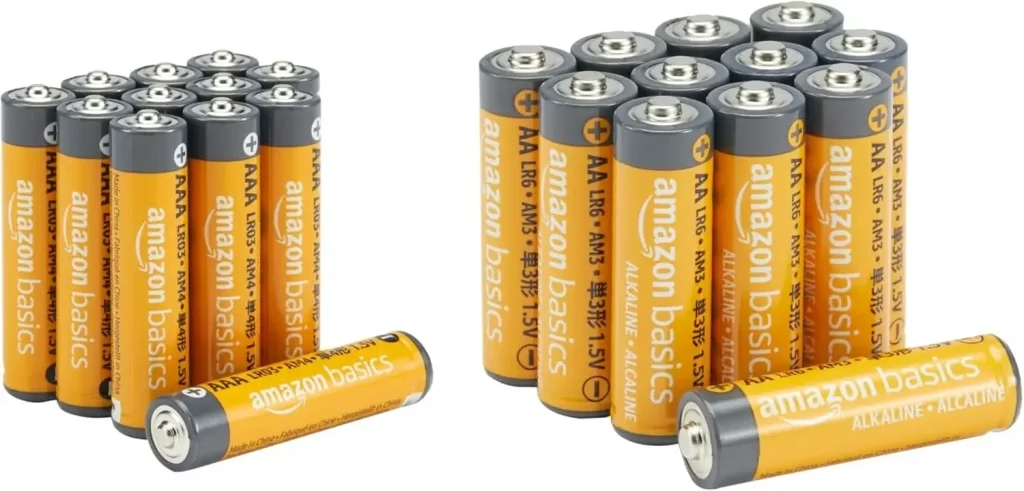
Step 1. Remove the batteries from the back of the remote.
Step 2. Check whether the battery compartment has dust, corrosion, or bent contacts. Clean light dust with a dry cotton swab or soft toothbrush. Do not spray liquid into the remote.
Step 3. Reinsert the batteries according to the plus (+) and minus (-) marks.
Step 4. If the remote still does not respond, replace the old batteries with a fresh set of AA or AAA batteries, depending on your remote model.
If the remote does not work even with new batteries, continue with the pairing steps.
#2. Re-Pair the Toshiba Fire TV Remote with the TV
If the [[firestick-remote-not-working-with-new-batteries|Fire TV remote does not work with new batteries]], the remote may have lost pairing with the TV.
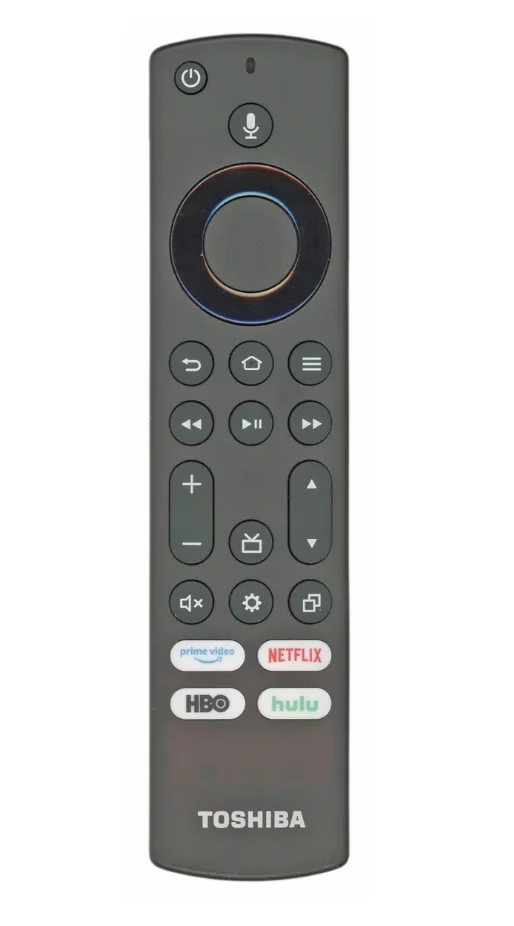
Try these pairing methods:
After the remote light blinks or the TV shows a pairing message, test whether the remote controls the TV.
Recommended reading: [[pair-new-fire-stick-remote-without-old-one|How to Pair a New Fire Stick Remote Without the Old One?]]
#3. Move Closer and Remove Interference or Obstructions
Toshiba Fire TV remotes may use Bluetooth, infrared, or both. Distance, blocked sensors, and nearby electronics can affect either connection type.
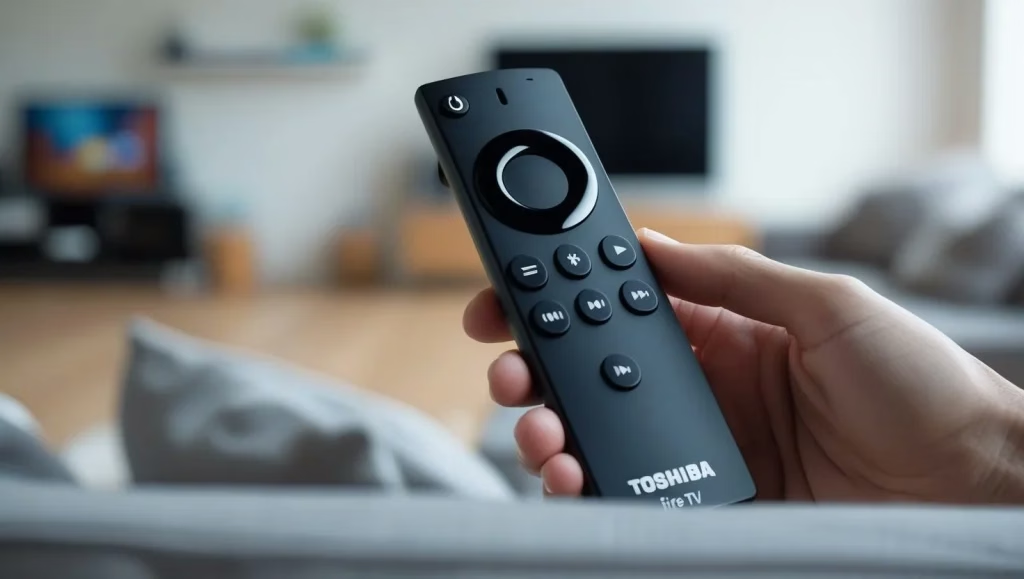
Step 1. Stand within about 10 feet of the TV and point the remote directly at it.
Step 2. Remove objects in front of the TV, especially near the IR sensor along the lower edge of the screen.
Step 3. Clean the top end of the remote with a soft, dry cloth if it uses infrared.
Step 4. Turn off or move nearby devices that may cause interference, such as Wi-Fi routers, Bluetooth speakers, wireless headphones, or microwaves.
#4. Test the Remote's Infrared Signal
If your Toshiba Fire TV remote uses infrared, your phone camera can help check whether the remote is sending a signal.
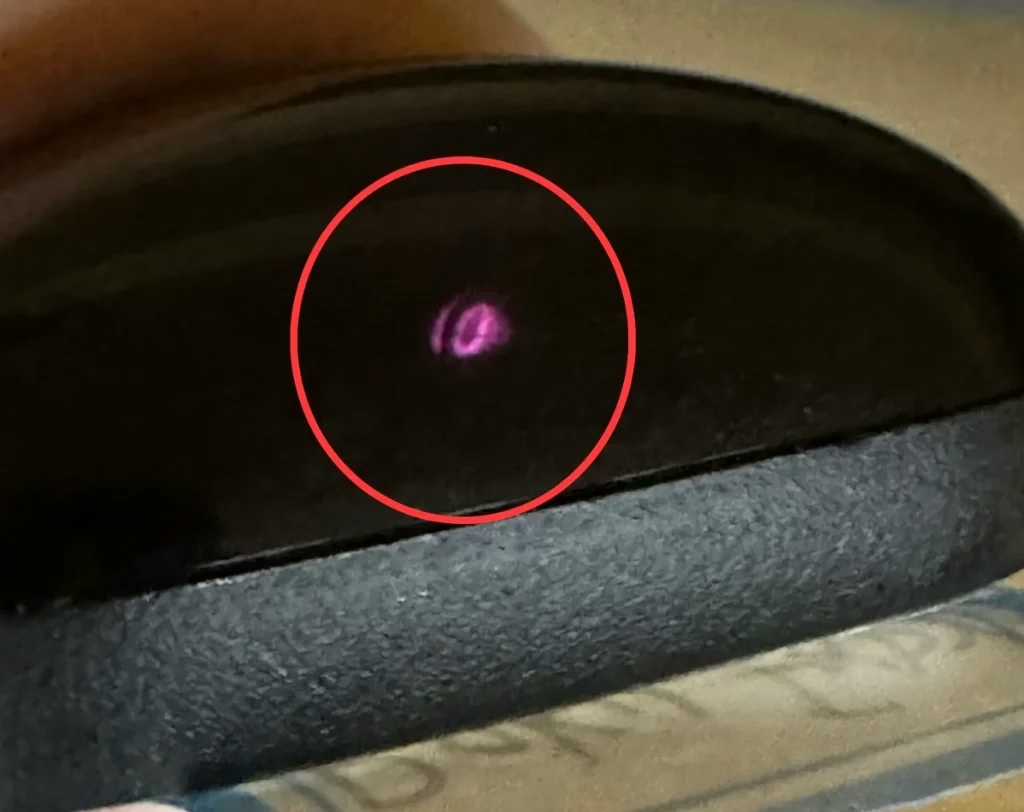
Step 1. Open the camera app on your phone.
Step 2. Point the top end of the remote at the camera lens.
Step 3. Press any button on the remote while watching the phone screen.
Step 4. Look for a flashing light from the remote's IR emitter.
If you do not see any light after replacing the batteries, the remote may be faulty.
#5. Power Cycle the Remote
Power cycling the remote can clear temporary electrical glitches and free stuck internal states.
Step 1. Remove the batteries from the remote.
Step 2. Press and hold the Power button for about 60 seconds.
Step 3. Press every button on the remote several times. Pay special attention to Home, Volume, Navigation, and Power.
Step 4. Gently tap or slap the remote against your palm a few times to loosen stuck buttons.
Step 5. Reinsert the batteries and test the remote again.
If this does not work, try [[how-to-reset-toshiba-fire-tv-remote|factory resetting the Toshiba Fire TV remote]] or continue with the TV-side fixes below.
#6. Mash the Buttons to Free Stuck Controls
If one button is stuck, the remote may ignore other inputs. This is common on frequently used buttons such as Volume, Home, or the navigation pad.
Step 1. Remove the batteries.
Step 2. Firmly press and release each button one by one.
Step 3. Repeat the process two or three times.
Step 4. Reinsert the batteries and check whether the remote works normally.
If the button feels physically stuck or does not spring back, the remote may need cleaning or replacement.
#7. Power Cycle the Toshiba Fire TV
If the TV system is frozen or has a temporary software glitch, the remote may appear broken even when the remote itself is fine.
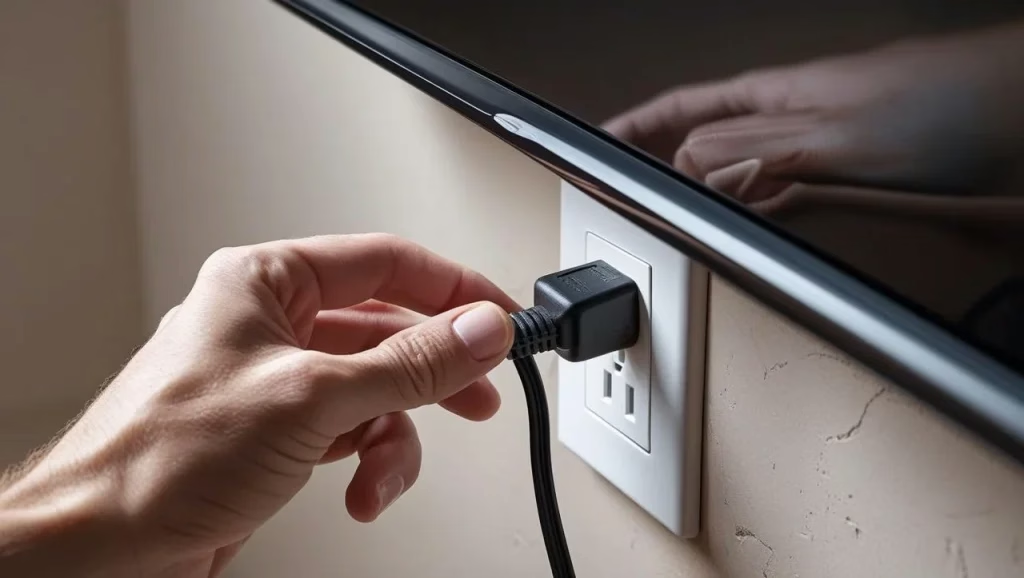
Step 1. Turn off your Toshiba Fire TV and unplug it from the wall outlet.
Step 2. Press and hold the TV's physical Power button for 15-20 seconds.
Step 3. Wait for at least 60-120 seconds so residual power can drain.
Step 4. Plug the TV back in and turn it on.
Step 5. Test the remote again.
#8. Check for TV Firmware Updates
Outdated Fire TV software can cause lag, pairing failures, or delayed remote response.
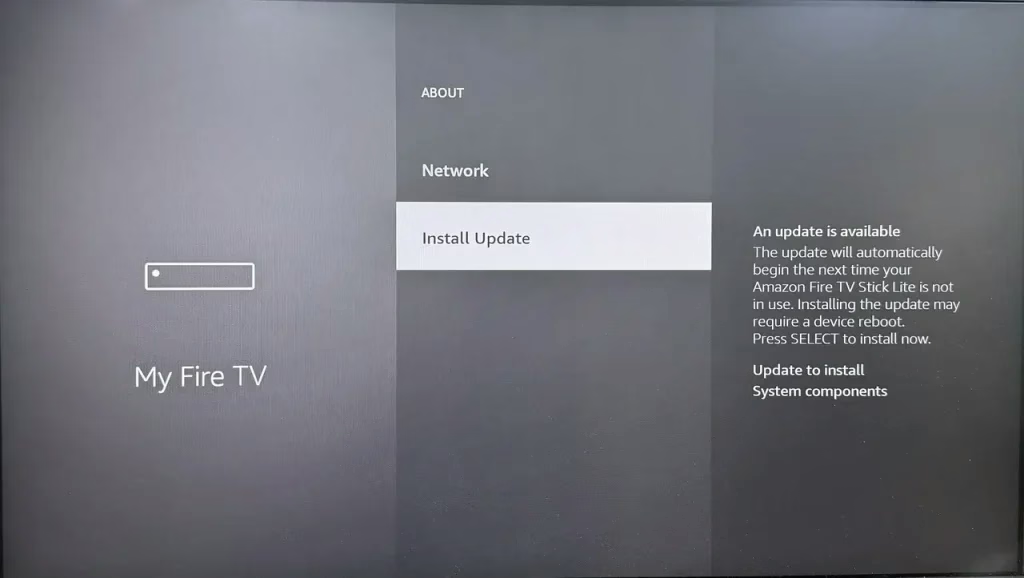
If the remote still works partly, use it to update the TV:
Step 1. Go to Settings > My Fire TV > About.
Step 2. Select Check for Updates.
Step 3. Install any available update and restart the TV.
If the remote does not work at all, connect a USB keyboard or mouse to the TV if your Toshiba Fire TV has a USB port. After the TV recognizes the device, use it to navigate the settings menu and run the update.
#9. Disable HDMI-CEC Settings Temporarily
HDMI-CEC (Consumer Electronics Control) lets one remote control multiple HDMI-connected devices. It is useful, but it can sometimes cause remote conflicts.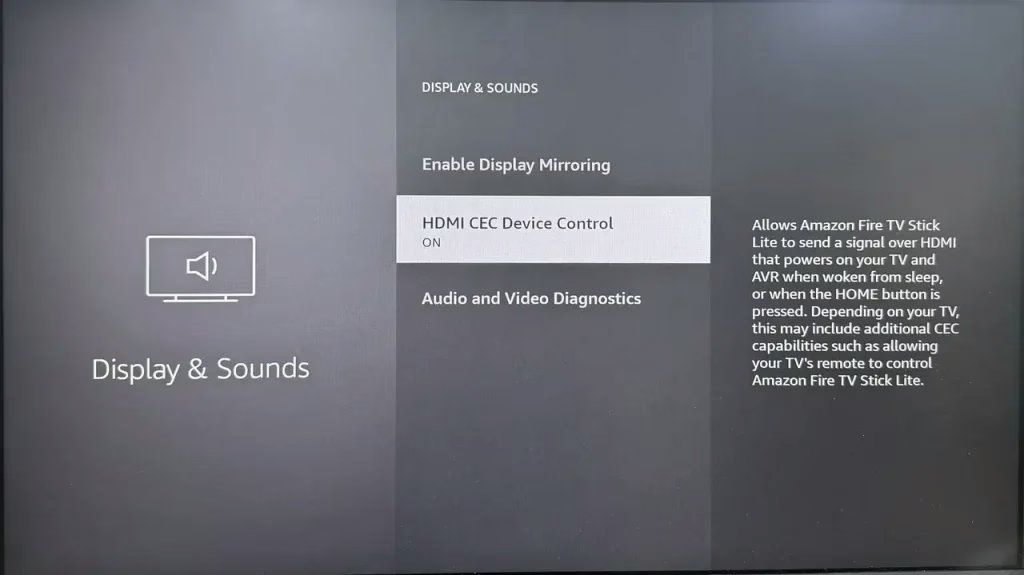
Step 1. Open Settings > Display & Audio > HDMI CEC Device Control.
Step 2. Set the option to Off.
Step 3. Restart the TV and test the remote again.
If the issue started after connecting a soundbar, game console, or streaming device, this fix is especially worth trying.
#10. Factory Reset the Toshiba Fire TV
A factory reset can fix deeper software issues, but it also removes downloaded apps, saved settings, and personalization. Use this only after trying the easier fixes.
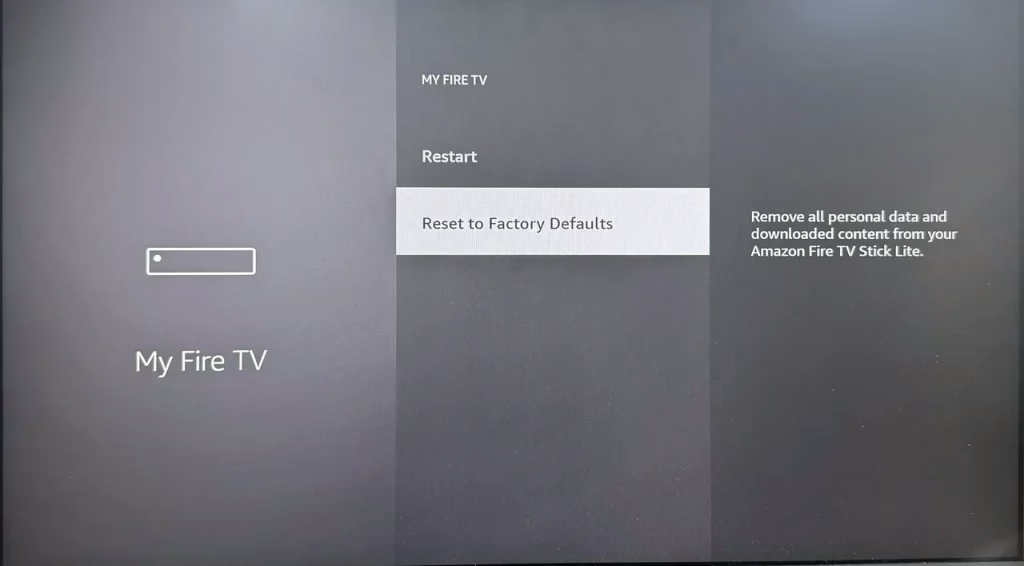
Step 1. Use the TV buttons, a USB keyboard, a USB mouse, or another working remote to open the menu.
Step 2. Go to Settings > My Fire TV > Reset to Factory Defaults.
Step 3. Enter the PIN if required. The default PIN is often 0000, unless you changed it.
Step 4. Select Reset and wait for the TV to restart.
Step 5. Follow the setup instructions and try pairing the Toshiba Fire TV remote again.
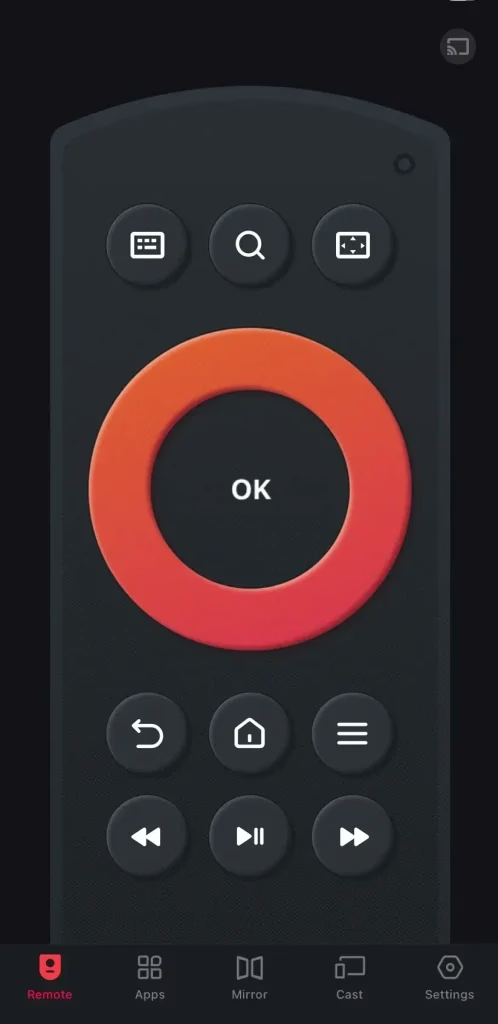
#11. Use a Fire TV Remote App
If the physical remote still does not work, a remote app can be a practical replacement. It is also useful when you need to update, reset, or set up the TV but the original remote is missing or broken.
The Fire TV Remote app by BoostVision works with Fire TV and Fire Stick devices and is available for iOS and Android. Check [[fire-tv-remote-app-review|the review]] for more details.
Download Remote for Fire TV & Fire Stick
Step 1. Install the remote app on your phone or tablet.
Step 2. Make sure your mobile device and Toshiba Fire TV are connected to the same Wi-Fi network.
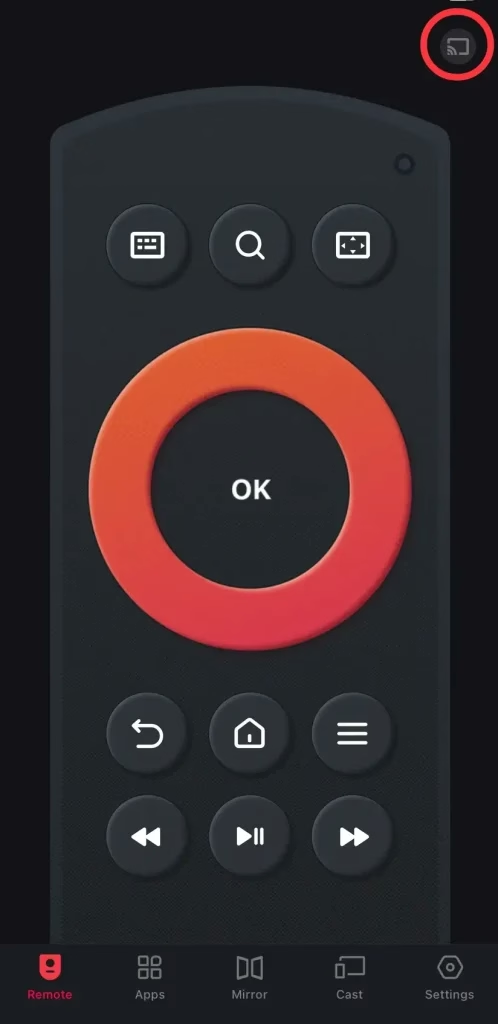
Step 3. Launch the app and tap the pairing entry in the upper-right corner.
Step 4. Choose your Toshiba Fire TV from the device list and complete pairing.
Once paired, you can use the phone as a virtual remote.
#12. Buy a Replacement or Universal Remote
If the original Toshiba Fire TV remote is physically damaged or fails the IR signal test after new batteries, replacement is the most reliable option.
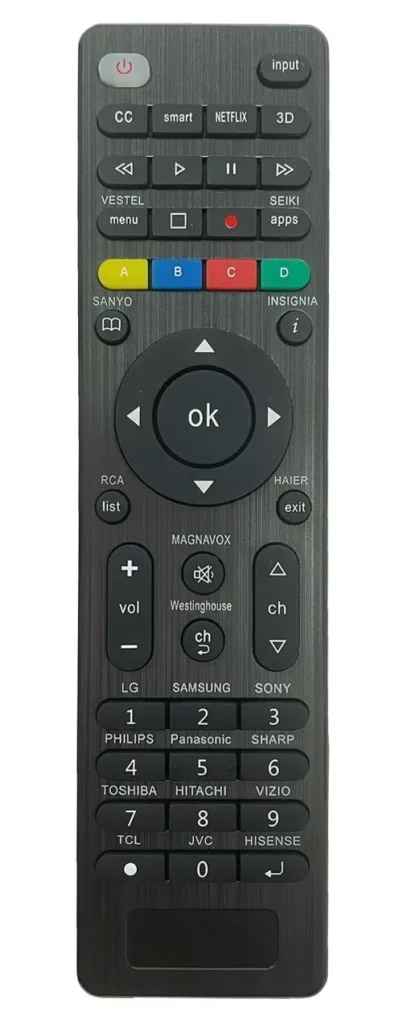
You can buy an official replacement remote or a universal remote. If you choose a universal remote, use the correct [[toshiba-universal-remote-codes|Toshiba universal remote codes]] during setup.
Wrapping Up
When a Toshiba Fire TV remote stops working, start with the simple checks: replace the batteries, re-pair the remote, move closer to the TV, remove obstructions, and power cycle both the remote and the TV. If those steps do not help, check firmware updates, disable HDMI-CEC temporarily, or factory reset the TV.
If the remote is physically damaged or no longer sends an IR signal, use a Fire TV remote app as a quick replacement or buy a compatible remote.
Toshiba Fire TV Remote Not Working FAQ
Q: Why is my Toshiba Fire TV remote not working even with new batteries?
The remote may have lost pairing, a button may be stuck, the TV may have a temporary software issue, or the remote may be physically damaged. Try re-pairing the remote, power cycling the remote and TV, removing interference, and testing the IR signal with a phone camera.
Q: How do I pair my Toshiba Fire TV remote again?
Press and hold the Home button for 10-30 seconds while pointing the remote at the TV. If your remote has a pairing button, hold it for about 15 seconds. If that fails, try holding Back + Left + Home together for about 30 seconds.
Q: What should I do if only the Power button works?
Check the batteries first, then re-pair the remote. If the issue continues, power cycle the remote, press every button to release stuck controls, and restart the TV. HDMI-CEC conflicts or outdated firmware can also cause partial remote response.
Q: Can I control Toshiba Fire TV without the original remote?
Yes. You can use a Fire TV remote app if your phone and TV are on the same Wi-Fi network. If the TV needs menu navigation and the remote does not work, a USB keyboard or mouse may also help on models with a USB port.
Q: When should I replace the Toshiba Fire TV remote?
Replace it if new batteries do not help, the remote fails the IR signal test, buttons are physically damaged, or the remote still does not work after pairing, power cycling, and TV-side troubleshooting.